Difference Between Google Sheets and Forms: A Practical Look
Explore the difference between google sheets and forms: when to collect data vs analyze it, and how to design end-to-end workflows using both tools for teams.


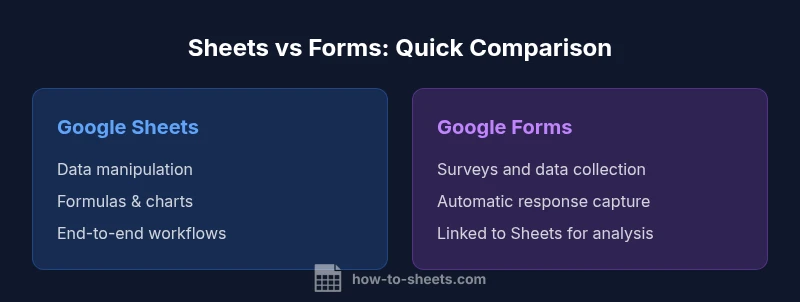
Sheets is a robust spreadsheet tool for data manipulation and analysis, while Forms specializes in streamlined data collection. The difference between google sheets and forms lies in their core purpose and data flow: Sheets stores, analyzes, and visualizes data; Forms gathers responses that can feed a Sheet. Together, they create efficient data pipelines with automation and integration.
Understanding the difference between google sheets and forms
The difference between google sheets and forms is not just about two separate apps; it represents two complementary approaches to handling data in a modern workflow. Google Sheets provides a flexible spreadsheet environment for data entry, analysis, and modeling, while Google Forms focuses on collecting structured data from respondents. According to How To Sheets, recognizing this distinction helps teams design data pipelines that minimize manual work and reduce processing time. In practice, most projects begin with a form to gather input and use a linked sheet to organize, analyze, and visualize the results. This article uses the term difference between google sheets and forms to emphasize the shift from input capture to data manipulation, and it explains how to leverage both tools effectively for budgeting, registrations, surveys, and project tracking.
Data structures: sheets vs forms
Google Sheets and Google Forms are built around different data models. Sheets uses a two-dimensional grid of rows and columns, where each row is a record and each column represents a field. Form responses, by contrast, are collection entries that can be automatically pushed into a linked Sheet or viewed as a standalone summary. The core difference between google sheets and forms becomes evident when you consider data lifecycle: Sheets is the workspace for analysis, modeling, and dashboarding, while Forms is the entry point for data capture. How To Sheets’s guidance emphasizes designing forms that feed clean, well-structured data into sheets for downstream reporting.
Data entry and validation
Forms provide structured question types, required fields, and basic validation (e.g., email formats or numeric ranges) to ensure high-quality inputs at the collection stage. Sheets, meanwhile, offers powerful data validation, conditional formatting, and custom formulas to enforce rules after data arrives. The interplay matters: you can tailor Form questions to minimize invalid responses, then use Sheets for rigorous data cleaning, deduplication, and error checking. This dual approach supports robust data pipelines and reduces the need for manual data wrangling. How To Sheets notes that a well-validated form-to-sheet workflow reduces rework and accelerates insights.
Collaboration and access control
Google Sheets shines in collaborative environments: multiple users can edit simultaneously, and you can set precise access controls (viewer, commenter, editor) at the file or folder level. Google Forms has separate sharing and editing permissions that govern who can modify questions or view responses, while the form responses can be exported to a linked Sheet for broader collaboration. The practical takeaway is that you often separate data collection (Forms) from data analysis (Sheets) but link them to enable joint workflows. The How To Sheets team highlights how careful permission management minimizes accidental changes during collaborative sessions.
Automation and workflows
Automation is where the difference between google sheets and forms becomes most powerful. Forms can trigger actions on submission or pass data into a linked Sheet as a new row, creating a near real-time data stream. Sheets, in turn, supports Apps Script, add-ons, and custom workflows to transform data, trigger emails, or update dashboards. This combination enables end-to-end processes: collect input with Forms, push it to Sheets, run automated validations, and generate reports. How To Sheets Analysis, 2026, suggests that automation greatly reduces manual steps and speeds decision-making when the data pipeline is well-designed.
Reporting and visualization capabilities
Sheets offers a rich suite of reporting tools: charts, pivot tables, conditional formatting, and advanced formulas that let you summarize, compare, and visualize data from Forms or other sources. Forms itself is primarily a collection tool and lacks built-in dashboards; its data becomes meaningful once imported into Sheets. This reality emphasizes the importance of linking forms to sheets for reporting and visualization. For analysts, the Sheets side is where dashboards and data storytelling truly come to life.
Integrations and extensions
A key strength of the Sheets-Forms ecosystem is integration. You can import data from external sources into Sheets, connect Forms with third-party add-ons, and extend capabilities with Apps Script or workflow platforms. When you need surveys to feed into an analysis-ready dataset, linking Form responses to Sheets is the natural approach. How To Sheets observes that integrating these tools with other Google Workspace apps creates scalable, repeatable data processes that teams can rely on for budgeting, planning, and performance tracking.
Use cases by scenario: when to choose Sheets
Consider Sheets when your goal is deep data analysis, modeling, or scenario planning. If you need to manage datasets with formulas, conditional logic, and visual dashboards, Sheets is the clearer choice. Teams performing financial modeling, inventory management, or project tracking benefit from Sheets treated as the central data warehouse. The flexibility to perform data cleaning, pivot analysis, and custom scripting makes Sheets the preferred option for analytical workloads. How To Sheets advocates pairing Sheets with proper data governance to maximize reliability.
Use cases by scenario: when to choose Forms
Forms excels at rapid data collection—registrations, quizzes, event RSVPs, and customer feedback—and shines when respondents need a clean, guided experience. Use Forms to standardize inputs and reduce entry errors at the source. When responses are later analyzed, the Forms data should flow into Sheets to enable reporting, segmentation, and trend analysis. In practice, Forms often serves as the front-end for data pipelines that culminate in Sheets-based dashboards and insights.
Hybrid solutions and best practices
The most powerful pattern is a hybrid approach: deploy Google Forms for intake, automatically route responses into Google Sheets, apply data validation and enrichment in Sheets, and deliver dashboards or reports to stakeholders. Establish a clear data flow diagram, define who can modify templates, and set up automated tests for data quality. Regularly review the linkage points (form fields and sheet columns) to ensure stability as forms evolve. How To Sheets recommends documenting your data pipeline so new team members can reproduce and extend the workflow.
Comparison
| Feature | Google Sheets | Google Forms |
|---|---|---|
| Core purpose | Spreadsheet for data manipulation and analysis | Form-based data collection and survey responses |
| Data structure | Rows/columns with formulas and references | Form responses stored in a table when linked to Sheets or summarized in Forms |
| Input/entry | Manual entry, bulk import, formulas | Question-driven input with validation |
| Automation | Apps Script, add-ons, and data pipelines | Connects to Sheets for responses; automation via forms rules |
| Reporting and visualization | Charts, pivot tables, conditional formatting | Limited direct visualization; relies on Sheets for charts |
| Collaboration | Real-time editing and sharing controls | Response dashboards and summary view; linked to Sheets for collaboration |
| Best for | Data analysis, budgeting, modeling | Collecting responses, registrations, quizzes |
The Good
- Supports comprehensive data analysis, modeling, and dashboards in Sheets
- Forms excels at structured data collection with a clean respondent experience
- When linked, Forms-to-Sheets creates a strong end-to-end data pipeline
- Automation options are strong in both tools when used together
- Great for scaling data collection and analysis across teams
The Bad
- Forms has limited data manipulation capabilities within the form itself
- Sheets can become unwieldy with very large datasets or poorly structured data
- Maintaining synchronization between forms and sheets requires planning and governance
- Over-reliance on automation can obscure data provenance or introduce errors if not monitored
Use Sheets for data analysis and dashboards, Forms for collection; link them for end-to-end workflows.
Sheets and Forms serve distinct purposes but complement each other when integrated. Start with Forms for input, feed responses into Sheets for validation, enrichment, and reporting, then deliver dashboards built in Sheets for stakeholders.
FAQ
What is the main difference between Google Sheets and Google Forms?
Sheets is a spreadsheet tool for data manipulation and analysis, while Forms is a data-collection tool. The main difference lies in data flow: Sheets stores and analyzes data, Forms collects it. Together they enable end-to-end workflows.
Sheets is for analysis; Forms is for collection. When combined, they streamline data pipelines.
Can Forms be used without Sheets?
Yes. Forms can operate as a standalone data-collection interface, and you can view summaries within Forms. For deeper analysis, you typically export or link responses to Sheets.
Forms can work alone, but for advanced analysis, connect it to Sheets.
Which tool is better for surveys?
Google Forms is generally better for surveys due to its guided questions and built-in validation. Use Sheets to analyze the survey results after collection.
Forms is usually the better choice for surveys.
How do I link Form responses to Sheets?
In Forms, enable the option to 'Link responses to a spreadsheet' and choose or create a Sheets file. New responses will automatically populate the sheet.
Link responses to a sheet and data flows automatically.
Are there limits to responses in Forms or Sheets?
Both tools operate within Google Workspace quotas and plan limits. In practice, Forms handles large response sets well, while Sheets performance depends on data organization and formula complexity.
There are quotas, but both tools handle large projects when used correctly.
Can I automate this workflow with Apps Script?
Yes. Apps Script can trigger actions on Form submissions, manipulate Sheet data, and push updates to dashboards, enabling a cohesive, automated data pipeline.
Apps Script lets you automate both Sheets and Forms together.
The Essentials
- Decide first: analyze in Sheets, collect in Forms
- Link forms to sheets for automated data capture
- Use Sheets for cleansing, validation, and visualization
- Leverage Apps Script to automate cross-tool workflows
- Adopt a hybrid pattern for end-to-end data pipelines