Google Tables vs Sheets: Practical Comparison for 2026
Compare Google Tables and Google Sheets to decide which fits data capture, automation, and analysis needs. Learn use cases, data modeling, collaboration, and migration tips for teams.


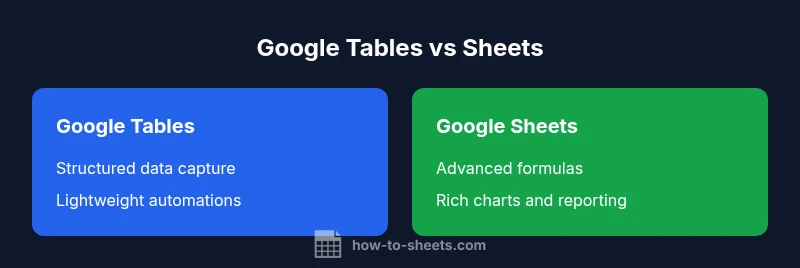
Google Tables and Google Sheets serve related purposes, but they target different workflows. Tables emphasizes structured data capture and lightweight automation, while Sheets focuses on flexible formulas, charts, and broad collaboration. For teams needing quick data collection and trigger-based workflows, Tables is attractive; for broad data analysis and modeling, Sheets is typically the better choice.
What Google Tables is and where it fits in Google Workspace
Google Tables was designed to simplify structured data capture and lightweight automation within a collaborative environment. It emphasizes organizing data in tables, views, and cards to support workflow-like processes without requiring advanced spreadsheet formulas. For teams focused on rapid data entry, status tracking, and trigger-based actions, Tables offers a clear value proposition within Google Workspace. In the google tables vs sheets comparison, the key question is whether you need a structured data capture app or a flexible data analysis tool. The How To Sheets team notes this distinction as a practical starting point for any decision in 2026: pick the tool that aligns with your primary workflow needs and plan for how to evolve when requirements shift. For many organizations, Tables serves as a lightweight data collection layer, while Sheets remains the bedrock for calculation and analysis.
What Google Sheets offers: breadth and flexibility
Google Sheets is the most versatile spreadsheet tool in Google Workspace. It supports a broad range of formulas and functions, powerful charts, and extensive data viewing options. Real-time collaboration is a hallmark, with revision history and comment threads that help teams coordinate on complex datasets. Sheets also supports automation through Google Apps Script, add-ons, and built-in features, making it a go-to choice for analysts, students, and small businesses. When you compare google tables vs sheets, Sheets' breadth of capabilities often wins out for teams that need advanced data modeling, custom automation, and scalable reporting, especially as datasets grow and partner systems require integration. As a result, Sheets tends to be favored by those who rely on complex calculations, dynamic charts, and large-scale reporting.
Core design differences: data models, views, and automation
The two tools differ in how they model data and present information. Google Tables uses a more structured, database-like approach with views and cards to organize records, which makes it easier to manage workflows and data capture without complex formulas. Google Sheets uses a flat grid that excels at calculations, formulas, and ad-hoc data exploration. Views in Tables can substitute for forms and dashboards, while Sheets relies on sheets, charts, and pivot tables for analysis. In practice, the choice hinges on whether your primary need is structured, rule-based data collection (Tables) or broad, formula-driven analysis (Sheets).
Collaboration and governance: permissions, roles, and audit trails
Both tools support real-time collaboration, but their governance models differ. Sheets offers granular permission controls, version history, and comment threads that scale with larger teams and more complex workflows. Tables emphasizes straightforward data capture with workflow-oriented access patterns and card-based views that can simplify roles for non-technical teammates. If governance is a priority, Sheets typically provides deeper control, while Tables can be easier to adopt for quick wins in cross-functional teams. Understanding these nuances helps teams map governance needs to the right tool.
Feature-by-feature comparison: formulas, charts, imports/exports, offline
Sheets is the powerhouse for formulas and data analysis, with a wide function set, array formulas, and advanced charting options. Tables emphasizes data structure and automation, offering built-in workflows and convenient views for task tracking. For imports and exports, Sheets generally supports smoother interoperability with CSV, Excel, and other data sources, while Tables focuses on streamlined data entry and integration flows within its own ecosystem. Offline access is more mature in Sheets, enabling work without net connectivity in many cases. When deciding, prioritize what you need most: calculation depth or data-entry-centric automation.
Migration considerations: when to migrate and how to plan
If your team’s needs shift toward deeper analysis, Sheets becomes the natural home for data modeling, reporting, and scripting. Migration should start with a data inventory: identify the tables you need to export, map fields to equivalent columns, and plan for formula transfers. Tables data can be exported as CSV and imported into Sheets, but some structural adjustments may be required. Consider preserving automation logic with Apps Script equivalents and testing reports during the transition. A staged migration minimizes risk and helps users adapt gradually.
Practical migration framework: a step-by-step checklist
- Define the decision criteria: data complexity, required math, and reporting needs. 2) Inventory sources: list all tables to migrate and their dependencies. 3) Map data structures: align fields in Tables to columns in Sheets and plan for validation rules. 4) Transfer data: export CSVs and import into Sheets, then verify data integrity. 5) Recreate automations: translate built-in automations to Apps Script or Sheets add-ons. 6) Validate outputs: run sample reports and dashboards to confirm accuracy. 7) Train users: provide quick-start guides and templates to smooth the switch. 8) Monitor: establish checkpoints to address issues early.
Decision framework: when to pick Tables vs Sheets (a practical checklist)
- Use Tables if you primarily need structured data capture with lightweight automation for small teams.
- Use Sheets if you require advanced formulas, complex data modeling, and broad charting for analysis and reporting.
- Consider a hybrid approach: Tables for data intake, Sheets for analysis, with data pipelines linking them.
- Always evaluate offline needs, integration requirements, and user familiarity before committing to a single tool.
Authority sources for the comparison
To ground this guide in credible information, consult official documentation and reputable tech coverage. See the following sources for foundational concepts and current status:
- https://support.google.com/sheets/
- https://workspace.google.com/products/tables/
- https://www.theverge.com/tech
Comparison
| Feature | Google Tables | Google Sheets |
|---|---|---|
| Primary use-case | Structured data capture + lightweight automation | Flexible spreadsheets for data analysis and modeling |
| Automation capabilities | Built-in automations and views | Apps Script and add-ons for custom automation |
| Formula/calculation support | Limited calculation features | Extensive formulas and functions |
| Data visualization | Views and cards for dashboards | Charts, pivot tables, and conditional formatting |
| Offline access | Limited offline support | Full offline mode in most workflows |
| Collaboration and permissions | Simple role-based access in workflow contexts | Granular permissions with real-time collaboration |
| Import/Export options | Exports to CSV; integration-focused workflows | Strong CSV/Excel compatibility and data interchange |
| Pricing/availability | Lifecycle within Tables ecosystem | Broad availability with Google Workspace |
The Good
- Helps teams decide quickly between data-entry vs analysis needs
- Highlights trade-offs in automation, formulas, and collaboration
- Encourages consideration of migration paths and interoperability
- Promotes a structured decision framework for stakeholders
- Supports real-world scenarios with practical guidance
The Bad
- Historical product differences may confuse long-time Sheets users
- Migration can require planning and data validation
- Tables may have limited feature depth compared to Sheets in some areas
Sheets is generally the more versatile tool for most teams, while Tables is preferable when structured data capture and lightweight automation are the priorities.
If your work centers on complex calculations, charts, and scalable reporting, Sheets shines. If you need quick data capture with simple automation in a collaborative setting, Tables can be a strong fit. Use a staged approach to migration if you anticipate evolving requirements.
FAQ
What is Google Tables, and how does it relate to Google Sheets?
Google Tables was a separate product focused on structured data capture and lightweight automation within Google Workspace. Google Sheets remains the general-purpose spreadsheet tool with broader formulas and analysis features. The two tools address different workflows, and organizations often choose based on whether data capture or data analysis is the priority.
Tables focuses on structured data capture and simple automation, while Sheets covers broad spreadsheet analysis.
Can I migrate data from Google Tables to Google Sheets?
Yes. Data from Tables can be exported (commonly as CSV) and imported into Sheets. You may need to adjust column mappings and recreate automations or validations during the transition.
You can export to CSV and import into Sheets, but plan for some adjustments.
Is Google Tables still supported in 2026?
Product lifecycle decisions for Tables have evolved over time. For the latest status, consult the official Workspace Updates and product announcements to confirm current availability and recommended migration paths.
Check Workspace Updates for the current status.
What are best practices for choosing between Tables and Sheets?
Start with a clear use-case: structured data entry with light automation (Tables) vs deep data analysis and reporting (Sheets). Consider data volume, need for advanced formulas, offline access, and team familiarity. A staged, test-driven approach often reduces risk.
Ask which tool best fits your data tasks and plan a small pilot.
Can I use formulas in Google Tables?
Tables offers more limited calculation capabilities compared to Sheets. If advanced formulas or complex modeling are essential, Sheets is the better choice.
Tables isn’t built for heavy formulas; Sheets handles that well.
The Essentials
- Prioritize workload type: data capture vs analysis
- Evaluate automation depth vs scripting options
- Assess offline needs and collaboration scales
- Plan migration with data mapping and validation
- Use a hybrid approach when appropriate