Google Docs Before and After: A Practical Comparison
Explore the evolution of Google Docs with a thorough before-and-after comparison, covering collaboration, offline access, AI features, and productivity impacts for students and professionals.


Google Docs has evolved from a straightforward word processor to a collaborative platform with offline support, AI features, and deeper integration with Workspace apps. The before/after lens shows improved real-time collaboration, updated formatting behavior, and security enhancements, making it the preferred choice for teams and students who rely on cloud-based workflows. This quick comparison helps organizations plan training and migration strategies.
The Evolution of Google Docs: before vs after
In exploring google docs before and after, it's clear that Google Docs has evolved from a simple web-based editor to a robust, cloud-first collaboration platform. The How To Sheets team has tracked this transition across several release cycles, noting that the core idea—document creation—remains, but the surrounding features have shifted dramatically. Early versions emphasized single-user drafting with basic sharing; modern Docs emphasizes real-time co-authoring, contextual suggestions, and seamless cross-device syncing. This shift affects workflows for students, professionals, and small teams alike, changing how drafts are created, revised, and approved. The rest of this article compares the two eras through concrete criteria, with practical takeaways for your own work.
Key Differences in Core Features
Modern Google Docs is defined by a suite of features that were either absent or limited in older iterations. The core differences revolve around real-time collaboration quality, offline reliability, AI-powered writing aids, richer formatting options, and deeper, more reliable integration with other Workspace apps. For students, this means faster draft cycles and easier feedback loops; for professionals, it means streamlined review workflows and stronger governance. This section outlines the concrete shifts you should expect when contrasting the two eras and how they translate into daily work.
Collaboration and Real-Time Editing: What Changed
Real-time collaboration has matured from basic sharing to nuanced presence indicators, granular commenting, and simultaneous multi-user editing without excessive lag. In the newer Docs experience, teams can see cursors and edits as they happen, while comments can be threaded and resolved with audit trails. The before version often required saving changes or refreshing to see others’ edits, which slowed feedback. If your team relies on rapid iteration and parallel drafting, the after-version offers tangible productivity gains with clearer ownership on edits and decisions.
Offline Access and Accessibility
Offline access in the modern Docs experience is significantly more robust than in earlier versions. You can draft, edit, and comment without a constant internet connection, with changes syncing automatically when you reconnect. This capability is particularly valuable for students in environments with unstable connectivity or for teammates on the go. Accessibility improvements also include better keyboard navigation, screen reader compatibility, and responsive design that preserves layout across devices, ensuring you can work effectively whether on a laptop, tablet, or mobile phone.
AI Features and Smart Assistance
A defining shift in the after-era is the integration of AI-powered features. Smart suggestions, grammar enhancements, and content ideas help accelerate drafting and reduce repetitive editing. These tools learn from document context, improve over time, and can be tuned to enforce writing style or organizational guidelines. While AI offers productivity benefits, it also requires awareness about content ownership and privacy. Decide whether to enable AI features based on your data sensitivity and collaboration needs.
Version History and Recovery
Version history has evolved from a simple timestamped archive to an intelligent, searchable record of changes. The after-era provides quicker restores to specific moments, with clearer diffs showing who changed what. This makes auditing, compliance, and rollback tasks easier, especially for long-form documents or team-authored files. For teams that must demonstrate edits and approvals, stronger version controls help maintain accountability and transparency.
Formatting and Styles: Consistency Across Docs
Formatting consistency matters when multiple authors contribute. The newer Docs experience emphasizes theme-based styles, consistent heading hierarchies, and improved template behavior. Users can apply a shared style set across documents, ensuring brand consistency in school or corporate templates. In the older version, manual styling could drift across documents, creating inconsistent appearances. The after-era reduces drift, though it may require an initial setup effort to align templates and styles.
Integration within Google Workspace
The after-era tightens integration with Sheets, Slides, Drive, and Calendar. This enables cross-app workflows like embedding data charts from Sheets into Docs, scheduling review deadlines in Calendar from a Docs draft, and storing of assets within a central Drive structure. For teams that depend on interconnected documents, this integration reduces friction and improves traceability across projects. The before-era offered basic links between apps, but the after-era makes the entire suite feel like a single, coherent workspace.
Security, Privacy, and Permissions
Security controls have become more granular in the after-era. You can manage who can view, edit, comment, or share a document, and you can integrate with broader workspace security policies. This is important for organizations that handle sensitive information or regulated data. While the older version relied on simpler sharing options, the new approach provides improved governance, reduced risk of unintended disclosures, and better enforcement of data handling policies across teams.
Performance, Reliability, and Offline Sync
Performance has improved with faster load times, smoother scrolling, and more responsive collaboration, particularly on larger documents. The offline sync mechanism is stronger, with less risk of conflicts or data loss when connectivity fluctuates. These improvements contribute to a more reliable drafting environment for students writing papers, professionals compiling reports, and teams coordinating on complex documents.
Practical Implications for Different Roles
For students, the after-era offers quicker feedback loops, reliable offline work, and easier citation management. For professionals and teams, the enhanced collaboration, governance controls, and integrated workflows translate into shorter review cycles and better alignment with priorities. Small businesses benefit from consistent templates and improved asset management across the Docs ecosystem, helping standardize documentation practices while preserving flexibility for agile work.
How to Evaluate Before Upgrading or Adopting the New Docs Experience
Begin with a needs assessment: identify which features matter most (collaboration, offline work, AI assistance, templates, or security). Pilot the new Docs experience with a small team, compare task times for drafting and reviewing, and monitor any changes in error rates or version confusion. Review your data governance requirements and confirm that the new controls meet compliance standards. Finally, plan training that highlights the new workflows, so your team can adopt the after-era smoothly and confidently.
Recreating Essential Features in Older Docs or Alternatives
If you must continue using an older Docs setup temporarily, document the workarounds: maintain a shared template library, set up manual versioning routines, and create a standard commenting process to mimic modern collaboration. Consider establishing a policy for AI-assisted content and clearly define when and how to use automation features. In parallel, evaluate alternative tools or lightweight add-ons that can bridge any gaps until full adoption is feasible.
Authority Sources
For validated information about the evolution of Google Docs and its features, consult official sources and reputable publications. If you need to verify capabilities such as offline editing, real-time collaboration, and security controls, start with the official Google Docs product pages and support resources, then supplement with independent analyses from established tech outlets.
Comparison
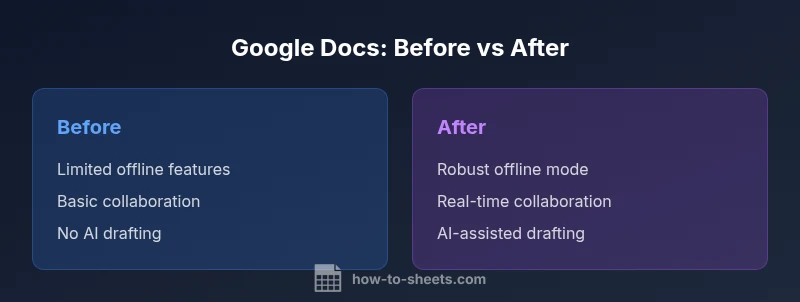
| Feature | Google Docs (before) | Google Docs (after) |
|---|---|---|
| Real-time collaboration | Basic co-authoring with simple presence indicators | Enhanced real-time editing with cursors, comments, and instant updates |
| Offline access | Limited or manual offline use with periodic syncing | Robust offline mode with automatic syncing and broader device support |
| AI features | Minimal or no AI-assisted writing | AI-powered suggestions, grammar checks, and drafting aids |
| Version history | Primitive versioning with manual restoration | Advanced version history with quick restores and diffs |
| Templates and styles | Fewer templates and manual styling | Expanded templates and style management across docs |
| Workspace integration | Basic linking between Docs and other apps | Tight integration within Google Workspace for cross-app workstreams |
The Good
- Stronger collaboration and real-time editing
- Improved offline capabilities
- AI-assisted drafting and suggestions
- Enhanced version control and recovery options
- Better integration within Google Workspace
The Bad
- Learning curve for users accustomed to legacy behavior
- Migration and training costs for teams
- Privacy considerations around AI features
- Inconsistent feature parity across platforms in some cases
Google Docs after mode generally wins for collaboration and productivity
If collaboration speed, offline reliability, and AI-assisted drafting matter, adopt the after-era. If your workflow relies on legacy behavior and minimal change, plan a careful transition with training and governance.
FAQ
What are the main differences between Google Docs before and after?
The after-era emphasizes real-time collaboration, offline reliability, AI-assisted drafting, and tighter workspace integration. The before-era was more limited in collaboration features and offline support. The shift improves productivity but may require training to adapt to new workflows.
In short, Docs evolved to be faster, smarter, and more integrated, with stronger offline support. The change can boost collaboration but may need some training.
Is offline access better in the after version?
Yes. The after-era provides robust offline editing with automatic syncing, reducing disruption when connectivity is inconsistent. This supports drafting on planes, campuses, or areas with spotty Wi-Fi.
Absolutely—offline editing is more reliable now and syncs automatically when you reconnect.
Can AI features be turned off in Google Docs after the update?
AI features are typically configurable; organizations can choose to enable or disable them according to policy. Individual users can also adjust preferences, though some controls may be restricted by admin settings.
You can usually turn AI features on or off, depending on your admin settings.
How should teams migrate to the new Docs experience?
Start with a pilot group, map existing templates to new styles, train users on new workflows, and establish a governance policy. Use version history to verify critical documents during the transition.
Begin with a pilot, align templates, and roll out training as you migrate.
Where can I find official information about Google Docs features?
Official documentation is available from Google Workspace Help and Docs product pages. For in-depth explanations, consult the Google Docs Help Center and Workspace support resources.
Check the Google Docs Help Center and Workspace support pages for official details.
The Essentials
- Assess team needs before switching to the after-era
- Prioritize offline reliability and AI features based on tasks
- Leverage templates and styles for brand consistency
- Implement governance for privacy and data handling
- Run a phased migration with a clear training plan