Google Docs Beginners: A Practical Step-by-Step Guide
A comprehensive beginner-friendly guide to using Google Docs, covering basics, formatting, collaboration, offline access, and best practices for students and professionals.


Learn how to start from scratch with Google Docs and create, format, and share documents. This beginner guide covers essential steps, common features, and safety tips to get you writing confidently in minutes. No prior experience required; you’ll learn about menus, shortcuts, collaboration, offline access, and how to save and organize your work. By the end, you’ll draft a simple document with headings, bullet lists, and comments.
What Google Docs Is and Why Beginners Should Use It
Google Docs is a cloud-based word processor that's part of Google Workspace. It enables real-time collaboration, automatic saving, and easy sharing from any device with an internet connection. For beginners exploring digital writing tools, Google Docs offers a gentle learning curve and a natural progression path from plain text editors to feature-rich documents. When we say google docs beginners, we mean someone starting from scratch and aiming to produce clean, professional documents with minimal friction. This guide covers core concepts, practical workflows, and strategies to stay organized as you learn. You’ll discover how to draft, format, collaborate, and export your work without installing software or paying for licenses.
Starting Your First Document: Essentials
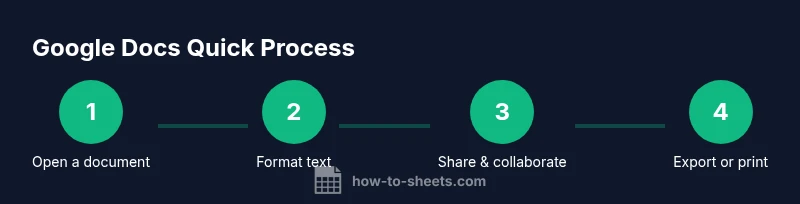
To begin, sign in to your Google account and navigate to Google Docs at docs.google.com. Click the Blank document tile or choose a template if you prefer a guided layout. Name your document by clicking the Untitled document title at the top. The basics include choosing a font (Arial or Roboto), setting a comfortable font size (11–12 pt), and selecting margin defaults. You’ll learn to save automatically; Google Docs stores every change in real time, so you rarely lose progress. For google docs beginners, a simple first document often includes a header with the title, a short introduction, a few paragraphs, and a closing thought.
Formatting Text and Paragraphs: Quick Wins
Formatting controls live in the toolbar, making it easy to adjust font, size, color, and alignment. Learn the difference between paragraph and character styles to keep your document consistent. Use keyboard shortcuts to speed up editing (Ctrl/Cmd+B for bold, Ctrl/Cmd+I for italics, Ctrl/Cmd+K to insert a link). For beginners, a few consistent font choices and spacing rules go a long way toward readability. Also explore the Normal text, Title, and Heading styles to structure content without manual tweaking.
Working with Lists, Headings, and Styles
Lists (bulleted and numbered) help organize ideas and create scannable content. Apply Heading styles to establish a document structure that makes it easy to generate a table of contents. Styles automatically propagate formatting to new sections, which saves time and keeps your document consistent. Try using the built-in templates for reports, resumes, or notes. This practice is especially valuable for google docs beginners who want professional results with minimal effort.
Collaborating in Real-Time: Sharing and Comments
One of Google Docs strongest features is real-time collaboration. Click the Share button to invite others by email or generate a shareable link. Set permissions carefully (Viewer, Commenter, Editor) to protect your work. Use the Comment feature to leave feedback without editing the text, and resolve threads to keep your document clean. You can assign action items directly in the comments and track changes as teammates contribute ideas.
Saving, Exporting, and Offline Access
Documents save automatically in Drive, so you don’t need to worry about losing work. To share a final version, use File > Download to export as PDF, Word, or others. If you need to work without internet access, enable offline mode in Drive settings and then reopen the doc in your browser while offline. Finally, organize documents in folders and give clear, descriptive file names to make future retrieval easy for any beginner.
Authority sources
For deeper background on collaborative writing and digital document best practices, consider these credible sources:
- MIT News: https://www.mit.edu
- Harvard University: https://www.harvard.edu
- CDC: https://www.cdc.gov
Tools & Materials
- Computer with internet access(Broadband connection recommended)
- Google account(Gmail or workspace account)
- Web browser(Latest Chrome recommended)
- Printer or PDF viewer(Optional for printing or offline review)
Steps
Estimated time: 60-90 minutes
- 1
Open Google Docs and start a new document
Navigate to docs.google.com and sign in with your Google account. Click the Blank document tile to create a fresh file, or choose a template if you prefer a guided layout. Naming your document early helps keep your files organized from the start.
Tip: Tip: Use the Blank option for a clean slate and quick setup. - 2
Name and organize your document
Click the Untitled document title at the top and replace it with a descriptive name. Consider adding a version tag (e.g., ProjectOutline_v1) for easier tracking. Create a dedicated folder in Drive to store related docs so everything stays in one place.
Tip: Tip: Descriptive naming saves time when searching later. - 3
Set up document structure with headings
Use Heading styles to create a clear hierarchy (Heading 1 for sections, Heading 2 for subsections). This makes navigation and automatic table of contents generation simple. Consistent headings also improve accessibility for screen readers.
Tip: Tip: Apply a single font family and a small set of heading sizes to maintain consistency. - 4
Format text and paragraphs
Select text to adjust font, size, and alignment. Use bold or italics sparingly to emphasize key ideas. Maintain 1.15–1.5 line spacing for readability and consider 1-inch margins as a starting point.
Tip: Tip: Learn a few keystrokes like Ctrl/Cmd+B for bold and Ctrl/Cmd+K to insert a link. - 5
Add lists and check formatting
Insert bulleted or numbered lists to organize thoughts. Flatten nested lists if they add cognitive load. Check that list indentation aligns with nearby paragraphs for a neat layout.
Tip: Tip: Use the toolbar buttons to switch between list styles quickly. - 6
Share and set permissions
Click the Share button to invite collaborators or generate a shareable link. Assign permissions wisely: Viewer, Commenter, or Editor. If sensitive, restrict edits and consider viewer-only sharing.
Tip: Tip: For teamwork, start with Commenter access and upgrade to Editor as needed. - 7
Comment, review, and track changes
Use comments to capture feedback without altering the text. Resolve threads once addressed to keep the document clean. Use @mentions to notify specific teammates about issues.
Tip: Tip: Regularly review comments to avoid missed feedback. - 8
Export, print, and enable offline access
Export your final version as PDF or Word when needed. If you must work offline, enable offline mode in Drive and reopen the file to continue editing without internet. Organize files with meaningful names and folders for future retrieval.
Tip: Tip: Check the export settings to ensure fonts and layout render correctly in other formats.
FAQ
Is Google Docs free to use?
Yes. Google Docs is free to use with a Google account. Some advanced features might require a paid Workspace plan.
Yes, Google Docs is free to use with a Google account. Some advanced features may require a paid Workspace plan.
Can I work offline in Google Docs?
Yes. You can enable offline mode to edit documents without an internet connection. Your changes sync when you reconnect.
Yes, you can work offline by enabling offline mode; changes sync when you're back online.
How do I share a document with others?
Click the Share button, enter collaborators' email addresses, and set permissions (Viewer, Commenter, Editor). You can also generate a shareable link.
Click Share, add people, and set their access. You can also share a link.
What are some essential formatting shortcuts?
Common shortcuts include Ctrl/Cmd+B for bold, Ctrl/Cmd+I for italics, and Ctrl/Cmd+K to insert a hyperlink.
Try bold, italics, and link shortcuts to speed up editing.
How can I recover an earlier version of a document?
Open File > Version history > See version history to review or restore previous edits.
Open Version history to see and restore earlier edits.
What should beginners avoid when using Google Docs?
Avoid mixing styles manually; rely on predefined styles. Don’t over-share with edit rights to unknown users.
Avoid manual styling and risky sharing; use styles and appropriate permissions.
Watch Video
The Essentials
- Start with a clear document name and simple structure.
- Use Styles for consistent formatting and easy TOC creation.
- Collaborate via comments and controlled sharing permissions.
- Export in multiple formats and enable offline access when needed.
- Practice regularly to build fluency with Google Docs basics.