Guide to Google Docs: Mastering Documents in 2026
Learn Google Docs from start to finish with actionable steps. Create, format, collaborate, and export documents confidently using templates, styles, and real-time collaboration.


By following this guide to google docs, you will create, format, and share polished documents with ease. You'll learn core skills: creating new documents, applying styles, inserting lists and images, and collaborating in real time. Before you begin, ensure you have a Google account, a working browser, and access to Google Docs. Then use the step-by-step approach to build confidence quickly.
What is Google Docs and why it matters
Google Docs is a cloud-based word processor that runs in your browser or on mobile devices. It stores documents in Google Drive, which means your work auto-saves and is accessible from any device with internet access. Because it is browser-based, Docs eliminates the friction of installing software on every computer and makes collaboration effortless. In practice, teams, students, and small businesses rely on Docs to draft reports, share proposals, and co-author manuscripts in real time. For learners, a guide to google docs tightens the learning curve by focusing on practical actions rather than theory. According to How To Sheets, most new users benefit most from starting with a single document and gradually exploring the features alongside their actual tasks. In this section we’ll explore what makes Docs work and how its design supports efficient writing, formatting, and shared work without fear of losing progress.
Getting started: your first document
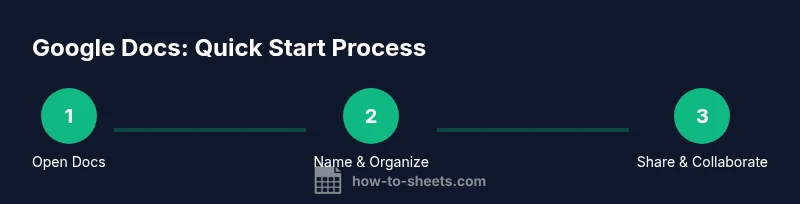
Launching Google Docs is quick and intuitive. Open a browser, navigate to docs.google.com, and sign in with your Google account. Click the blank template to start a new document or choose a pre-made template to match your project type. Name your document early to keep it organized in Drive. Use the File menu to rename, move, or add to a folder. As you begin, notice the autosave feature that securely stores your edits in real time, reducing the risk of data loss. How To Sheets emphasizes starting small: create a simple document first, then gradually explore formatting options, sharing settings, and export formats. By the end of this step, you should have a clean, named document ready for content and collaboration.
Core formatting and styles: headings, lists, and typography
Uniform typography and clear structure help readers digest content quickly. In Google Docs, use the Styles dropdown to apply headings (Heading 1, 2, 3) and body text consistently. Create bulleted or numbered lists to organize ideas, and use bold or italics to emphasize key points without over-styling. Remember to keep line spacing readable and avoid over-justified margins on screen. The Print Layout view helps you visualize how a document will appear in print or as a PDF. A practical tip is to set up a small local style guide within your doc: define font choices, heading sizes, and spacing so every section follows the same rules. This reduces decision fatigue and speeds up drafting.
Templates and organization: templates, Drive folders, naming
Templates save time by providing a proven structure for reports, resumes, or meeting notes. Access the Template Gallery from Docs or Drive, then customize it to fit your project. Organize your documents in Drive by creating folders, naming conventions, and consistent prefixes (e.g., YYYY-MM-DD_Project_Title). Good naming reduces search friction and makes collaboration smoother. How To Sheets notes that a simple naming strategy often yields big time savings over many documents. Use Drive’s color labels and star features to mark high-priority files and maintain a tidy workspace for yourself and teammates.
Collaboration and sharing: real-time co-editing
Google Docs shines when multiple people edit a document at the same time. Use the Share button to grant viewer, commenter, or editor access. You can also set expiration dates for access and add notes for teammates. Real-time cursors show who is editing where, and comments and suggestions streamline feedback without altering the main text. Be mindful of permission levels: avoid giving edit access to unknown collaborators on sensitive files. As you gain comfort, adopt a standard workflow: draft, share for feedback, switch to suggesting mode for proposed edits, resolve comments, and finally lock in the final version. According to How To Sheets, establishing a clear collaboration process reduces miscommunication and speeds up project timelines.
Inserting visuals and multimedia: images, charts, drawings
A well-placed image, chart, or diagram can clarify complex ideas. Google Docs supports adding images from your computer, Drive, or the web, with basic cropping and alignment options. For charts, you can either paste from Google Sheets or insert a chart that updates when the source spreadsheet changes. Drawings are accessible via the Insert menu and provide lightweight diagrams for quick visuals. When using visuals, ensure they support the text rather than distract from it, and maintain a consistent style across the document. Always check image rights and attribution when pulling from external sources and embed captions to improve accessibility and comprehension.
Comments, suggestions, and version history
Comments enable targeted feedback without changing the original text. Use @mentions to assign a teammate to a specific issue, and resolve comments once addressed. The Suggesting mode lets you propose edits while preserving the original content until the author approves. Version history tracks changes over time, so you can review modifications, restore earlier iterations, and compare versions side by side. This is especially useful in longer documents or collaborative projects where multiple people contribute over days or weeks. Regularly reviewing version history helps you maintain accountability and avoid 'lost edits' during fast-paced collaborations.
Offline access and mobile editing
Offline editing is a powerful feature that lets you work without an internet connection. On first use, enable offline mode in Google Drive and Docs settings. Edits you make while offline will sync automatically when you reconnect. The mobile apps (iOS and Android) bring most desktop capabilities to your fingertips, including basic formatting, commenting, and sharing. If you rely on mobile, consider enabling offline editing on your phone for crucial documents you cannot access from a desktop. The 2026 How To Sheets review highlights how offline support improves reliability for students and professionals who travel or have intermittent connectivity.
Accessibility, security, and privacy basics
Google Docs prioritizes accessibility with features like screen reader compatibility, voice typing, and adjustable display settings. When sharing, review access controls: who can view, comment, or edit? For sensitive documents, enable link restrictions and set expiration dates for guest access. Privacy is an ongoing concern; regularly audit your Drive settings and document permissions, especially for shared projects. Use strong account security practices and enable two-factor authentication. Document security is not just about encryption; it’s about managing who can access what and maintaining a transparent, auditable collaboration process.
Common pitfalls and best practices
Starting with a plan saves time later. Begin with a clean document structure, define your headings, and set a consistent style from the outset. Resist the urge to over-format; clear, readable text matters more than flashy typography. Use templates when possible to maintain consistency across multiple documents. Keep comments and version history in check by resolving resolved items and avoiding unnecessary branches of edits. Finally, back up important work by exporting key documents to PDF or Word formats for distribution, and organize exports with a clear naming scheme. The How To Sheets team recommends maintaining a living document style guide within each project to keep teams aligned and reduce rework over time.
Tools & Materials
- Google account(Needed to access Docs and save files)
- Device with internet(Laptop, tablet, or smartphone)
- Web browser(Chrome preferred for best compatibility; ensure latest version)
- Google Docs app(Optional for iOS/Android mobile editing)
- External storage plan for backups(Optional, Google Docs autosaves to Drive)
Steps
Estimated time: 60-90 minutes
- 1
Create a new document
Open Google Docs and start a new blank document or select a template. This initializes your workspace and provides the canvas for content. Rename the document early to keep it organized in Drive.
Tip: Use the blank document for fully custom work or a template to save time. - 2
Name and organize
Give your document a clear, descriptive name. Create folders in Google Drive to categorize projects, and use prefixes like YYYY-MM-DD to keep order as the library grows.
Tip: Name consistently and place related files in the same folder for easy retrieval. - 3
Apply formatting and styles
Use the Styles dropdown for headings and body text. Keep font choices consistent and adjust line spacing for readability. Use bullet and numbered lists to structure ideas clearly.
Tip: Define a small style guide in advance and stick to it across sections. - 4
Insert content and visuals
Add paragraphs, links, images, and charts. When adding charts, link to an existing Sheets chart to keep data synchronized. Use captions for accessibility.
Tip: Insert images with alt text and size them to fit the text flow. - 5
Share and collaborate
Click Share, choose permissions, and invite teammates. Use @mentions to assign tasks and comments to specific people. Real-time editing helps teams move fast.
Tip: Set editing permissions carefully to protect sensitive sections. - 6
Review with comments and suggestions
Comment on key passages, use Suggesting mode for edits, and resolve items once addressed. Version history lets you compare changes over time.
Tip: Keep a running checklist in the doc to close items systematically. - 7
Export and share output
Export to PDF, Word, or other formats as needed. Save final versions with consistent naming and store them in the project folder.
Tip: Maintain a versioned export log if many stakeholders require copies.
FAQ
What is Google Docs and how does it differ from other editors?
Google Docs is a cloud-based word processor that runs in a browser. It autosaves to Google Drive and supports real-time collaboration. Compared to desktop editors, it requires internet access for full functionality and offers seamless sharing.
Google Docs is a cloud-based editor that saves automatically and lets people work together in real time. It runs in your browser and on mobile, so you can edit anywhere.
How do I collaborate with others in real time?
Share the document and assign permissions. Teammates can edit, comment, or view simultaneously. Cursors show others' positions, and you can use mentions to direct feedback to specific people.
Share the doc, set permissions, and use comments or mentions for targeted feedback. Real-time edits show up as you type.
Can I work offline in Google Docs?
Yes. Enable offline editing in Drive settings. Edits made offline will sync when you reconnect to the internet. This is ideal for travel or intermittent connectivity.
Yes, you can work offline and your changes will sync automatically when you’re back online.
How do I format with styles and headings?
Use the Styles menu to apply headings and body text. This ensures consistency and improves document navigation. You can customize a small style guide for your project.
Apply Heading styles for structure and keep a consistent look across sections.
How can I recover earlier versions of a document?
Open Version History to review changes, name milestones, and restore earlier versions if necessary. This protects against unwanted edits and keeps a clear audit trail.
You can view and restore previous versions from the history log.
Where can I learn more about sharing settings and permissions?
Explore the Share dialog to manage access levels, expiration dates, and link sharing. Regularly audit permissions for sensitive documents.
Use the Share dialog to control who can view or edit and when access expires.
Watch Video
The Essentials
- Open a new document and set a clear title
- Use Styles for consistent formatting
- Collaborate in real time with controlled permissions
- Export documents to PDFs or Word when needed