Google Docs Tricks: Essential Tips and Shortcuts for 2026
Discover practical Google Docs tricks to speed up writing, collaboration, formatting, templates, and document management with clear steps, tips, and real-world examples for 2026.


This guide shows you practical, proven Google Docs tricks to speed up writing, formatting, collaboration, and document management. Expect step-by-step practices, keyboard shortcuts, smart formatting, and ways to integrate Google Docs with other apps for a smoother workflow. By the end, you’ll work faster with less friction using real-world examples.
Why Google Docs Tricks Matter
In any writing project, speed and accuracy matter. google docs tricks help you cut friction, reduce repetitive work, and focus on content quality. This guide explores practical, proven techniques you can apply right away to save time, avoid mistakes, and collaborate more effectively using Google Docs. The How To Sheets team emphasizes that mastering these tricks isn't about trickery—it's about building efficient, repeatable workflows that scale with your tasks. From keyboard shortcuts to smart formatting and robust collaboration, these tricks cover everyday scenarios — drafting, reviewing, and finalizing documents. You'll learn how to leverage built-in features like styles, outlines, voice typing, and discovery tools to speed up your process and maintain consistent branding across documents. By applying these methods, students, professionals, and small business owners can reduce manual formatting, minimize back-and-forth, and deliver higher-quality outputs in less time. Keep this mindset: small, repeatable actions compound into big productivity gains over weeks and months.
Keyboard Shortcuts and Quick Actions
Even without memorizing every shortcut, a handful of commands can dramatically reduce the time you spend formatting or navigating. google docs tricks thrive on standard text formatting shortcuts and editing actions that map across Chrome OS, Windows, and macOS. A practical approach is to pick a core set you use daily and add more as you become comfortable. For example, apply Bold, Italic, and Underline with one-hand shortcuts, insert links with a quick keystroke, and switch between Normal Text and Headings using the Styles menu. The important part is consistency: aligning headings and body text with the same style across documents makes outlines, table of contents, and collaboration much smoother. Explore the Outline tool to jump between sections without scrolling, and use the Find and Replace feature to apply global edits. Finally, leverage the built-in search to pull in citations or images, rather than leaving the document to read-only web pages.
Smart Formatting and Styles for Consistency
Consistency is the backbone of professional documents. In Google Docs, the fastest way to achieve it is through Styles and the Document Outline. Start by choosing a single font family and a small set of sizes for Normal Text, Headings, and Subheadings. Apply Heading 1 for major sections, Heading 2 for subsections, and use body text for regular paragraphs. This ensures a uniform rhythm across pages and makes automatic Table of Contents generation reliable. Use Paragraph and Line Spacing options to set a readable baseline—aim for 1.15 to 1.5 line height depending on your font. Save these choices as a custom style or template so every new document starts with the same look. If you work with branding guidelines, include your organization’s color palette in headings or callouts and consistently label lists with bullet or numbered formats. The payoff is a more readable document that requires fewer manual adjustments during revisions.
Collaboration Mastery: Comments, Suggestions, and Version History
Google Docs shines in collaboration when you use comments, suggestions, and version history deliberately. Encourage teammates to add suggestions rather than editing directly to preserve a clean document history. Use comment threads to clarify intent, assign action items, and resolve questions. The Suggesting mode lets you propose changes without finalizing them until a supervisor approves. Version history helps you track who changed what and when; name milestones during the project to simplify reverts. For teams, set sharing permissions carefully—consider 'Viewer', 'Commenter', and 'Editor' roles based on tasks. Use the chat alongside your document for quick context when real-time decisions are needed. Finally, routinely review outstanding comments and close them with a summary of decisions. Mastering this workflow reduces back-and-forth and accelerates project timelines.
Templates, Tools, and Add-ons to Streamline Docs
Templates are not just for letters; they accelerate proposal drafts, reports, and meeting notes. Start with a clean template library and adapt sections to your needs. Use built-in templates for resumes, meeting notes, and reports, then customize with your brand colors. Add-ons extend Docs with analytics, citation management, and advanced formatting. Explore smart chips and the Explore tool to pull in content from the web without leaving your document. When you introduce a new tool, document its usage in a short, repeatable process so teammates can adopt it quickly. Finally, keep a routine to review templates and add-ons every quarter to retire what’s no longer useful and promote what improves efficiency.
Research, Citations, and Accessibility Tricks
Research and citations are easier when you treat them as part of the writing flow, not a post-production task. Use the Explore pane to search the web, images, and quotes without switching apps. Insert citations with a consistent format and rely on the citation tools in Docs to generate bibliography entries—update them as you revise. Accessibility should be a default: use alt text for images, descriptive link text, and logical heading structure for screen readers. Use the built-in ruler to adjust margins and indents for accessible reading. Finally, enable the color-contrast checker somewhere in your browser to ensure readability for all readers. These disciplines make your documents usable by a wider audience and easier to share with confidence.
From Draft to Final: Exporting and Sharing
Knowing how and when to export your document changes your workflow. When the document is ready, choose the appropriate format (PDF for distribution, Word for collaboration with non-Google users, or plain text for data extraction). Use Version History to mark major milestones before exporting, so you can revert if something goes wrong. Share settings should reflect the audience: internal teammates may need editing rights, while external clients may only need view permissions. Use protected ranges if your document contains sensitive sections and consider creating a read-only version for wide distribution. Finally, keep a local backup of critical files and maintain a simple naming convention to locate past work quickly.
Real-World Workflows: 3 Case Studies
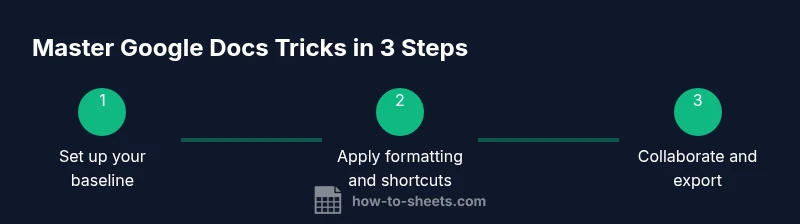
Below are three concise workflows that show how google docs tricks can save time in real life. Case study one: a student compiles a research packet. They use a single template, insert citations with Explore, format with Styles, and share a read-only draft for peer feedback. Case study two: a marketing team drafts a product brief. They create a living document with headings, a table of contents, and revision milestones in Version History, while teammates add comments and suggestions to avoid conflicting edits. Case study three: an operations manual is updated monthly. The team uses add-ons to pull in checklists, applies a consistent style, and exports a final PDF for distribution. Across these scenarios the common patterns are establishing baseline styles, leveraging collaboration features, and selecting the right export format for the audience. By applying these approaches, you can replicate these results in your own documents, whether you are a student, a professional, or a small business owner.
Tools & Materials
- Computer or device with internet access(Essential for accessing Google Docs and real-time collaboration)
- Google account(Needed to save to Google Drive and enable syncing)
- Modern web browser (Chrome recommended)(Best compatibility with Docs features)
- Microphone (for Voice Typing)(Optional but speeds up drafting when available)
- Headphones or speakers(Helpful for reviewing audio or screen reader output)
- Notepad for quick shortcut references(Optional, but useful for muscle memory)
Steps
Estimated time: 60-90 minutes
- 1
Open the document and set a baseline
Open your Google Docs document or create a new one. Choose a single font family and a compact default paragraph style to begin. This baseline will guide all future formatting, ensuring consistency across sections.
Tip: Create a dedicated template or copy a baseline document to accelerate future work. - 2
Enable and use Outline for navigation
Turn on the Document Outline (View > Show document outline) and assign heading styles to section titles. This makes long documents easy to skim and jump between sections.
Tip: Keep headings consistent (Heading 1, 2, 3) to ensure a clean outline. - 3
Apply Styles and avoid manual formatting
Use Normal text and Heading styles instead of applying manual edits. This guarantees uniform spacing, font size, and color throughout the document.
Tip: Update a single style to propagate changes everywhere in the doc. - 4
Incorporate keyboard shortcuts
Adopt core shortcuts for bold, italic, links, and clear formatting. Rely on the Styles menu to switch headings quickly during drafting.
Tip: Practice 3 shortcuts daily until they feel second nature. - 5
Leverage Voice Typing for faster drafting
Use Tools > Voice typing to speak your content when suitable. This can speed up first-draft creation and capture ideas rapidly.
Tip: Punctuate as you speak to reduce editing later. - 6
Insert citations with Explore and add-ons
Use Explore to pull quotes or references and insert them with consistent formatting. Consider citation add-ons for larger bibliographies.
Tip: Name and save sources in a dedicated bibliography section. - 7
Collaborate with comments and suggestions
Encourage teammates to use Suggestions rather than editing directly. Track changes via Version History to audit edits.
Tip: Resolve comments promptly to keep momentum. - 8
Export and share the final document
Choose the correct format (PDF for distribution, Word for cross-platform editing) and set appropriate sharing permissions before sending.
Tip: Create a named milestone in Version History before exporting. - 9
Review and archive templates
Periodically audit templates and add-ons. Remove outdated items and document best practices for future use.
Tip: Keep a simple naming convention for easy retrieval.
FAQ
What are the essential Google Docs tricks for students?
Students should start with templates, apply consistent styles, use Explore for research, and leverage voice typing for faster drafting. Pair these with outline navigation to manage long papers.
Students should start with templates, use Explore for research, and apply consistent styles; outline helps manage long papers.
Can I collaborate in real-time with multiple people?
Yes. Real-time collaboration is built into Google Docs. Use comments and suggestions to avoid editing conflicts and keep a shared history for accountability.
Yes, you can collaborate in real time using comments and suggestions to avoid conflicts.
How do I access Voice Typing in Google Docs?
Open Tools > Voice typing to start dictating text. Speak clearly and use punctuation cues as you speak to improve readability.
Open Tools > Voice typing and start speaking; add punctuation as you go.
How can I manage versions of a document?
Use Version History to name milestones, compare revisions, and revert changes if needed. This keeps a safe trail of edits.
Name milestones in Version History and revert changes if needed.
What if I need to work offline?
Enable offline access in Google Drive to edit documents without internet. Changes sync when you reconnect.
Enable offline mode in Drive to edit without internet and sync later.
Are there privacy considerations with add-ons?
Yes. Review permissions before adding any add-ons. Prefer trusted providers and limit access to necessary features.
Review permissions before adding add-ons and use trusted providers.
Watch Video
The Essentials
- Adopt consistent styles for readability and branding.
- Leverage Outline and headings to navigate long docs quickly.
- Use comments and suggestions to streamline collaboration.
- Export in the right format for the audience.
- Incorporate Explore and citations to speed up research.