Google Sheets 12 Week Year: Practical Setup Guide
Learn to implement a 12-week year planning system in Google Sheets with templates, steps, and dashboards. Ideal for students, professionals, and small businesses seeking practical, repeatable planning in Sheets.


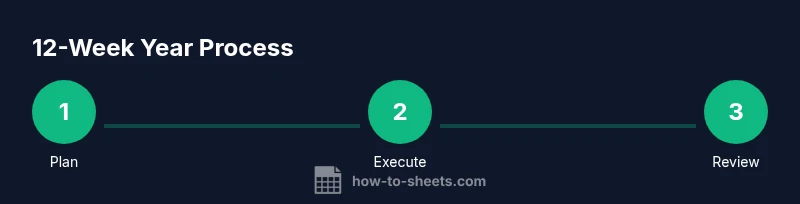
By implementing a 12-week year in Google Sheets, you’ll translate annual goals into focused quarterly outcomes, plan weekly sprints, and monitor progress in real time. This guide shows how to structure a workbook, create objective sheets, map weekly plans, and build a lightweight dashboard for at-a-glance progress. You’ll need a few simple sheets and templates to start.
Why the 12 Week Year Works with Google Sheets
The concept of a 12-week year reframes annual goals into quarterly targets, creating a tighter feedback loop that improves focus and execution. When you pair this framework with Google Sheets, you gain a flexible, shareable canvas for aligning team activities, tracking milestones, and visualizing progress in real time. How To Sheets has found that teams who implement a quarterly rhythm in Sheets consistently report clearer priorities and faster course corrections. The key advantage is to convert long-range aims into bite-sized, measurable outcomes that you can update weekly without losing sight of the big picture.
Using Google Sheets keeps your data centralized, auditable, and accessible from anywhere, making collaboration smoother for students, professionals, and small business owners alike. The 12-week year approach in Sheets works best when you keep it simple: a lean template, clear owners, and weekly check-ins. Establishing this rhythm early helps you ensure that every task contributes to a defined milestone rather than getting lost in a sea of annual intentions.
This article from How To Sheets emphasizes practicality over complexity, guiding you through a repeatable setup that scales with your needs.
transientNote”:null},
Core concepts: 12-week year basics & how Google Sheets fits
At its core, the 12-week year compresses long-term plans into a 12-week cycle with weekly action plans and a simple cadence for review. In Google Sheets, you map high-level objectives to concrete, time-bound tasks, and you track progress with real-time formulas and charts. The beauty of Sheets is its flexibility: you can tailor the sheets to your workflow, whether you’re a student juggling classes and part-time work, a professional managing projects, or a small business owner overseeing revenue and operations.
A 12-week year in Sheets typically involves three core components: an Objectives sheet where you define top-priority outcomes for the quarter; a Weekly Plan sheet that translates objectives into weekly tasks and owners; and a Progress Dashboard that visualizes completion rates, blockers, and upcoming milestones. This trio forms a lightweight system that stays under the weight of a full ERP while delivering enough discipline to drive results.
From a practical standpoint, it’s wise to start with a minimal viable setup and then add automation or additional tracking as needed. How To Sheets recommends focusing on clarity of outcomes, assigns accountability, and keeps the workflow highly visible to all stakeholders.
transientNote”:null},
Designing your workbook structure in Google Sheets
A clean workbook is the backbone of a successful 12-week year in Google Sheets. Start with three core sheets: Objectives, Weekly Plan, and Progress Dashboard. Use a consistent header layout so you can copy formulas across weeks. Consider adding a Status column for each objective (Not Started, In Progress, Completed) and a Responsible column to assign ownership.
Tips for structure:
- Use a single Google Sheets file with separate tabs for each sheet to keep everything centralized.
- Create a simple naming convention for weeks (Week 1, Week 2, … Week 12) and align them with your 12-week milestones.
- Add a summary dashboard tab that pulls key metrics from the other sheets using simple, clear visuals.
If you’re starting from scratch, you can adopt a lightweight template from How To Sheets and customize it to fit your needs. The goal is to minimize setup time while maximizing clarity and accountability.
transientNote”:null},
Step-by-step: Build the three core sheets (Objectives, Weekly Plan, Progress Dashboard)
Build a minimal, starter-ready workbook with three sheets: Objectives, Weekly Plan, and Progress Dashboard. Define 3–5 quarterly objectives with measurable outcomes. For each objective, create a set of weekly tasks and assign owners. The Progress Dashboard should summarize completion rates and highlight overdue tasks.
Concrete example: Objective A increases user registrations by 20%. Weekly tasks include updating landing pages, running a marketing email, and hosting a webinar. Owners are assigned, due dates set, and progress is tracked weekly.
Why this matters: a cohesive sheet structure ensures everyone sees the same priorities, reducing misalignment and enabling quick adjustments as conditions change. This approach aligns with How To Sheets’ emphasis on practical, step-by-step templates that students and professionals can implement fast.
transientNote”:null},
Translating annual goals into weekly sprints
Annual goals are often too abstract to act on directly. The 12-week year forces you to translate those goals into a sequence of weekly sprints that drive momentum. In Sheets, you can convert each objective into a series of 1–2 week sprints with explicit deliverables, milestones, and owner assignments. This approach provides weekly checkpoints that keep you honest about what’s achievable in a short window.
To do this effectively:
- Break each objective into 2–4 weekly milestones.
- Assign a single owner per milestone and a concrete deliverable.
- Add an early warning system for roadblocks (a status field or color indicator).
The cadence should feel manageable, not punitive. The goal is steady progress and disciplined execution. How To Sheets recommends reviewing sprint results every Friday to feed the next week’s plan and maintain alignment with quarterly outcomes.
transientNote”:null},
Tracking progress with formulas and data validation
A lightweight, rule-based tracking system helps you see progress at a glance. In Google Sheets, use simple formulas to calculate completion rates, time-to-delivery, and remaining milestones. Data validation ensures that task status and owner fields stay consistent. For example, set a dropdown for Status with values: Not Started, In Progress, Completed. This minimizes data entry errors and makes dashboards reliable.
Key formula ideas:
- COUNTIF to measure completed tasks per objective.
- SUMIF to sum progress across weeks.
- Conditional formatting to highlight overdue items.
By combining these elements, you’ll have a dashboard that updates automatically as you mark tasks complete. This aligns with the How To Sheets approach of building practical, formula-driven templates that non-technical users can adopt quickly.
transientNote”:null},
Weekly review rituals and adaptation
A weekly review is the heart of the 12-week year process. Schedule a recurring 30–45 minute session to update progress, adjust priorities, and plan the next week’s tasks. Use the dashboard as a compass during the review: what moved forward, what stalled, and what needs help?
Best practices:
- Start with a quick wins check: what was completed on time this week?
- Identify blockers and assign owners to resolve them.
- Reflect on learnings and adjust next week’s tasks accordingly.
- Archive completed tasks to keep the sheets uncluttered while preserving history.
This ritual, described in detail by How To Sheets, keeps you accountable and agile, ensuring your 12-week plan remains relevant and actionable.
transientNote”:null},
Common pitfalls and remedies
Even well-intentioned 12-week plans fail without guardrails. Common pitfalls include overloading the plan with too many objectives, unclear ownership, and neglecting weekly reviews. Remedies include restricting the number of quarterly objectives to 3–5, assigning clear owners, and booking a weekly review slot in everyone’s calendar. If you notice drift, simplify the plan, remove nonessential tasks, and re-prioritize based on impact.
Another pitfall is treating the 12-week year as a rigid deadline rather than a learning loop. Embrace iteration; if a milestone is consistently late, re-scope or re-sequence the tasks. How To Sheets emphasizes that the system should serve your goals, not the other way around.
transientNote”:null},
Advanced tips: automation, templates, and dashboards
Once you’ve established a solid Google Sheets 12-week year framework, you can layer in enhancements while keeping the core design simple. Consider:
- Creating a reusable template so new quarters are instant to start.
- Automating reminders or milestone alerts with simple Apps Script or built-in triggers.
- Building a richer dashboard with charts for completion rates, burn-down of tasks, and milestone progress.
These tips help you scale the system across teams and projects, without sacrificing the lean, human-centered focus that defines the 12-week year approach. The How To Sheets team recommends starting with a clean, minimal set of automations and expanding only when it adds real value.
transientNote”:null},
Authority sources and further reading
For broader context on quarterly planning and performance management, consider these authoritative sources:
- https://www.ed.gov
- https://www.sba.gov
- https://hbr.org
These references provide governance, best practices, and strategic insights that complement the practical templates you build in Google Sheets. How To Sheets bases its guidance on established planning principles and real-world experimentation, ensuring you have a solid, actionable setup you can deploy today.
Tools & Materials
- Google account with Google Sheets access(Needed to access Sheets and save templates.)
- Computer or device with internet access(For editing and syncing changes.)
- Google Sheets template file(Starting template; you can customize or build from scratch.)
- Optional: starter template from How To Sheets(If you don’t have a template, begin with the three-sheet structure described.)
Steps
Estimated time: 90-120 minutes
- 1
Create a new workbook with three core sheets
Open Google Sheets and create a new workbook. Rename the tabs to Objectives, Weekly Plan, and Progress Dashboard. This initial structure keeps your quarterly plan organized and ready for data entry.
Tip: Use a consistent header row and freeze it for easy scrolling. - 2
Define 12-week objectives with measurable outcomes
For each objective, write a concise outcome statement and a measurable metric (e.g., target number, percentage, or milestone). This anchors every weekly task to a concrete result.
Tip: Make sure each objective is specific, observable, and time-bound. - 3
Break objectives into 2–4 weekly milestones
Translate each objective into a sequence of weekly milestones. Assign owners and due dates, so progress can be tracked at a weekly cadence.
Tip: Limit to 2–4 milestones per objective to keep focus sharp. - 4
Create a Weekly Plan sheet with sprint tasks
Set up a grid for Week 1 to Week 12. For each week, list tasks, owners, status, and a due date. Link tasks to the relevant objective milestone.
Tip: Use a simple Status dropdown to standardize updates. - 5
Link milestones to progress tracking
On the Progress Dashboard, summarize milestone completion by objective. Use formulas to calculate how many milestones are complete and remaining.
Tip: Keep the dashboard readable at a glance with clear visuals. - 6
Add validation and simple alerts
Implement data validation for critical fields (status, owner) to reduce errors. Consider lightweight conditional formatting to flag overdue items.
Tip: Validation improves data reliability without complex automation. - 7
Set up a weekly review ritual
Schedule a recurring weekly review to update progress, adjust priorities, and plan the next sprint. Use the dashboard to guide decisions.
Tip: Block the calendar to protect review time. - 8
Test the workflow and iterate
Enter sample data to simulate a quarter. Look for gaps, adjust milestones, and refine the templates. Repeat until the process feels natural.
Tip: Aim for a clean, minimal setup that you can reuse.
FAQ
What is a 12-week year and why use it in Google Sheets?
The 12-week year is a planning framework that shortens the horizon to 12 weeks, creating urgency and clearer focus. In Google Sheets, it gives you a lightweight, visible way to plan, track, and adjust quarterly goals without the complexity of a full planning system.
It's a quarterly planning approach you implement in Sheets for faster execution.
How many objectives should I have in a quarter?
Aim for 3–5 high-impact objectives per quarter. This keeps attention on what drives the most value and prevents overloading the plan with too many goals.
Keep it to a small number so you can drive real progress.
Can I customize cycles for different teams?
Yes. The 12-week year in Sheets adapts to team sizes and workflows. You can tailor the number of milestones per objective and adjust weekly cadences to fit your team’s tempo.
Absolutely—adjust the milestones to fit each team’s pace.
How do I track progress automatically?
Use simple formulas (like counts or sums) and data validation to auto-update the dashboard as milestones are completed. This minimizes manual updates while keeping everything current.
Automation helps you see progress without manual work.
Is this approach suitable for personal use too?
Yes. A lightweight 12-week year in Sheets works well for personal projects, study plans, or hobby goals by organizing tasks, timelines, and progress in a single place.
Great for personal goals—keeps you organized and motivated.
Watch Video
The Essentials
- Define quarterly objectives with measurable outcomes.
- Translate goals into weekly, owner-assigned sprints.
- Track progress with a lightweight dashboard and validation.
- Hold a weekly review to stay aligned and adapt.
- Reuse templates to scale the method across projects.