Year Planner in Google Sheets: A Practical 2026 Guide
Learn how to build a robust year planner in Google Sheets with monthly views, milestones, and a live dashboard. Practical steps, templates, and collaboration tips for students, professionals, and small businesses in 2026.


By the end of this guide, you will create a scalable year planner in Google Sheets that tracks yearly goals, monthly milestones, and key deadlines. You’ll learn layout choices, essential formulas, and practical sharing tips to keep teams aligned in 2026. The template will be ready to customize for students, professionals, and small businesses.
Why a Year Planner in Google Sheets
A year planner in Google Sheets helps students, professionals, and small business owners turn annual goals into actionable steps. A well-structured planner keeps deadlines visible, tracks milestones, and aligns team efforts across months. The convenience of Google Sheets means you can access the planner from anywhere, share with teammates for real-time updates, and customize layouts without specialized software. According to How To Sheets, a practical year planner should balance high-level yearly vision with concrete monthly actions, avoiding over-automation that makes maintenance harder. Start with a simple layout and iteratively add features as your needs grow. In 2026, many teams rely on scalable templates that can be copied and adapted for new projects, academic terms, or fiscal years. This article walks through a proven approach to building such a planner from scratch, plus tips for keeping data consistent as plans evolve. It also highlights the differences between a standalone calendar and a dashboard-style overview, so you can choose the pattern that best suits your workflow. If you’re new to Google Sheets, don’t worry—the steps are designed to be accessible, and you’ll learn handy techniques you can reuse in other projects. By the end, you’ll have a living template that supports goal setting, progress tracking, and cross-functional coordination throughout the year. Let’s begin by outlining the core features you’ll want to include.
Core Features: What Your Year Planner Should Include
A strong year planner for Google Sheets balances breadth and depth. Start with a yearly overview that highlights major milestones and deadlines, then add monthly pages that translate those milestones into concrete actions. Color-coding by month keeps navigation intuitive, while a lightweight dashboard summarizes progress at a glance. Don’t forget a milestone tracker to capture key dates and responsible owners. When designed well, the template scales from a single term to an entire fiscal year, allowing you to clone sheets for new periods without recreating structures from scratch. In this section we cover essential elements, examples of effective layouts, and practical tips for keeping the planner adaptable across different use cases—students mapping coursework, professionals coordinating projects, or small teams managing client work. A well-crafted year planner also supports data validation, which helps prevent inconsistent entries, and simple charts that visualize timelines and progress. Finally, consider accessibility: ensure headings are clear, formulas are documented, and the sheet remains readable on mobile devices for on-the-go planning.
Data Structure and Layout: Organizing Sheets, Columns, and Names
The backbone of any year planner is a clean data structure. Start with a master calendar sheet that lists all days across the year, then create monthly sections or separate sheets for each month. Use consistent column headers such as Date, Day, Task, Status, Owner, and Notes. Name critical ranges (for example, a range that contains all milestone dates) so formulas are easier to read and maintain. A simple file structure might include a Master calendar sheet, 12 monthly sheets, and a Dashboard sheet. The Dashboard should pull key metrics from each month using stable references. Keeping a predictable layout reduces confusion when you scale the planner to a team or class size. You can style the sheet with a restrained color palette and clear typography to improve legibility. Remember to include a legend and a short how-to section within the sheet so new collaborators can contribute effectively without breaking formulas.
Step-by-Step Design Plan: From Concept to Working Template
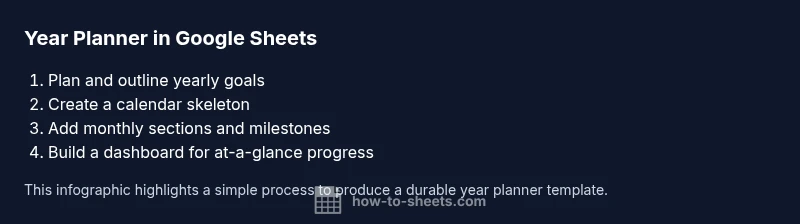
Plan first, then implement. Start by outlining goals for the year, listing major milestones, and choosing a layout that balances overview with detail. Create a skeleton of the Master calendar, followed by monthly sections. Add status fields for each task, and establish simple rules for priority and due dates. Build a dashboard that aggregates totals, upcoming milestones, and overdue items. Finally, test the template with a few hypothetical scenarios to ensure data flows correctly and the dashboard reflects changes in real time. By iterating in small cycles, you can refine the planner without getting lost in feature creep. As you design, document the logic behind each formula and naming convention so teammates can sustain the template after you.
Formulas and Data Integrity: Keeping Entries Consistent
Formulas are the backbone of a responsive, automatic year planner. Use date functions to generate monthly ranges, and aggregate functions to summarize status counts across months. Implement data validation to limit entries to predefined statuses (e.g., Not Started, In Progress, Completed) and owners from a fixed list. Conditional formatting helps you spot overdue tasks and high-priority items at a glance. Named ranges simplify maintenance, making it easier to adjust the layout later without breaking complex formulas. A well-structured sheet uses consistent data types, predictable formats, and minimal hard-coded values so it remains robust as you clone it for new cohorts or projects. Regularly back up the planner and consider versioning each major change to track improvements over time.
Customization for Different Use Cases: Students, Professionals, and Small Businesses
A universal year planner can be tailored to fit diverse needs. Students may track assignment due dates, exam weeks, and term breaks, while professionals coordinate project milestones, sprints, and client deadlines. Small businesses can map fiscal quarters, marketing campaigns, and product launches. The template should accommodate multiple responsibilities by providing optional sections for notes, resource links, and budget considerations. Use a dedicated sheet or section for budgets, and link milestones to cost centers if needed. The key is to keep the core calendar intact while offering optional modules that users can enable or disable. To maintain clarity, provide a quick start guide that explains how to activate each module and how to clone metrics into the dashboard. This ensures the planner remains practical across contexts without becoming unwieldy.
Collaboration, Sharing, and Access Control in Sheets
Real-time collaboration is a standout advantage of Google Sheets. Decide on sharing settings early: who can view, comment, or edit, and set up protected ranges for critical formulas. Use a dedicated version history approach so changes are trackable. For teams, assign owners for each month or milestone, which helps distribute responsibility and reduces bottlenecks. If you operate with clients or external partners, consider creating a read-only snapshot for stakeholders while preserving edit rights for internal team members. Finally, document collaboration etiquette in a visible header or a separate sheet so new contributors understand expectations around updates, comments, and file organization.
Common Pitfalls and How to Avoid Them
Avoid overcomplicating the planner with too many formulas or too many sheets. Start with a lean core layout and gradually add features once the base is proven. Inconsistent date formats, missing owners, and unclear milestones are frequent sources of confusion—address them with strict validation, clear ownership, and concise task descriptions. Regular reviews help catch drift between planning and execution. When sharing, test permissions with a colleague to ensure the template behaves as intended across different access levels. Finally, resist the urge to hard-code values; use relative references and named ranges so the template remains reusable across years and cohorts.
Real-World Use Cases and Next-Level Enhancements
This year planner in Google Sheets is a practical tool for a broad audience. Students can align study plans with exam calendars, professionals can coordinate quarterly goals, and small businesses can chart yearly campaigns alongside budgets. As you grow more comfortable, explore enhancements like automated reminders via Google Apps Script, charts that visualize monthly progress, and a compact executive summary that fits on a single dashboard page. You can also export data to CSV for reporting or import data from other sources to keep planning synchronized with external systems. The end result is a resilient, reusable template that scales with your needs and keeps everyone on the same page throughout the year.
Tools & Materials
- Google account with Google Sheets access(Essential for creating, editing, and sharing the planner)
- Internet connection(Needed to access Google Sheets and collaborate)
- Blank Google Sheet template or starting file(Use as the canvas for your year planner)
- Color palette and simple branding (optional)(Helps with readability and consistency)
- Documentation sheet within the file(Describe layout, formulas, and conventions)
Steps
Estimated time: 20-40 minutes
- 1
Plan scope and goals
List annual objectives, major milestones, and the cadence you want (monthly checkpoints, quarterly reviews). This sets the anchor for layout and data fields, preventing scope creep.
Tip: Write these goals on a sticky note or a separate doc so you can reference them while building the sheet. - 2
Create the calendar skeleton
Open a new Google Sheet and create a Master calendar with columns for Date, Day, Month, and Task. Decide whether to use a single sheet with month sections or 12 monthly sheets for clarity.
Tip: Use named ranges for the date column to simplify downstream formulas. - 3
Add monthly sections
Duplicate the skeleton for each month or create dedicated monthly tabs. Include fields for milestones, owners, due dates, and status.
Tip: Keep the header row consistent across months to ease copying and formulas. - 4
Establish milestones and status fields
Define statuses (Not Started, In Progress, Completed) and create a milestone list that ties to dates. This enables quick filtering and dashboard summaries.
Tip: Use data validation to lock statuses to predefined options. - 5
Implement date-related formulas
Add formulas to automatically populate day of week, month names, and end-of-month calculations. These reduce manual entry and improve consistency.
Tip: Document what each formula does in a separate notes cell for future you. - 6
Build the dashboard
Create a dashboard sheet that shows upcoming milestones, overdue tasks, and a monthly progress gauge. Use simple charts and a summary table to convey the big picture at a glance.
Tip: Link dashboard cells to core data ranges to ensure live updates. - 7
Add data validation and formatting
Apply validation rules to avoid invalid dates and statuses. Use conditional formatting to highlight overdue items or high-priority tasks.
Tip: Keep color usage accessible with sufficient contrast and a legend. - 8
Test, refine, and share
Test with hypothetical year scenarios, verify that the dashboard updates correctly, and adjust as needed. Then set sharing permissions and provide a quick onboarding guide.
Tip: Ask a colleague to test edits to uncover edge cases you missed.
FAQ
What is a year planner in Google Sheets and why use it?
A year planner in Google Sheets is a structured template that maps yearly goals to monthly tasks and milestones. It helps teams stay aligned by providing a single source of truth that can be accessed from anywhere and updated in real time.
A year planner in Google Sheets is a calendar-driven template that maps yearly goals to monthly tasks. It keeps teams aligned and up to date across devices.
Should I use one sheet per month or a single sheet with sections?
Both approaches work. A single sheet with month sections is space-efficient, while separate monthly sheets offer cleaner navigation for large plans. Choose based on team size and complexity.
You can either use one sheet with monthly sections or create separate sheets for each month; pick the approach that matches your project size.
Can I share and collaborate on the year planner?
Yes. Google Sheets supports real-time collaboration with view, comment, and edit permissions. Protect critical formulas and set clear ownership to prevent accidental changes.
Yes—you can share with teammates and collaborate in real time, while protecting key parts of the sheet.
What formulas are most helpful in this template?
Common formulas include date functions to derive day and month, SUMIF for monthly totals, and VLOOKUP or XLOOKUP for matching milestones. Use them to keep the dashboard accurate with minimal manual input.
Date functions and simple lookups are especially useful for keeping totals and milestones in sync.
Is there a ready-made template I can customize?
Yes, you can start from a basic year planner template and tailor it to your needs. The template concept scales across students, teams, and small businesses.
There are ready-made templates you can customize to fit your project or class timeline.
How do I maintain data integrity over time?
Rely on named ranges, consistent data types, and validation rules. Regular reviews and a short changelog help preserve data quality as the planner evolves.
Keep data clean with named ranges, validation, and a quick change log for updates.
Watch Video
The Essentials
- Plan first, then structure the sheet for clarity
- Use a consistent monthly layout to ease maintenance
- Dashboards provide quick insight into progress
- Data validation and named ranges improve integrity
- Collaborate with clear permissions and onboarding