Google Sheets 4-Year Plan Template: Step-by-Step Guide
Create a practical Google Sheets 4-year plan template with milestones, budgeting, and dashboards. A clear, step-by-step guide for students, professionals, and small business owners.


Create a repeatable Google Sheets 4-year plan template that tracks milestones, budgets, and progress across four years. You’ll set yearly goals, map milestones, and visualize results with dashboards. This quick guide covers setup, structure, and essential formulas to keep your plan realistic and actionable. Follow the steps below to customize for your project or team.
Why a Google Sheets 4-Year Plan Template Matters
A solid long-range plan helps students, professionals, and small business owners translate ambitious goals into concrete yearly actions. The google sheets 4 year plan template approach aligns team priorities, allocates resources, and tracks progress against milestones. By documenting assumptions and building a living model, you can adapt your plan as market conditions or project scope changes. According to How To Sheets, a carefully designed google sheets 4 year plan template reduces ambiguity and improves decision speed. When you start with a reusable template, your initial setup pays dividends as new projects come online. A four-year horizon balances ambition with realism, making it feasible to monitor outcomes and adjust course as needed.
With the volume of data teams handle today, the template should be easy to reuse, copy, and share. Use Google Sheets because it supports real-time collaboration, version history, and cloud access from anywhere. The google sheets 4 year plan template concept is particularly powerful for budgeting, milestones, and scenario planning. This approach helps you communicate intent clearly while keeping everyone on the same page. The How To Sheets team emphasizes the value of having a single source of truth that stakeholders can trust across years.
Core Structure and Data Model
A robust google sheets 4 year plan template starts with a clean data model and a stable structure. Your core workbook typically includes a Master Overview sheet plus dedicated Year 1, Year 2, Year 3, and Year 4 sheets. Each year tab should capture revenue, costs, headcount, or other key drivers, while the Overview provides a cross-year snapshot. Centralized assumptions live in an Assumptions sheet, reducing formula repetition and enabling quick scenario analysis. A well-organized data model minimizes formula errors and makes it easier to audit results later. The How To Sheets analysis shows that a clear data structure improves reliability and collaboration when building a google sheets 4 year plan template. Keep naming consistent and avoid hard-coding values across years—link every item to a single source of truth.
Tabs You Should Include in Your Template
A practical google sheets 4 year plan template should include the following tabs:
- Overview: High-level summary of goals, metrics, and progress.
- Year 1, Year 2, Year 3, Year 4: Year-by-year projections with drivers, budgets, and milestones.
- Assumptions: Document the inputs that drive your projections (growth rate, churn, inflation).
- Budget: A dedicated tab for costs, revenues, and scenario-based adjustments.
- Dashboard: Visualizations that pull from Year tabs and Assumptions to show current status.
- Notes or Documentation: Rationale for numbers and any decision logs.
By structuring the workbook with these tabs, you create a scalable google sheets 4 year plan template that grows with your project. This approach also supports cross-functional teams, each contributing data in their own year, while the dashboard keeps everyone aligned. The goal is a single source of truth that remains practical across four years and various scenarios.
Essential Formulas and Data Validation
The core of a reliable google sheets 4 year plan template lies in stable formulas and clean data validation. Use a mix of SUM across yearly lines to aggregate totals, and VLOOKUP or INDEX/MATCH to pull assumptions from the Assumptions tab. Apply IF statements to handle scenarios (base, optimistic, pessimistic) without duplicating logic. Use data validation for year selections (Year 1 through Year 4) and for currency formats to maintain consistency.
A well-designed template uses named ranges for frequently referenced cells, which simplifies formulas and reduces errors when you copy sheets. Conditional formatting helps you spot overruns or missed milestones at a glance. In a google sheets 4 year plan template, keeping formulas modular and well-documented makes the workbook easier to maintain and share with teammates. Remember: the more you standardize inputs, the more reliable your long-range projections will be.
Milestones, Budgets, and Year-by-Year Planning
Milestones anchor your google sheets 4 year plan template to tangible progress. Create milestone rows in each Year tab, aligned to date targets and responsible owners. Pair milestones with budget allocations to ensure financial feasibility; use SUMIFS to total costs by milestone and year. For year-over-year planning, track growth rates and cost curves to project how scaling affects profitability. A four-year horizon lets you test compound effects of early investments and late-stage improvements. Keep the milestone set small enough to manage but meaningful enough to drive accountability. The template should support quick adjustments when milestones slip or accelerate, without breaking the entire model.
To keep plans realistic, separate revenue drivers, cost lines, and headcount projections. This separation reduces complexity and improves auditability, which is crucial for stakeholder confidence over a four-year window. The google sheets 4 year plan template should be designed for rapid scenario switching—so you can compare base, best, and worst-case outcomes in minutes rather than hours. As you iterate, ensure all data sources are traceable and that assumptions are clearly linked to the scenarios you present. This makes the template a practical planning tool rather than a static worksheet.
Dashboards: Visualizing a 4-Year Plan
A four-year outlook benefits greatly from clear visuals. The Dashboard tab in your google sheets 4 year plan template should summarize key metrics such as cumulative revenue, total costs, and year-by-year profitability. Use a combination of line charts for trends, bar charts for year comparisons, and a KPI panel for critical health indicators. Dynamic charts should reference the Year tabs so you can pivot between different scenarios without editing charts. Dashboards turn numbers into actionable insight, making it easier for stakeholders to grasp long-range implications at a glance. The How To Sheets guidance emphasizes visual clarity and up-to-date data, so keep dashboards refreshed and avoid clutter.
When building visuals, ensure accessibility: choose high-contrast colors, label axes clearly, and provide concise captions. A well-designed dashboard in the google sheets 4 year plan template communicates progress toward goals and highlights bottlenecks, enabling timely decisions and course corrections.
Setup Guide: Quick Start in Google Sheets
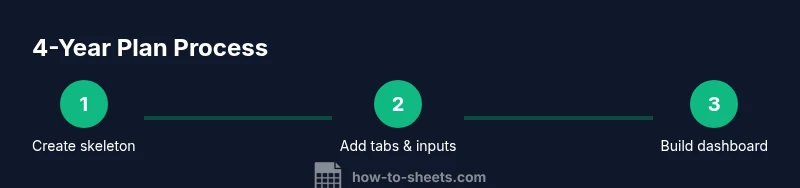
Getting started with a google sheets 4 year plan template is straightforward if you follow a structured setup. Begin by creating a new workbook named with the project and year range. Add the core tabs (Overview, Year 1–4, Assumptions, Budget, Dashboard). In Year 1, input baseline numbers for revenue, costs, and headcount. Link all Year tabs to the Assumptions sheet for drivers like growth rate, inflation, and churn. Establish named ranges for inputs and set up basic formulas to propagate projections across years. Finally, create a dashboard that references Year 1–4 results and Assumptions to produce a live view of performance across the four-year horizon. The google sheets 4 year plan template will scale with your project as you refine inputs and scenarios.
Tip: Clone a working template to accelerate new projects. Save variations as versions to preserve different planning scenarios. This approach supports quick-start setup and consistent use across teams.
Collaboration, Security, and Version Control
A four-year planning effort benefits from careful collaboration and governance. In Google Sheets, enable real-time collaboration with appropriate access levels: editors for teammates who contribute data, viewers for stakeholders who only review, and commenters for quick feedback. Turn on version history to track changes across years and milestones and to revert if needed. Document who changed what and when, especially after major scenario updates. If sensitive numbers exist, use protected ranges to restrict edits to authorized users. Establish a standard change-log process so everyone knows where decisions are recorded and how to interpret revisions. The google sheets 4 year plan template supports distributed teamwork while maintaining data integrity and auditability.
Real-World Template Walkthrough: A Practical Example
Imagine a project with four years of product development and marketing activities. The google sheets 4 year plan template would begin with a concise Overview showing the four-year horizon and top-line targets. Year 1 would detail initial product features, early customer acquisition channels, and initial costs. Years 2 through 4 would scale up features, expand marketing, and optimize operations. The Assumptions tab would capture growth rate assumptions, pricing changes, and cost inflation. The Budget tab would lay out capital expenditures and operating costs by year, while the Dashboard would reveal trends and deviations. This practical walkthrough demonstrates how a google sheets 4 year plan template can be used to align teams, justify investments, and track milestones all the way through year four. The How To Sheets team recommends starting with a minimal viable version and expanding it as you learn from early results. The goal is a living document that remains useful across four years while adapting to new information.
Final Thoughts: Keeping Your google sheets 4 year plan template Relevant
A well-maintained google sheets 4 year plan template is not a static artifact; it’s a living planning instrument. Regularly review milestones, assumptions, and dashboards during quarterly planning cycles. When conditions shift, adjust inputs, re-run forecasts, and update visualizations so stakeholders see the impact immediately. The template should promote clarity, accountability, and collaboration rather than confusion. For teams and individuals who want a reliable long-term planning tool, this approach provides a scalable, transparent framework that grows with the project. The How To Sheets team recommends integrating feedback loops and version control so the template remains accurate and trusted long into the future.
Tools & Materials
- Google account with Sheets access(Use a shared drive for collaboration and version history.)
- Template starter file (Google Sheets)(Create a four-year skeleton with Year 1-4 tabs.)
- Baseline data and assumptions(Inputs for revenue, costs, growth, inflation, etc.)
- Dashboard visuals(Optional pre-built charts or templates.)
- Backup/version control plan(Regularly save versions to avoid data loss.)
Steps
Estimated time: 60-120 minutes
- 1
Create a four-year skeleton
Open a new Google Sheets file and add tabs for Overview, Year 1, Year 2, Year 3, Year 4, Assumptions, Budget, and Dashboard. Name them clearly and keep a consistent format for future templates.
Tip: Use a naming convention like ProjectName_4YearTemplate and enable version history from the start. - 2
Define core tabs
Populate the core tabs with header rows and the primary data areas. Link each year’s columns to a shared set of drivers (revenue, cost, headcount) to keep calculations consistent across years.
Tip: Create named ranges for drivers to simplify formulas and updates. - 3
Enter baseline data and assumptions
Input baseline figures for Year 1 and set assumptions for growth, price changes, and costs. Use data validation to restrict inputs to valid ranges and formats.
Tip: Document each assumption in the Assumptions tab and reference it in formulas. - 4
Set up projections across years
Create formulas that propagate Year 1 values into Years 2–4 using growth rates. Use INDEX/MATCH or VLOOKUP to pull assumptions automatically and adjust projections as assumptions change.
Tip: Test several scenarios (base, optimistic, pessimistic) to ensure robustness. - 5
Build the dashboard visuals
Link charts and KPI cards to the Year 1–4 data. Use a mix of line charts for trends and bar charts for year-to-year comparisons. Add a KPI panel for quick status checks.
Tip: Keep charts readable with consistent color schemes and labeled axes. - 6
Add milestones and review cadence
Create a Milestones section linked to yearly plans. Schedule quarterly reviews and tie milestones to specific budgets or feature releases to demonstrate progress.
Tip: Document decision points and owners in a concise log. - 7
Enable sharing and governance
Set appropriate access levels, turn on protected ranges for critical cells, and maintain a short change log. Use comments for team feedback to keep discussions centralized.
Tip: Limit editing rights to core team members to preserve data integrity. - 8
Test, iterate, and maintain
Run scenario analyses regularly, adjust inputs, and refresh dashboards. Schedule quarterly reviews to ensure the template stays aligned with evolving goals.
Tip: Archive older versions before major updates to maintain a clean history.
FAQ
What is a 4-year plan template in Google Sheets?
A four-year plan template in Google Sheets is a structured workbook that projects revenue, costs, and milestones across four years. It includes year-by-year tabs, a central assumptions sheet, and a dashboard to visualize progress.
A four-year plan template in Google Sheets is a structured workbook that projects four years with tabs for each year and a dashboard.
Which tabs should be included in the template?
Include Overview, Year 1 through Year 4, Assumptions, Budget, Dashboard, and a Notes or Documentation tab.
Include overview, each year, assumptions, budget, dashboard, and notes tabs.
How do I ensure accuracy in long-term projections?
Use data validation, separate assumptions, and test multiple scenarios to verify that results behave as expected under different conditions.
Use data validation, keep assumptions separate, and test several scenarios.
Can I reuse the template for other projects?
Yes. Create a starter skeleton and customize assumptions per project, while preserving the core structure for consistency.
Yes, you can reuse by cloning the template and adjusting project-specific inputs.
What about collaboration and version control?
Share with editors, enable comments, and use Google Sheets' version history to track changes over time.
Collaborate with comments and use version history to track changes.
Watch Video
The Essentials
- Plan with a four-year horizon to balance ambition and realism.
- Organize inputs with a stable data model and named ranges.
- Visualize progress through a clean, dynamic dashboard.
- Collaborate with governance and version control for trust.