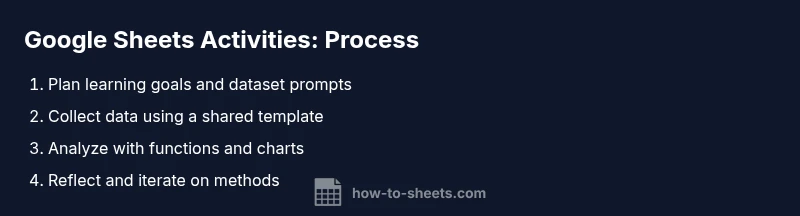
Google Sheets Activities for High School Students: A Practical How-To
Practical, step-by-step Google Sheets activities for high school students that build data literacy, collaboration, and math reasoning through ready-to-use templates and classroom-ready workflows.


By the end, you will design and run engaging Google Sheets activities that build data literacy, collaboration, and practical math skills for high school students. You'll use ready-to-run templates, simple datasets, and step-by-step prompts to guide learners from setup to reflection. This guide emphasizes accessible tasks and classroom-ready workflows that fit diverse skill levels.
Why Google Sheets Activities Matter in High School
Google Sheets is a versatile, accessible tool that helps students translate abstract math and data concepts into concrete visuals. For students in high school, activities built around google sheets activities for high school students foster critical thinking, data literacy, and collaborative problem solving. By using real-world prompts and lightweight datasets, teachers can make statistics, algebra, and science concepts tangible. The approach emphasizes hands-on practice, guided inquiry, and reflection. In addition, Sheets supports quick visualization, which helps students communicate their findings clearly. The How To Sheets approach centers on practical, scalable activities that fit varying class sizes and time constraints while maintaining a clear alignment to learning outcomes.
Key benefits include low-tech barriers to entry, instant feedback via charts, and shareable templates that students can reuse in future projects. Teachers can start with simple tasks and gradually introduce more complex features like filters, conditional formatting, and basic charts. This progression keeps students engaged while building confidence with a tool they will encounter in higher education and the workplace.
Quick-Start Activities for the First Week
In the first week, aim to build comfort with Google Sheets and set expectations for collaboration and data ethics. Activities here are designed to require minimal prior experience while introducing core skills such as data entry, sorting, basic formulas, and simple visualizations. For example, a data-log activity can track daily class participation, temperatures, or mood ratings. Students learn to enter data consistently, label columns, and use basic functions like SUM and AVERAGE. Pair students to encourage discussion and peer learning, then have them present one insight from their dataset using a simple chart. The goal is to establish a routine: open Sheets, review prompts, perform analysis, and reflect on what the visuals reveal about the data.
Recommended prompts are concise and tied to a clear question. For instance, “Which day had the highest participation, and what pattern emerges over the week?” or “What is the average score by category, and how might you improve it?” These prompts reinforce interpretation over rote computation and help students articulate their reasoning.
Data Collection & Analysis Projects
Data collection projects are a natural fit for Google Sheets activities for high school students. Students can design surveys, collect responses, and analyze results with basic statistics. Sample project ideas include tracking a science experiment, recording daily attendance trends, or logging environmental data (temperature, rainfall, etc.). Students practice data hygiene by naming columns consistently, avoiding merge cells for data analysis, and using data validation to minimize entry errors. Analysis tasks may include calculating means, medians, and ranges; creating simple pivot tables to summarize categories; and producing line or bar charts to illustrate trends. Reflection prompts ask students to describe limitations, discuss potential biases, and propose improvements for future data collection. Consistency in data collection makes results reliable, which strengthens students’ confidence in data-driven conclusions.
To support differentiation, provide ready-made prompts for beginners and optional challenge questions for advanced learners. You can also rotate roles so each student contributes a unique piece of the analysis, from data collection to chart interpretation to presenting findings.
Budgeting and Financial Literacy Activities
Budgeting activities integrate real-world math with responsible money management. In Sheets, students can create a class budget for a hypothetical project, plan a fundraiser, or simulate a personal budget. Start with a simple template that lists income sources and expense categories, then require students to adjust values and observe effect on the bottom line. Students learn to use SUM, basic subtraction, and simple conditional formatting to highlight overspending. Visualization helps narrate the budget story—students can build a pie chart showing expense shares or a bar chart comparing planned versus actual spending. Encourage students to justify choices with evidence from their data and prompts that connect budgeting decisions to outcomes or constraints. By evaluating budgets, students practice critical thinking about trade-offs and resource allocation.
To keep things accessible, use teacher-provided data and allow students to adapt the template for their own projects. Emphasize ethical data use and privacy when sharing budgets in class.
Collaboration and Sharing in Google Sheets
Collaboration is a core skill students will rely on in college and the workforce. Sets of activities should emphasize role clarity, version control, and respectful feedback. Google Sheets makes it easy to assign different permissions, track edits, and leave comments for peers. Start with a shared dataset and assign roles such as data collector, analyst, and presenter. Use the comment feature to ask questions, propose edits, or request verification of calculations. Establish norms for online collaboration, such as in-session chats or scheduled checkpoints. By practicing structured collaboration, students develop communication and teamwork skills that are directly transferable to group projects across disciplines.
Templates help set expectations: give students a shared starting point, then require each student to contribute a distinct element (data collection, analysis, visualization, or write-up). The teacher can monitor progress via activity history and comments, providing timely feedback where needed.
Templates and Add-ons for Classroom Efficiency
Templates save time and provide a consistent starting point for students at different skill levels. In this section, you’ll learn how to adapt ready-made templates for data logs, budgets, and charts. Add-ons can extend Sheets’ capabilities, offering advanced analysis, automated data import, or enhanced visualization. Start with a simple template and modify it for your topic; you can then duplicate it for future units. Emphasize the importance of naming conventions, clear labels, and clean formatting to ensure everyone can read and interpret the data. By using templates and selective add-ons, teachers can scale activities from a single class to multiple sections without sacrificing quality.
As students grow more comfortable, introduce functions like AVERAGE, COUNTIF, or VLOOKUP in guided, low-risk tasks. Always pilot new templates with a small group before a full-class rollout to reduce confusion and maximize learning gains.
Assessment and Reflection with Google Sheets
Assessment should align with clear learning goals: data literacy, analytical thinking, and collaborative skills. Use a rubric that measures data accuracy, interpretation quality, and the clarity of visuals. Reflection prompts help students articulate what their analysis shows, what biases exist, and how to improve. Encourage students to present their charts and key findings, explaining how their conclusions emerged from the data. Use self-assessment and peer feedback to build metacognitive awareness. Collect artifacts that demonstrate growth over the unit, such as data collection records, charts, and reflection notes.
Appendix: Ready-to-Use Templates for Classroom Practice
This appendix offers a quick catalog of templates you can deploy with minimal setup. Each template includes a short description, the key features, and a suggested activity. Examples include a data-collection log, a simple student budget, a class survey tracker, and a chart gallery for visual storytelling. These templates are designed to be starter kits that you can customize for different topics or grade levels. Keep a copy ready for students to duplicate, ensuring a consistent structure and a low entry barrier for beginners.
Appendix: Quick Templates for Classroom Use (Continued)
To maximize impact, pair templates with a short, task-specific prompt. For example, a data-collection log template can be used for a science investigation, while a survey tracker helps gather opinions on a social studies topic. When you introduce a template, walk through each column and explain how data should be entered, validated, and analyzed. This approach reduces cognitive load and helps students stay focused on analysis and interpretation.
Tools & Materials
- Laptop or tablet with internet access(Any device with Chrome or another modern browser)
- Google account(Students should have login access; consider class-managed accounts)
- Pre-designed Google Sheets templates(Starter templates for data logs, budgets, surveys, and charts)
- Sample datasets or prompts(Realistic, age-appropriate prompts for data collection)
- Projector or display for whole-class review(Optional but helpful for demonstrations)
- Rubric and reflection sheets(Provide clear criteria for assessment and self-assessment)
Steps
Estimated time: 45-90 minutes
- 1
Set up the activity sheet
Create or duplicate a classroom-ready Google Sheet template and rename columns with clear labels. Establish a dataset prompt and outline the learning goals visible on the sheet. Ensure students understand what each column represents before entering data.
Tip: Pre-fill a few sample rows to illustrate expected data formats and avoid entry errors. - 2
Import or enter data
Prompt students to populate the dataset from a provided handout or a short survey. Emphasize consistent data types (numbers vs. text) and proper labeling. Use data validation sparingly to reduce mistakes.
Tip: Use a single data source to keep results comparable across the class. - 3
Add prompts and questions
Attach a list of analysis questions in a separate tab or a side panel. Questions should align with the data and guide students toward interpretation rather than rote calculation. Encourage students to justify their answers with evidence from the sheet.
Tip: Keep prompts open-ended to cultivate analytical thinking. - 4
Assign roles for collaboration
Divide the class into roles (data collector, analyst, writer/presenter) and rotate roles for different activities. Use Google Sheets sharing settings to assign view/comment/edit access as appropriate. Establish norms for timely feedback and respectful collaboration.
Tip: Document role expectations in a short rubric to avoid confusion. - 5
Guide students through analysis
Have students compute simple statistics with functions like AVERAGE, MIN, MAX, and COUNTIF. Teach students how to create charts that tell a clear data story. Ask students to compare subgroups and draw conclusions from visuals.
Tip: Encourage students to annotate charts with takeaways. - 6
Collect responses and reflections
Collect final sheets or screen-shares for assessment. Have students write a short reflection on what the data shows and any limitations. Provide feedback focusing on interpretation, data quality, and clarity of visuals.
Tip: Leave a comment with one concrete improvement for next time. - 7
Assess with a rubric
Use a clear rubric that evaluates accuracy, interpretation, and communication. Score data quality, the appropriateness of visuals, and the justification of conclusions. Record outcomes and celebrate improvements across sections.
Tip: Share exemplars to set expectations and accelerate learning. - 8
Iterate and scale
Duplicate templates for new topics and gradually increase complexity by combining datasets or introducing basic pivot charts. Reuse core prompts to maintain consistency while exploring new questions.
Tip: Always start with a small pilot group before class-wide rollout.
FAQ
What level of Google Sheets proficiency is assumed?
No advanced Sheets background is required. Start with basic navigation and gradually introduce functions as students become more comfortable.
No advanced Sheets knowledge is required; we’ll start with basics and build up.
Can these activities be used with students who have limited internet access?
Yes. Use offline templates or printable prompts when internet access is inconsistent. You can also run a hybrid approach with in-class devices and paper handouts.
Yes—use offline templates or print prompts for students without steady internet.
How do I assess student work?
Use a rubric aligned to learning goals, review data accuracy, interpretation, and visual communication. Provide constructive feedback and encourage peer review.
Use a clear rubric and provide feedback on data, visuals, and interpretation.
Are the activities adaptable to different grade levels?
Yes. Start with foundational tasks for younger students and progressively introduce more complex analyses and charts as needed.
Absolutely—start simple and scale up complexity for higher grades.
What about privacy and data sharing?
Share sheets with appropriate permissions and avoid exposing sensitive data. Use anonymized prompts when discussing results in class.
Be mindful of privacy; use appropriate sharing settings and anonymized data when possible.
Can these activities be used with Microsoft Excel?
Most core ideas translate, but some features differ. Use Sheets templates as a starting point, then adjust for Excel compatibility if needed.
The concepts translate, but check for feature differences when using Excel.
Watch Video
The Essentials
- Start with simple datasets and prompts
- Emphasize data interpretation over calculation
- Use templates to scale activities
- Foster collaboration with clear roles
- Reflect on data quality and limitations