Google Sheets Exercise Template: A Step-by-Step Guide
Build a practical Google Sheets exercise template that streamlines practice tasks, tracks progress, and scales for students, professionals, and small teams.


According to How To Sheets, you will build a reusable Google Sheets exercise template that standardizes practice tasks, tracks student progress, and summarizes results. This quick-start guide outlines essential inputs, processing formulas, and output dashboards you can drop into any course or project. By following these steps, you’ll create a scalable template that supports students, professionals, and small teams.
What is a Google Sheets exercise template and why you need one
Google Sheets exercise templates are structured workbooks designed to capture a set of practice tasks, collect inputs, perform automated checks, and display progress at a glance. For teachers, freelancers, or small teams, a single template becomes a reliable playground where students or clients submit responses, while the sheets handle scoring, feedback, and progress tracking. According to How To Sheets, a well-designed template reduces repetitive setup and ensures consistent data collection across cohorts. In practice, you start with a clear input section, an processing area where formulas compute scores or completion rates, and a results/dashboard page that aggregates outcomes. The beauty of a template is that you can duplicate it, adjust names or subjects, and reuse it with minimal changes. When you build the exercise template with Google Sheets, you gain portability—the same workbook can be shared, copied, and updated without rewriting formulas. This section will help you define the core purpose, audience, and outputs you expect from your template, so you can design with intent rather than guesswork. You’ll learn to balance simplicity for learners with enough structure for meaningful analysis.
Core benefits for learners and teams
A well-crafted Google Sheets exercise template delivers several tangible benefits. First, it ensures consistency across tasks, so every learner or client sees the same inputs and the same scoring rubric. This makes comparison fair and analytics reliable. Second, templates save time: once built, you can reuse them for multiple cohorts or subjects without recreating structures from scratch. Third, templates improve transparency: dashboards summarize progress, show overdue tasks, and highlight gaps in understanding. Fourth, templates support collaboration, since a single file can be shared and edited with controlled access. Finally, templates provide a scalable foundation for advanced practice, enabling you to layer automation, data validation, and performance metrics as needs grow. By using a standardized Google Sheets exercise template, teams reduce setup friction and focus on learning outcomes or client deliverables.
Designing the template: layout, data, and automation
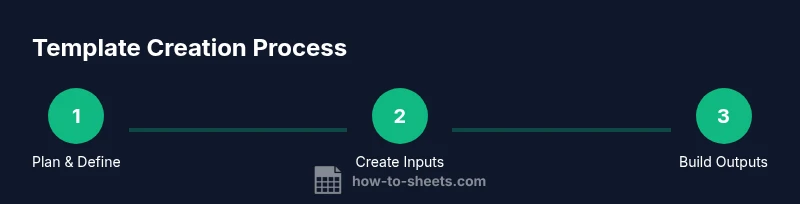
Effective templates start with intentional layout. Create a clear tab structure: an Input sheet for learners to enter data, a Processing sheet where formulas compute scores, and a Dashboard sheet that visualizes progress. Use descriptive column headers, consistent data types, and named ranges to keep formulas readable. Automation comes from core functions like SUM, AVERAGE, COUNTIF, and IF to measure completion and performance. Consider conditional formatting to flag overdue tasks, blank submissions, or top performers. When you design for reuse, think about subject agnosticism: avoid hard-coded subject names and instead rely on a Subject field that can be changed from a single cell. Document expectations on a cover sheet so new users understand how to operate the template with minimal guidance.
Data validation, templates, and reuse
Data validation ensures learners enter valid inputs and prevents accidental errors from cascading through calculations. Set drop-down menus for selected response types, enforce date formats for deadlines, and restrict numeric ranges where appropriate. Use protected sheets or protected ranges to safeguard formulas while allowing learners to interact with input cells. Creating a true template means building a copy mechanism: a master template that can be duplicated with one click, leaving the original intact. Include a simple reset or copy workflow so instructors can spin up new exercise sheets quickly while preserving the original layout and formulas. Finally, keep a changelog within the file so teams can track updates and improvements over time.
Real-world use cases: academia, freelancing, and teams
In academia, a Google Sheets exercise template can manage homework, quizzes, and lab reports in a single, shareable workbook. For freelancers, templates streamline client exercises, deliverables, and feedback loops, reducing back-and-forth. Within teams, templates capture skill-building tasks, track completion rates, and surface insights for performance reviews. The same template can support multiple cohorts by simply swapping subject names, due dates, or scoring rubrics. Practical templates include a student-facing input page, a rubric-based scoring section, and an executive dashboard showing completion percentages, average scores, and trend lines over time. By aligning templates with real-world workflows, you create a repeatable system that saves time and drives consistent results.
How to customize for your goals
Customization begins with identifying your primary objective: is this template for skill practice, assessment, or project tracking? From there, tailor the input fields to the data you actually need and set up its outputs to answer actionable questions. Add or remove sections as needed, implement new formulas for different scoring rules, and adjust dashboards to emphasize the metrics most relevant to your audience. When you maintain a modular design, you can swap out subjects while preserving the same backbone. Finally, create a short onboarding guide within the template to help new users get up to speed quickly.
Tools & Materials
- Google account(Needed to access Google Sheets)
- Google Sheets template file(Start from scratch or reuse a master file)
- Sample dataset(Populate inputs and test formulas)
- Optional: Google Forms for input collection(Push responses into Sheets automatically)
- Documentation space (cover sheet or README)(Explain how to use and customize the template)
Steps
Estimated time: 60-90 minutes
- 1
Plan the template scope and outputs
Define what learners will submit, how performance is measured, and what dashboards will display. Write down the scoring rubric, the input fields, and the final deliverables. This clarity guides every subsequent step.
Tip: Sketch a quick flow diagram showing inputs → processing → outputs. - 2
Create the workbook skeleton
Open a new Google Sheet and set up three tabs: Input, Processing, and Dashboard. Use consistent naming, freeze header rows, and set a simple color scheme to reassure users.
Tip: Use a master template tab as the source of truth for formulas. - 3
Define the input section
Create clearly labeled columns for all required fields (e.g., task, due date, response, score). Include validation rules to minimize errors, such as dropdowns for task type and date pickers for due dates.
Tip: Place inputs on the left so dashboards can pull from a stable range. - 4
Add core calculations
Implement essential formulas to compute scores, averages, and completion rates. Keep formulas readable by using named ranges, and document them on a separate help row or sheet.
Tip: Avoid hard-coded numbers; reference input cells instead. - 5
Build a progress/dashboard view
Create summary metrics (e.g., total tasks, completion percentage) and visualizations (bar charts, KPI cards). Link the dashboard to live data from the Processing sheet.
Tip: Use conditional formatting to highlight lagging tasks. - 6
Enforce data integrity
Set data validation rules, protect formulas, and add error checks. This reduces accidental edits that could break the template for other users.
Tip: Use a dedicated ‘Errors’ cell or tab to surface issues automatically. - 7
Make it copy-friendly
Create a one-click copy button or a simple script to duplicate the master template while preserving formulas and structure. This enables rapid onboarding of new cohorts.
Tip: Avoid duplicating the actual data; clone the template instead. - 8
Test, refine, and share
Test with sample data, gather feedback from intended users, and iterate. Then publish the template with clear usage instructions and permission settings.
Tip: Invite a peer to test the copy workflow to catch edge cases.
FAQ
What is a Google Sheets exercise template?
A Google Sheets exercise template is a structured workbook for capturing practice tasks, computing scores, and displaying progress. It standardizes data collection and reporting so you can reuse the same setup across multiple subjects or cohorts.
A Google Sheets exercise template is a reusable workbook that standardizes tasks, scores, and progress reports, so you can reuse it across classes or teams.
Can I reuse the template for different subjects?
Yes. Design the template with neutral inputs and dynamic subject fields. Swap subject names and dates, while keeping the underlying formulas intact. This keeps the template flexible for multiple courses or projects.
Yes. Build it to be subject-agnostic and swap in new subject names and dates as needed.
How do I share the template with others?
Share the master template with view or edit permissions as appropriate. For teams, set access at the file level and use protected ranges to protect formulas. Consider making a copy for each new cohort to preserve the master.
Share the master with proper permissions and protect formulas; create copies for new cohorts.
What formulas are essential for tracking progress?
Key formulas include SUM to total scores, AVERAGE for averages, COUNTIF for task completion, and IF or IFERROR for basic logic. Combine these with conditional formatting to visualize progress at a glance.
Important formulas are SUM, AVERAGE, COUNTIF, and IF/IFERROR for logic and progress visuals.
How do I protect the template from accidental edits?
Use sheet protection and protected ranges to lock critical formulas and structure. Keep inputs editable but safeguard cells that drive calculations or dashboards.
Lock key formula cells and protect ranges, while keeping input areas editable.
Are there ready-made examples I can start from?
Yes—the community and our guides provide example templates you can tailor. Use them to bootstrap your own exercise template and then customize for your needs.
Yes, start from ready-made templates and customize to fit your needs.
Watch Video
The Essentials
- Plan inputs, outputs, and scoring before building.
- Use a modular structure for easy reuse.
- Validate data to ensure clean analytics.
- Test with real users and iterate quickly.