Master Google Sheets Gemini: A Practical, Step-by-Step Guide
Learn how to use google sheets gemini to analyze data with AI prompts, automate tasks, and create dashboards inside Google Sheets with step-by-step guidance for 2026.


Google Sheets Gemini is an AI-assisted layer inside Sheets that helps you analyze data, generate insights from natural language prompts, and automate routine tasks. With Gemini, you can ask questions about your data, clean and transform results, and create AI-driven dashboards without leaving Sheets. This guide walks you through setup, features, and practical workflows for 2026.
What is google sheets gemini?
google sheets gemini refers to the AI-powered capabilities integrated within Google Sheets that help users analyze datasets with natural language prompts, generate actionable insights, and automate repetitive tasks. Gemini leverages advanced language models to interpret user intent and translate it into spreadsheet actions—without requiring you to write complex formulas. For students, professionals, and small business owners, this means faster data exploration, more accurate trends, and faster decision-making. While the name is Gemini, the core idea remains: AI-assisted data reasoning directly inside your familiar Sheets interface. If you search for google sheets gemini, you’ll find tutorials and official docs that explain how AI features integrate with Sheets. This section lays the groundwork for practical workflows you’ll carry into your day-to-day work.
Prerequisites and getting started
Before you dive in, verify you have a Google account with Sheets access and the appropriate workspace permissions. Gemini features are typically rolled out through Google Workspace; availability can vary by domain. Ensure your browser is up to date and you’re signed into the account that has access to the AI capabilities. It’s also helpful to have a clean dataset ready for experimentation. A stable internet connection is assumed, as Gemini processes live prompts in the cloud and returns results in seconds. If you’re in a managed environment, consult your admin about enabling AI features and privacy settings to align with your organization’s policies. This section helps you confirm readiness and minimize setup friction when you start interacting with google sheets gemini.
Core Gemini features in Sheets
In Google Sheets Gemini, you’ll encounter several core capabilities that accelerate data work. Natural language queries let you ask questions like “What are the top 5 customers by revenue this quarter?” and receive structured results in cells, charts, or summarized tables. AI-assisted data cleaning helps remove duplicates, normalize formats, and flag anomalies without manual scripting. Pattern detection surfaces trends you might miss in raw data, such as seasonality or correlation clues. Finally, you can generate summaries, narratives, or concise dashboards from a dataset, turning numbers into decision-ready insights. Throughout, the emphasis is on staying inside Sheets while extending your analytical reach with the power of AI. This makes google sheets gemini a practical tool for data management and visualization without breaking your workflow.
Designing AI-driven workflows with Gemini
A practical approach to AI-enhanced Sheets is to map your data tasks to natural-language prompts. Start with a clear objective: define the question, the data scope (date range, categories), and the expected output (list, chart, or KPI). Use Gemini to retrieve a first-pass result, then refine the prompt to narrow the scope or adjust formatting. Build a feedback loop: quality checks in adjacent cells confirm accuracy, and follow-up prompts address gaps or anomalies. For dashboards, combine Gemini-generated insights with built-in charts and conditional formatting to produce a compelling, auto-updating view. By planning your prompts and validating outputs, you create reliable AI-driven workflows that scale across projects and teams.
A quick-start scenario: turning data into insights
Imagine you have a quarterly sales dataset with dozens of products and regions. Start by asking Gemini to summarize sales by region and product, then request a ranked list of top-performing SKUs. Gemini returns the key figures in a structured table and suggests a stacked bar chart. You can tweak the prompts to add a date filter or export the results to a separate sheet for sharing. This scenario demonstrates how google sheets gemini can turn a sprawling dataset into actionable intelligence in minutes, not hours. Remember to label outputs clearly and maintain a single source of truth for the data feeding your AI prompts.
Best practices for safe and effective AI use
To maximize value while maintaining control, treat Gemini outputs as recommendations rather than final answers. Always verify results against raw data, especially when making strategic decisions. Keep prompts precise—define timeframes, metrics, and units to reduce ambiguity. Document prompts and results in a dedicated log sheet so you can reproduce analyses or audit changes later. Use role-based access to protect sensitive datasets, and avoid sharing prompts that reveal confidential information in public or semi-public workspaces. These practices help you harness AI responsibly while delivering reliable insights to your team.
Common pitfalls and how to avoid them
A common pitfall is over-reliance on AI outputs without validation. Gemini can misinterpret ambiguous prompts, so always sanity-check results and cross-verify with traditional formulas when needed. Another issue is prompt drift—over time, a prompt’s assumptions may no longer fit the data. Regularly review and update prompts to reflect data changes. Finally, be mindful of privacy: do not prompt with personally identifiable information or sensitive data unless your organization’s policy explicitly allows it, and always review data-sharing settings before distributing AI-generated outputs.
Tools & Materials
- Google account with Sheets access(Ensure you are signed in to a Google Workspace account that has access to Gemini features.)
- Stable internet connection(Broadband recommended for real-time AI responses.)
- Dataset or sample spreadsheet(Input data you want to analyze with Gemini.)
- Access to Gemini features(If your workspace has early access, enable via Settings or Admin Console.)
- Optional: Privacy policy reference sheet(For privacy/compliance reviews when sharing AI outputs.)
Steps
Estimated time: 25-45 minutes
- 1
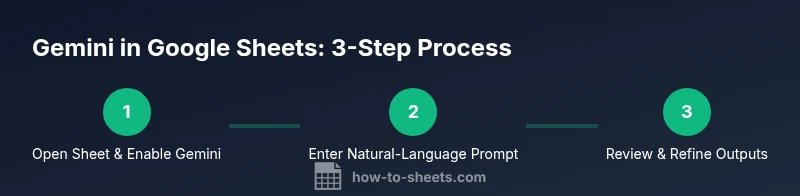
Open the target Google Sheet and enable Gemini
Open your spreadsheet and ensure Gemini is turned on in the Add-ons or AI features panel. Confirm you have editor permissions and the sheet is within a workspace that supports Gemini. The reason is simple: without access, prompts won’t be processed by the AI layer.
Tip: If Gemini is unavailable, ask your admin to enable AI features for your domain. - 2
Enter a natural-language prompt in a blank cell
In any empty cell, type a question about your data, such as “Show top regions by sales this quarter in a sortable table.” The goal is to translate a business question into a data action.
Tip: Be specific about scope (timeframe, metrics) to reduce follow-up prompts. - 3
Review Gemini’s result and refine
Examine the returned results in the adjacent cells or a newly created table. If the output isn’t precise, rephrase the prompt or add constraints (e.g., “only Q3 data, exclude outliers”).
Tip: If results look off, try a narrower prompt before broadening it. - 4
Create visuals from insights
Use the Gemini-generated numbers to create charts or a dashboard. You can ask for a recommended chart type or let Sheets suggest visuals that best represent the data.
Tip: Label axes and legends clearly to avoid misinterpretation. - 5
Link outputs with formulas for a dynamic view
Embed the AI insights into existing formulas (SUM, AVERAGE, FILTER) to keep dashboards live as data updates.
Tip: Maintain stable ranges to prevent broken references. - 6
Share responsibly and document prompts
Set appropriate sharing permissions and maintain a prompt log sheet to aid governance and reproducibility.
Tip: Avoid exposing sensitive prompts or data in shared links. - 7
Audit AI usage and iterate
Periodically review AI prompts, outputs, and dashboards. Update prompts based on data changes and user feedback.
Tip: Create a simple changelog to track AI-driven decisions.
FAQ
What is Google Sheets Gemini?
Google Sheets Gemini is an AI-powered layer inside Sheets that helps you analyze data, generate insights from natural language prompts, and automate routine tasks without leaving the spreadsheet. It translates questions into actionable actions and outputs.
Google Sheets Gemini is an AI feature inside Sheets that helps you analyze data and automate tasks using natural language prompts.
Is Gemini available to all Google accounts?
Gemini access depends on your Google Workspace rollout and admin settings. It may be limited or phased in, so check with your IT admin if you don’t see the feature.
Gemini access depends on your workspace rollout; if you don’t see it, contact your IT admin.
Can I still use traditional formulas with Gemini?
Yes. Gemini outputs can be complemented with standard formulas (SUM, FILTER, VLOOKUP, etc.) to create robust, dynamic dashboards.
Gemini works alongside your formulas; you can combine AI outputs with traditional formulas.
How should I handle sensitive data when using Gemini?
Avoid prompting with highly sensitive data; use de-identified data when possible and review sharing settings to protect privacy.
Be mindful of privacy—avoid sharing sensitive data through prompts and adjust sharing settings.
What are common mistakes when using Gemini in Sheets?
Relying too heavily on AI without validation, using vague prompts, and not documenting prompts or outputs for future audits.
Common mistakes include not validating AI results and failing to document prompts.
Watch Video
The Essentials
- Enable Gemini features for AI-driven insights in Sheets
- Ask precise NL prompts to target data scope
- Validate Gemini results before sharing
- Use Gemini to jumpstart dashboards and reports
- Secure data by reviewing sharing and privacy settings