Google Sheets Guest List Template: A Practical Step-by-Step Guide
Create a reusable Google Sheets guest list template to track RSVPs, meal preferences, attendance, and notes. Step-by-step guide with formulas, validation, sharing, and exports.


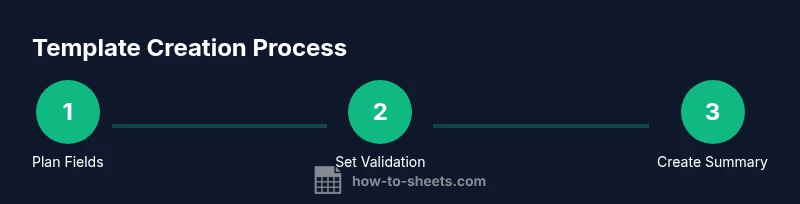
This guide shows you how to build a Google Sheets guest list template that tracks RSVPs, attendance, meal preferences, and notes. You’ll learn essential fields, set up data validation, and implement simple formulas for auto-updating RSVP counts. By the end, you’ll have a reusable sheet that you can copy for future events.
Why this template matters for event planning
Whether you're hosting a club meeting, a conference, or a family reunion, a google sheets guest list template keeps guest data centralized, up-to-date, and easy to share. A well-structured sheet helps you track RSVPs, dietary restrictions, plus-ones, check-in status, and notes in one place. The How To Sheets team found that teams who use a centralized template experience fewer double-bookings and last-minute surprises. This is especially helpful for volunteers or small businesses who rely on efficient coordination. In this block, we’ll discuss the core benefits and how a simple template scales to larger events. You’ll also see how a template supports post-event tasks like sending thank-you notes and generating attendance reports. By standardizing fields and adding validation, you reduce mistakes and save time when you’re juggling multiple guest lists or recurring events. The end result is a google sheets guest list template you can duplicate for future events, lowering onboarding time for new organizers.
Essential data fields for guests
A robust guest list template starts with well-defined data fields. Core columns typically include: Full Name, Email, Phone (optional), RSVP Status (Yes/No/Maybe), Number of Guests, Attendance (Yes/No), Meal Preference (Vegetarian, Vegan, Gluten-free, etc.), Dietary Restrictions, Check-in Status, and a Notes field for special requests. Add a unique Guest ID for tracking and deduplication. Having these fields in a logical order makes data entry faster and reduces errors when exporting to event software or sending personalized reminders. To keep things tidy, group related fields (contact details, RSVP data, and event specifics) and consider using a second sheet for historical RSVPs.
Designing a clean template: layout and structure
Design matters as much as data. Start with a clean header row that identifies each column, and freeze the header so it stays visible when scrolling. Use a logical column order: contact details, RSVP info, meal preferences, attendance, then notes. Color-code important columns (e.g., red for missing data, green for confirmed). Employ named ranges for key sections (e.g., RSVPs, meals) to simplify formulas. Enable a simple filter view so collaborators can quickly segment by RSVP status or meal type. A compact summary section at the top can display counts of attendees, regrets, and total guests, without scrolling through the full list. Keep the sheet visually consistent by sticking to a small palette and avoiding over-styling that slows down calculations.
Data validation and consistent entry
Data validation is your friend. Use drop-down menus for RSVP Status (Yes/No/Maybe) and Meal Preference (Vegetarian/Vegan/Gluten-free/None). Validate email formats and restrict special characters in Name fields to avoid import issues. Lock critical columns with protected ranges if needed, and provide a clear error message when data entry goes wrong. Use IFERROR and basic conditional logic to derive Attendance from RSVP status, so a single change updates the rest of the sheet automatically. Regularly run a quick audit to catch duplicates or missing essential fields before exporting.
Practical examples: RSVP status, meal preferences, and notes
Consider sample rows to illustrate common scenarios. Example: John Doe, [email protected], Yes, 1 guest, Attending: Yes, Meal: Vegetarian, Dietary: None, Check-in: Pending, Notes: Vegetarian option for spouse. Another example: Jane Smith, [email protected], Maybe, 0 guests, Attending: No, Meal: None, Dietary: N/A, Check-in: —, Notes: Waiting on spouse RSVP. Use these examples to validate your dropdown lists, default values, and conditional formatting. By documenting typical cases, you ensure every new entry follows the same structure, making downstream reporting predictable and reliable.
How to handle guests, invites, and responses
Managing invitations from a single sheet streamlines outreach. Include a simple “Invited” column you can toggle when invitations are sent, then track responses over time with a date column for RSVP submission. If you import names from a mailing list, deduplicate based on Email or Guest ID. Build automation where an RSVP of Yes increments an Attending counter and updates a total guest tally. This approach keeps organizers aligned and reduces last-minute surprises on event day.
Automating updates with formulas and conditional formatting
Automations boost accuracy. For example, use =COUNTIF(RSVP_Status Range, "Yes") to count attendees, and =SUM(Number_of_Guests_Range) for total guests. Create a dynamic RSVP completion percentage with =COUNTA(Name_Range)/Total_Guests. Apply conditional formatting to highlight rows with missing essential fields or outdated RSVP dates. Add a progress bar in the header row that updates as responses arrive. These small formulaic touches convert a static list into an actionable dashboard for event planning.
Sharing, permissions, and collaboration tips
Share the sheet with teammates using view or edit access as appropriate. Set permissions to protect critical formulas and headers, preventing accidental changes. Use version history to revert mistakes and document changes with comments. When collaborating, maintain a consistent data schema and add a short “how to use this sheet” guide in a dedicated tab. For privacy, avoid exposing personal details to unauthorized viewers; consider removing or redacting sensitive fields when sharing publicly.
Printing, exporting, and packaging for the event
Before printing or exporting, set a clear print area that includes only the necessary fields. Export to CSV or PDF for event staff, registration desks, or check-in systems. Create a separate “Print-ready” tab with a simplified view that omits notes and internal IDs. If you plan to reuse the sheet, add a template tab that can be duplicated for future events, preserving a consistent structure across all guest lists.
Tools & Materials
- Google account with access to Google Sheets(Needed to create and edit the template.)
- Event details (date, venue, expected guests)(Pre-fill the sheet to accelerate data entry.)
- Device with internet access(For creating and sharing the template.)
- Optional: barcode/QR for check-in(If you plan on scanning at the check-in desk.)
- Printer for printed RSVPs(Useful for on-site registration.)
- Sample data (backup)(Seed data to test validation and formulas.)
Steps
Estimated time: 30-60 minutes
- 1
Set up workbook and sheet
Create a new Google Sheet named 'Event Guest List'. Add at least two tabs: one for the current event and a template/home base. Freeze the header row and set an initial column order.
Tip: Name the tabs clearly and create a reserved area for the summary/metrics. - 2
Create core columns
Add essential columns in a logical order: Name, Email, Phone, RSVP Status, Guests, Attendance, Meal, Dietary, Check-in, Guest ID, Notes.
Tip: Keep column width modest and use wrap text where needed. - 3
Add RSVP status dropdown
Create a data validation rule for RSVP Status with options Yes, No, Maybe. Apply to all rows in the RSVP Status column.
Tip: Use a named range like RSVP_Status for easy updates. - 4
Add meal preference dropdown
Set up a Meal Preference dropdown (Vegetarian, Vegan, Gluten-free, None, Other).
Tip: Include a short 'Other' option with a separate Notes field. - 5
Add optional fields
Include fields like Guests (number of attendees), Dietary (notes on restrictions), and Check-in status.
Tip: Default Check-in to 'Pending' until the person arrives. - 6
Enable data validation
Lock key columns to protect formulas and critical fields. Validate emails and phone formats where appropriate.
Tip: Show custom error messages to guide data entry. - 7
Create a guest ID
Generate a unique Guest ID (e.g., GID-0001) to prevent duplicates and simplify exports.
Tip: Use a formula like =TEXT(ROW()-1,"GID-0000") to auto-create IDs. - 8
Set up a summary section
Add a top row that automatically counts attending guests and overall RSVP completion.
Tip: Link summary cells to the main ranges for real-time updates. - 9
Test with sample data
Enter dummy rows to verify validations, counts, and conditional formatting.
Tip: Check edge cases like missing emails or invalid RSVP statuses. - 10
Share and iterate
Share with teammates, set permissions, and gather feedback to refine the template.
Tip: Add a short usage guide in a separate tab.
FAQ
How do I start building the template from scratch?
Begin with a clean sheet, define core columns (Name, Email, RSVP Status, Attendance), then add validation and a simple summary at the top. Build gradually and test each addition with sample data.
Start by creating core columns, then validations and a summary. Test with sample data as you add features.
Can I share the guest list safely with teammates?
Yes. Use Google Sheets sharing settings to grant view or edit access only to trusted teammates. Protect formulas and sensitive columns, and consider creating a read-only export for event staff.
Share with trusted teammates using proper permissions and protect sensitive data.
How can I import existing guest data from another sheet?
Use the IMPORTRANGE or COPY-PASTE methods to bring in existing guests. Ensure columns align with your template’s structure and re-validate emails and RSVPs after import.
You can import data via IMPORTRANGE and re-check data validity after importing.
Is it possible to export RSVPs to CSV for staff?
Absolutely. Use File > Download > Comma-separated values (.csv). Maintain the same column order for smooth processing by event staff.
Export to CSV for staff, keeping the same column order for easy processing.
What should I do if I discover duplicates?
Use a Guest ID and a deduplication check (e.g., UNIQUE on Email) to identify duplicates. Merge or remove duplicates before finalizing the list.
Identify duplicates with a unique ID and deduplicate before finalizing.
Watch Video
The Essentials
- Create a centralized guest list data model.
- Use data validation to ensure consistent entries.
- Leverage formulas for real-time attendance counts.
- Protect critical fields to avoid accidental edits.
- Export-ready templates save time for future events.