How to Use Google Sheets on a Tablet: A Practical Guide
Learn how to use Google Sheets on a tablet with offline access, touch-friendly navigation, and cross-device syncing. This practical guide covers iPad and Android tablets for students, professionals, and small business owners.


Google Sheets on a tablet can be set up for productive, offline-enabled work with touch-friendly navigation and easy sharing. See our full step-by-step guide for iPad and Android tablets to maximize efficiency.
Getting the Most from Google Sheets on a Tablet
The combination of a tablet’s portability and Google Sheets’ cloud-based capabilities creates powerful possibilities for on-the-go data work. When we talk about the phrase google sheets tablet, we’re referring to using Sheets on iPadOS, Android tablets, or any large-screen device where touch is the primary input. According to How To Sheets, the most productive tablet setup emphasizes five areas: a clean workspace, offline access for resilience, a keyboard or stylus for precision, intuitive navigation, and reliable cloud syncing. In practice, this means organizing your sheets with clear headers, using the right gestures to move and select cells, and choosing formats that scale well on touchscreens. Start with a simple sheet to learn the layout, then expand to more complex data models as you gain comfort with formula entry and charting on a tablet. This approach keeps your workflow smooth across devices while you practice data entry on the go. How To Sheets analysis also highlights that tablet workflows shine when offline access and keyboard support are prioritized from day one.
Installing and Signing In: Start Right
Getting Google Sheets on a tablet is quick. Download the Google Sheets app from the device’s app store, open the app, and sign in with your Google account. If you already use Sheets on another device, your documents will sync automatically once you’re online. For a smooth start, ensure you’re on a recent OS version and have Drive synchronization enabled. If you work across devices, consider enabling offline access for essential sheets so you can edit without a live internet connection. This setup applies to both iPad and Android tablets, giving you a consistent experience no matter where you work.
Keyboard, Input, and Accessibility on Tablets
Touch input is central on tablets, but many people find an external keyboard speeds up data entry and reduces mistakes. If you’re using a stylus, you can also leverage handwriting-to-text features for notes or quick data transcription. Adjust font size and zoom so cells, headers, and formulas remain legible. Enable the on-screen gridlines you prefer and customize swipe gestures in your device’s accessibility settings to minimize mis-taps. This section emphasizes a balance between touch ergonomics and precise entry, ensuring you can navigate large spreadsheets without fatigue.
Navigating Sheets on a Tablet: Layout, Gestures, and Shortcuts
Tablet layouts should prioritize readability and quick actions. Learn how to select ranges with taps and drags, use two-finger scrolling for precision, and freeze panes for headers during scrolling. Google Sheets supports several on-screen shortcuts, and while some may differ from desktop versions, you can reach most common actions via touch menus or the floating toolbar. Organize data by applying borders, alternating row colors, and consistent number formats. Remember to save frequently ( Drive typically autosaves, but explicit saves can prevent data loss during connectivity issues ).
Data Entry and Formulas on a Tablet
Entering data on a tablet is about clarity and error reduction. Start with simple data types (text, numbers, dates) and expand to formulas as you gain confidence. Relative cell references work the same way as on desktop, but you’ll often rely on auto-fill via drag handles or long-press gestures to copy formulas down a column. Examples to practice include SUM, AVERAGE, COUNT, and IF. When building more complex formulas, break them into smaller parts and test each component—this minimizes mistakes when you eventually build multi-condition expressions or array formulas.
Offline Access and Sync on Tablets
Offline access is crucial for tablet work, especially for travel or limited connectivity. In Google Sheets, mark important sheets for offline use so edits are stored locally and sync automatically when you reconnect. Plan a small offline-first workflow: work on a subset of critical sheets, and batch sync during a reliable connection window. This strategy ensures you won’t lose work and can continue productive analysis while mobile.
Collaboration, Sharing, and Permissions on Tablet
Tablets support real-time collaboration just like desktops. When you share a sheet, you can grant view, comment, or edit access. Use comments and resolve threads to keep conversations focused. If you’re teaching, presenting, or reviewing data with teammates, use @mentions to notify collaborators. Keep an eye on permission levels and revoke access when projects conclude to maintain security across devices.
Security and Privacy on Tablet Sheets
Protecting sheet data on a tablet starts with device security: enable screen lock, biometric authentication where available, and automatic logout after inactivity. Use strong Google account credentials and review sharing settings regularly. If the tablet is lost or stolen, sign out remotely from Drive and Sheets to prevent unauthorized access. For sensitive projects, consider separating personal and work accounts and enabling device-level encryption.
Common Pitfalls and How to Avoid Them
Common issues on tablets include mis-taps, formatting misalignment when resizing screens, and flaky offline sync. To prevent these, keep a clean layout with consistently sized cells, use clear headers, and verify formulas on mobile before sharing broadly. Regularly clear cache and update the app to benefit from the latest touch optimizations. If you run into performance slowdowns, try closing background apps to free up memory.
Best Practices and Project Templates for Tablet Work
Develop a tablet-first mindset: design sheets with large tap targets, high-contrast text, and scalable charts. Use templates for budgeting, checklists, or schedules to reduce repetitive setup. When sharing projects, attach version histories and maintain a concise notes field to track decisions. By standardizing formats across tablets and desktops, you’ll streamline collaboration and keep data integrity intact.
Tools & Materials
- Tablet (iPadOS or Android)(Ensure internet access for initial sign-in and syncing; update to the latest OS version for best compatibility.)
- Google Sheets app(Install from the App Store (iPad) or Google Play (Android).)
- Google account(Used to sign in and save docs to Drive.)
- External keyboard (optional)(Speeds up data entry and formula editing on tablet.)
- Stylus (optional)(Helpful for precise tapping and handwriting input.)
- Stable internet connection or data plan(Needed for syncing and real-time collaboration; offline mode helps when offline.)
Steps
Estimated time: 45-60 minutes
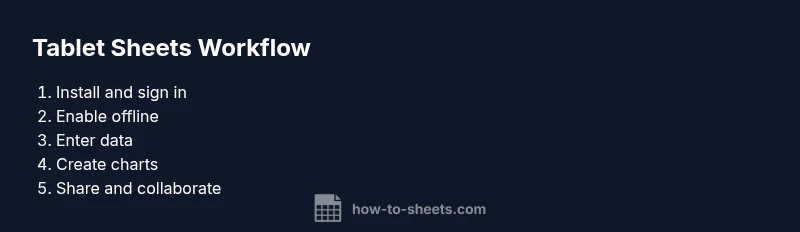
- 1
Install and sign in
Open the app store, install Google Sheets, and sign in with your Google account. Ensure Drive is enabled so your documents sync across devices. Confirm offline access is available for essential sheets.
Tip: Use a strong Google password and enable 2FA for additional security. - 2
Adjust display for readability
Set larger font sizes and enable display zoom if needed. Configure your tablet’s display settings to ensure headers, formulas, and charts are legible on touchscreens.
Tip: Test a sample sheet with headers and a few formulas to verify readability. - 3
Enable offline access for key sheets
In Google Sheets, mark critical files for offline use so you can edit without network. Sync will resume automatically when you reconnect.
Tip: Limit offline access to essential workbooks to conserve device storage. - 4
Enter data and use basic formulas
Input data using the on-screen keyboard or an external keyboard. Practice with SUM, AVERAGE, and simple IF statements to become comfortable with formulas on tablet.
Tip: Test each formula in a small range before extending to larger datasets. - 5
Explore charts and basic formatting
Create line or bar charts from selected data. Use formatting options to improve legibility on a touchscreen, such as bold headers and high-contrast colors.
Tip: Keep chart types consistent across sheets for easier comparison. - 6
Share, collaborate, and track changes
Use the share feature to grant access, and employ comments for discussion. Periodically review version history to track edits and decisions.
Tip: Use @mentions to notify collaborators directly in a comment.
FAQ
Can I edit Google Sheets offline on a tablet?
Yes. You can mark sheets for offline access so edits are stored locally and sync when you reconnect. This is especially useful during travel or in areas with unreliable connectivity.
Yes, you can edit offline on a tablet and it will sync when you have internet.
Is Google Sheets fully functional on iPad and Android tablets?
Most core features, including formulas, charts, and sharing, work well on tablets. Some advanced desktop-only features may require a browser on desktop, but the mobile app covers the majority of tasks.
Most features work on tablet apps, with some desktop-only tasks requiring a computer.
Do I need a keyboard to be productive on a tablet?
A keyboard significantly speeds up data entry and formula editing, but it’s not strictly required. You can still work effectively with the on-screen keyboard and touch gestures.
A keyboard helps a lot, but you can still work well with touch input.
How do I share a sheet from a tablet?
Open the sheet, tap the share button, and select the appropriate permissions (viewer, commenter, or editor). You can add people by email or share a link with access controls.
Open the sheet, tap share, and choose permissions for collaborators.
What are the best practices for data protection on tablets?
Use device passcodes or biometric locks, enable account security features, and minimize sharing of sensitive documents. Regularly review who has access and revoke permissions when projects end.
Lock your device, manage access, and review sharing settings regularly.
Can I create charts and formulas on a tablet?
Yes. You can create charts and use most common formulas on tablets. Some advanced formulas may require desktop access, but general data visualization remains very capable on a tablet.
Charts and many formulas work well on tablets; some advanced ones may be desktop-only.
Watch Video
The Essentials
- Plan for offline access first to prevent work interruptions.
- Use a keyboard or stylus to improve data-entry accuracy.
- Keep layouts simple and scalable for touchscreens.
- Collaborate with comments and notifications to stay aligned.
- Protect sensitive data with device security and proper sharing settings.