Google Sheets Tips for Teachers: Practical Templates and Guidance
Discover practical google sheets tips for teachers to organize rosters, track progress, and visualize student learning with ready-to-use templates and safe sharing practices.


You will learn practical Google Sheets tips for teachers to organize class rosters, track assignments, monitor student progress, and generate simple visual reports. You'll need a Google account, access to Google Sheets, and permission to edit shared documents. This guide provides ready-to-use templates, essential formulas, and best practices for privacy and collaboration.
Why google sheets tips for teachers matter
In modern classrooms, teachers juggle rosters, assignments, attendance, and progress checks. Google Sheets offers a flexible, collaborative workspace to centralize all of these tasks. Using thoughtful templates and reliable formulas can save hours each week and reduce data-entry errors. This is why google sheets tips for teachers are essential for student outcomes. According to How To Sheets, the right setup can transform messy spreadsheets into clear, actionable dashboards. This article, built around practical steps, templates, and proven workflows, will guide you from basic setup to a lightweight, privacy-conscious classroom data system. Along the way, you'll learn to protect sensitive information, design templates that scale with class size, and share results with colleagues without compromising student privacy. The combined effect is faster report generation, steadier tracking across grading cycles, and clearer communication with families.
Tools & Materials
- Google account with access to Google Sheets(Needed to open and save sheets in Drive)
- Class roster starter template(Use a teacher-friendly template to customize columns)
- Student performance tracking template(Optional but recommended for progression reports)
- Stable internet connection(Essential for real-time collaboration)
- Keyboard shortcuts cheat sheet(Helpful for speed)
Steps
Estimated time: 30-40 minutes
- 1
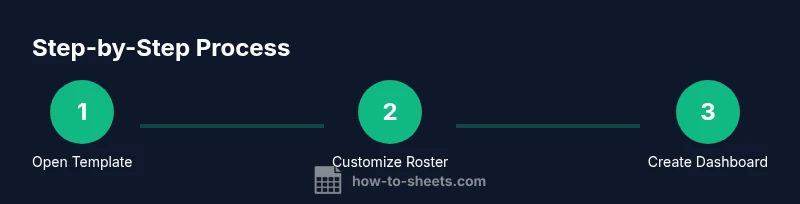
Open your starter templates
Navigate to Google Drive, locate your class roster starter template, and make a copy to your class folder. Rename the copy with the current term and class section to avoid confusion. This step preserves the original template for future use.
Tip: Always work from a copied file to protect the master template. - 2
Name and organize your roster
Create essential columns such as Student ID, First Name, Last Name, Email, Homeroom, and Guardian Contacts. Consider splitting full names into separate first and last name fields for cleaner sorting and mail merge opportunities.
Tip: Use split text to separate names if needed. - 3
Set up student progress tracking
Add columns for assignments or skill areas, and include a status column with a dropdown (Not started, In progress, Completed). This structure makes trends easy to spot at a glance.
Tip: Use data validation to ensure consistent entries. - 4
Use data validation for consistency
Enforce allowed values for key fields (e.g., grades, status, attendance). Build lists in a separate sheet and reference them, so updates are centralized and errors are minimized.
Tip: Keep lists in a hidden sheet or a dedicated data validation range. - 5
Apply conditional formatting for quick insights
Highlight late submissions, missing data, or at-risk students using color rules. Conditional formatting lets you spot issues without reading every cell.
Tip: Test rules with a few sample rows before applying to the whole sheet. - 6
Incorporate simple formulas
Use COUNTIF for attendance, AVERAGEIF for averages by class, and SUM for totals. Lock ranges with $ to copy formulas across rows and columns without errors.
Tip: Document formulas in a separate sheet for future reference. - 7
Set up basic automation with filters and named ranges
Create named ranges for roster data and use filter views to alternate between classes or sections. This keeps data tidy and makes navigation faster for co-teachers.
Tip: Named ranges simplify cross-sheet formulas. - 8
Create a progress dashboard
Build a separate dashboard sheet with charts showing class averages, attendance, and completion rates. Link charts to dynamic ranges so they update as you add data.
Tip: Use dynamic named ranges or a single data source for consistency. - 9
Share responsibly with students and parents
Configure sharing settings to limit edits and use view-only links for parents. Use protected ranges for sensitive fields like student emails or IDs.
Tip: Review access regularly to prevent drift in permissions. - 10
Review, audit, and secure data
Schedule regular data checks for accuracy, back up important sheets, and apply privacy practices like masking or restricting data when sharing. Version history can recover unintended changes.
Tip: Set a weekly audit reminder and teach students about data privacy basics.
FAQ
What are the most useful formulas for classroom tracking?
Common formulas like COUNTIF, SUMIF, and AVERAGEIF support attendance counts, score averages, and participation tracking. VLOOKUP (or XLOOKUP in newer sheets) helps pull student data from other rosters. IF and IFS manage conditional logic for progress statuses.
Useful formulas include COUNTIF, SUMIF, AVERAGEIF, and VLOOKUP for pulling data from rosters; combine with IF for progress logic.
How can I share sheets with students or parents securely?
Use view-only sharing for parents and students when possible, and create protected ranges for sensitive data like IDs or email addresses. Limit editing to designated teachers and consider separate copies for class work vs. administration.
Use view-only access for parents and protected ranges for sensitive data; limit editing to trusted teachers.
Can I use Google Sheets offline?
Yes, Google Sheets supports offline access. Enable offline mode in Google Drive, and ensure you’ve prepared your templates for offline work. Changes sync automatically when you're back online.
Yes, you can work offline; enable offline mode and let changes sync when online again.
Are there ready-made templates for teachers?
There are several ready-made templates designed for classroom rosters, attendance, and progress tracking. Start with a core roster template, then customize columns to fit your grading policy and reporting needs.
Yes, start with a roster template and tailor it to your class and grading setup.
How can I visualize progress effectively?
Create a dedicated dashboard sheet with charts for attendance, scores, and completion rates. Use consistent data sources and update charts as data changes to keep visuals accurate.
Build a dashboard with charts showing attendance and progress; keep data sources live and consistent.
What should I do if data validation causes errors?
Check the source lists used by validation rules, ensure ranges are correct, and verify copied formulas. If needed, re-apply validation from the Data Validation settings and test with sample rows.
Review validation lists and ranges; reapply if needed and test with sample data.
Watch Video
The Essentials
- Implement ready-made templates to save time
- Use data validation to ensure clean data
- Build a simple dashboard to visualize progress
- Protect sensitive data with proper sharing controls
- Leverage formulas to automate calculations