Google Sheets vs Numbers: A Practical, Team-Friendly Comparison
An analytical comparison of Google Sheets vs Numbers, covering collaboration, features, pricing, and best use cases for students, professionals, and small businesses.


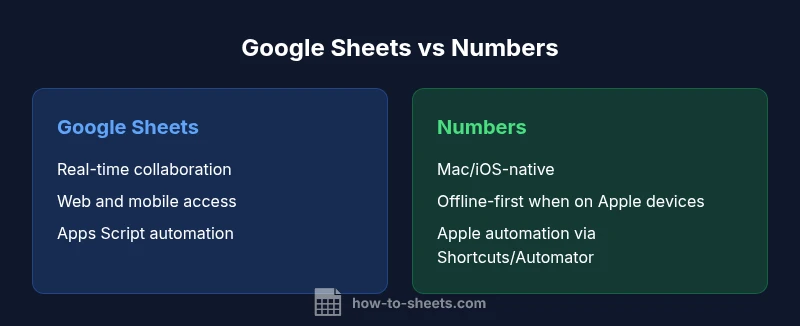
When comparing Google Sheets vs Numbers, Sheets generally wins on cross-device collaboration, real-time editing, and broad integrations, while Numbers shines with Mac-native polish and offline reliability. For teams that span multiple platforms and require easy sharing, Google Sheets is typically the safer choice; for Apple-centric workflows, Numbers can offer a smoother, offline-first experience. This guide dives into the details to help you decide which fits your needs in 2026.
Key Differences at a Glance
Google Sheets and Numbers serve similar purposes, but they differ in ecosystem alignment, collaboration capabilities, and platform reach. For anyone evaluating google sheets vs numbers, the core distinctions hinge on cross-device collaboration, scripting options, offline behavior, and integration with other tools. This section highlights the primary factors you should weigh first: collaboration across devices, data portability, formula compatibility, and general product philosophy. In 2026, the How To Sheets team observed that Sheets tends to excel in multi-user scenarios and web-based workflows, while Numbers prioritizes a polished Mac/iOS experience and tighter integration with Apple apps. When your work depends on simultaneous edits and broad external sharing, Sheets generally offers stronger support; when your work hinges on offline use and Apple-native workflows, Numbers shines.
Collaboration and Sharing Experience
Real-time collaboration is a cornerstone of Google Sheets. Multiple users can edit a single sheet at once, view live cursors, and see updates instantly across devices. Comments, threaded discussions, and action items are seamlessly integrated with Google Drive permissions, making it easy to share with teams, clients, and stakeholders. Numbers, by contrast, emphasizes controlled sharing within the Apple ecosystem, which is excellent for Mac-using teams but less fluid for cross-platform collaboration. Version history in Sheets tends to be robust, with activity trails that help track changes over time. Numbers offers version history as well, but the collaboration surface is more native to macOS and iOS, which can slow cross-platform workflows.
Spreadsheet Features: Formulas, Functions, and Automation
Both apps offer core spreadsheet functionality: sums, lookups, filters, and charts. Sheets benefits from a vast library of functions and a growing catalog of add-ons via the Google Workspace Marketplace. Apps Script lets developers extend functionality with custom menus, automation, and integrations. Numbers provides a clean, Apple-leaning formula set and strong compatibility for basic analytics, but scripting is less flexible outside the Apple ecosystem, relying more on built-in automations and shortcuts. For many teams, Sheets’ extensibility and automation options are the deciding factor when choosing a tool for ongoing workflows.
Data Handling and Interoperability
Interoperability matters when teams move data between tools or departments. Google Sheets supports straightforward import/export to Excel and CSV, and it handles CSV parsing well from various sources. Numbers can export to Excel or PDF and supports common spreadsheet formats, but its data interchange is often smoother within the Apple ecosystem. If your data pipeline frequently shifts between platforms (Windows, macOS, iOS, Android), Sheets offers a more consistent cross-platform experience. For large datasets, Sheets’ cloud-based storage means access from anywhere, while Numbers can leverage iCloud for access from Apple devices.
Pricing and Platform Accessibility
Google Sheets is free to use with a Google account, with paid tiers for Organizations via Google Workspace that unlock advanced sharing and security features. Numbers is included with Apple hardware and software, so there is no separate subscription cost for macOS and iOS users; however, you must operate within Apple’s ecosystem to gain the full experience. If your team already relies on Google Workspace, Sheets becomes the natural default; if you are deeply embedded in Apple devices and prefer offline-first workflows, Numbers makes more sense. Cost considerations should factor in hardware, software ecosystems, and IT policy requirements.
Privacy, Security, and Ownership
Sheets stores data in Google Drive and benefits from Google’s enterprise security and access controls, with granular sharing permissions and audit trails. Numbers stores data in iCloud or locally on devices, aligned with Apple’s privacy stance and control features. In regulated industries or environments with strict data residency requirements, the choice may hinge on where data is stored and how it’s accessed. Both tools provide features to protect sensitive information, but the default data flow and storage location differ markedly between them.
Real-World Use Cases by Role
- Students: Sheets excels for group projects, shared study sheets, and quick collaboration on assignments across devices. Numbers is great for personal budgets, class notes, and Mac-native layouts.
- Professionals: Cross-team collaboration, live dashboards, and templates are often more robust in Sheets due to the broader ecosystem and scripting options. Numbers works well for presentations, client-facing documents, and workflows tightly integrated with other Apple apps.
- Small Businesses: If your team collaborates heavily online and requires cross-platform access, Sheets dominates. If your business runs primarily on Macs and iOS devices, Numbers may deliver a smoother daily experience with offline work and Apple-native features.
Migration Path: Moving Data Between Sheets and Numbers
Transferring data between Google Sheets and Numbers is feasible but requires careful planning. Export Sheets as Excel or CSV, then import into Numbers. Conversely, export Numbers to Excel/CSV and open in Sheets. Expect some formatting adjustments, especially with complex formulas, charts, and data validation. For ongoing workflows, consider automating routine exports or creating templates that translate between the two environments to reduce manual rework.
Tips for Getting Started Quickly
If you’re deciding between Google Sheets vs Numbers, start with a small pilot sheet that mirrors a real task (budget tracking, project plan, or data entry template). Create a version in both tools to compare work habits, performance, and collaboration flow. Enable offline access in your chosen platform so the team can continue work during connectivity issues. Explore key features like conditional formatting, data validation, and charting early to understand how each tool handles common tasks.
Common Pitfalls and How to Avoid Them
Expect differences in formula syntax and feature parity. Don’t assume every Excel-compatible formula or Google Sheets add-on will translate perfectly to Numbers, and vice versa. When migrating data, test formatting, charts, and conditional formatting on a subset of data to catch edge cases. Rely on templates tuned to each environment to minimize restructuring time, and document any manual adjustments for team members who switch between tools.
Advanced Tips: Scripting, Add-ons, and Templates
Sheets supports Apps Script for custom automation and a large marketplace of add-ons that extend capabilities beyond the base product. Numbers offers tight integration with Apple Shortcuts and Automator-based workflows for advanced users on macOS and iOS, but it lacks the same breadth of cross-platform automation. For teams seeking scalable automation, Sheets is typically the better long-term choice; for Apple-centric users, Numbers can still deliver strong automation when used with native macOS tooling.
Checklist for Decision: Which Is Right for You?
- Are most collaborators on multiple platforms, including Windows and Android? Sheets is the safer bet.
- Do you rely on Apple devices and offline-first workflows? Numbers is compelling.
- Do you need advanced automation or third-party add-ons? Sheets offers a broader ecosystem.
- Is data export/import to Excel or CSV common in your workflow? Sheets provides mature cross-format support.
- Is your organization deeply invested in Google Workspace or Apple hardware? Your platform choice should align with your existing stack.
Comparison
| Feature | Google Sheets | Numbers |
|---|---|---|
| Platform availability | Web, iOS, Android | Mac, iOS |
| Collaboration and sharing | Real-time co-authorship across devices | Apple-centric sharing within iCloud ecosystem |
| Scripting and automation | Apps Script; cross-platform automation | Limited cross-platform scripting; Apple automation focus |
| File formats and import/export | Excel, CSV; straightforward import/export | Excel/CSV export; native Numbers formats; cross-compatibility caveats |
| Offline access | Robust offline support on mobile/desktop via caching | Offline-first within the Apple ecosystem; variable mobile offline support |
| Templates and add-ons | Large library in Workspace Marketplace; rich add-ons | Fewer third-party add-ons; strong Apple-native templates |
| Cost and entry | Free with Google account; Workspace plans available | Included with Apple devices; no separate subscription (depends on device) |
| Charts and visualization | Broad chart options; dynamic visuals; pivot tables | Quality charts; seamless with Keynote/Apple suite |
| Data privacy and security | Cloud-based with Google security; granular access control | Apple privacy controls; data may reside in iCloud or locally |
The Good
- Strong cross-device collaboration and sharing in Sheets
- Broad ecosystem of templates, add-ons, and integrations
- Cross-platform accessibility via web and mobile apps
- Excellent import/export options (Excel/CSV)
The Bad
- Numbers offers tighter Apple integration but less cross-platform collaboration
- Apps Script and Workspace add-ons require Google account and internet access
- Offline features can vary by device and network
Google Sheets is generally the better choice for teams needing real-time collaboration and cross-platform access; Numbers is ideal for Mac-first workflows and offline work.
If your work involves multiple collaborators across devices, Sheets is the safer bet. If you primarily use Apple devices and value native integration, Numbers may offer a smoother experience.
FAQ
Which is better for collaboration, Google Sheets or Numbers?
For cross-platform teams, Sheets generally provides stronger real-time collaboration and sharing controls. Numbers offers solid collaboration within the Apple ecosystem but can be less seamless across non-Mac devices.
Sheets is typically better for teams that collaborate across different devices, while Numbers shines for Apple-only environments.
Can I import Apple Numbers data into Google Sheets?
Yes. You can export Numbers data as Excel or CSV and then open it in Google Sheets. Be prepared to adjust formulas and formatting after the import.
Yes, export Numbers as Excel or CSV, then open in Sheets; some formatting may need tweaks.
Is Numbers free to use on Apple devices?
Numbers is included with Apple devices and does not require a separate subscription. Availability may depend on your hardware and software version.
Numbers comes with Apple devices; there’s no separate subscription.
Can I export Google Sheets to Excel or CSV?
Yes. Google Sheets can export to Excel, CSV, and other formats. This makes interoperability with Numbers and other tools straightforward, though some formatting may shift.
You can export Sheets to Excel or CSV; formatting might shift a bit.
Which tool is better for budgeting templates in small businesses?
Sheets generally provides a broader library of budgeting templates and easier automation, which helps teams scale budgets. Numbers can handle budgeting tasks well within Apple ecosystems but may lack cross-platform templates.
Sheets offers more budgeting templates and automation options; Numbers works well in Apple-centered setups.
Can automation replace manual tasks in both apps?
Automation is stronger in Sheets with Apps Script and third-party add-ons. Numbers relies more on built-in automations and shortcuts; it lacks a cross-platform scripting framework.
Sheets has broader automation options; Numbers uses native Apple automation and has fewer cross-platform scripts.
The Essentials
- Prioritize real-time collaboration with Sheets across devices.
- Prefer Numbers for Mac-centric workflows and offline use.
- Leverage Apps Script in Sheets for automation; Numbers has limited scripting options.
- Test a small pilot to decide which ecosystem fits your needs.
- Choose based on your team's existing hardware and software stack.