Google Sheets vs Excel: A Practical 2026 Comparison
A thorough, practical comparison of Google Sheets and Microsoft Excel, covering collaboration, features, offline use, pricing, and ideal use cases for students, professionals, and small business owners.


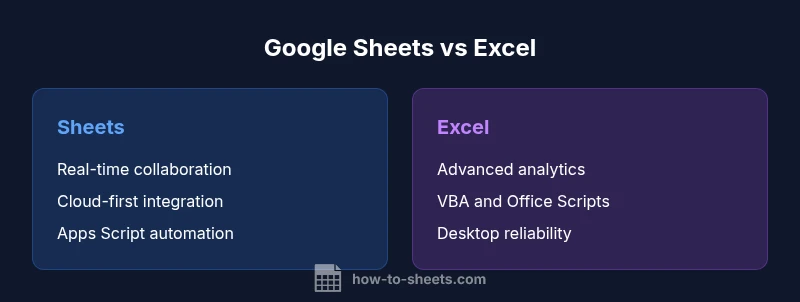
Google Sheets and Microsoft Excel both power everyday data work, but they differ in collaboration, accessibility, and ecosystem. In short, Sheets excels at real-time teamwork and cloud-first workflows, while Excel remains the more feature-rich, desktop-first tool for complex modeling. If your priority is seamless sharing and cross-device access, Sheets is the better start; if you need advanced analytics, heavy macros, and offline performance, Excel dominates.
What makes Google Sheets and Excel different at a high level
According to How To Sheets, the most visible contrast between Google Sheets and Microsoft Excel lies in where and how people work with their data. Sheets is built around cloud-first collaboration, automatic saving, and live sharing without deeply configuring permissions for each edit. Excel, in contrast, has a long-standing desktop pedigree with a feature-rich engine that handles sophisticated data models and macros. This divergence in philosophy shapes not only daily tasks but also team workflows, deployment choices, and long-term scalability. For students and small business owners, the choice often comes down to whether cloud collaboration or desktop power is the pivotal requirement. The How To Sheets analysis emphasizes that understanding your team's work style is as important as knowing feature lists.
In practice, the decision is rarely about one feature in isolation. It’s about how well the tool integrates with existing workstreams, whether your team needs real-time co-authoring, and how you balance accessibility against advanced capabilities. Both platforms offer extensive help centers and community ecosystems, but the real-world impact shows up in speed of onboarding, ease of sharing, and cross-device consistency. When you match your project’s pace to the platform’s strengths, the differences become clear rather than overwhelming.
Core feature differences: collaboration, offline, scripting, and extensions
A fundamental differentiator is the collaboration model. Google Sheets provides near-instantaneous real-time editing across devices, with live cursors and seamless version history. This makes Sheets especially attractive for teams that require remote work and rapid iteration. Excel, while now offering co-authoring in its modern Office suite, historically relied on saving changes in a single file and sharing, which can introduce friction in fast-paced environments. The scripting landscape also diverges: Google Sheets uses Apps Script, a JavaScript-based environment that’s approachable for many developers, whereas Excel relies on VBA or the newer Office Scripts in the web version. Extensions and add-ons in Sheets tend to be cloud-native, while Excel’s ecosystem often centers around desktop plugins and robust data-analysis add-ins. In short, Sheets leans into cloud-first extensibility; Excel leans into local processing power and deep analytics.
From a practical perspective, this affects onboarding time and cross-functional collaboration. Teams that rely on a single source of truth, with multiple contributors updating budgets, schedules, or dashboards, will benefit from Sheets’ simplicity and immediate visibility. Conversely, users who perform complex financial modeling, macro-driven automation, or heavy data transforms may gravitate toward Excel’s broader toolset. How To Sheets’ guidance suggests evaluating your typical workflow: do you need rapid sharing across devices, or do you require the capability to run intricate, offline analyses with mature scripting?
Formulas, functions, and automation: what is unique in each
Formulas and functions form the brain of any spreadsheet, and Google Sheets and Excel each cultivate a distinct strength. Sheets shines with functions that support real-time data integration across Google services and web data sources. Features like QUERY, IMPORTRANGE, and IMPORTRANGE-like capabilities (for cross-workspace data) empower quick, dynamic data pulls without external tooling. Excel, by contrast, has a matured library of functions, sophisticated statistical tools, and powerful array capabilities that support advanced modeling, Monte Carlo simulations, and large-worksheet calculations. Excel’s VBA and Office Scripts provide a broad spectrum of automation, enabling repetitive tasks to be encapsulated into macros and run with minimal manual input.
A practical takeaway is to map your typical tasks to function strengths. If your work relies on pulling live data from the web or other Google Workspace apps, Sheets offers a smoother, more cohesive experience. If you require advanced pivoting, deep statistical analysis, or highly customized automation, Excel’s suite of tools often delivers superior depth. How To Sheets’ framework encourages you to prototype your most common tasks in both environments to assess which platform delivers the cleanest, most maintainable solution.
Data handling, capacity, and performance considerations
Both Sheets and Excel are designed to handle sizable datasets, but they scale differently. Sheets benefits from cloud-based computation, which facilitates collaboration on sizable datasets with concurrent users. However, Sheets can exhibit performance slowdowns when data models become extremely large or when complex scripts are run by many users simultaneously. Excel’s desktop engine remains highly optimized for heavy calculations and large pivot tables, often delivering more predictable performance for complex models. For analysts dealing with multi-million-row datasets, Excel’s architecture provides a known advantage, especially when offline speed and local caching matter. Real-world workflows often present a hybrid approach: use Sheets for collaborative data gathering and cleanup, then export to Excel for deep analysis or presentation.
How To Sheets emphasizes planning for data governance. Establish clear ownership, validation rules, and a consistent data dictionary. A shared, well-documented approach reduces friction when switching contexts between Sheets and Excel. The goal is to minimize manual rework and ensure the data stays consistent as it moves between platforms.
File formats, import/export, and interoperability
Interoperability between Google Sheets and Excel is a common requirement in many organizations. Both tools can import and export across their native formats, with Excel offering robust handling of .xlsx files and advanced formatting retention, while Sheets can export to Excel-compatible formats when needed. The transition often involves trade-offs: some complex formatting, macros, or custom data validations may require adaptation when moving from one platform to the other. Cloud-based collaboration in Sheets can streamline sharing, but it can also complicate offline workflows if users need the full feature set that Excel provides on the desktop.
The How To Sheets approach recommends a practical migration plan: identify critical macros and formulas, test shared documents in both environments, and convert any VBA automation into Apps Script where feasible. This reduces risk and preserves essential functionality while smoothening cross-platform collaboration.
Platforms and accessibility: web, desktop, mobile
Google Sheets is accessible across web, iOS, and Android with feature parity that favors immediate updates and cross-device syncing. Excel offers strong desktop experiences and a mature mobile app, with a web version that continues to improve. Accessibility remains a core advantage for Sheets due to its single source of truth in the cloud and simplified permission management. Excel’s offline desktop app remains essential for users who rely on high-performance calculations or complex macros without internet connectivity. The ongoing challenge is to balance speed, accessibility, and the availability of advanced capabilities across platforms. How To Sheets recommends mapping your device usage, team habits, and connectivity to determine the preferred platform for everyday work.
Scenarios: when Sheets shines vs when Excel wins
Sheets shines in collaborative, fast-moving environments where teams need to co-edit, share, and access workbooks from any device. It’s also ideal for educational settings, client-facing dashboards, and lightweight budgeting where cloud-based collaboration accelerates results. Excel tends to win in scenarios requiring deep analytics, complex financial models, offline work, and extensive macro automation. For organizations that rely on heavy data processing and sophisticated simulations, Excel’s feature depth and performance are compelling. The How To Sheets framework urges readers to consider both workflow and outcomes: if the majority of work is shared, iterative, and cloud-based, Sheets is often the pragmatic choice; if the work is model-driven, formula-rich, and offline-critical, Excel dominates.
Migration tips: switching from Excel to Sheets
If you’re transitioning from Excel to Sheets, start with a small pilot project to identify any gaps in formulas or macros. Use the Google Sheets compatibility features and the IMPORT functions to migrate data and maintain live links where possible. Replacing VBA with Apps Script can unlock cross-web capabilities and collaboration-friendly automation. Invest in training focused on Sheets’ core features rather than attempting a one-to-one port of Excel workflows. The How To Sheets guide provides practical steps for mapping key tasks, adjusting data validation rules, and documenting changes to ensure a smooth transition for your team.
Practical tips and decision framework
To decide between Sheets and Excel, create a quick decision matrix that weighs collaboration needs, offline requirements, macro usage, data size, and platform access. Start with a pilot set of documents that represent your most common tasks. Track time-to-value, error rates, and user satisfaction. Remember to leverage templates and add-ons that enhance your workflow in either environment. How To Sheets concludes that the best choice often isn’t a binary answer; many teams find a hybrid approach works best—collect data in Sheets for collaboration, then export to Excel for advanced analysis.
Comparison
| Feature | Google Sheets | Microsoft Excel |
|---|---|---|
| Collaboration & real-time editing | Excellent real-time collaboration across devices | Co-authoring supported; strong for team editing on desktop and cloud |
| Scripting & automation | Apps Script (JavaScript-based) with cloud-native automation | VBA and Office Scripts offer mature automation and macro support |
| Offline access | Limited offline work with some features available via offline mode | Strong offline performance with desktop Excel; robust offline features on Windows/Mac |
| Data visualization & analysis | Charts, pivot-like capabilities, and data connections suited for rapid dashboards | Advanced analytics, extensive formulas, robust pivot tables |
| File formats & interoperability | Native .gsheets-like format; easy export to Excel | Native .xlsx support; strong interchange with other Office apps |
| Platform availability | Web-based with mobile apps; seamless cross-device access | Desktop and mobile apps with long-standing platform support |
| Pricing model | Free with a Google account; premium features in Workspace | Standalone purchase/subscription via Microsoft 365 |
| Best for | Real-time collaboration, cloud-first teams | Advanced modeling, offline work, macro-heavy tasks |
The Good
- Excellent real-time collaboration across devices
- Free with a Google account; low upfront cost
- Strong integration with Google Workspace apps
- Automatic saving and robust revision history
The Bad
- Fewer advanced data-analysis features than Excel
- Limited macro support (Apps Script vs VBA)
- Some complex formatting and macros may not port cleanly
Sheets for collaboration-first workflows; Excel for heavy analytics and offline power
If teamwork and cloud access are your priorities, Sheets is the smarter choice. For advanced modeling, macros, and offline performance, Excel remains superior. The How To Sheets team recommends evaluating project requirements and team habits to decide.
FAQ
What is the main difference between Google Sheets and Microsoft Excel?
Google Sheets emphasizes cloud-based collaboration and real-time editing, while Excel offers deeper analytics, macros, and offline power. Both tools have evolved, but their core strengths guide different use cases.
Sheets is the collaboration-first option, Excel is the analytics-first option.
Can I use Excel macros in Google Sheets?
Excel macros rely on VBA, which isn’t supported in Google Sheets. Sheets uses Apps Script for automation, which is JavaScript-based and integrates well with Google services.
Macros in Sheets aren’t VBA-based; you’d use Apps Script.
Which is better for collaboration?
Google Sheets is designed for real-time collaboration across devices with seamless sharing and live editing. Excel offers co-authoring in its web and desktop ecosystems, but Sheets remains more fluid for multi-user teamwork.
Sheets excels at collaboration; Excel supports co-authoring but is traditionally desktop-focused.
Can I work offline with both?
Excel provides strong offline capability via the desktop app. Google Sheets supports offline mode in the browser, but some features are limited without connectivity.
Excel shines offline; Sheets supports offline with some limitations.
Which should a student start with?
For students prioritizing collaboration and accessibility, Sheets is a great entry point. If the project requires advanced formulas and offline work, consider Excel.
Students often start with Sheets for collaboration, switch to Excel for heavy analysis if needed.
How hard is it to switch from Excel to Sheets?
Switching involves mapping macros and complex formulas to Apps Script equivalents and ensuring data validation and formatting carry over. Start with a pilot document to identify gaps and adjust workflows accordingly.
Switching is doable with a pilot project and careful mapping of features.
Does Sheets support importing Excel files smoothly?
Yes, Sheets can import Excel files and preserve most formatting and formulas. Some advanced features, especially VBA-based automation, may require adaptation.
You can import Excel files into Sheets, with some feature adjustments needed.
The Essentials
- Prioritize collaboration when choosing Sheets
- Choose Excel for deep analytics and offline work
- Test common tasks in both platforms before committing
- Consider a hybrid approach for mixed requirements