How Many Google Docs Pages Is 5000 Words? A Practical Guide
Learn how to estimate Google Docs page count for 5000 words with a simple calculator, plus factors like font, spacing, and margins. Practical tips for students, professionals, and writers planning documents in 2026.


Understanding Page Count in Google Docs
If you’re asking how many Google Docs pages is 5000 words, the quick answer depends on several formatting choices. Google Docs doesn’t have a fixed words-per-page metric because margins, font choice, font size, line spacing, and whether you include headings, footnotes, or images all shift the total. In practice, 5000 words can occupy roughly 15 to 20 pages when you use typical settings, but that range widens with different styles. This article explores why page counts vary and how to estimate them accurately for reports, essays, or manuscripts. We’ll also introduce a simple calculator and walk through practical examples so you can plan your document length reliably in 2026.
Core Variables That Shape Page Count
Page length is influenced by several key variables: font family and size, line spacing, margins, and the presence of non-text elements like tables or images. Each change changes how many words fit on a page. For professional documents, margins are often 1 inch, font is typically 12pt, and line spacing is around 1.15 to 1.5. Small tweaks can add or delete pages in meaningful ways, especially for longer drafts.
A Simple Estimation Formula (What It Captures)
A straightforward way to estimate pages is to use a baseline words-per-page value and adjust for formatting. A practical formula is: pages = round((wordsCount * lineSpacing * (fontSize / 12)) / wordsPerPage, 1). This captures how larger fonts or looser spacing push words onto fewer pages in terms of density per page, while tighter settings increase the count of pages.
How Font Size Affects Page Length
Font size is a primary driver of page count. Moving from 12pt to 14pt typically reduces the number of words per page, increasing total pages by roughly 15–25% depending on line height and margins. If you switch to 10pt, pages can drop by about a similar margin, but readability considerations usually prevent such small sizes for longer documents. For many writers, 12pt is the equilibrium between legibility and length.
The Role of Line Spacing and Margins
Line spacing expands or compresses the vertical space between lines. Doubling the line spacing roughly doubles the number of lines per page, increasing pages. Margins act as a buffer around the text; narrower margins add words per page, while larger margins reduce the density. If you’re trying to fit a target length, adjusting line spacing and margins can be a quick lever.
Using a Calculator: Step-by-Step
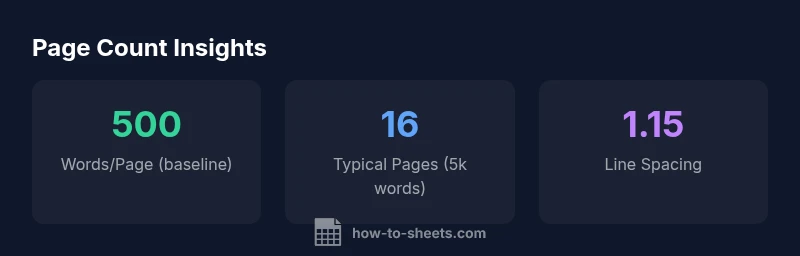
- Enter the total word count (e.g., 5000). 2) Set the font size (e.g., 12pt) and line spacing (e.g., 1.15). 3) Input your baseline words per page (e.g., 500). 4) The calculator outputs an estimated page count with rounding. 5) Use the result to plan sections, summaries, and appendices for your document.
Practical Examples for 5,000 Words
With 5000 words, 12pt font, 1.15 line spacing, and a baseline of 500 words per page, the estimate lands around 9–10 pages. If you increase line spacing to 1.5 while keeping font size and margins fixed, the page count will rise noticeably. Conversely, tightening margins or using a denser font can push the number toward the lower end of the range.
Common Pitfalls and Quick Fixes
Pitfall: assuming a single page count for all documents. Fix: always tailor estimates to your specific formatting settings. Pitfall: ignoring images and tables, which reduce words-per-page. Fix: count textual content separately or add placeholders for figures. Pitfall: using print-preview quirks as a page-count guide. Fix: rely on the document’s word processor’s word count and page view settings for accuracy.
Tips for Consistent Document Length Across View Modes
Tip: draft with your target font and spacing in mind, then switch to the final print or PDF settings before submission. Different view modes may display margins differently on-screen, so always verify in the final format. If you’re sharing with others, attach a short note explaining your formatting choices to avoid confusion about length.