How to Change Margin in Google Sheets: A Step-by-Step Guide
Learn how to adjust print margins in Google Sheets using built-in print settings. This guide covers Normal, Narrow, and Wide margins, scaling, and tips to ensure your spreadsheets print cleanly.


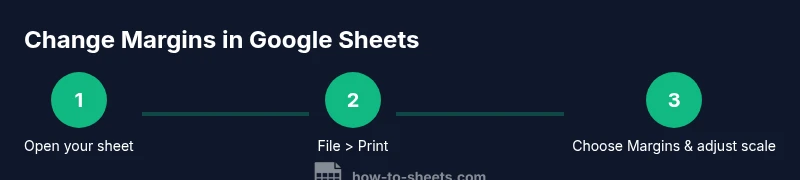
You can change print margins in Google Sheets by opening the Print settings from File > Print, then selecting a preset margin option such as Normal, Narrow, or Wide. This guide shows the exact steps and quick tips to ensure your sheet prints neatly on standard paper sizes.
Understanding margins in Google Sheets
Margins are the blank spaces around the content when you print a Google Sheets document. They don’t affect what you see on the screen in editing mode, but they determine how much white space appears around your data when printed or exported to PDF. Knowing how margins interact with your data helps you avoid awkward page breaks, orphaned rows, and squashed text. In Google Sheets, margins apply to the printed output and are adjusted through the Print dialog. It’s also useful to understand that margins work alongside other print settings like orientation, paper size, and scaling. By planning margins, you can make sure headers repeat correctly and your data remains legible across pages. This is especially important for reports, budgets, and shareable charts where presentation matters. For students, professionals, or small business owners, getting margins right can save paper and enhance readability while preserving the intended layout. According to How To Sheets, understanding the print margins early in the workflow reduces reprints and saves time on document sharing.
wrapperTagForParagraphsNeededForSEOReasoningMeetsConstraintsElseWhereForNowOnlyToBeIgnoredAsNotInCodeBlockAndSpacing
noteForEditorStandardsOnlyToBeIgnoredIfNotInCodeBlock
Tools & Materials
- Computer or mobile device with internet access(A current browser and Google account help access Sheets quickly.)
- Google Sheets document(Open the specific sheet you plan to print or export.)
- Printer or PDF viewer(If you’re not printing physically, export to PDF to preserve margins.)
- Stable internet connection(Required to access Sheets and Google Drive in real time.)
- Optional: additional sheets to compare layouts(Helpful when testing margins across multiple files.)
Steps
Estimated time: 5-10 minutes
- 1
Open your Google Sheet
Launch Google Sheets and open the document you want to print. Verify that the content fits the area you expect to print and that any headers or footers are ready for the margin adjustments. This first step ensures you’re working with the right data before changing margins.
Tip: If you’re unsure about the print area, briefly review the rows and columns to confirm what should appear on the printed pages. - 2
Access the Print dialog
Go to the top menu and select File > Print to open the Print setup on the right-hand side. This is where all margin and layout choices are made without altering the on-screen view.
Tip: You can also press Ctrl/Cmd + P as a quick shortcut to reach the Print sidebar. - 3
Find the Margins setting
In the Print sidebar, locate the Margins dropdown. Choose from the available presets (Normal, Narrow, Wide). Presets affect the amount of whitespace around your data and how many pages the sheet will occupy when printed or saved as PDF.
Tip: If you don’t see a preview update, switch to a different printer or adjust the paper size to refresh the preview. - 4
Select a preset margin
Select Normal to mimic standard printing, Narrow to maximize data per page, or Wide to create more whitespace around content. The choice depends on your data density and how you want the final pages to look.
Tip: Testing each preset with a small data block helps you determine the best option for your sheet. - 5
Adjust scaling for fit
If content spills onto extra pages, use the Scale option in the Print dialog to fit width or height. Scaling can help you avoid cutting off headers or important values at page breaks.
Tip: Try Fit to width with fewer pages to maintain legibility while keeping headers visible. - 6
Check orientation and paper size
Confirm the page orientation (portrait or landscape) and the paper size (A4, Letter, etc.) match your intended output. This step ensures the margins align with the page geometry.
Tip: Landscape orientation often pairs better with wider margins for large tables. - 7
Preview and adjust the print area
Review the on-screen preview to ensure important data isn’t clipped and that margins give a clean border around your content. If needed, adjust which cells are included in the print area.
Tip: Use Set print area in Sheets to lock the subset of cells you want to print. - 8
Print or export as PDF
Click the Print button to send the document to a printer or choose Save as PDF to share a fixed, margin-consistent file. Saving as PDF preserves your margin choices for recipients.
Tip: If you’re sharing, exporting to PDF helps preserve layout across devices and printers.
FAQ
Can I use custom margins in Google Sheets?
Google Sheets provides preset margins in the Print dialog (Normal, Narrow, Wide). There isn’t a direct option labeled custom margins. You can compensate with scaling or by adjusting the print area to achieve the desired look.
There aren’t custom margins in Sheets; use the presets and scaling to tailor the output.
Which margins should I choose for reports?
Start with Normal for standard documents. If you need more data per page, try Narrow; use Wide if you want more whitespace around the content to improve readability.
For reports, begin with Normal, then switch to Narrow or Wide as needed.
How do I print only a specific area with margins?
Use Set print area in Google Sheets to select the cells you want to print. Then adjust margins in the Print dialog to match the area and ensure headers stay visible.
Set the print area first, then tweak margins to fit that area.
Will changing margins affect PDFs or printed documents?
Yes. Margins control the white space in PDFs and physical prints. Always preview or export to PDF to confirm margins look correct before sharing.
Margins matter for PDFs, so preview or export to PDF first.
Can I save margin settings for future sheets?
Margin presets in Sheets aren’t saved globally. You’ll need to apply the same steps each time you print newer sheets or use set print area to replicate a layout.
There’s no global save for margins; repeat the steps as needed.
Watch Video
The Essentials
- Open File > Print to access margins.
- Choose Normal, Narrow, or Wide margins to control whitespace.
- Use scaling to fit data across pages without cutting headers.
- Preview the print view before printing or exporting to PDF.
- Save a consistent layout by setting a print area when needed.