How to Check Activity on Google Sheets
Learn how to check activity on Google Sheets with a comprehensive, step-by-step approach. Review version history, track edits, monitor sharing, and leverage admin reports for thorough audits— ideal for students, professionals, and small business owners.


You will learn how to check activity on Google Sheets by reviewing version history, cell-level edits, and sharing activity. This guide shows where to find activity logs, how to interpret changes, and how to set up notifications, with practical steps you can follow today. Whether you’re auditing a project, tracking collaboration, or ensuring data integrity, the steps below provide a clear, actionable path.
Why Activity Tracking Matters in Google Sheets
Activity tracking in Google Sheets isn't just for auditors; it's a practical habit for anyone who collaborates on data. When you know who changed what, and when, you can resolve disputes, rollback mistakes, and maintain data integrity. If you’re wondering how to check activity on google sheets, this guide provides a clear path. According to How To Sheets, the ability to review edits and access logs empowers teams, students, and small businesses to operate transparently. In this section we outline the core reasons to monitor activity, from accountability to process improvement, and we lay the foundation for the steps that follow. Regular activity reviews also help you identify accidental changes, ensure alignment with project goals, and support compliant data practices.
Quick Overview: What Activity Data Exists in Sheets
Google Sheets captures several layers of activity that you can review. Version history shows global edits to the file and when they occurred, while cell-level history highlights individual cell changes in a session. Sharing settings reveal who has access, and comment history provides context for decisions. Understanding these data points is essential for answering questions like who changed a formula, or why a value shifted. This overview helps you plan your auditing approach and aligns with the keyword usage in this guide. If you want to know how to check activity on google sheets, this section clarifies what is logged and what isn’t, helping you set realistic expectations.
How to Access Version History for a Sheet
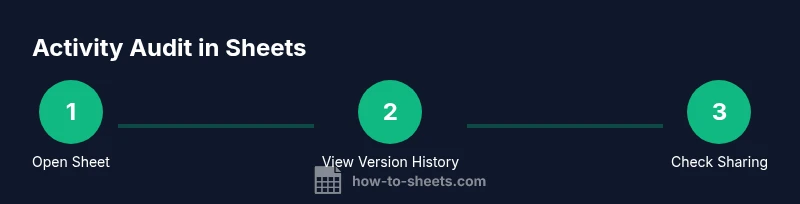
Version history is your primary tool for seeing who changed what and when across the entire workbook. Open the target sheet, then go to File > Version history > See version history. You’ll see a timeline on the right side showing different versions, dates, and editors. Click a version to compare it with the current state and restore it if necessary. This is a repeatable, low-effort action you can perform in under five minutes, especially for frequently updated documents. If you don’t see version history, verify that you have editing access, as some accounts restrict history visibility to owners or editors only. The How To Sheets approach emphasizes practical, low-friction checks you can apply repeatedly.
Interpreting Edit History: What Each Change Means
Not all edits carry the same weight. When you review the version history, look for the editor's identity, the timestamp, and the before/after values. Formatting changes are common and benign, but formula edits or data migrations require closer scrutiny. Cross-check edits with comments or notes attached to cells to capture intent. If a user makes a batch of changes in a short window, consider whether it was a cleanup or a larger data-clearing operation. Proper interpretation reduces false positives and helps you act when action is warranted.
Monitoring Sharing and Access Details
Activity isn’t only about edits; it also includes who has access to the sheet and how those permissions evolve. Review the Share settings to see who has access, their roles (viewer, commenter, editor), and any password or link-sharing configurations. Enable notifications or alerts if available to stay informed of permission changes. Tracking sharing activity is essential for data governance, preventing unauthorized edits, and maintaining collaboration sanity in team environments.
Admin-Level Activity: Google Workspace Reports
If you’re a Google Workspace admin, you can leverage Admin console reports to audit activity across Sheets at scale. These reports can show who opened a file, who edited it, and when, across all users in your domain. Export the data to CSV for offline analysis, or feed it into a dashboard for ongoing monitoring. This level of visibility is invaluable for compliance, incident response, and long-term governance. The How To Sheets team recommends pairing sheet-level checks with admin reports for a comprehensive view of activity.
Practical Scenarios: When You Need to Check Activity
Case 1: You’re auditing a project budget shared among teammates; Case 2: Onboarding a new collaborator to a critical spreadsheet; Case 3: Cleaning up a large dataset after multiple imports. In each scenario, establish a baseline by noting the current version, then compare recent activity to identify anomalies. Document findings in a dedicated notebook, and set up future checks on a regular cadence. These practices help you maintain data quality and foster a culture of accountability.
Common Pitfalls and How to Avoid Them
Common pitfalls include relying on a single data point (version history alone), not reviewing comments, and overlooking sharing changes. Avoid these by cross-referencing edits with comments, training teammates to use the comment feature for context, and scheduling periodic reviews. If you can’t access certain history, confirm your permissions or consult your admin. Proactively documenting changes reduces miscommunication and strengthens data governance.
Tools & Materials
- Google account with Sheets access(Ensure you are logged into the account that owns or shares the sheet)
- Active internet connection(Stable connection to access Google services)
- Target Google Sheet opened in Google Drive(Have the file ready to view version history and sharing settings)
- Admin access (for Workspace admins)(Needed to access Admin console reports)
- Note-taking tool(To record findings and actions)
Steps
Estimated time: 20-30 minutes
- 1
Open the target Google Sheet
Locate the sheet in Google Drive or within Sheets and open it in your browser. You need to be in the correct document to view its activity history.
Tip: If you can’t locate the file quickly, use Drive search with the file type filter (.gsheet) and sort by last modified date. - 2
Open Version history
From the menu, choose File > Version history > See version history. The right-hand panel lists version snapshots with dates and editors.
Tip: Use the magnifier or search within the history panel to quickly locate edits by a specific user. - 3
Review recent versions
Click a version to compare it with the current state. Use the Compare button to highlight changes side-by-side.
Tip: Note the editor name and timestamp to identify who performed particular edits. - 4
Inspect cell history and edits
For individual cells, examine the recorded changes in the cell history (if available) and cross-check with comments for context.
Tip: If a key formula changed, verify prior versions and the reasoning in any related comments. - 5
Check sharing and access
Open Share settings to view who has access and their roles. Look for recent changes to permissions or link sharing.
Tip: Enable notifications for critical sharing changes if the option is available. - 6
Audit with admin tools (if available)
If you’re an admin, use Google Workspace Admin reports to export activity data for broader auditing.
Tip: Export to CSV for long-term analysis and create a dashboard for ongoing monitoring.
FAQ
Where can I see the version history in Google Sheets?
Open the sheet and go to File > Version history > See version history. The panel on the right shows versions with dates and editors.
Open the sheet, then go to Version history to see past versions and who edited them.
Can I track who edited a specific cell?
Version history shows changes to the workbook overall; cell history details may appear when available, and comments can provide granular context for particular cells.
Yes, you can see who edited specific cells when cell-level history is available, plus comments add context.
Is activity logging available for all sheets?
Activity logging exists for most Google Sheets with editing access. Some restricted or older accounts may have limited history visibility.
Most sheets support activity history if you have the right access, but some cases may limit visibility.
How do I get notifications for changes?
Look for notification settings within Share options or in Admin console alerts for Workspace accounts. Enable alerts for edits, shares, and permission changes where available.
Enable edit and sharing change notifications where possible to stay informed in real time.
Do comments appear in activity history?
Comments and notes provide context for decisions and can accompany edits in the activity trail. They’re useful for understanding intent behind changes.
Comments give you the why behind edits and help you interpret changes.
What if I can’t access version history?
Verify that you have editing access or ask the sheet owner for permission. Some histories are restricted to owners or editors only.
If you can’t see history, you might not have rights to view edits; request access from the owner.
Watch Video
The Essentials
- Review version history to identify who changed what and when.
- Cross-check edits with comments for context and intent.
- Monitor sharing settings to prevent unauthorized changes.
- Use admin reports for broader governance when available.
- Document findings to support transparency and accountability.