How to Check Changes in Google Sheets: A Step-by-Step Guide
Learn to check changes in Google Sheets using version history, edit tracking, and side-by-side comparisons. This educational guide walks students, professionals, and small business owners through practical, step-by-step methods.


You can check changes in Google Sheets by reviewing version history, using the Show edits feature, and comparing different versions. The three core tasks are viewing edits with version history, identifying who changed what, and restoring a previous state if needed. Prerequisites: access to the target sheet, an internet connection, and a Google account with edit rights.
Why change tracking matters in Google Sheets
In collaborative environments, multiple people may edit the same sheet, sometimes at the same time. Without a clear record of who changed what and when, data integrity can suffer and recovery from mistakes becomes painful. Change tracking gives you a safety net: you can audit edits, understand how data evolved, and revert to a known good state if needed. According to How To Sheets, teams that actively monitor changes reduce data loss and miscommunication, especially on complex budgets, schedules, or project trackers. This awareness supports accountability, faster debugging, and smoother collaboration, which is essential for students working on group assignments, professionals managing client data, and small business owners maintaining inventories.
Quick overview of built-in change-tracking tools in Google Sheets
Google Sheets provides several native capabilities to help you monitor edits without installing third-party software. The most important are the Version history, the ability to restore older versions, and the option to name versions for quick reference. Additionally, if you are working on a shared sheet, you can enable notification rules to receive alerts when edits occur. While these tools are powerful, they work best when you combine them: review version history to identify changes, then open the version to see cell-level differences and who made them. These features are designed to be intuitive for everyday users, yet robust enough for more demanding workflows such as financial forecasting or student group projects. How To Sheets analysis highlights that most teams rely on built-in revision history as their primary method for tracking changes.
How to access Version history in Google Sheets
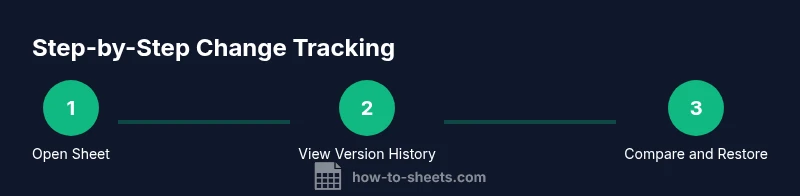
Version history is the central feature for tracking changes over time. To access it, open your target Google Sheet, click on File, and select Version history, then See version history. You’ll see a chronological list of versions on the right, with years, months, and timestamps. Each version entry shows the editor’s name and the specific changes made. You can click any version to view a side-by-side comparison with the current sheet and see exactly which cells were altered. If you need to work from a past state, you can restore that version or copy data from it to a new sheet. This tool is invaluable when you notice anomalies after a large group edit or after importing data from another source.
Tracking changes by user and time: what to look for
When you open a version, look for color-coded cells or highlighted edits that indicate changes. The editor’s name and timestamp accompany each version, enabling you to attribute edits to individuals. For large sheets, you may need to widen the view or use the browser’s search to locate specific terms that were edited. If you track changes across many sessions, naming key versions (e.g., “Budget v2026-02-01”) can drastically speed up retrieval. Remember that the version history is most reliable for recent edits; extremely old revisions may be pruned in very large datasets, so timely naming is a best practice.
Side-by-side comparison and manual diff techniques
Version history provides a built-in diff between versions, but you can also compare two versions side-by-side in separate browser windows to spot differences quickly. Copy the data from one version into a new sheet and use a simple formula to highlight changes, such as =A1<>Sheet2!A1. This approach is especially helpful when you want a visual snapshot of changes across multiple columns or when you need to document edits for reporting purposes. For continued collaboration, maintain a routine of reviewing changes before finalizing a shared dataset.
Restoring data and safety considerations
If you identify an unwanted change, you can restore the entire sheet to a prior version. Open Version history, select the target version, and choose Restore this version. Be aware that restoring rewrites the current sheet to reflect the past state. If you want to preserve the current data, consider copying the previous version to a new sheet first. In many teams, restoring is a last resort after reviewing the impact of the change and confirming that the older state contains the correct data.
Best practices for tracking changes in Sheets
- Enable regular version naming to make future lookups easier.
- Use a consistent convention for dates and project identifiers in version names.
- Pair version history with clear collaboration rules (who edits what, and when).
- Consider notification rules for critical ranges or sheets to stay informed without manual checking.
- Archive important revisions in a secondary sheet for long-term audits.
These practices help you maintain data integrity, reduce the risk of data loss, and speed up issue resolution, whether you’re teaching a class, delivering a client-ready dataset, or tracking inventory for a small business.
Common pitfalls and how to avoid them
- Not naming versions consistently can make history hard to navigate. Create a naming convention and stick to it.
- Relying on a single edit history view for long sessions can miss subtle changes. Regularly cross-check with the diff view and a second copy for critical data.
- Disabling notifications can cause you to miss important updates. Use notification rules to stay informed about edits to key ranges.
- Overlooking protected ranges or permissions can lead to unintended edits. Establish clear access controls and review them periodically.
Summary of what to expect from this guide
By mastering version history, edit tracking, and side-by-side comparison tips, you’ll confidently track changes in Google Sheets and maintain data integrity across collaborative projects. You’ll also learn practical techniques for restoration, auditing, and minimizing conflicts in shared workspaces. This foundation supports students, professionals, and small business owners in delivering accurate, well-documented spreadsheets.
Tools & Materials
- A Google account with edit access to the target sheet(Essential for accessing version history and editing permissions)
- A device with internet connectivity(Desktop or laptop preferred for easier navigation)
- Web browser with Google Sheets installed(Chrome is common, but any modern browser works)
- A current, named version in the sheet (optional but recommended)(Helps you identify what to revert to quickly)
- A plan for data backup(Copy important sheets to a separate file before restoration)
Steps
Estimated time: 25-40 minutes
- 1
Open the target Google Sheet
Navigate to the Google Sheet that you want to audit. Confirm you have edit access and that you are viewing the most recent version.
Tip: If you share the sheet, ensure you’re logged in with the correct account. - 2
Open Version history
Click File > Version history > See version history. This opens the right-hand panel with a timeline of edits.
Tip: You can filter the view by date and scroll through revisions to identify when changes occurred. - 3
Review changes by version
Select a version to see a side-by-side diff and the editor’s name and timestamp for each change.
Tip: Click a specific version to drill down into specific cell edits. - 4
Identify specific edits
Use the visual highlights to locate cells that were modified and note the editor responsible for each change.
Tip: If needed, export the version as a report for archival purposes. - 5
Restore or copy data
If you need to revert, choose Restore this version. To preserve current data, copy edits to a new sheet first.
Tip: Always back up before restoring to avoid data loss. - 6
Set up ongoing monitoring
Enable Notification rules for edits to ranges you care about and consider naming key versions regularly.
Tip: Use a naming convention like TeamName-Project-Date to keep history organized.
FAQ
What is the quickest way to see recent changes in a Google Sheet?
Open the sheet, then navigate to File > Version history > See version history. This shows recent edits, who made them, and when. You can click a version to compare it with the current sheet.
Open Version history to quickly see who edited what and when. You can compare versions directly from there.
Can I restore data from an earlier version?
Yes. In Version history, pick the version you want and choose Restore this version. If you don’t want to lose current data, first copy the current sheet to a new tab or file.
Yes—select a past version and restore it. Copy current data first if you need to keep it.
Does Google Sheets show who edited each change?
Version history lists editors for each version, and you can view a diff to see what changed. This helps attribute edits to specific collaborators.
Version history shows who edited each revision and what changed.
How can I get alerts when changes occur?
You can set up Notification rules to email you when edits happen to a sheet or a specific range. This keeps you informed without manual checking.
Set up notification rules so you’re alerted when edits occur.
Are there limits to version history in Google Sheets?
Version history is usually reliable for recent edits, but very large sheets can make older revisions harder to locate. Named versions help organize essential states for audits.
Version history works well for recent edits; name key versions to keep it organized.
Watch Video
The Essentials
- Review version history to identify when edits occurred
- Use side-by-side comparison to spot exact cell changes
- Restore with caution and always back up data
- Name versions to simplify future lookups
- Enable notifications on critical ranges to stay informed