How to Check the Google Sheet: A Practical Guide
Learn how to check Google Sheets for accuracy, consistency, and integrity with practical steps, built-in tools, and tips from How To Sheets.


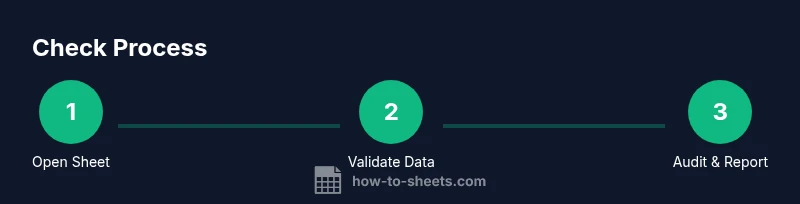
You can check a Google Sheet by validating data, validating formulas, and reviewing changes. Start with data validation and conditional formatting to surface errors, then audit formulas and cross-check totals. Finally, inspect version history and sharing settings to ensure the sheet is accurate and up-to-date. This quick answer assumes you have access and basic navigation familiarity.
Why checking the Google Sheet matters
Data in Google Sheets is often the backbone of decisions, budgets, and project tracking. A single erroneous entry, a misplaced decimal, or an incorrect formula can ripple through a whole report, leading to wrong conclusions. According to How To Sheets, checking a Google Sheet is a deliberate, repeatable process that reduces risk and builds trust in your data. The How To Sheets team found that teams who implement a structured review cycle catch errors earlier, save time on later corrections, and improve collaboration. In practice, you should treat a sheet like a living document: every update should be verifiable and traceable. Start with a clear goal for the check: what needs to be accurate, which totals must balance, and which inputs are user-driven. With that scope, you can design a robust check that scales as your sheet grows.
Core concepts: data integrity, accuracy, and auditability
At its core, checking a Google Sheet is about three concepts: data integrity (the accuracy of inputs), accuracy (the correctness of calculations), and auditability (the ability to trace changes and verify outcomes). Data integrity means consistent data types, valid values, and complete fields. Accuracy focuses on formulas, references, and currency or date precision. Auditability ensures you can see who changed what, when, and why. How To Sheets emphasizes that a repeatable process beats one-off spot checks. Create a lightweight checklist, use built-in tools, and document findings so future reviewers can reproduce your results. When readers follow a structured approach, they reduce the cognitive load and errors that often creep in during manual reviews.
Quick checks you should run before deep analysis
Before you dive into complex audits, run a quick baseline check. Verify that required columns exist, look for blank cells in critical fields, and scan for obvious outliers or inconsistent date formats. Enable gridlines and freeze header rows to keep navigation stable while you scan large sheets. If you spot anything that looks off, flag it for deeper inspection. This initial sweep saves time later and keeps the focus on the most impactful issues first. Remember, how to check the google sheet effectively begins with simple, repeatable checks you can repeat on every sheet you review.
Validating data with Data validation rules
Data validation is the first line of defense against bad inputs. Set rules that constrain values, dates, and text length to expected ranges. For example, a status column can use a dropdown with predefined categories, while a date column can enforce a specific format. Validation helps ensure consistency across rows and reduces downstream errors in formulas. If you routinely import data, consider validation rules that catch common import mistakes (like leading spaces or extra characters). Keep in mind that validation works best when paired with clear error messages that guide users to fix issues quickly.
Detecting duplicates and inconsistencies
Duplicates and inconsistencies are common sources of skewed analytics. Use conditional formatting to highlight duplicate values in key columns and set up a rule that flags inconsistencies between related fields (e.g., quantity and unit price not aligning with a total). Regularly sorting by key columns and filtering for unique values helps you spot duplicates you might miss in a large dataset. If you find duplicates, investigate whether they are legitimate (e.g., legitimate multi-entries) or data-entry errors that need correction. A small, disciplined approach to duplicates pays off in cleaner datasets.
Verifying formulas and references
Formulas are powerful, but they can drift when rows are added or removed. Start by showing formulas (press Ctrl + ~ or choose Show Formula) to inspect all calculations at a glance. Review commonly used functions (SUM, AVERAGE, VLOOKUP, INDEX/MATCH) and confirm that ranges are correct after edits. Check that relative and absolute references behave as intended when you copy formulas across rows or columns. If a sheet pulls data from another sheet or workbook, test cross-sheet references with sample inputs to ensure reliability. A disciplined formula review is essential to maintain trust in results.
Cross-checks and reconciliation techniques
Cross-checks help verify consistency across related data sections. Reconcile totals by summing monthly figures, then comparing to an overall grand total. Use cross-sheet checks to ensure that data in one tab feeds correctly into another (e.g., sales by region vs. totals by quarter). When possible, build simple reconciliations into the sheet itself (e.g., a reconciliation column that flags mismatches). This approach helps catch hidden errors before they become larger problems and makes it easier to explain results to stakeholders.
Revision history and protected ranges
Version history is a powerful tool for understanding the evolution of a sheet. Review who changed what and when, then restore a prior version if you discover a mistake introduced recently. Protect sensitive ranges to prevent accidental edits by collaborators. When you implement protections, document who has access and for which sections. This creates an auditable trail and reduces the risk of unintended changes that could compromise data integrity.
Sharing, permissions, and access controls
Sharing settings determine who can view or edit the sheet. Regularly review access levels, especially for team handoffs or after contractors leave a project. Use view-only access for stakeholders who only need to review results and edit access only for those who contribute data or formulas. Consider creating a backup copy for critical sheets and enabling notifications for edits on sensitive files. Proper access control minimizes data leakage and preserves the reliability of your checks.
Visual checks with conditional formatting
Conditional formatting is a quick way to surface anomalies without running complex analyses. Color-code out-of-range values, highlight blank fields in critical columns, and flag cells that deviate from the expected pattern. Pair visuals with data bars or icon sets to convey status at a glance. Visual cues help reviewers spot issues rapidly, especially in large datasets. Always document a standard visual ruleset so teammates interpret colors consistently.
Automating checks with formulas and basic Apps Script
Automations scale your checks as data grows. Create simple formulas that flag anomalies (for example, a negative balance in a positive-revenue sheet) or a custom function that validates multiple fields at once. For teams comfortable with scripting, a lightweight Apps Script can run daily checks and email a summary of issues. Start with a low-friction script and iterate, so you learn what to automate first and how to present results clearly to stakeholders.
Case study: a finance tracker sheet
Imagine a finance tracker used by a small team. You begin with a quick baseline check, confirm the header structure, and validate that date formats are consistent across all entries. You set a data validation rule for the category column, highlight duplicates in the vendor column, and show all formulas to audit balances. The revision history reveals a period of rapid edits before a quarterly close, and protections are placed on formulas that compute totals. After documenting findings, you produce a short remediation plan and share a versioned copy for the next cycle.
Tools & Materials
- Google account with Sheets access(Ensure you have edit or view permissions for the target sheet)
- Stable internet connection(A stable connection reduces interrupted checks)
- Sample sheet URL or local copy(Optional for practice audits)
- Screen capture or note-taking tool(Document findings for the audit report)
Steps
Estimated time: 2-3 hours
- 1
Open the target sheet
Navigate to the Google Sheet you need to audit and ensure you have the latest version. If working on a shared file, create a copy to avoid altering the original data. This preserves the integrity of the source while you perform checks.
Tip: Use File > Make a copy to work on a separate file. - 2
Check access and permissions
Review who can edit the sheet and what they can change. Confirm that sensitive sections are protected if needed. If you spot a user editing critical formulas, coordinate edits to prevent conflicts.
Tip: Limit edits on totals or formulas to prevent drift. - 3
Validate header row and data types
Ensure the header labels are consistent and that each column uses the correct data type (date, number, text). Correct obvious typos and enforce consistent formatting across rows. A clean header reduces downstream errors.
Tip: Use a frozen header row to keep context while scanning. - 4
Set up data validation rules
Apply rules that constrain inputs to expected values, dates, or ranges. Create dropdowns for categorical columns and restrict numeric fields to valid ranges. This catch-at-entry approach prevents errors before they propagate.
Tip: Include clear custom error messages to guide users. - 5
Find and handle duplicates
Scan for duplicate keys in critical columns and decide if duplicates are legitimate. Use conditional formatting to highlight duplicates, then decide whether to merge, remove, or annotate.
Tip: Sort by key column to reveal duplicates quickly. - 6
Review formulas and references
Show all formulas and inspect common functions for correctness. Verify that ranges update correctly when rows/columns are added. Test a few cells with known inputs to confirm outputs.
Tip: Test critical formulas with edge-case values. - 7
Reconcile totals across sections
If data spans multiple tabs, cross-check totals to ensure consistency. Use summary rows to aggregate and compare against individual components. Flag any mismatches for deeper review.
Tip: Document reconciliation rules in a reference sheet. - 8
Review revision history and protections
Open Version history to view recent edits and determine if changes align with the project timeline. Check protected ranges to ensure sensitive sections are safeguarded. Restore a prior version if a mistake occurred during a recent edit.
Tip: Annotate changes with comments to explain why edits were made. - 9
Assess sharing settings
Verify that only appropriate people have access levels that match their roles. Consider view-only access for stakeholders and restrict editing to essential contributors. Enable notifications for sensitive sheets if feasible.
Tip: For high-stakes sheets, use a shared checklist of who can edit and when. - 10
Apply visual checks with conditional formatting
Use color scales, data bars, and icon sets to flag outliers and missing values. Pair visuals with textual notes for context. Visual cues speed up the review and reduce cognitive load.
Tip: Document which colors mean what to avoid ambiguity. - 11
Consider automation for ongoing checks
Create simple formulas and, if comfortable, a lightweight Apps Script that runs checks on a schedule and reports results. Start with a small scope, such as daily data-entry validation, then expand as you gain experience.
Tip: Start with a non-destructive script that only reports issues. - 12
Document findings and share the report
Compile a concise audit report summarizing issues found and steps taken. Include screenshots or notes to support claims. Share the report with stakeholders and set a date for a follow-up review.
Tip: Keep the report versioned like the sheet itself.
FAQ
How do I quickly check data in a Google Sheet?
Start with a baseline review: confirm headers, data types, and missing values. Then surface issues with Show formula and conditional formatting to surface obvious anomalies.
Start with headers and data types, then quickly surface issues using Show formula and conditional formatting.
How can I find and remove duplicates in Google Sheets?
Use conditional formatting to highlight duplicates in key columns and then decide whether to delete or annotate them. Sorting by the duplicate column helps confirm whether entries are truly repeated.
Highlight duplicates with conditional formatting, then decide on deletion or annotation. Sort to confirm duplicates.
How do I view version history for a Google Sheet?
Open File > Version history > See version history to review edits by collaborators over time. Restore an earlier version if necessary and add comments to explain changes.
Open Version history to review edits, restore if needed, and annotate changes.
What is the best way to validate data entry?
Set up Data Validation rules for key columns, provide dropdown options, and craft clear error messages. Combine with conditional formatting to flag non-compliant entries.
Use data validation rules with helpful error messages, plus conditional formatting for visual cues.
How can I fix broken formulas or references?
Show formulas to audit, verify that ranges adjust when inserting rows or columns, and test critical calculations with sample data. Correct references and avoid hard-coding values where possible.
Show formulas, verify ranges, and test with sample data to fix broken formulas.
How do I protect sensitive ranges in a shared sheet?
Use Protected ranges to restrict edits, assign editors carefully, and document who can modify sensitive sections. Review protections periodically to ensure they match current roles.
Apply protected ranges and review editor permissions regularly.
Watch Video
The Essentials
- Verify data integrity across checks
- Use Data validation to catch input errors
- Review revision history to track changes
- Protect sensitive ranges when sharing