How to Make a Copy in Google Docs: A Step-by-Step Guide
Learn how to make a copy of any Google Docs document quickly and safely with File > Make a copy or Drive options. A practical, step-by-step guide by How To Sheets.


By the end of this guide you will be able to create a duplicate of any Google Docs document using File > Make a copy or Drive. You’ll rename your copy, choose a destination folder, and preserve or adjust sharing settings to fit your workflow. This covers both quick, single-document copies and organized copies for teams or classrooms.
Why Copying Google Docs is Useful
Copying Google Docs documents is a core skill for students, professionals, and teams who collaborate on drafts, templates, or course materials. A clean duplicate preserves the original while allowing experimentation, which reduces risk during edits and sharing. According to How To Sheets, having a ready-made copy speeds up onboarding and streamlines revision cycles across classrooms and workplaces. This habit is especially valuable when you need multiple versions—for example, a template used by several departments or a draft handed to a collaborator for feedback. In practice, creating a copy also provides a clean rollback point if later edits go off track. As you work, remember that the copy can live anywhere in Drive and can be renamed to reflect its purpose, date, or recipient.
- Benefits include safer experimentation, templates you can reuse, and clearer version history.
- Consider your organization’s naming conventions to keep copies discoverable.
- For teams, copies make it easy to seed new projects without touching the original document.
Quick non-intrusive paths to copy a Google Doc
There are two reliable, low-friction ways to create a copy that most people find intuitive. The first method uses the Google Docs interface; the second uses Drive’s context menu. Both preserve the document’s formatting and content and let you decide where the new file lives. How you choose depends on your workflow: whether you’re already editing in Docs or organizing your documents from Drive.
Method A: File > Make a copy in Google Docs (the most direct approach)
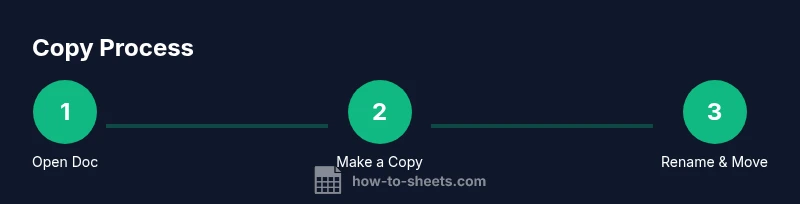
To copy a document from within Google Docs, open the document you want to duplicate, then choose File > Make a copy. A dialog will appear prompting you to name the copy and select its destination in Drive. You can also decide whether to keep comments and suggested edits associated with the copy. After you confirm, a new Google Docs file appears in the chosen location with the same content and formatting. This method is ideal when you’re actively editing within Docs and want a clean, immediate duplication.
- Naming: Give the copy a clear, descriptive name that reflects its purpose (e.g., “Project Plan – Q2 – Copy”).
- Location: Pick a folder where similar files belong to maintain easy access.
- Sharing: By default, the copy adopts your current sharing permissions, which you can adjust immediately after creation.
Tip: If you’re duplicating for a classroom or workshop, set up a shared folder and copy directly into it for centralized access.
Method B: Right-click in Google Drive and choose Make a copy
From Google Drive, locate the file you want to duplicate. Right-click the document thumbnail or title and select Make a copy. A duplicate will appear in the same folder with “Copy of” prefixed to the original name. You can rename and move the copy to a different folder, or keep it for quick distribution to teammates. This method is especially handy when you’re managing many files at once or when you’re not actively working in Docs itself.
- File placement: Move the copy into a dedicated template or projects folder to maintain organization.
- Batch copying: You can select multiple files and copy them in a batch, then adjust each name to reflect its individual purpose.
- Quick renaming: Use F2 (Windows) or Return/Enter (Mac) to quickly rename after duplicating.
How to tailor copies for different audiences
After creating a copy, you may want to adjust permissions, format, and content for a specific group. In Drive, you can share or restrict access, link sharing, and export formats. In Docs, you can also review version history to see what changes were made since the copy was created. If you rely on templates, consider locking certain sections or leaving placeholders that teammates can fill in—this makes the copy a reliable starting point for multiple uses.
- Permissions: If the original is restricted, grant access to the copy as needed.
- Content placeholders: Replace placeholders with actual data before distributing.
- Export options: If recipients need Word, PDF, or other formats, use File > Download to generate alternate formats from the copy.
Managing ownership and permissions safely
Copy ownership tends to align with the user who creates the copy. The new file becomes a separate entity with its own sharing settings. If you work within an organization, it’s important to review who can edit or view the copy after it’s created. If necessary, transfer ownership or adjust access policies in Drive so the right people can collaborate. Keeping a clean, permission-aware workflow helps prevent accidental edits to the original document and ensures everyone works on the intended version.
- Ownership: The copy is owned by the creator; adjust ownership if needed via the Sharing settings.
- Access control: Review who can view, comment, or edit the copy; update as project roles change.
- Version control: Use suggested edits and version history to track changes across copies.
Advanced organization: templates and folders
For ongoing projects, organize copies by templates and folders. Using consistent naming conventions makes it easy to locate the exact template you need. Create a dedicated “Templates” folder containing copies of frequently used documents, then duplicate from that folder as the starting point for new work. This practice minimizes the risk of altering the original template and streamlines distribution to teams or students.
- Templates in a central folder reduce duplication errors.
- Color-coded folders help visually differentiate templates from active documents.
- Regular audits of shared copies prevent stale or unauthorized access.
AUTHORITY SOURCES
- Google Docs Help: Make a copy of a file in Google Drive: https://support.google.com/docs/answer/6000292?hl=en
- Google Drive Help: Share files and folders: https://support.google.com/drive/answer/2424368?hl=en
- Google Docs Editors Help: How to download, export, or convert Google Docs: https://support.google.com/docs/answer/.googledocs
Tips for large-scale copy tasks
If you’re duplicating dozens or hundreds of files, set expectations with teammates and schedule a batch operation during off-peak hours. Use a naming convention that encodes project name, version, and date. Keep the originals intact and organize copies hierarchically so you can recover quickly if something goes wrong.
toolsMaterialsArrayInsertedAtEnd":false
Note that this section is for content and can be replaced by a dynamic reference.
Tools & Materials
- A computer with internet access(Sign in to Google account that has access to the document or its parent folder.)
- The Google Docs document you want to copy(If you don’t own it, ensure you have view/edit access or request access from the owner.)
- Destination folder in Google Drive(Optional if you want to organize the copy in a specific location.)
- Optional: a naming convention guide(Helps maintain consistency across multiple copies.)
Steps
Estimated time: 10-20 minutes
- 1
Open the document you want to copy
Navigate to Google Docs and open the document you intend to duplicate. This ensures you copy the exact content, formatting, and metadata you need for the new version.
Tip: If you don’t see the doc, use Drive search and filter by type. - 2
Choose File > Make a copy
From the Docs menu, select File, then Make a copy. This opens a dialog where you can decide the name and location of the new file.
Tip: If you’re in a shared document, you’ll be prompted about including comments and edits. - 3
Rename the copy
In the dialog, provide a clear, descriptive name that reflects its purpose and audience.
Tip: A consistent naming scheme makes future retrieval easier. - 4
Choose the destination folder
Select a Drive folder where you want the copy to live. You can create a new folder on the fly if needed.
Tip: Organize copies with folders like Templates or Project X to keep things tidy. - 5
Decide on comments and edits transfer
Decide whether to copy comments, suggested edits, and the document’s content history with the new file.
Tip: If you plan extensive edits, preserving comments can help onboarding. - 6
Click Create/OK to finish
Confirm the operation and wait a moment for Drive to generate the copy in the chosen location.
Tip: If you don’t see the copy immediately, refresh Drive. - 7
Adjust sharing settings on the copy
Open the new copy and review its sharing permissions. Change who can view or edit as needed for the project.
Tip: Avoid leaking sensitive data by limiting access to the minimum required group. - 8
Move or duplicate more copies
If you have a batch task, repeat the steps for additional documents, using a consistent naming pattern.
Tip: Batch operations save time but double-check each destination. - 9
Verify the original remains untouched
Open the original file and confirm that content and permissions have not been altered during the process.
Tip: This protects the integrity of the source material. - 10
Document the process
Create a quick note or template describing how you copy documents for your team.
Tip: A written SOP reduces confusion for new collaborators. - 11
Clean up duplicates if needed
If you created multiple copies unintentionally, delete the extras to avoid clutter.
Tip: Keep only the copies you’ll actually use. - 12
Review version history on the copy
Whenever you plan edits, check the copy’s version history to see when changes occurred and by whom.
Tip: Version history helps you rollback if needed.
FAQ
How do I copy a Google Docs document?
Open the document, go to File > Make a copy, rename, choose a destination, and confirm. The copy will appear in Drive where you chose.
You copy a Google Docs document by using File > Make a copy, then rename and save it wherever you want in Drive.
Can I copy a document without the original owner’s permission?
Copy access depends on your viewing or editing rights. If the owner restricts copying, you may need to request access or permission changes.
If you can view or edit, you may be able to copy, but the owner can limit copying.
Will the copy include comments or suggestions?
Yes, you can choose to copy comments and suggestions when you make the copy. Review the prompt in the dialog to decide what to transfer.
Copies can include comments if you choose to transfer them during the copy process.
How do I move the copy to a different Drive folder?
Open the copy, click the folder icon or Move to option in Drive, and select the destination folder.
To relocate the copy, use Move to and pick the target folder.
Can I copy a Google Doc to Word or other formats?
You can download the copy as Microsoft Word (.docx) via File > Download, which creates a separate file outside Google Docs.
If you need Word, use Download as Word from the copy.
Watch Video
The Essentials
- Copy a Google Docs document to preserve the original while editing.
- Rename and move copies into organized folders for easy retrieval.
- Review and adjust sharing settings on the copy to control access.
- Use a consistent naming scheme to scale copies across projects.