How to Resize Column in Google Sheets: A Practical Guide
Learn how to resize a column in Google Sheets using drag, auto-fit, and multi-column techniques. This practical guide covers fast, reliable methods for clean, readable spreadsheets.


Why resizing columns matters in Google Sheets
Resizing columns is a small adjustment with a big payoff. Proper column width improves readability, reduces horizontal scrolling, and ensures datasets look tidy when shared or printed. If you’re exploring how to resize column in google sheets, this guide explains why width matters and how to plan a layout that scales with your data. A consistent column width helps keep headers aligned and your numbers easy to scan—especially in large spreadsheets used for reports, budgets, or schedules. By mastering width control, you present information more clearly and save time on data review. How To Sheets emphasizes practical, repeatable steps so you can apply these techniques across many sheets.
In addition to readability, appropriate column widths can affect how formulas and text wrap display. When headers collapse or data spills into adjacent cells, readers may misinterpret values. Setting deliberate widths helps ensure your sheet communicates the data exactly as intended.
How to resize column in google sheets is a common first step in cleaning up a new dataset or refining an ongoing project. With the right approach, you can tune your sheet quickly and maintain consistency as your data grows.
--
Quick methods: manual drag vs auto-fit
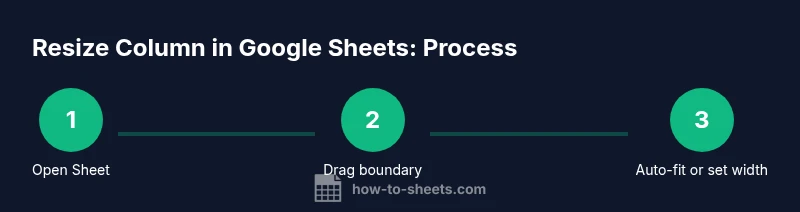
Google Sheets provides a few straightforward ways to resize a column. The most intuitive is manual drag: place the cursor on the boundary between two column headers until it becomes a horizontal double-arrow, then click and drag to the desired width. This method gives you precise control over each column and is great when you know exactly how wide a column should be.
If you want the width to adapt to content, use auto-fit. Double-click the boundary between headers, and the column will resize to fit the widest cell content. This is ideal when column content length varies or when you’re iterating on data entry. You can also resize by right-clicking the header and selecting Resize column to set an exact pixel value.
When you ask how to resize column in google sheets, consider whether you need a fixed width for every column or a dynamic fit per column. Auto-fit is fast for variable data, while manual drag is better when you have a strict layout balance across the sheet.
Step-by-step overview: single-column resize (manual)
Step-by-step overview: multi-column resize (uniform width)
Keyboard shortcuts and speed tricks
Common mistakes and troubleshooting
Authority sources
Practical tips for print and share-ready sheets