How to See When Google Docs Was Last Edited
Learn how to find the exact last-edited timestamp in Google Docs using Version history and Drive activity. This How To Sheets guide covers desktop and mobile workflows, common pitfalls, and practical tips for tracking edits.


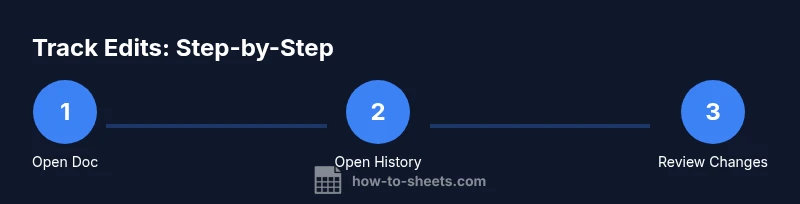
To see when Google Docs was last edited, open the document and use Version history: File > Version history > See version history. The right panel lists each version with timestamps and editors. For additional context, you can also check the Drive activity pane for the file’s last modification time.
What "last edited" actually means in Google Docs
In Google Docs, the phrase "last edited" refers to the most recent time the document or any of its content was changed by any user with access. This is not always shown as a single, static timestamp in the document header. Instead, Google provides a verifiable trail of edits through Version history and, for file-wide changes, the Drive Activity panel. Understanding this distinction is critical for audits, collaboration, and accountability. For readers of this guide from How To Sheets, mastering these tools will save time and reduce confusion when reviewing changes in shared documents. The goal is to locate the most recent meaningful modification and identify who made it, along with when it occurred.
noteId nulla():null},
Where the timestamp actually lives in Google Docs
Many users expect a simple “last edited” line at the top of the document. In reality, Google Docs stores edits in a versioned history system. To see the exact times, you’ll need to access Version history, which provides a chronological list of versions with dates, times, and editors. Additionally, Drive’s activity pane can corroborate when a file was last modified. This distinction matters because autosave occurs frequently, even if no manual save action is performed. By using Version history and Activity, you get a precise record of who changed what and when those changes occurred.
noteId:null
Tools & Materials
- Computer or device with internet access(Any modern browser (Chrome preferred) or Google Docs app.)
- Active Google account with access to the document(Permissions matter for viewing history.)
- Optional mobile device(Use the Google Docs app to view history on iOS/Android.)
- A basic understanding of navigation within Google Drive(Helps locate the Activity pane and version lists.)
Steps
Estimated time: 15-25 minutes
- 1
Open the document
Launch Google Docs and open the specific document you want to inspect. Make sure you have edit or at least comment access to view history details. This initial step ensures you’re looking at the same file that others are editing.
Tip: If the document is in another tab, you can switch with Alt+Tab (or Command+` on Mac) to keep the doc open while you navigate. - 2
Access Version history
From the menu, choose File > Version history > See version history. This opens a right-hand panel that lists versions in chronological order with timestamps and editor names.
Tip: If you don’t see Version history, you may not have sufficient permissions to view edits. - 3
Identify the most recent version
In the Version history panel, look for the latest timestamp entry. The version you select will highlight changes and show who edited that version.
Tip: The top entry is often the newest, but verify by cross-checking the timestamp. - 4
Review changes and timestamp
Click the latest version to view the exact changes highlighted in the document. The timestamp and editor’s name appear in the version row for quick reference.
Tip: Look for color highlights or tracked changes if available in this view. - 5
Corroborate with Drive Activity
Open Google Drive, locate the file, and click the View details (i) panel. The Activity tab shows recent modifications and the times they occurred, providing an independent verification of the latest change.
Tip: Activity data can help confirm edits when Version history shows ambiguous entries. - 6
View history on mobile
In the Google Docs mobile app, open the document, tap the menu (three dots) or the version history option if visible, and select See version history to inspect timestamps similar to desktop.
Tip: Mobile interfaces may label options slightly differently; look for Version history or “See edits”. - 7
Identify who edited last
In both Version history and Activity panels, pay attention to the editor’s name alongside the timestamp. This reveals not just when, but who contributed the latest changes.
Tip: If multiple people edited in a short period, review sequential entries to determine the final author at the sought time. - 8
Export or log the data
If you need a record for audits, manually copy the version list or use Drive API tools to export revision metadata. This creates an auditable log beyond on-screen viewing.
Tip: For recurring audits, consider documenting a standard process and saving a screenshot or log file. - 9
Use context for compliance
Attach notes or comments to key revisions when sharing with teammates, ensuring everyone understands why a particular change occurred at a given time.
Tip: Context reduces back-and-forth questions during reviews.
FAQ
Can I see the exact last edited time for a Google Doc if I don’t have edit access?
No. Viewing last edits requires appropriate permissions. If you only have view or comment access, you may not be able to access Version history or Drive Activity.
Access to history depends on your permissions; request access from the document owner if you need to review edits.
Where is the Version history located in Google Docs?
File > Version history > See version history opens the panel that lists all versions with timestamps and editors.
Open the document, go to the File menu, choose Version history, and select See version history.
Does Google Docs show a simple 'last edited' timestamp at the top of the document?
Not always. The most reliable method is Version history and Drive Activity, which provide precise timestamps and editor information.
There isn’t always a single last-edited line; use Version history for exact times.
Can I export my edit history for an audit?
Yes, you can copy the version history details or use Drive API tools for a more formal export. This is helpful for compliance logs.
You can capture a log by copying the history or using API-based exports.
What if edits happened while I was offline?
Offline edits are uploaded when you reconnect; Version history will show the corresponding timestamps once syncing occurs.
Offline edits appear in history after syncing, with timestamps tied to when changes were made online.
Watch Video
The Essentials
- Review edits with Version history to see timestamps and editors
- Use Drive Activity as a corroborating source for last-modified data
- Mobile and desktop workflows differ slightly; adapt using the appropriate path
- Maintain an audit log if you require documented change records
- Ensure you have necessary permissions to view history and activity