How to Select a Data Range in Google Sheets
Learn how to select a data range in Google Sheets with mouse and keyboard tricks, including contiguous and non-adjacent selections, named ranges, and best practices for charts and formulas.


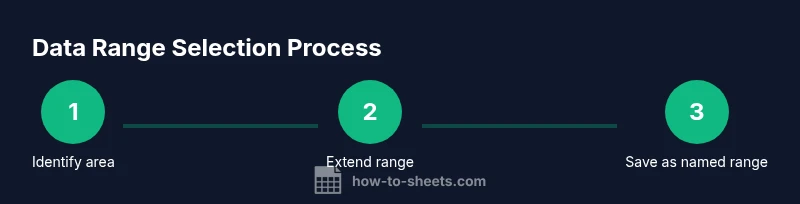
To select a data range in Google Sheets, identify your area and then use a mouse drag for a contiguous block or keyboard shortcuts to extend the selection. Learn how to select contiguous ranges, non-adjacent blocks, and how to save the range as a named range for reuse in formulas or charts. This quick guide covers both mouse and keyboard methods for precise selections.
Understanding Data Ranges in Google Sheets
A data range is a rectangular block of cells that you treat as a single unit for analysis, charts, or formulas. When you know how to select a range precisely, you reduce mistakes and save time. If you’re wondering how to select a data range in google sheets, you’re about to learn practical mouse and keyboard methods that work across Windows, macOS, and Chromebooks. According to How To Sheets, mastering range selection is a foundational skill for clean spreadsheets.
In practice, most tasks begin with a chosen starting cell. From there, you extend the selection across columns or rows to cover the entire data area you want to analyze. The key is consistency: always align your range with the actual data boundaries (no stray headers or blank rows inside the range). A well-defined range makes formulas, filters, and charts behave predictably.
Here are the core ideas you’ll apply:
- Contiguity: Decide whether your data forms a single block or several blocks that you want grouped together.
- Headers: Decide if your headers are part of the range or separate; this affects sorting and charting.
- Reuse: Think about saving the range as a named range for future use.
This approach aligns with practical, step-by-step Google Sheets techniques and reflects the guidance shared by the How To Sheets Team. With a solid sense of the data area, you’ll move faster and reduce errors in every spreadsheet task.
Quick ways to select a range (mouse, keyboard)
Selecting ranges in Google Sheets can be done quickly with a mouse, a keyboard, or a combination. The simplest method is a mouse drag: click the first cell of your range, hold the mouse button, drag to the opposite corner, and release to lock in the selection. If your dataset is large, you can tighten the action by using the keyboard to extend the range.
On Windows and Linux, you can press Shift while using the arrow keys to grow the selection one row or column at a time. On macOS, the same approach works with Shift along with the arrow keys, and you can combine it with Option to fine-tune the extension. As you grow the selection, Google Sheets highlights the exact area, helping you verify accuracy before applying operations.
Tip: If you want to quickly select an entire column, click the column header letter; to select a full row, click the row number. If you want the entire sheet, press Ctrl+A (Cmd+A on Mac). This speed technique is essential when you need to prepare data for charts, filters, or formulas.
Selecting contiguous vs non-contiguous ranges
In many cases, data lives in a single block, but you may also need to select multiple separate blocks. For contiguous ranges, start with the top-left cell, hold Shift, and click the bottom-right cell to capture the rectangle. If you need multiple blocks, hold Ctrl (Cmd on Mac) and click each additional range. Sheets will include all selected areas in your next operation, such as a chart or a formula.
Pro tip: after selecting non-adjacent ranges, you can apply the same formatting or formulas to all blocks by using the right-hand toolbar options. Always double-check that each block contributes to the intended calculation or chart.
Selecting entire rows/columns or the whole sheet
To select an entire row, click the row header; to select a column, click the column header. For the whole sheet, click any cell and press Ctrl+A (Cmd+A on Mac) twice—the first press highlights the data region, the second selects everything. If your goal is a comprehensive data view, this quick method ensures you don’t miss any data, especially in large sheets.
When you plan to sort or filter, it’s often wise to exclude headers from the range unless your operation explicitly includes them. This keeps charts and calculations clean and predictable.
Dynamic ranges and named ranges
Dynamic ranges save time and reduce errors by giving a stable reference to a portion of your sheet. Start by selecting your data range, then open Data > Named ranges. Provide a descriptive name and save the range. Named ranges can be used directly in formulas (for example, SUM(namedRange)) and in charts, ensuring consistency across sheets.
How To Sheets emphasizes that named ranges improve readability and maintainability. If your data grows, you can update the named range in one place rather than editing dozens of formulas. This approach pays dividends in teams and long-running projects.
Common mistakes and how to fix them
Common errors include including blank rows inside the data range, mixing headers with data, and accidentally selecting non-contiguous blocks without intention. Before applying a chart or formula, re-check the exact bounds of your selection. If you notice misalignment, undo and refine the selection by counting headers and last data row.
If you’re using a range for sorting, ensure the header row is either kept outside the range or clearly designated within it. Misplacing headers can lead to incorrect sorts and misleading charts. A quick audit step—scroll through the range to confirm data alignment—saves time in the long run.
Practical examples and templates
Example 1: You’re preparing a simple sales chart from A1:C50. Start at A1, drag to C50 to capture all columns, including headers. Then insert a chart; Sheets will use the selected range for the visual. Example 2: You want a running total for a dynamic list. Create a named range like sales_data and reference it inside SUM(sales_data). Example 3: You need multiple non-adjacent blocks for a composite report. Select A2:B10 and D2:E10 with Ctrl/Cmd, then apply a filter across all blocks. This shows how precise range selection supports practical reporting.
Best practices for consistent ranges
Keep a consistent approach to range selection across your sheets. Freeze header rows, use named ranges for stable references, and document any non-obvious selections in a comments column or a Sheet note. Regularly review named ranges when your data grows, ensuring they still point to the correct area. This consistency reduces errors when multiple people work on the same document.
Tools & Materials
- Computer or laptop with internet access(Chrome or a modern browser; sign in to Google account)
- Google Sheets access(Open the sheet you’ll edit or analyze)
- Keyboard and mouse(Accessible shortcuts: Shift, Ctrl/Cmd; arrow keys; click-and-drag)
- Practice data set (optional)(A small sheet with headers and a few rows for testing)
Steps
Estimated time: 10-15 minutes
- 1
Open your sheet and locate the data region
Launch Google Sheets and open the target document. Identify the top-left cell of the data range and verify there are no merged cells that would skew calculations. This sets the foundation for accurate selection and downstream analysis.
Tip: Use Freeze to keep headers visible while scanning for the data boundary. - 2
Select a contiguous range with the mouse
Click the starting cell, hold the mouse button, and drag to the opposite corner. Release to finalize the rectangular range. Verify that every intended cell is highlighted without missing any data.
Tip: Drag along the edge to quickly span many columns or rows. - 3
Extend the range with the keyboard
Click the starting cell, then press Shift with the right or down arrow to grow the selection one cell at a time. This is faster for long ranges and reduces mouse effort.
Tip: On Mac, use Shift with arrow keys just like Windows. - 4
Select non-adjacent ranges
Hold Ctrl (Cmd on Mac) and click additional blocks to add them to your selection. Each block must be deliberate to avoid accidentally including unwanted data.
Tip: Deselect a block by holding Ctrl/Cmd and clicking inside it again. - 5
Include or exclude headers
Decide whether headers should be part of the range depending on the task (charts usually prefer excluding headers). Adjust the end row accordingly if necessary.
Tip: For charts, place the header outside the data range to avoid misinterpretation. - 6
Save as a named range
Select the range and go to Data > Named ranges. Give it a descriptive name for quick reuse in formulas and charts.
Tip: Use names that reflect the data, like sales_Q1_2026, to improve clarity. - 7
Verify and reuse
Double-check the selection against the data, then apply your operation (chart, filter, formula). If data grows, update the named range to cover new rows.
Tip: Add a short note in the sheet about the range purpose for future collaborators. - 8
Practice with a real task
Create a quick chart or a calculated column using the selected range to confirm it behaves as expected. This hands-on check helps prevent future errors.
Tip: Document a reference example in a separate sheet for team consistency.
FAQ
How do I select a non-adjacent range in Google Sheets?
Hold Ctrl (Cmd on Mac) and click each additional range to include them in your selection. Deselect by clicking again while holding Ctrl/Cmd. This lets you compose a composite data range for combined results.
Use Ctrl or Cmd to select multiple non-adjacent blocks; click again to deselect if needed.
What is the quickest way to select a contiguous range?
Click the first cell, hold Shift, and click the last cell to capture a rectangle. Or use Shift with the arrow keys to extend the range step-by-step.
Click, hold Shift, and click the end cell to select quickly, or extend with arrow keys.
How can I exclude header rows when selecting data for charts?
Select the data range that excludes the header row, or adjust the end row to start from the first data row. This keeps charts from treating headers as data.
Exclude the header row from the data range when creating charts.
Can I save a data range as a named range?
Yes. Use Data > Named ranges to save the current selection with a meaningful name. Named ranges simplify formulas and chart references.
Yes—save the range in Named ranges for reuse.
What if new rows are added and I want the range to grow automatically?
Use a named range that references a broader area or employ formulas like FILTER to reference a growing data set. Named ranges can be updated in one place as data expands.
Use a broader named range or a dynamic formula to accommodate growth.
Are there keyboard shortcuts to adjust a range without a mouse?
Yes. Use Shift+Arrow to extend, and Ctrl+Shift+Arrow to jump to the data boundary. Ctrl+Space selects a column, Shift+Space selects a row. These speed up precise selections.
Yes—use Shift and Ctrl combos to extend or jump boundaries quickly.
Watch Video
The Essentials
- Identify the exact data area before applying actions.
- Use keyboard shortcuts to extend selections quickly.
- Save frequently used ranges as named ranges.
- Avoid including non-data cells to prevent errors.
- Test selections before sorting or formulas.