How to Build an Issue Tracker Google Sheets Template
Learn to build an issue tracker in Google Sheets with a ready-to-use template, core fields, and simple automation to boost team clarity and accountability across projects.


Using an issue tracker google sheets template helps teams capture and prioritize work in a single place. It tracks tasks, owners, due dates, statuses, and comments, so everyone stays aligned. This quick answer outlines the core steps: define your columns, implement simple status rules, and apply filters to view by assignee or urgency. You’ll learn to reuse the template for new projects and share it with teammates.
What is an issue tracker template in Google Sheets?
An issue tracker template for Google Sheets is a structured workbook designed to capture problems, tasks, or bugs that your project team needs to fix. Unlike specialized issue-tracking tools, a well-designed Sheets template offers a flexible, affordable starting point that fits small teams and simple workflows. The phrase 'issue tracker google sheets template' describes a pattern you can replicate across projects, sprints, or support requests. In practice, it typically includes fields for a clear title, a concise description, assignment, due date, priority, and status. The goal is to transform scattered notes into a consistent data set that supports quick searches, filters, and reporting. According to How To Sheets, templates like this reduce missing information and miscommunication by enforcing a common structure. When you start from a template, you can tailor it to your team's terminology, whether you track bugs, features, or service requests.
Why a centralized tracker matters for team productivity
A centralized issue tracker in Google Sheets consolidates conversations, decisions, and deadlines into a single source of truth. For students, professionals, and small business owners, this approach reduces context switching and duplicated effort. With a clean template, you can rapidly assign owners, set due dates, and monitor progress across projects. How To Sheets analysis shows that structured templates improve accountability and speed up triage by making status changes visible to everyone. The result is fewer missed updates, faster resolution times, and clearer ownership across the team. In short, a well-designed Google Sheets tracker scales from a one-person project to a multi-person initiative without requiring expensive software.
Core fields and data types you should include
A practical issue tracker template uses a compact set of fields that cover every key detail without becoming bloated. Essential columns include: Issue ID (text or number), Title (text), Description (text), Priority (low|medium|high), Status (Open|In Progress|Blocked|Done), Assignee (text), Due Date (date), Created (date), Updated (date), Tags (text or comma-separated), and Comments (text). You can add optional fields for Severity, Root Cause, or Resolution if your workflow requires them. Use consistent data types for reliable filtering and reporting.
To keep things predictable, use data validation for fields like Priority and Status. This enforces uniform values and makes downstream reporting much easier. For example, a dropdown for Priority keeps values like High, Medium, and Low aligned across all issues, which improves searchability and dashboards.
Data validation and basic status workflows
Data validation is the backbone of a reliable tracker. Create dropdowns for Priority (e.g., High, Medium, Low) and Status (e.g., Open, In Progress, Blocked, Done) to prevent typos and inconsistent terms. Timestamp columns like Created and Updated help you audit changes; you can auto-fill them with formulas or scripts. A simple workflow can map Status transitions (Open → In Progress → Done) and flag blockers with a conditional format when Status = Blocked. This structural discipline ensures everyone uses the same language, easing reporting and handoffs. If needed, you can implement a basic escalation rule that nudges owners when a due date passes without an update.
Designing for collaboration and permissions
Google Sheets makes collaboration straightforward, but careful design is still crucial. Start with a shared template copy and restrict editing rights to designated team roles while allowing comments for stakeholders who do not own the task. Consider using protected ranges to guard headers and critical columns like Issue ID, Created, and Due Date. Create a separate history or log sheet to track changes, so the main tracker remains clean. Establish a clear process for archiving resolved issues to keep the workspace focused and fast. Remember to communicate access rules to your team so everyone knows where to record updates and how to reference prior work.
Example formulas and views to speed up work
Formulas and built-in views can dramatically speed up daily use. Use =IF to set derived fields like Overdue = Due Date < TODAY() and Status <> Done. FILTER and SORTN help you build dynamic views such as: 1) Issues assigned to a specific person, 2) Open items due this week, 3) High-priority blockers. Conditional formatting highlights overdue items and high-priority tasks, making it easy to spot problems at a glance. You can also create a simple auto-archiving rule that moves closed issues to an Archive sheet after a set period, keeping the main tracker lean.
Templates, reuse, and version control
Treat the sheet as a template that can be copied for new projects, teams, or sprints. Keep a changelog on a separate sheet to track iterations, improvements, and schema changes, which reduces confusion during onboarding. Saving a clean baseline copy helps you roll back if a new change introduces issues. How To Sheets highlights the value of versioning when adopting templates, so your team avoids drift and maintains consistency across projects. Periodic reviews ensure the tracker remains aligned with evolving workflows.
Next steps: from template to team-ready workflow
With the core structure in place, pilot the tracker with a real project. Gather feedback on field naming, workflow steps, and reporting needs. Adjust the template accordingly, then publish a finalized version for the team. Establish a short onboarding session to explain how to log issues, how to update statuses, and how to generate common views. Ongoing maintenance—such as archiving completed items and refining dropdown options—will keep the template effective for months to come. The How To Sheets approach emphasizes practical templates that scale with your team’s needs.
Tools & Materials
- Google account with Google Sheets access(Needed to open, edit, and save the template in Drive)
- Starter template or blank Google Sheet(Use a copy to preserve the original)
- Internet connection(Required for real-time collaboration and updates)
- Sample data set(Helpful for testing filters and views)
- Color legend or conditional formatting presets(Optional for quick visual cues)
- Data validation presets (dropdown lists)(Set up for Priority, Status, and Tags)
Steps
Estimated time: 60-90 minutes
- 1
Define workbook structure
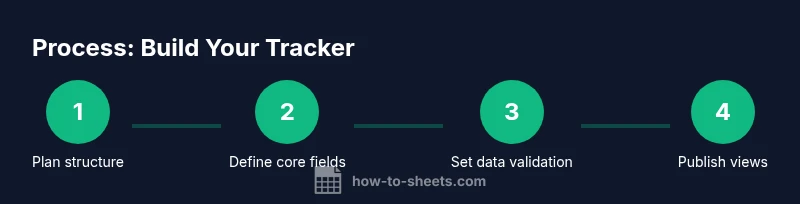
Plan a single Issues sheet as the main tracker and an optional History or Archive sheet for completed items. Decide on the core fields you will include from the start, and map how you will log new issues.
Tip: Start with a clean slate copy to avoid overwriting the master template. - 2
Create core columns
Add columns for Issue ID, Title, Description, Priority, Status, Assignee, Due Date, Created, Updated, Tags, and Comments. Keep naming consistent to simplify filters and reports.
Tip: Use short, descriptive header names to reduce clutter in filters. - 3
Add data validation
Set dropdowns for Priority (High/Medium/Low) and Status (Open/In Progress/Blocked/Done). Validate dates and enforce mandatory fields where possible.
Tip: Link required fields to user-friendly messages when data is missing. - 4
Auto-generate IDs and timestamps
Use a simple formula to generate sequential IDs (e.g., =ROW()-1) and capture Created/Updated timestamps with NOW() or Google Apps Script.
Tip: Disable manual edits on ID column to prevent gaps. - 5
Define status workflows
Establish clear transitions (Open -> In Progress -> Done) and a blocking condition for issues that require a separate approval.
Tip: Color-code blocks for quick visual triage. - 6
Create views and formatting
Add filter views or dynamic dashboards using FILTER and SORT. Apply conditional formatting to highlight overdue items and high-priority tasks.
Tip: Save commonly used views as named filters for quick access. - 7
Set sharing and permissions
Share the sheet with teammates, assign edit rights to owners, and protect headers or critical columns from unintended changes.
Tip: Document who owns each issue to prevent ownership gaps. - 8
Test, collect feedback, and iterate
Run a 1-week pilot, gather feedback on field names, workflows, and reporting needs. Update the template accordingly and roll out the final version.
Tip: Keep a short changelog to track improvements.
FAQ
What is an issue tracker template in Google Sheets?
An issue tracker template in Google Sheets is a structured workbook to log issues, assign ownership, set priorities, and monitor status and progress. It brings order to scattered notes and makes reporting easier.
An issue tracker template helps teams log issues with clear fields and up-to-date status, making collaboration smoother.
What fields should I include in the template?
Include fields like Issue ID, Title, Description, Priority, Status, Assignee, Due Date, Created, Updated, Tags, and Comments. Add optional fields like Severity or Resolution if your workflow requires them.
Key fields include title, priority, status, assignee, and due date for effective tracking.
How do I maintain data consistency?
Use data validation with dropdowns for Priority and Status, standardize date formats, and avoid free-text fields where possible to keep filters reliable.
Consistency is built with dropdowns and standard date formats.
Can I automate reminders from Sheets?
Yes, you can set up simple triggers with Google Apps Script or use built-in notifications to remind assignees about approaching due dates.
You can automate reminders with basic scripts or built-in alerts.
How should I share the tracker securely?
Share with teammates using Google Sheets permissions. Protect critical columns, and use comment-only access for reviewers to prevent accidental edits.
Share with proper access levels and protect critical fields.
What about version control and templates reuse?
Keep a master template and create project-specific copies. Maintain a changelog to document updates and ensure consistency across projects.
Maintain a master template and copy it for new projects with a changelog.
Watch Video
The Essentials
- Start with essential fields and expand later.
- Use dropdowns to maintain consistency across entries.
- Create views to filter by owner, status, or due date.
- Archive closed items to keep the sheet lightweight.