Office Editing for Docs, Sheets & Slides: A Practical How-To
Learn practical, step-by-step techniques for effective office editing across Google Docs, Sheets, and Slides, including templates, collaboration, version control, and accessibility.


By the end, you will master office editing for docs sheets & slides across Google Docs, Sheets, and Slides with a consistent template, clear version history, and robust collaboration. You’ll implement shared templates, defined permissions, and audit trails to prevent conflicts and ensure accessibility. This guide assumes you have a Google account and access to Docs, Sheets, and Slides, plus a concise task brief.
Why office editing for docs sheets & slides matters
Office editing for docs sheets & slides refers to a unified approach to creating, formatting, and refining content across Google Docs, Sheets, and Slides. According to How To Sheets, consistency in fonts, colors, and layouts reduces confusion, speeds up review cycles, and minimizes version conflicts in collaborative environments. For students, professionals, and small business owners, a cohesive editing workflow helps deliver professional documents, accurate data visuals, and compelling presentations without reworking content in each app. When teams align on templates and style guides, cross-application edits become predictable, traceable, and scalable.
In practice, you’ll edit a draft in Docs, reflect data from Sheets, and present findings in Slides with synchronized formatting. This means using shared templates, centralized color schemes, and a named-version strategy so that all contributors stay aligned even as people jump between apps. The outcome is faster approvals, clearer communication, and a polished final product that looks intentional rather than patched together.
Top features that support unified editing across apps
Modern Google Workspace provides several features that make cross-app editing smoother. Key capabilities include style-friendly templates that propagate fonts and colors across Docs, Sheets, and Slides; a shared theme for consistent visuals; real-time collaboration with comments and suggestions; and robust version history to track changes across files. Add-on integrations and Apps Script automation can streamline repetitive formatting, data linking, and chart updates, ensuring changes in Sheets reflect in Slides and Docs where appropriate. Accessibility checks, built-in spell and grammar tools, and smart compose help maintain quality across all platforms. By leveraging these features, teams can maintain a single source of truth while working in parallel across apps.
For teams, having a centralized template library and a documented editing protocol reduces ambiguity and speeds up onboarding for new members. How To Sheets notes that templates are especially effective when you need to replicate standards across multiple documents, sheets, and slide decks, making it easier to scale your workflows.
Planning with templates and shared libraries
Effective planning starts with templates and a centralized library. Create a master set of templates for Docs (letter, memo, report), Sheets (budget, project tracker, dataset questionnaire), and Slides (pitch deck, agenda, quarterly review). Store them in a shared drive or designated folder with clear naming conventions and versioning rules. Link templates so updates propagate consistently, and require contributors to start from the template rather than duplicating from scratch. This reduces drift in language, calculations, and visuals while saving time during drafting and review.
When you build templates, include placeholders, required fields, and asset links (logos, fonts, color swatches). A shared color palette and font styles ensure a uniform look across all documents. If your team uses data from Sheets in Slides, set up linked charts or dynamic tables that automatically refresh, preserving accuracy as numbers change. The How To Sheets team recommends documenting a short guide next to the templates so teammates understand when to use which version and how to customize without breaking consistency.
Collaboration workflows: commenting, suggestions, and permissions
Real-time editing across Docs, Sheets, and Slides hinges on clear collaboration workflows. Use comments to propose changes without modifying the original text, switch to suggestions mode when you want to accept or reject edits more deliberately, and assign tasks within the comment threads. Establish permissions that match roles: editors for content teams, commenters for reviewers, and viewers for stakeholders who only need read access. Create a standard practice for resolving feedback—summarize changes in a final note and attach a versioned document to the project folder.
To keep momentum, set deadlines and use the @mention feature to notify teammates of specific tasks. Consider creating a short checklist for each document type (Docs, Sheets, Slides) to ensure formatting, data integrity, and accessibility checks are completed before the final share. These structured steps help prevent miscommunication and ensure everyone performs the same quality checks.
Version control and audit trails in Google Workspace
Version control is essential when multiple editors are involved. Use Google Drive’s version history to name milestones, tag major updates, and restore previous states if needed. Enable activity dashboards in the admin settings for additional visibility into who changed what and when. Adopting a naming convention like DocName_vYYYYMMDD_Editor can simplify tracking across Docs, Sheets, and Slides. Regularly audit changes to catch formatting drift, broken links, or mismatched data after imports.
For sensitive projects, restrict link sharing and periodically review access permissions. Keeping a record of decisions in a central notes document helps maintain an auditable trail that supports accountability and transparency throughout the editing process.
End-to-end workflow: from draft to final
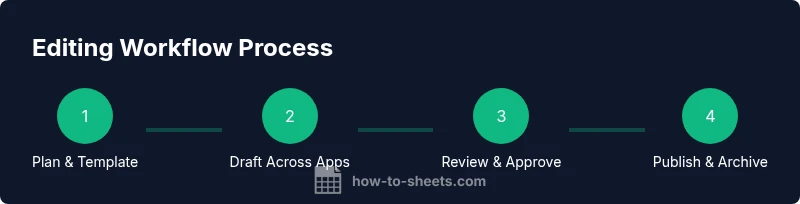
A practical workflow begins with planning and templating, followed by drafting in Docs, data-informing in Sheets, and final presentation in Slides. Start by drafting content in Docs using your templates, then pull in data from Sheets, linking charts where possible. Move to Slides to assemble the narrative, ensuring your fonts, colors, and styles match the documented templates. Run accessibility checks, verify data accuracy, and solicit feedback in a structured review cycle. Finally, lock down permissions for the finished files and archive the project in a dedicated folder with a clear naming scheme.
This end-to-end approach minimizes rework and ensures every element—from headings to charts—follows the same standards, producing coherent documents that are easy to share and understand.
Common pitfalls and quick fixes
Even seasoned editors encounter familiar missteps. Pitfalls include drift between Docs and Sheets, inconsistent styling across files, and unclear ownership of edits. Quick fixes include resetting styles to the template defaults, updating theme colors across all files, and conducting a quick cross-check against the master template. Another common issue is over-sharing or weak permission controls; counter this by reviewing access levels and using restricted sharing for sensitive data. Finally, avoid hard-coding data in Slides; whenever possible, link live data from Sheets to maintain accuracy.
Tools & Materials
- Google account with Docs, Sheets, Slides access(Ensure you have permission to edit and share within your organization)
- Stable internet connection(Editing is synchronous; interruptions can cause conflicts)
- Draft task brief or project outline(Defines scope, audience, and deliverables)
- Template library (shared templates for Docs, Sheets, Slides)(Optional but strongly recommended for consistency)
- Shared drive or folder with organized templates(Centralized location to avoid fragmentation)
- Latest browser (Chrome recommended)(Keeps features and extensions working smoothly)
Steps
Estimated time: 60-90 minutes
- 1
Define scope and select templates
Clarify the document goals, audience, and required outputs. Pick templates that match the document type (Docs, Sheets, Slides) and establish a consistent style guide.
Tip: Document the chosen templates in a shared guide to prevent drift. - 2
Create a shared structure
Set up a folder with subfolders for draft, review, and final versions. Ensure all collaborators have appropriate access and establish a naming convention.
Tip: Use a master template as the source of truth for all edits. - 3
Prepare documentation and data sources
Open Docs for drafting, Sheets for data, and Slides for visuals. Link any charts or tables from Sheets to Slides where feasible to maintain live data integrity.
Tip: Label data ranges clearly in Sheets to simplify updates. - 4
Draft content and align formatting
Write the initial content in Docs, insert data-driven visuals from Sheets, and keep slide formatting aligned with the template. Avoid custom styles that deviate from the standard theme.
Tip: Use the Format Painter to quickly apply template styles. - 5
Review with comments and suggestions
Switch to suggestions mode for edits, review comments, and resolve changes. Assign tasks in comments to specific teammates.
Tip: Mention teammates with @ to trigger notifications. - 6
Lock in version history and permissions
Name milestones in version history, ensure access is restricted to necessary editors, and avoid unnecessary sharing links.
Tip: Create a final check list before moving to final delivery. - 7
Validate accessibility and accuracy
Run spell-check, alt-text for images, and data validation checks. Confirm data links are live and charts update correctly.
Tip: Test in a separate view or device to catch accessibility issues. - 8
Deliver and archive
Share final files with stakeholders, record a short summary of decisions, and archive in a labeled folder for future reference.
Tip: Retain a copy of the final version with a unique identifier.
FAQ
Do I need a Google Workspace account to edit collaboratively across Docs, Sheets, and Slides?
Collaborative editing is possible with a Google account, but Workspace offers more centralized controls and sharing options for teams. Use shared templates and permissions to manage access.
Yes, a Google account works, but Workspace gives better team control.
Can I edit offline and sync later across Docs, Sheets, and Slides?
Yes. Enable offline editing in Google Drive settings. Edits will sync automatically when an internet connection is restored.
Yes—enable offline mode and changes sync when online again.
How can I enforce consistency across all documents?
Create and reuse templates, enforce a shared color palette, and apply uniform font styles. Use the master theme across Docs, Sheets, and Slides.
Use templates and shared themes for consistency.
What are best practices for permissions and sharing?
Limit editors to essential contributors, use viewers for stakeholders, and restrict link sharing. Regularly review access to protect sensitive data.
Limit access and review permissions regularly.
How do I track changes across multiple files?
Rely on version history, titled milestones, and comments. Cross-check edits against the master template to ensure consistency.
Use version history and comments to monitor edits.
Are scripts or add-ons recommended for automation?
Yes, Apps Script or add-ons can automate formatting and data updates. Test changes in a copy before applying them to live documents.
Yes—test scripts in a copy first.
Watch Video
The Essentials
- Use templates to ensure consistency.
- Leverage version history to track edits.
- Plan ahead with shared folders and clear permissions.
- Link data across Docs, Sheets, and Slides for accuracy.
- Review accessibility and finalize before sharing.