Order Form Template Google Sheets: A Practical Guide
Learn how to build a robust order form template google sheets with essential fields, data validation, formulas, and sharing options to streamline orders for teams and small businesses to scale efficiently.


Create a reusable order form template google sheets that captures customer details, items, quantities, and totals, then channels data for invoicing and fulfillment. You’ll set up a clean layout, data validation, and simple formulas to auto-calculate totals. No coding required—just a well-structured sheet and a ready-to-use template. This quick guide aligns with How To Sheets’ best practices for practical Google Sheets templates.
Why an order form template google sheets makes sense
For many teams—students managing club orders, professionals processing client requests, or small business owners tracking product sales—Google Sheets is a natural starting point for an order form template google sheets. It provides real-time collaboration, familiar formulas, and seamless sharing without software installation. A purpose-built template can standardize how orders are captured, reduce data-entry errors, and speed up fulfillment by keeping everything in a single, auditable place. When designed well, the sheet serves as both intake form and lightweight data store, so orders can be traced from inquiry to invoice. According to How To Sheets, a well-structured template improves consistency across departments and makes it easier to scale as volumes rise. In practice, a clean layout with clear headers, drop-downs for status, and a catalog sheet for items helps new users enter data correctly the first time. The long-term payoff is visibility into orders, item-level profitability, and actionable insights without complex software.
Essential fields to include in your order form template
An effective order form template google sheets starts with a clear header row and a robust set of fields. Core data include: Order ID, Date, Customer name, Email, Phone, Shipping address, and a mechanism to capture line items. For line items, you typically store Item name or SKU, Unit price, Quantity, and Line total. It’s wise to maintain a separate Item Catalog sheet so prices stay centralized and consistent across orders. Totals should roll up to Subtotal, Tax, and Grand total. You can also track status (New, Processing, Fulfilled, Cancelled) and Payment status (Paid, Pending, Refunded). Don’t forget notes or special instructions and the currency you expect to use if you work with international customers. Having these fields in place makes it possible to sort, filter, and export orders to invoices or fulfillment systems without retyping data. Finally, consider a separate summary dashboard that aggregates key metrics like revenue by date range and top-selling items.
Designing for clarity: layout and data validation
Layout and data validation matter as soon as the order form template google sheets goes live. Start with a single, clearly labeled tab for orders and, optionally, a Catalog tab for items. Freeze the header row so the column labels stay visible while you scroll. Use bold headers and alternating row colors to improve legibility. Implement data validation to prevent mistakes: a drop-down for Status and Payment Status; numeric constraints for Quantity; and a List validation that references your Catalog sheet for item names. You can also enforce required fields by conditional formatting (e.g., highlight rows missing Customer or Item data). Naming ranges (like ItemNames, Currency, TaxRate) keep formulas readable and portable. Finally, ensure date formats are consistent (YYYY-MM-DD or your local standard) to facilitate filtering and exporting. These practices reduce errors and make it easier for teammates to add orders quickly and accurately.
Practical formulas and automation tips
A strong order form template google sheets relies on simple, robust formulas. Use Unit Price times Quantity to compute Line Total: =E2F2. Pull item prices from a catalog with VLOOKUP: =IFERROR(VLOOKUP(D2, Catalog!A:B, 2, FALSE), 0). Compute Subtotal across lines: =SUM(G2:G100). Apply Tax with a named TaxRate: =H2I$1, where I$1 stores the rate. Total = Subtotal + Tax. For a multi-item order, consider appending line items or using a separate line items table and a SUMIF to aggregate totals. If you want a single summary row, you can create an array formula to total lines: =SUM(IF(A2:A100<>
, G2:G100, 0)). You can automate daily totals or exports with Apps Script or add-ons, but many teams are happy with standard formulas and a well-organized catalog.
A starter template structure: sections and sample data
Your starter template can be split into at least two tabs: Orders and Catalog. In Orders, headers might include: Order ID, Date, Customer, Email, Item, Unit Price, Quantity, Line Total, Tax, Total, Status, Notes. In Catalog, list Item, SKU, Unit Price. A few sample rows help you validate formulas: Row 2 could show ORD-1001, 2026-02-27, Jordan Lee, [email protected], Widget A, 12.50, 3, LINE_TOTAL_FORMULA, TAX_FORMULA, TOTAL_FORMULA, New, None. You can model a second line item to demonstrate how items accumulate in a single order. This structure keeps order data consistent, supports filtering by date, customer, or item, and lays the groundwork for export to PDF invoices or integration with payment tools. As you grow, connect this template Google Sheets file to a Google Form or an Apps Script workflow to streamline submissions and confirmations.
Collaboration, sharing, and security considerations
Because teams rely on shared access, plan your sharing settings carefully. Use Google Drive permissions so only authorized teammates can edit the Orders tab, while others can view or comment. Protect critical formulas and hidden helpers to prevent accidental changes. Use version history to recover from mistakes, and consider a monthly backup routine to guard against data loss. If you’re collecting customer data, comply with privacy requirements and limit access to sensitive fields. For automation, keep a separate test sheet to trial new formulas before pushing changes to production data. Finally, document your design decisions so future teammates understand the template’s structure and logic, reinforcing consistency across the organization.
Common mistakes and how to avoid them
Common pitfalls include duplicating header names, failing to define a catalog for prices, or scattering formulas across multiple tabs without a single source of truth. Avoid ambiguous column names; use consistent units and currencies; and never hard-code prices in the header row. Another frequent issue is skipping data validation, which leads to typos in item names or statuses. Finally, neglecting security can expose customer data; always limit access and protect key cells. A simple checklist at the top of the Orders tab helps new users remember required fields and actions.
Next steps and customization ideas
With a solid base, you can tailor the order form template google sheets to your exact needs. Add currency formatting, conditional discounts, or tax calculations based on location. Create a dashboard that visualizes orders by day, item, or customer. Connect your sheet to a Forms submission flow to reduce manual entry, or create an invoice generator that pulls from the Orders data. If you handle multiple currencies, implement a rate table and automatic conversion. For teams, build a small approval workflow in Apps Script to verify orders before they move to fulfillment. The How To Sheets team recommends starting small, testing thoroughly, and iterating as your order volume grows, so you can maintain accuracy without sacrificing speed.
Tools & Materials
- Computer with internet access(Stable connection for Google Sheets work)
- Google account(Used to access Google Sheets and Drive)
- Starter Google Sheet (Orders) or blank sheet(If starting from scratch, create a new sheet named 'Orders' with defined headers)
- Catalog sheet for items(Optional but recommended for centralized pricing)
- Optional: Google Forms(For direct form submissions into Sheets)
- Optional: Apps Script(To automate confirmations and exports)
Steps
Estimated time: 30-60 minutes
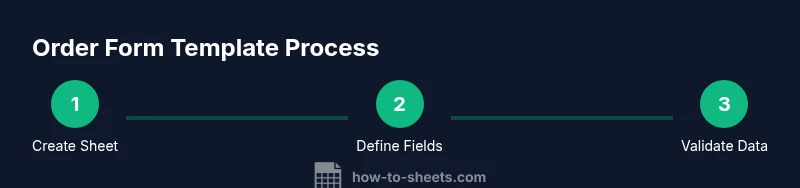
- 1
Create a new Google Sheet
Open Google Sheets and create a fresh file named "Orders". Add the first tab as the Orders sheet and set up the header row with clear field names. This establishes the foundation for all subsequent steps.
Tip: Name the file and header row clearly to prevent confusion later. - 2
Define header fields and mapping
List essential fields in a logical order: Order ID, Date, Customer, Email, Item, Unit Price, Quantity, Line Total. Optionally create a Catalog tab for items and a separate Summary tab for metrics.
Tip: Keep field names short but descriptive and align with data types. - 3
Set up the Catalog sheet
Create a Catalog tab with Item, SKU, and Unit Price columns. This centralized data source helps keep prices consistent across orders and simplifies updates.
Tip: Use named ranges like ItemNames and Prices for easier formulas. - 4
Add calculation columns
Create Line Total (Unit Price × Quantity), Subtotal (sum of Line Totals), Tax (Subtotal × TaxRate), and Grand Total. Link Line Total to the Catalog for pricing when possible.
Tip: Document which cells feed which totals to aid future edits. - 5
Implement data validation
Apply drop-down lists for Status and Payment Status. Enforce numeric input for Quantity and consistent date formats. Use required-field indicators to guide users.
Tip: Validation reduces typos and data-entry errors from the start. - 6
Test with sample data
Enter a few mock orders to verify that totals sum correctly and validations work. Check that totals update automatically as you change quantities or prices.
Tip: Test edge cases (zero quantities, missing fields) to confirm rules hold. - 7
Set sharing and permissions
Configure who can edit, view, or comment on the sheet. Protect critical cells with locking rules and enable version history for recovery.
Tip: Limit access to sensitive fields to comply with privacy policies. - 8
Document and deploy
Add a short guide within the sheet or a separate doc explaining fields, formulas, and workflows. Save a backup copy and share the template with teammates.
Tip: Create a simple onboarding note to reduce support time.
FAQ
What is the main benefit of using an order form template google sheets?
It centralizes order data, reduces manual errors, and enables real-time collaboration, which speeds up order fulfillment.
Using a Google Sheets order template keeps orders in one place, reduces mistakes, and lets teams work together in real time.
Can I connect Google Forms to automatically feed orders into Sheets?
Yes. Google Forms can submit responses directly into your Orders sheet, automating data capture and reducing manual entry.
Yes. You can connect Forms to feed orders into Sheets automatically.
How should I handle multiple line items per order?
Use a line items structure or a separate sub-table that aggregates into the main order total. Ensure your formulas reference the correct ranges.
You can manage multiple items with a line items table or a sub-table that sums up per-order amounts.
What about data privacy when sharing the sheet?
Limit editing access, protect cells with formulas, and consider separate sheets for sensitive fields. Use version history to recover from mistakes.
Limit who can edit, protect sensitive fields, and use version history to stay safe.
Where can I find a starter template to customize?
This guide provides a starter structure and example data; you can adapt it or start a blank sheet and build from the ground up.
You can start with this guide’s starter structure and customize it as needed.
Is it possible to export orders to invoices or PDFs?
Yes. You can export to CSV for invoicing systems or use Apps Script/add-ons to generate PDFs from your order data.
Orders can be exported to invoices or PDFs with the right setup.
Watch Video
The Essentials
- Define essential fields first and keep item data centralized
- Use data validation to minimize errors
- Leverage simple formulas for auto-calculation
- Limit access and protect critical cells to maintain integrity
- Document structure for long-term maintainability