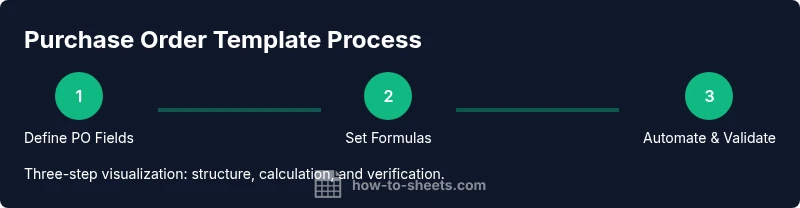
Google Sheets Purchase Order Template: A Step-by-Step Guide
Learn to build a practical google sheets purchase order template with itemized lines, automatic totals, data validation, and a print-ready layout for students, professionals, and small businesses.


By the end, you will have a reusable google sheets purchase order template that captures supplier details, line items, quantities, unit prices, taxes, and totals. You’ll implement data validation, automatic calculations, and a printable layout suitable for vendors. No specialized software is required—just a Google account, Sheets, and a quick customization for your workflow.
What is a google sheets purchase order template?
A google sheets purchase order template is a ready-to-use spreadsheet that standardizes the information you send to vendors when you request goods or services. It typically includes fields for PO number, date, vendor contact, shipping details, a line-item table, and totals. Using Google Sheets makes collaboration easy, since teams can edit in real time and track changes via version history. According to How To Sheets, starting with a clear data model helps prevent duplicated work and conflicting records. A well-structured PO template also reduces back-and-forth with suppliers by keeping everything in one consistent format.
In practice, this template acts as a contract-like document for your internal approval flow and external communication. It’s especially useful for students managing school projects, professionals purchasing office supplies, and small business owners who need a simple, auditable procurement trail. The core idea is to capture essential fields while leaving room for customization to match your procurement process.
Core components of a PO template
A solid google sheets purchase order template should cover several essential components:
- PO metadata: PO number, issue date, due date, currency, and buyer/department information. -Vendor details: legal name, contact person, address, and payment terms.
- Line items: a table with columns for item description, quantity, unit price, line total, item code, and notes.
- Totals: subtotals, applicable taxes, shipping, discounts, and grand total.
- Status and approvals: fields for current status (Draft, Sent, Approved, Cancelled) and a record of approvers.
Below is a quick-reference structure that keeps information organized and easy to audit. Remember to align the template to your company’s needs and legal requirements. As you’ll see, consistency in naming and formatting reduces processing time and errors.
Designing the layout: header, supplier, and line items
The layout should be clean and printable while staying fully functional as a live spreadsheet. Start with a header that holds PO-identifying details: PO number, date, department, and a short description of goods or services. Right beneath, place a vendor block with supplier name, contact, address, and payment terms. The main block is the line-items table, where each row represents a product or service. Include columns for quantity, unit price, tax rate, and a line total. Finally, reserve space for a summary block that aggregates subtotals, taxes, shipping, discounts, and the grand total. Use consistent fonts, ample padding, and clear borders to enhance readability on screen and in print.
For teams adopting multi-vendor scenarios, consider a drop-down in the vendor field and a separate sheet that stores vendor master data. This keeps the template scalable and reduces repetitive data entry. In short, a well-organized layout minimizes confusion during approvals and vendor communications.
Formulas to automate totals, taxes, and validation
Formulas are the backbone of a PO template, turning manual math into reliable automation. Common columns to automate include:
- Line totals: =Quantity * [Unit Price]
- Subtotal: =SUM([Line Total Range])
- Tax: =Subtotal * Tax_Rate
- Grand total: =Subtotal + Tax + Shipping - Discount
A few practical tips:
- Use named ranges (e.g., Quantity, Unit_Price) to keep formulas readable.
- Lock key cells to prevent accidental edits, especially for tax rates and totals.
- Use IF or IFERROR to handle missing data gracefully (e.g., =IF(ISNUMBER(LineTotal), LineTotal, 0)).
Choosing the right currency format and setting decimal precision early helps prevent confusion during vendor communications. You can also apply conditional formatting to highlight overdue dates or missing fields, which keeps your PO process moving smoothly.
Data validation and dropdowns to prevent errors
Data validation is essential for maintaining data integrity across all PO fields. Implement dropdowns for common fields such as:
- Currency (USD, EUR, GBP, etc.)
- PO status (Draft, Sent, Approved, Cancelled)
- Tax rate categories (0%, 5%, 8.25%, etc.)
- Payment terms (Net 15, Net 30, COD)
Validation rules should enforce required fields (PO number, vendor, date) and prevent invalid entries. For example, use a date picker for the PO date and a custom formula to ensure the line-item table has at least one row with a quantity greater than zero. These controls reduce back-and-forth with vendors and help teams stay aligned with internal policies.
Customizing for vendors and currencies
If your organization interacts with multiple vendors in different currencies, you’ll want to tailor the PO template to accommodate this variability. Use a currency column and a currency-specific price format, plus a vendor-specific tax handling approach if needed. Consider adding a small “Vendor Reference” field to capture any supplier-specific codes. You can also create a separate Vendor Master sheet that links to the main PO template, enabling quick lookups and ensuring data consistency during the order cycle. This approach makes the template adaptable for startups, freelancers, and small teams that work across several suppliers.
Exporting, printing, and sharing for approval
A critical use case for a PO template is generating a polished, printable document for vendor approval. Google Sheets supports exporting to PDF or printing directly with print-friendly settings. Steps typically include:
- Review all fields for accuracy and attach any necessary notes.
- Set print area and page breaks so the PO fits on a single page when possible.
- Use File > Download as PDF to retain formatting in a shareable document.
- Share the template with teammates or approvers using Drive permissions (Viewer, Commenter, Editor).
Smart sharing ensures stakeholders can review and approve without creating redundant copies, which helps maintain an auditable procurement trail.
Real-world workflow examples and templates
In practice, a PO template built in Google Sheets supports several common workflows. For a small services firm, you might track time-based bills with line items for hours, rate, and a separate line-item for materials. A product-based business may rely on SKU codes, vendor catalogs, and bulk discounts. A student club or nonprofit could use simplified fields: PO number, vendor, date, items, total, and an approval checkbox. The key is to align the template with your actual purchasing process: who approves, what data must be captured, and how the PO will be shared with vendors. Start with a minimal template and expand as needs grow.
Maintenance, audits, and versioning
Maintain the template with routine audits and version control. Regularly review vendor data, tax rates, and approved price lists. Leverage Google Sheets version history to track changes, revert when needed, and document who made edits. Establish a simple governance plan: a master file that is updated monthly, with copies created for each major procurement cycle. For transparency, maintain a changelog in a separate sheet or a notes column on the PO itself. This discipline ensures your procurement records remain accurate and auditable over time. The How To Sheets team emphasizes that a disciplined template scales from personal projects to organizational procurement.
Authority sources and practical references
- For procurement best practices and PO management, see https://www.sba.gov
- For general data management and spreadsheet design principles, consult https://mit.edu and https://hbr.org
- The recommendations here align with practical guidelines from How To Sheets to help you implement a strong google sheets purchase order template and maintain an auditable record across projects.
Tools & Materials
- Google account with Sheets access(Use a Google Workspace or personal Gmail to access Sheets)
- Google Sheets app or browser access(Access via drive.google.com or sheets.google.com)
- Sample vendor data set(CSV or existing sheet to populate vendor info)
- Currency and tax references(Set tax rate or rate table for locale)
- Template starter file(One master file, plus copies per project)
- Data validation lists(Drop-down options for status, currency, etc.)
- Printing/export setup(PDF export and print layout presets)
Steps
Estimated time: 60-90 minutes
- 1
Define data model and scope
Decide which fields the PO must capture (PO number, date, vendor, shipping, line items, totals) and how data will be calculated. Document required fields and optional extras to guide layout.
Tip: Sketch the data model on paper first to ensure all necessary fields are included. - 2
Create header and vendor blocks
Set up a header area for PO metadata and a vendor block with supplier contact details. Keep related fields grouped for quick reference by approvers.
Tip: Use bold headings and borders to separate sections clearly. - 3
Build the line-items table
Create columns for description, quantity, unit price, currency, tax, and line total. Leave room for up to 20 items and use formulas for line totals automatically.
Tip: Label columns with short, consistent names to aid data entry. - 4
Add data validation and required fields
Implement dropdowns for status and currency, date pickers for dates, and checks to ensure mandatory fields are filled before submission.
Tip: Lock critical cells and allow edits only in designated input zones. - 5
Implement totals and tax formulas
Add subtotals, tax calculation based on locale, and grand total. Ensure formulas adjust when line items are added or removed.
Tip: Use named ranges for readability in complex formulas. - 6
Create summary and approval sections
Add a summary block with totals and a simple approval checkbox or note field. Include a printable version for vendors if needed.
Tip: Place approvals near the end for a natural review flow. - 7
Prepare print/export layout
Configure page breaks, margins, and header/footer content for clean PDFs. Test a print preview to ensure everything fits on one page when possible.
Tip: Export a test PO to PDF and compare with vendor requirements. - 8
Save, share, and version control
Store the template in a shared drive, set permissions, and enable version history. Create a new version for each procurement cycle.
Tip: Document changes in a short changelog to ease audits. - 9
Customize for different use cases
Clone the master PO template for multiple vendors or departments and adjust columns as needed (e.g., services vs. goods, units vs. hours).
Tip: Maintain a vendor master sheet to speed up lookups.
FAQ
What is a google sheets purchase order template?
A google sheets purchase order template standardizes procurement data in a single, shareable file. It streamlines approvals and vendor communications by providing a consistent structure for vendor, item, and total information.
A Google Sheets PO template standardizes procurement data for easy approvals and vendor communication.
Can I support multiple currencies in a PO template?
Yes. Include a currency column and format cells accordingly. You can also lock currency fields to prevent accidental changes and set up a lookup table if you have several rate rules.
Yes, you can handle multiple currencies by adding a currency column and formatted cells.
How do I print or export a PO from Sheets?
Use File > Print or File > Download as PDF to generate a clean, vendor-ready document. Adjust margins and page breaks so the PO fits neatly on a standard page.
Print or export the PO from Sheets as a PDF for vendors.
What are common PO template mistakes to avoid?
Common issues include missing PO numbers, incorrect tax rates, missing vendor details, and unprotected cells that allow accidental edits to totals.
Common mistakes include missing PO numbers and unprotected totals.
How should I share the PO template with teammates?
Share via Google Drive with appropriate permissions (Viewer/Commenter/Editor). Use protected sheets to guard critical fields and enable commenting for feedback.
Share via Drive with proper permissions and protect critical cells.
Watch Video
The Essentials
- Plan PO fields first and maintain a consistent layout.
- Automate calculations to reduce errors and save time.
- Validate data entry with dropdowns and required fields.
- Keep a printable, auditable record with clear version history.