Project Timeline Template Google Sheets: A Practical Guide
Learn how to create a practical project timeline template in Google Sheets. Step-by-step guidance, real-world examples, and tips to track milestones, dates, durations, and dependencies for any project.


Generate and manage a complete project timeline using Google Sheets. You’ll learn how to structure a timeline template with milestones, start/end dates, durations, dependencies, and progress tracking, plus practical tips for collaboration, data validation, and sharing. By the end, you can customize the template for any project scale and workflow.
What is a project timeline template Google Sheets?
A project timeline template Google Sheets is a structured worksheet that maps out the sequence of tasks, milestones, and deadlines for a project. It typically includes columns for task names, start and end dates, duration, responsible party, status, and dependencies. Using Google Sheets makes collaboration easy: multiple teammates can view and update progress in real time, and you can leverage built-in functions to automate calculations.
According to How To Sheets, a well-designed template not only captures dates but also communicates priorities, blockers, and owner accountability. The template serves as a living document that evolves as the project progresses, ensuring stakeholders stay aligned and decisions are data-driven. In practice, many students, professionals, and small business owners use these templates to avoid missed deadlines and scope creep while maintaining a clear audit trail for reporting.
To maximize usefulness, start with a clear project overview and decide which details matter most to your team. This often includes milestones that signal major phases, dependency relationships that reveal critical paths, and a visual timeline that can be shared in meetings. The result is a single source of truth that reduces status meetings and emails, while improving transparency across teams.
Why use a project timeline template in Google Sheets?
Using a dedicated timeline template in Google Sheets offers several distinct advantages. First, it centralizes scheduling data, making it easier to track progress, adjust plans, and forecast outcomes. Second, Google Sheets enables real-time collaboration—team members can edits simultaneously, comment on tasks, and attach supporting files. Third, the flexible structure means templates can scale from a single-person project to multi-team initiatives without major redesigns.
From a practical perspective, templates reduce administrative overhead. Instead of drafting a new plan for every project, you can reuse a proven structure, customize the task list, and apply formulas to automatically calculate durations, end dates, or overdue flags. How To Sheets analyses show that templates increase consistency in project planning, which in turn improves on-time delivery and stakeholder confidence. Finally, templates support reporting by generating snapshot views for leadership or clients with minimal manual work.
To get the most out of your template, define clear roles, establish standard status labels, and align on a single date format. Consistency in data entry is key to reliable automation and accurate visuals. When everyone uses the same framework, the template becomes a powerful tool for decision-makers and team members alike.
Core components every Google Sheets timeline template should have
A robust timeline template balances detail with clarity. Essential components include: a task column, start and end dates, duration, owner, status, and dependencies. A separate milestones section helps highlight critical checkpoints. Conditional formatting can flag overdue tasks, while data validation prevents invalid entries. Formulas—such as NETWORKDAYS for business-day durations and VLOOKUP or XLOOKUP (where available)—keep data consistent and calculations up to date. A clean, color-coded visual timeline (via a stacked bar or sparkline) communicates progress at a glance. Finally, a sharing and version history setup ensures stakeholders can review changes without overwriting important updates.
When designed thoughtfully, the template reveals the project’s critical path, monitors risk, and supports scenario planning. You can tailor the layout to your team’s preferences—some teams prefer a Gantt-like horizontal timeline, while others opt for a milestone-based ladder. The key is to maintain a consistent structure that makes it easy to filter by owner, status, or date range. The result is a practical planning tool that stays useful from kickoff to closeout.
Step-by-step design considerations for a reusable template
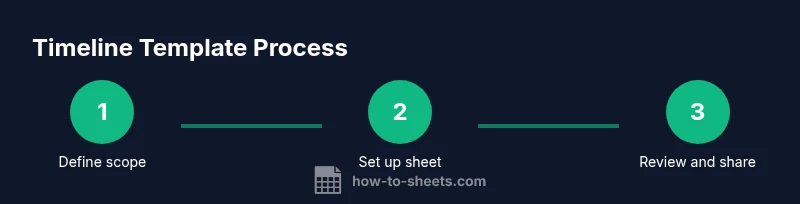
Start by outlining the project scope and key deliverables. List tasks and milestones, then identify dependencies. Decide on the date format you’ll use (e.g., YYYY-MM-DD) and set up data validation rules to enforce valid inputs. Create columns for: Task, Owner, Start Date, End Date, Duration, Status, Dependencies, and Notes. Add a Milestones section for major events and a separate Risks/Blockers area. Introduce conditional formatting to highlight overdue tasks and near-term milestones. Finally, add a lightweight visual timeline, using charts or conditional formatting to reflect progress. This foundation ensures your template can be used repeatedly with minimal rework.
To keep the model maintainable, document your column names and formulas in a hidden sheet or a readme-style note. This helps new users understand how the template works and reduces errors when sharing with stakeholders. If you expect frequent updates, consider creating a versioning system inside the file name or a dedicated sheet to track changes over time.
Example data structures: what a ready-to-use sheet looks like
A typical Google Sheets project timeline might include these sheets: 1) Timeline (the main view with tasks, dates, and progress), 2) Milestones (key events with target dates and owners), 3) Dependencies (links showing what tasks rely on others), and 4) Summary (an executive view for leadership). Within the Timeline sheet, columns could be:
- Task, Owner, Start Date, End Date, Duration, Status, Dependencies, Progress, Notes.
Using formulas, you can auto-calculate End Date from Start Date and Duration, and compute Progress as a function of completed tasks or manually updated percentages. A small dashboard section could display days left, at-risk tasks, and upcoming milestones. When you share the sheet, you can control access via Google Drive settings, ensuring your data remains secure while still accessible to collaborators.
Practical workflow examples: adapting the template to different projects
For a software sprint, you might track features as tasks, with sprints as milestones and a burn-down view in the timeline. For a marketing campaign, you could map channels and deliverables to milestones, with dependencies showing prerequisite approvals. For an event planning project, tasks could be grouped by preparation phases (venue, invitations, logistics) and milestones represent critical deadlines (RSVP date, final agenda). The template should support filtering by owner or due date, and you can create a dynamic timeline that adapts as new work items are added or shifted. The key is to keep the data structured so you can reuse it across initiatives without rebuilding from scratch.
How to handle dependencies and critical paths in Sheets
Dependencies indicate that one task cannot start until another finishes. In Google Sheets, you can represent dependencies with a comma-separated list of task IDs or names and use a formula to compute a dependency-based start date. A basic approach is to set Start Date for a dependent task as the maximum End Date of its prerequisites. This helps reveal the critical path—the sequence of tasks that determines project duration. While Google Sheets isn’t a full project management tool, careful use of formulas like MAX, VLOOKUP, and FILTER can approximate these relationships and give you actionable visibility.
To avoid circular dependencies, implement a check: if a task lists itself or creates a loop, flag it automatically with a conditional rule. Regularly audit dependencies as scope evolves. This discipline ensures the timeline remains credible and actionable.
Collaboration and governance: sharing, permissions, and versioning
Because Google Sheets is cloud-based, teams can work together in real time. Establish a clear sharing policy: who can view, comment, or edit, and require approval for major changes. Enable version history to roll back if a mistake occurs, and consider creating a monthly or milestone-based snapshot to track progress. Use comments to discuss specific tasks without altering data, and maintain a changelog within a separate sheet to document rationale for key updates. With these governance practices, your project timeline remains a living document that supports decision-making rather than causing confusion.
Tools & Materials
- Google account and Google Sheets access(Necessary for real-time collaboration and sharing)
- Sample timeline template file (Google Sheets format)(Use as a starting point and customize)
- Color palette and conditional formatting guide(Optional for visual clarity and consistency)
- Data validation rules cheat sheet(Helpful for enforcing consistent inputs)
- Documentation or readme sheet inside the file(Explain column names, formulas, and workflow)
Steps
Estimated time: 60-90 minutes
- 1
Define project scope and milestones
Clarify the project goals, deliverables, and major milestones. List these milestones and assign owners to ensure accountability from the outset.
Tip: Write milestone names as concise, action-oriented phrases. - 2
Set up the core timeline sheet
Create columns for Task, Owner, Start Date, End Date, Duration, Status, and Dependencies. Add a Milestones section to separate major events from individual tasks.
Tip: Keep date formats consistent (YYYY-MM-DD) to avoid parsing errors. - 3
Add formulas for dates and durations
Use End Date = Start Date + Duration, and Duration = NETWORKDAYS(Start Date, End Date) if you want business days. Validate inputs to prevent negative durations.
Tip: Test formulas with sample data before entering actual tasks. - 4
Incorporate dependencies and risk flags
List prerequisites in the Dependencies column and create a simple rule to flag overdue tasks or blocked work.
Tip: Limit dependencies to a manageable number to keep the sheet readable. - 5
Create a visual timeline view
Add a stacked bar chart or use conditional formatting to mimic a timeline bar across days or weeks, reflecting progress and deadlines.
Tip: Use color codes to distinguish on-track, at-risk, and overdue tasks. - 6
Set up data validation and access controls
Implement dropdowns for Status, Owner, and Priority. Configure sharing settings to protect critical cells from accidental edits.
Tip: Prefer view-only access for most stakeholders; grant edit rights only to owners. - 7
Document the template for reuse
Add a README sheet describing column purpose, formulas, and recommended usage. Include a version tag and change log.
Tip: Keep the document naming consistent for easy search and reuse. - 8
Test with a sample project and iterate
Run through a mock project to verify end-to-end flow, adjust formulas if needed, and collect feedback from teammates.
Tip: Create a quick post-mortem checklist after the test run.
FAQ
What is a project timeline template in Google Sheets used for?
It helps plan, track, and communicate project progress by organizing tasks, dates, milestones, and dependencies in a shared sheet.
It helps you plan and track project progress in a shared sheet.
Can I customize the template for different project sizes?
Yes. The template is designed to scale from small to large projects by adding more tasks, milestones, and view options without breaking formulas.
Yes, you can scale it by adding tasks and milestones as needed.
What formulas are commonly used in these templates?
Common formulas include End Date = Start Date + Duration and NETWORKDAYS for working-day calculations; conditional formatting flags delays.
Common formulas include End Date and working-day calculations.
How do I share the timeline with stakeholders?
Use Google Sheets sharing settings to grant view or edit access as appropriate, and consider exporting a read-only summary for non-editors.
Share via Google Sheets permissions and export a read-only summary if needed.
What should I do if tasks shift during the project?
Update dates and durations, re-calculate dependencies, and re-check the critical path to reflect new realities.
Update the timeline, recalculate, and reassess the critical path.
Is Google Sheets sufficient for complex projects?
For many small to medium projects, Sheets is sufficient, especially with good structure and automation. Larger programs may eventually require a dedicated PM tool.
For many projects, Sheets works well; big programs may need a dedicated PM tool.
Watch Video
The Essentials
- Define scope and milestones before building.
- Structure data for reliable automation.
- Use visual cues to communicate status at a glance.
- Guard data with validation and controlled access.
- Reuse templates to save time and improve consistency.