Master Steps in Google Sheets: Build a Practical Tracker
Learn to design a step-by-step task tracker in Google Sheets with templates, checkboxes, validation, and dashboards for clear progress and collaboration.


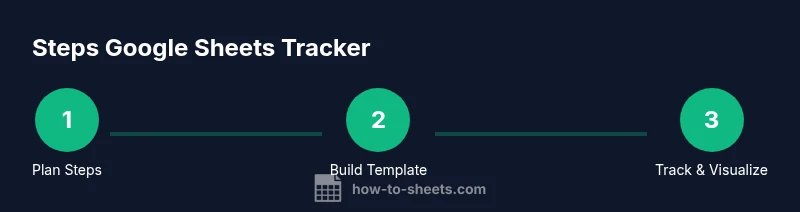
You can build a step-by-step task tracker in Google Sheets by outlining stages, adding a steps column, and using checkboxes to mark completion. Start with a headers row, add data validation for status, apply conditional formatting to show progress, and optionally link steps to a project timeline for visibility across devices.
Why a Step-Based Approach Helps Teams
A steps google sheets approach gives teams a clear, shareable framework for turning goals into concrete tasks. When you outline each task as a step, responsibilities become transparent, deadlines become real, and progress is easy to measure. This method suits students, professionals, and small business owners who want a practical, low-friction way to manage work inside Google Sheets. By documenting steps, owners, dates, and status in one living document, you reduce scattered notes and missable details. You also gain a single source of truth that can adapt as projects evolve. With a step-based tracker, teams can start fast, assign accountability, and review progress in one place, without switching apps. This structure supports collaboration across teams and time zones, because everything lives in a shared sheet that updates in real time. If you’re new to Google Sheets, a well-designed steps tracker lowers the barrier to starting projects and helps you move from ideas to action without juggling multiple tools. In short, a thoughtful steps approach aligns people around concrete actions and measurable outcomes, making it a practical foundation for many kinds of work.
Key Elements of a Steps Tracker in Google Sheets
A robust steps tracker in Google Sheets includes a few essential elements that keep information consistent and actionable. Start with a clearly labeled header row and a described set of columns: Step, Description, Owner, Due date, Status, Priority, Dependencies, and Completion. Use standardized data types for each column: text for descriptions, date for due dates, and a controlled vocabulary for Status (Not Started, In Progress, Blocked, Complete). Add a dedicated checkbox column to mark completion, and plan a simple numeric progress field computed from the number of completed steps. Consider a separate sheet or section for notes, links, or attachments related to individual steps. Finally, build a lightweight dashboard (later in the article) that aggregates these fields into a visual summary. The result is a scalable template you can reuse across projects, teams, and academic or business contexts. You can also incorporate a simple color scheme to help readers quickly scan status, due dates, and priority at a glance.
Step-by-step setup: create the tracker
Designing your tracker begins with a clear plan. Start by listing the project’s major phases and the smallest actionable tasks that represent each phase. Decide which fields will drive accountability and how you will measure progress. Then, open a new Google Sheet and set up the core tabs: a main tracker and a dashboard. Create headers for the key columns and format dates consistently. Finally, decide on a naming convention and establish a baseline workflow for updates, approvals, and reviews, so every collaborator knows how to use the sheet from day one. In addition, plan a simple naming convention for steps (e.g., Phase-Task) and a consistent color scheme. This setup discipline reduces confusion as the project grows and makes it easier to hand the sheet to teammates without a long onboarding. After you configure the structure, save a copy as a template for future projects to speed up repeat work.
Data validation and checkboxes for progress
Data validation and checkboxes give you control and visibility. Start by inserting checkboxes in the completion column so you can mark a step as done with a click. Add data validation to the Status column using a predefined list (Not Started, In Progress, Blocked, Complete) to prevent typos and ensure consistent reporting. Create a simple progress formula, such as counting completed rows divided by total steps and converting to a percentage. Apply conditional formatting to highlight rows based on status or approaching due dates, so the sheet visually communicates risk and momentum. For example, you can color future-due rows in yellow and overdue rows in red. Keep the rules straightforward to avoid performance slowdowns as your tracker grows.
Turn data into visuals: dashboards and reports
A good tracker becomes a live dashboard. Create a separate dashboard tab that aggregates the core metrics: total steps, completed steps, percent complete, and the number of tasks per status. Add charts such as a progress donut or bar chart, a status pie chart, and a timeline view for upcoming due dates. Use FILTER and SORT to present only relevant records, and consider pivot tables for high-level summaries. Link the dashboard to the underlying data with dynamic ranges so the visuals update automatically as you add or edit steps. Export or publish the dashboard when sharing with stakeholders who don’t need to edit the sheet. A simple dashboard is enough to deliver clarity without overwhelming users.
Collaboration, sharing, and maintenance
Finally, establish a collaboration plan that aligns with your team’s workflow. Share the tracker with appropriate permissions (viewer, commenter, editor) and set expectations for updates. Use protected ranges to prevent accidental edits on formulas or critical structure, and enable version history to track changes and revert if needed. Schedule regular reviews (weekly or biweekly) to prune completed steps, reassign responsibilities, and adjust due dates. Maintain the template by updating field names, adding new columns for emerging needs, and archiving outdated steps in a separate sheet. With disciplined governance and a scalable template, your Google Sheets steps tracker remains a reliable backbone for ongoing projects.
Tools & Materials
- Google account(Needed to access Google Sheets and save templates)
- Device with internet(Laptop or tablet for real-time collaboration)
- Google Sheets template(Prepped tracker or create from scratch)
- Optional add-ons/scripts(Apps Script or automation helpers for reminders)
Steps
Estimated time: 60-90 minutes
- 1
Plan your steps and data model
Define the project objective, list actionable steps, and decide required fields (e.g., Step, Owner, Due date, Status, Completion). Sketch dependencies and how you’ll measure progress before you touch the sheet.
Tip: Start with a small sample set to test naming and calculations. - 2
Create the template layout
Open a new Google Sheet and set up a main tracker tab with headers for all core columns. Freeze the header row for easy navigation and apply a consistent date format across cells.
Tip: Use a neutral color for headers to improve readability. - 3
Add essential columns
Create and name the key columns: Step, Description, Owner, Due date, Status, Priority, Dependencies, Completion. Use consistent data types for each column to avoid confusion.
Tip: Adopt a simple phase-to-task naming convention like Phase-Task. - 4
Add checkboxes and data validation
Insert checkboxes in the Completion column and apply data validation to Status and Priority with predefined lists. This ensures uniform reporting and reduces typos.
Tip: Color-code statuses to make scanning quick. - 5
Populate initial steps
Enter the first batch of steps, assign owners, and set due dates. Include a brief Description for context and note any dependencies.
Tip: Keep the initial set manageable to test the workflow. - 6
Configure progress and dashboards
Create a progress formula (completed/total) and set up conditional formatting. Build a dashboard tab with key metrics and a few charts to visualize status and due dates.
Tip: Protect critical cells to avoid accidental edits. - 7
Share, review, and maintain
Share with teammates at appropriate access levels, establish update cadences, and schedule regular reviews. Save a template copy for future projects.
Tip: Enable version history to track changes and rollback if needed.
FAQ
What is a steps tracker in Google Sheets?
A steps tracker is a structured sheet that lists tasks as steps with owners, due dates, and completion indicators, making progress easy to see.
A steps tracker lists tasks with owners, due dates, and completion markers to show progress at a glance.
How do I add checkboxes in Google Sheets?
Use Insert > Checkbox to add interactive tick marks. You can link the checkbox to a formula to calculate progress automatically.
Insert a checkbox to mark steps complete and drive automatic progress calculations.
Can I share and collaborate on the tracker?
Yes. Share with teammates and set permissions. Use version history to track changes and revert if needed.
Share with teammates and use version history to manage changes.
How is progress calculated in the tracker?
Progress is the ratio of completed steps to total steps, displayed as a percentage. Use conditional formatting to visualize progress.
Progress is the percent of steps completed, shown with color cues.
Can I automate reminders for steps?
Yes. Use Google Apps Script or built-in rules to send reminders or auto-update fields based on due dates.
You can automate reminders and updates using Apps Script.
Where can I find a starter template?
Look for templates in Google Drive or Sheets and adapt a basic task tracker to your project.
You can start from a template and tailor it to your project.
Watch Video
The Essentials
- Plan structure before data entry.
- Use checkboxes to simplify completion tracking.
- Lock key formulas and protect ranges.
- Build a lightweight dashboard for quick visibility.
- Share and maintain with a regular review cadence.