Where is Extensions in Google Sheets: A Practical Guide
Learn where the Extensions menu lives in Google Sheets, how to install add-ons, use Apps Script, and best practices for security. How To Sheets walks you through finding, managing, and leveraging extensions for smarter spreadsheets.


Extensions in Google Sheets sit under the Extensions menu at the top of your sheet. This quick guide will show you how to locate add-ons, access Apps Script, and manage extensions for workflows, automation, and custom functions. By following these steps, you’ll know exactly where extensions live, how to install them from the Workspace Marketplace, and how to keep permissions safe. How To Sheets provides practical steps so you can start extending Sheets today.
Where extensions live in Google Sheets
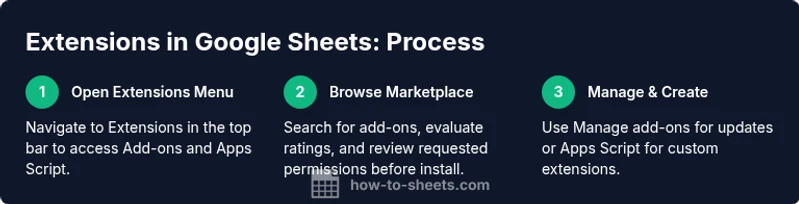
Finding extensions in Google Sheets is straightforward once you know the path. In most modern interfaces, the Extensions menu sits along the top navigation bar, between Help and Add-ons (or Tools in older versions). The menu groups two primary extension pathways: add-ons from the Google Workspace Marketplace and Apps Script projects you’ve created or opened from Sheets. If you’ve ever wondered where is extensions in google sheets, this is the entry point. As you click Extensions, you’ll see submenus like Add-ons, Apps Script, and, in some locales, Explore Extensions. According to How To Sheets, developing a mental map of these options saves time and reduces friction when you need a quick enhancement. Throughout this article, you’ll learn how to navigate each path, compare when to use an add-on versus Apps Script, and keep your workflow clean and secure. The goal is to help students, professionals, and small business owners leverage extensions to automate repetitive tasks and streamline data work.
tipText
Tools & Materials
- Google Account(Needed to sign in, access Sheets, and visit the Workspace Marketplace)
- Web browser (Chrome recommended)(For best compatibility with Google services and extensions)
- Active Google Sheets document(Open in a browser; extensions are used within a Sheet)
- Optional: a few testing sheets(Practice with extensions on sample data)
Steps
Estimated time: 30-60 minutes
- 1
Open Google Sheets and locate the Extensions menu
Open any Google Sheet in your browser. Look at the top navigation bar for Extensions. If Extensions isn’t visible, refresh the page or ensure you’re signed into a Google account that has Sheets access. This step confirms you’re at the right starting point to explore add-ons and Apps Script.
Tip: If Extensions is missing, try switching to a different Google account or clearing browser cache to restore the UI. - 2
Access the Workspace Marketplace from Extensions
Click Extensions > Add-ons > Get add-ons to browse the Google Workspace Marketplace. This is where you’ll find new extensions to install, including popular productivity tools and data helpers. Use the search bar to find a specific extension or browse by category.
Tip: Use filters like “Most popular” or “Rating” to quickly identify reliable add-ons. - 3
Install an extension and review permissions
Select an extension, click Install, and review the permissions requested. You’ll typically grant access to your Sheets data or basic account information. Read the privacy notice and accept if you’re comfortable with the requested scope.
Tip: Prefer extensions with clear publisher information and minimal permissions to reduce risk. - 4
Run the extension from within your Sheet
After installation, extensions appear under the Extensions menu again (or as a new sidebar/button within the Sheet). Follow the on-screen prompts to authorize any first-time use, then run the extension’s features on your data.
Tip: Keep a backup of your data before running new extensions on large datasets. - 5
Manage and update extensions
Use Extensions > Add-ons > Manage add-ons to disable, remove, or update extensions. Regularly check for updates to ensure you have the latest features and security fixes.
Tip: Disable extensions you no longer use to limit potential data exposure. - 6
Explore Apps Script as a lightweight extension
For custom functionality, Extensions > Apps Script opens a coding environment where you can write scripts or deploy scripts as add-ons. This is ideal for tailored workflows not available in Marketplace extensions.
Tip: Start with a simple menu item (e.g., a custom function) and grow your project gradually.
FAQ
What exactly are extensions in Google Sheets?
Extensions are enhancements that expand Google Sheets’ capabilities. They include add-ons from the Workspace Marketplace and custom tools created with Apps Script. Add-ons provide ready-made features, while Apps Script lets you build personalized automations.
Extensions expand Sheets with add-ons and custom scripts to automate tasks.
Where is the Extensions menu located in Google Sheets?
The Extensions menu appears along the top navigation bar of Google Sheets. From there you can access Add-ons, Apps Script, and other extension-related options.
Look for the Extensions menu at the top of your sheet.
Do I have to pay for extensions?
Many extensions are free or offer a freemium model. Some premium add-ons require a purchase or subscription, but there are plenty of free options to start with.
Many extensions are free, but some premium options exist.
Can extensions access my Google Sheets data?
Yes. Extensions request specific permissions. Always review what data the extension can access and limit exposure by choosing reputable publishers and least-privilege permissions.
Extensions request access; verify what they can access before enabling.
How do I remove an extension I no longer want?
Go to Extensions > Add-ons > Manage add-ons, select the extension, and choose Remove. You may also revoke permissions from your Google account settings.
Remove it from the Add-ons manager to stop using it.
Can I build my own extension with Apps Script?
Yes. Apps Script lets you create custom menus, functions, and automated workflows that can function as your own extension inside Google Sheets.
Apps Script lets you build tailored extensions for Sheets.
Watch Video
The Essentials
- Find extensions quickly via Extensions menu
- Differentiate add-ons from Apps Script for the right task
- Review permissions before install
- Use Apps Script to create custom enhancements
- Regularly manage and update your extensions