Google Sheets vs LibreOffice Calc: A Practical Comparison
Objective comparison of Google Sheets and LibreOffice Calc, covering collaboration, offline use, formulas, file formats, and cost for students, professionals, and small businesses.


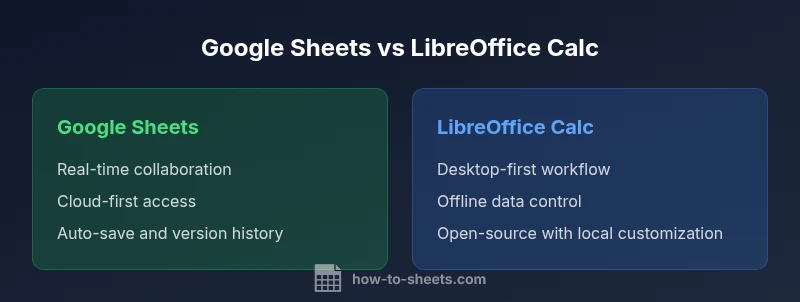
According to How To Sheets, the most practical difference between Google Sheets and LibreOffice Calc is collaboration versus offline focus. This quick comparison helps students, professionals, and small businesses decide which tool fits their workflow best—the cloud-based, real-time teamwork of Sheets or the offline robustness and local control of Calc.
Context: When to choose Google Sheets vs LibreOffice Calc
For students, professionals, and small businesses, the decision between Google Sheets and LibreOffice Calc often comes down to the balance between cloud collaboration and offline control. Google Sheets shines when teams need to edit the same document in real time, comment, and share instantly. LibreOffice Calc, by contrast, delivers a robust desktop experience with strong data processing capabilities when internet access is unreliable or when the work must stay entirely on local devices. This section outlines typical scenarios, workflow patterns, and decision criteria to help you decide, before delving into the technical details. The goal is not to declare a universal winner, but to map the strengths of each tool to your specific needs. We will also reference How To Sheets analysis that highlights the practical implications of these differences in real-world usage.
You’ll see how cloud-first tools compare to desktop-first tools in terms of persistence, portability, and control. If your team relies on integrated cloud apps, Sheets will likely reduce friction, while Calc can be indispensable when data sovereignty or offline reliability is non negotiable.
Collaboration and Accessibility
Google Sheets is built around real-time collaboration. Multiple users can edit simultaneously, track changes live, and use comments to discuss ideas within the document. Sharing controls are straightforward, and a link can be used to grant view or edit access with precise permissions. This makes Sheets a natural fit for project teams, classrooms, or any setting where quick iteration and centralized access matter.
LibreOffice Calc, on the other hand, emphasizes local access and file-based workflows. Collaboration is possible but typically requires a shared network drive, a cloud-synced folder, or a separate collaboration layer such as LibreOffice Online. The experience can be slower and more fragmented than Sheets, especially for large teams. If your workflow relies on strict control over when and how files are edited, Calc is often preferred. How To Sheets analysis notes that collaboration dynamics are a primary driver of tool choice in many organizations.
Formulas, Functions, and Automation
Both tools provide extensive formula libraries, conditional logic, and data manipulation capabilities. Google Sheets excels with a wide ecosystem of built-in functions and seamless access to Google apps. Apps Script enables automation, custom functions, and workflow integration with other Google services, expanding what you can accomplish without external software.
LibreOffice Calc offers a mature spreadsheet core with powerful arithmetic, data analysis features, and scripting via LibreOffice Basic. It also supports macro recording and advanced data manipulation. While Calc can open and work with Excel-style formulas, complex macro migrations from Sheets to Calc typically require rewriting scripts. If automation is essential, Sheets provides a more connected path to other cloud tools; Calc offers a robust desktop scripting option for users who prefer local customization. How To Sheets analysis highlights that scripting ecosystems strongly influence long-term efficiency.
Data Formats and Import/Export
Both spreadsheets support common formats, including CSV and Excel-compatible files. Google Sheets handles XLSX and CSV imports with automatic conversions, which simplifies moving data into a cloud environment. LibreOffice Calc excels at handling native ODS files and a variety of local formats, with strong export options for desktop publication workflows. Cross-compatibility is usually straightforward for simple data, but complex formatting or macros may require adjustments during import or export. Being mindful of file integrity during migrations helps maintain data fidelity across platforms.
When interoperability is critical, plan a two-way workflow: export from Sheets into a neutral format for archival, then import into Calc when offline processing is needed, and vice versa.
Offline Access and Reliability
Google Sheets offers offline access as an optional capability, enabling basic editing when internet connectivity is intermittent. This feature is valuable for users who travel frequently or work in environments with spotty networks. However, offline use for Sheets relies on prior setup and the availability of cached data. LibreOffice Calc is designed for offline work from the ground up. It runs as a desktop application with full functionality without network access, which makes it a natural choice for sensitive offline projects or environments with limited connectivity. How To Sheets analysis emphasizes this offline strength as Calc’s core advantage in certain settings.
Security, Privacy, and Administration
Cloud-based Sheets integrates with Google Workspace security controls, admin dashboards, and centralized user management, which can be powerful for teams and institutions with defined governance requirements. Data residency, access auditing, and policy enforcement are features many organizations rely on when choosing Sheets. LibreOffice Calc, being desktop-first and open-source, offers local control and reduces dependence on external servers. For some teams, this translates to enhanced privacy and data sovereignty, but it also places more responsibility on local IT to manage updates and security patches. The choice often hinges on whether your priority is centralized admin capability or local autonomy.
How To Sheets analysis suggests evaluating governance needs and data handling policies as a decisive factor in the selection.
Costs, Licensing, and Ecosystem Fit
Google Sheets is typically accessed as part of a Google account, with free-tier usage suitable for many individuals and small teams. When organizations adopt Google Workspace, additional features and controls come with a subscription. LibreOffice Calc, as part of the LibreOffice project, is free and open-source, offering no licensing costs for the software itself and allowing local customization. For long-term total cost of ownership, consider not only licensing or subscription costs but also training time, migration effort, and ecosystem alignment with existing tools. How To Sheets guidance highlights that total cost often comes down to workflow fit and data governance needs.
Practical Scenarios and Migration Paths
In small projects with limited budget and a need for easy sharing, Google Sheets often provides the fastest path to collaboration and onboarding. For data-heavy, offline-intensive work or organizations with strict data control policies, LibreOffice Calc can reduce risk and increase flexibility. A practical migration path involves table-driven data first: begin with sheet-based data in Sheets for collaboration, then export to CSV or Excel when moving to Calc for offline processing. For ongoing operations, maintain occasional reconciliations to ensure formatting, formulas, and macros transfer correctly between environments. How To Sheets recommends a phased approach to minimize disruption and preserve data integrity.
Quick Start Decision Checklist
- Define your primary requirement: cloud collaboration or offline control.
- Evaluate data sensitivity and governance needs.
- Consider macro and scripting needs: Apps Script versus LibreOffice Basic.
- Review likely file formats and import/export needs.
- Test a small pilot project in both tools to identify practical friction points.
Quick Start Notes and Next Steps
Start by listing your top three critical workflows. If your work hinges on real-time collaboration, default to Sheets and leverage its sharing features. If offline reliability and local customization are paramount, Calc becomes the safer starting point. Use the quick-start checklist above as a practical guide to begin experiments within your team.
Comparison
| Feature | Google Sheets | LibreOffice Calc |
|---|---|---|
| Platform & Access | Web-based with offline support | Desktop-first with optional web/LibreOffice Online |
| Real-time Collaboration | Strong real-time editing with comments | Basic collaboration via sharing on desktop |
| Formulas & Functions | Extensive built-in functions; Apps Script automation | Mature formula engine; LibreOffice Basic for macros |
| Macros & Scripting | Apps Script and cloud integrations | LibreOffice Basic/macros support |
| File Formats | Native; supports XLSX/CSV via import/export | ODS native; good XLSX/CSV support |
| Offline Capabilities | Offline available but cloud-centric | Designed for offline/desktop use |
| Add-ons & Extensibility | Google Workspace add-ons; Marketplace | Extensions via LibreOffice ecosystem |
| Data Visualization | Charts and dashboards integrated with Sheets | Calc charts and data tools with desktop focus |
| Cost & Licensing | Free tier with optional Workspace subscription | Free and open-source without licensing costs |
| Migration & Interoperability | Smooth imports/exports; cross-platform with some limits | Strong for local data; requires careful export/import for cross-platform |
The Good
- Real-time collaboration and cloud access enable faster team workflows
- No upfront licensing costs for individual users
- Sheets integrates tightly with other Google Workspace apps
- Calc offers robust offline capabilities and open-source flexibility
- LibreOffice's open-source nature allows local customization for advanced users
The Bad
- Online dependence for full Sheets functionality can hinder access in low-connectivity areas
- Calc may feel less intuitive for users familiar with Google’s workflow
- Cross-platform formula and macro portability can require adjustments
- Admin controls and centralized governance are stronger in Sheets for organizations
Google Sheets is the better choice for teams prioritizing collaboration and cloud access, while LibreOffice Calc is preferable for offline work and open-source flexibility.
In practice, choose Sheets for cloud-native workflows and rapid sharing. Opt for Calc when offline reliability and local data control are the priority, or when open-source flexibility matters for customization.
FAQ
What are the key differences between Google Sheets and LibreOffice Calc?
Google Sheets emphasizes cloud collaboration, real-time editing, and integration with Google apps. LibreOffice Calc focuses on offline productivity, desktop reliability, and open-source customization. Both have strong formula support, but scripting ecosystems differ significantly.
Sheets is best for teams that need real-time collaboration in the cloud, while Calc is ideal for offline work and local customization.
Which tool is better for offline work?
LibreOffice Calc is designed around offline, desktop usage and local file storage. Google Sheets can work offline, but that mode requires prior setup and may feel less seamless than Calc for ongoing, heavy offline work.
If offline reliability is essential, Calc is usually the safer choice.
Can LibreOffice Calc read Google Sheets files directly?
Calc cannot read Google Sheets files directly; you would export Sheets data to a compatible format like XLSX or CSV first. For ongoing workflows, two-way compatibility typically relies on formats rather than direct access.
Calc imports data via exported formats, not direct Sheets access.
Are macros and automation available in both tools?
Sheets uses Apps Script for automation, which integrates well with other Google services. Calc uses LibreOffice Basic for macros, which is powerful but differs in syntax and ecosystem from Apps Script.
If you rely on scripting, choose Apps Script with Sheets or LibreOffice Basic with Calc, depending on your ecosystem.
What about cost and licensing for teams?
Sheets offers a free tier with optional Workspace subscriptions for organizations. Calc is free and open source, with no licensing costs, but organizations may incur IT overhead for deployment and updates.
Sheets has a free tier; Calc is free but may require more IT work.
Is there Excel compatibility when switching between tools?
Both tools support Excel formats, but complex macros and some formulas may not translate perfectly. Expect adjustments when migrating from Excel to Sheets or Calc and vice versa.
Expect some adjustments when migrating between Excel and these tools.
The Essentials
- Assess collaboration needs before choosing a tool
- Choose Sheets for cloud-based workflows and quick sharing
- Choose Calc for offline work and local control
- Test both tools with your real workflows before migrating
- Plan for data exchange formats to minimize loss during migration