Best Way to Budget on Google Sheets: Step-by-Step Guide
Learn the best way to budget on Google Sheets with a practical, reusable template. Build income, expenses, goals, and charts to track progress for students, professionals, and small businesses.


By the end of this guide, you’ll build a practical, reusable budget in Google Sheets that tracks income, expenses, and savings. You’ll learn to structure categories, set monthly targets, and automate updates with simple formulas and charts. The result is a transparent, shareable budget that can adapt for students, professionals, or small businesses without leaving Sheets.
Why budgeting in Google Sheets matters
Budgeting in Google Sheets matters because it is flexible, shareable, and cost-efficient. According to How To Sheets, budgeting in Sheets is a versatile solution for individuals and teams who want control without costly software. This approach makes it easy to tailor categories, timelines, and visuals to your exact situation. In this section you’ll see why a structured template matters and how a simple set of tabs can evolve from a personal monthly plan to a team-facing budgeting tool. The goal is to provide clarity, repeatability, and auditable calculations so you can defend decisions, track progress over time, and adjust quickly when life changes. As you read, imagine how a single template could be reused month after month, with new data flowing in automatically rather than being re-created. The How To Sheets team emphasizes that consistency and accessibility are the core benefits of a Sheets-based budget.
Core structure of a budget template in Sheets
A solid budget template starts with a clean structure that separates data entry from calculations. The most common setup includes at least four tabs: Income, Expenses (with subcategories), Savings, and a Summary. A practical on-sheet model uses a consistent row layout for each month: Month, Category, Budgeted, Actual, and Variance. In the Income tab, list every source and its expected amount. In Expenses, split into Fixed (rent, utilities) and Variable (groceries, gas). The Savings tab tracks goals and emergency fund progress. The Summary tab aggregates everything and drives charts. Key formulas include SUM to total budgeted amounts, SUMIF to sum by category, and simple differences to show Variance. Pro tip: name ranges for your categories and monthly data to simplify formulas and reduce errors. This structure makes it easy to audit, update, and share with teammates or family members.
How to customize for students, professionals, and small business owners
Budgeting in Google Sheets scales from personal to team budgets. For students, keep a lean set of categories (Tuition, Housing, Food, Transportation, Personal) and a small Savings cushion. For professionals, add subcategories like Subscriptions, Work Travel, and Client Expenses; consider currency settings if you work with international vendors. For small business owners, create revenue lines, separate payroll, taxes, and loan payments, and introduce a rolling forecast. Across all groups, maintain a consistent currency, date format, and naming convention. Use formulas such as SUM, SUMIF, and IFERROR to keep calculations clean, and consider an ARRAYFORMULA to pull data from a common master list. The strength of Sheets is the ease with which you can grow the budget as needs evolve while keeping the calculation logic transparent.
Examples of templates and how to adapt them
Starter templates typically include a simple monthly budget with a single Income line per source, a two-tier Expense list, and a small Goals section. You can copy a base template for a new month and link it to past months for trend analysis. For visual emphasis, add charts such as a pie chart showing expense shares or a line chart tracking cumulative savings. Adjust date and currency settings to match your locale, and export a periodic report as PDF for stakeholders while keeping the live sheet for ongoing updates. The essential idea is to keep the structure consistent so that you can compare across periods and confidently explain variances.
Pitfalls and best practices to stay on track
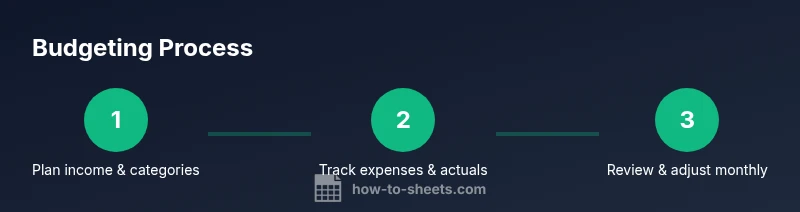
Common budgeting mistakes include neglecting to enter transactions, leaving categories vague, or failing to update Actuals. Enforce data validation to prevent bad entries and use conditional formatting to flag overspending. Schedule monthly reviews to compare Actuals with Budgeted amounts, and adjust upcoming months accordingly. Keep a backup with Google Drive version history and limit who can edit sensitive cells to avoid accidental changes. Finally, leverage charts to share insights with others without exposing private data. The How To Sheets team recommends maintaining a single source of truth, with transparent formulas and clear category naming, so the budget remains auditable and trustworthy.
Tools & Materials
- Google account with Sheets access(Needed to create and share the template online)
- Device with internet connection(For editing and collaboration)
- Initial budget structure (Income, Expenses, Savings)(Use a starter layout to speed setup)
- Sample transaction data (CSV or manual input)(Helps test formulas and charts)
- Prebuilt charts and conditional formatting rules(Optional for quick visuals)
Steps
Estimated time: 45-75 minutes
- 1
Create a new budget sheet
Open Google Sheets, create a new blank workbook, and name it clearly (e.g., 'Monthly Budget - 2026-01'). Set up core tabs for Income, Expenses, Savings, Transactions, and Summary. This creates the foundation for consistent data entry and analysis.
Tip: Use a single template for every month by duplicating the file rather than recreating from scratch. - 2
Add income sources
List all income sources in the Income tab with expected amounts. Include regular pay, side income, and any passive income. This provides a baseline to compare against actual receipts later.
Tip: Label sources clearly (e.g., 'Salary – Net', 'Freelance – Project A') to avoid confusion when aggregating totals. - 3
Create expense categories
Draft a two-tier expenses structure: Fixed (rent, utilities, insurance) and Variable (groceries, dining, entertainment). Use a master list for categories and a separate column for subcategories if needed. This separation helps in pinpointing overspending areas.
Tip: Keep categories broad enough to cover many items but specific enough to be actionable. - 4
Set budgeted amounts
Enter your monthly budget targets for each category. Use a Budget column alongside Actual so you can see planned vs. real performance. Consider a separate Goals line for savings targets or debt payments.
Tip: Use named ranges for categories to simplify future edits and keep formulas readable. - 5
Add an Actuals sheet and link transactions
Create a Transactions sub-sheet where you enter every spend with date, amount, and category. Use SUMIF or SUMIFS to pull totals into the Expenses and Summary tabs. This establishes a live feed of spending against your plan.
Tip: Validate dates and categories to reduce misclassification. - 6
Create a summary and visualizations
Build a Summary tab that aggregates income, expenses, savings, and variances across months. Add charts (pie for expense shares, line for savings progression) to make insights easy to share at a glance.
Tip: Link charts to dynamic ranges so they update automatically as you add data. - 7
Add protections and data validation
Protect key formulas and cells that should not be edited by contributors. Implement data validation to ensure dates, categories, and currency values stay within expected formats.
Tip: Avoid overly restrictive protections that hinder collaboration; use protected ranges with clear edit access. - 8
Share and schedule monthly reviews
Share the sheet with teammates or family, set editing permissions, and create a recurring monthly review process. Use version history to track changes and decisions over time.
Tip: Schedule calendar reminders for review dates and keep a simple notes section for decisions.
FAQ
How should I categorize expenses for a personal budget?
Group similar items under clear categories, then separate essential from discretionary spending. Use subcategories when helpful for tracking irregular costs. A consistent taxonomy makes analysis easier and more actionable.
Group similar items under clear categories and separate essentials from discretionary spending.
How do I connect transactions to the budget in Sheets?
Maintain a Transactions sheet with date, amount, and category. Use SUMIF or SUMIFS to pull totals into the Expenses and Summary tabs and keep Data Validation enabled for date and category fields.
Keep a transactions list and sum by category to feed the budget.
Can I share the budget with others and allow editing?
Yes. Share with collaborators and assign permissions carefully. Protect critical cells or formulas to prevent accidental edits while allowing others to enter transactions or view summaries.
Yes—use share settings and protect key cells to balance access and integrity.
What if I work with multiple currencies?
Choose a base currency for the sheet and store exchange rates in a separate tab. Convert amounts with a simple formula when needed, and keep a currency column consistent across all relevant sheets.
Keep a base currency and use a rate table to convert amounts as needed.
How do I reset or start a new month without losing history?
Duplicate the template for the new month to preserve structure, then archive the previous month’s data in a separate tab or file. Link the new month to past data for trend analysis while keeping historical integrity.
Duplicate the template for a new month and archive past data for trends.
Watch Video
The Essentials
- Structure first: income, expenses, savings, and summary.
- Link data across tabs to ensure live accuracy.
- Use formulas and charts to show clear insights.
- Review monthly and keep backups for trust.