Expenses Spreadsheet Google Sheets: Step-by-Step Guide
Learn to build a robust expenses spreadsheet in Google Sheets. Track costs, automate totals, and visualize spending with charts. A practical guide for students, professionals, and small business owners.


Create a practical expenses tracker in Google Sheets with date, category, and amount columns. This guide walks you through setup, formulas, and dashboards for ongoing visibility. See our detailed step-by-step guide.
Why an expenses spreadsheet google sheets matters
Tracking personal or business expenses is foundational to budgeting, forecasting, and financial control. An expenses spreadsheet google sheets gives you flexibility, automation, and shareability that off-the-shelf software often lacks. With Google Sheets, you can access your data from any device, automate calculations, and tailor categories to your life or business. According to How To Sheets, a practical approach combines a clean data structure with consistent entry habits, which reduces errors and speeds up month-end closes. Start with a simple schema: a date column, a category column, a description, an amount, and a payment method. Use consistent currency formatting and date standards to keep totals correct. You’ll appreciate how easy it is to extend the sheet later—for example, adding a separate dashboard tab that summarizes spend by category, by week, or by vendor. By choosing a flexible, cloud-based tool, you avoid version control headaches and gain real-time collaboration advantages.
Core structure you should replicate
A strong expenses spreadsheet google sheets starts with a clear data model and reliable input practices. Freeze the header row so it remains visible as you scroll, and keep data entry on a single tab to minimize formula complexity. Recommended columns include Date (in ISO format like 2026-02-01), Category (from a controlled list), Description, Amount (currency), Payment Method, and a link to a receipt if available. Add a dedicated Dashboard tab that pulls summarized data from the raw entries. Separate recurring expenses into their own table to simplify forecasting. Standardize currency and date formats to prevent totals from drifting due to inconsistent inputs. A clean structure makes it easy to scale from personal budgets to small-business expense tracking while keeping the data auditable.
Templates and layouts you can copy
Starting with a template accelerates your setup and reduces errors. A basic expenses tracker template in Google Sheets usually includes a raw data table and a dashboard connected through simple formulas. You can clone a month-specific sheet and link totals to an annual summary sheet for quick year-over-year comparisons. For larger projects, create separate sheets for invoices, vendors, and a dedicated chart sheet. Students can pair a monthly budget plan with actuals, while freelancers can track billable vs. non-billable costs. The goal is modularity: data sheet, analysis sheet, and visuals sheet, all interconnected with stable references. Naming ranges for core columns makes future edits safer and formulas easier to maintain.
Essential formulas to automate totals and summaries
Formulas take the heavy lifting out of expenses spreadsheet google sheets. Start with a basic total: =SUM(AmountRange). For category totals, use =SUMIF(CategoryRange, "Food", AmountRange) and for multi-criteria totals =SUMIFS(AmountRange, DateRange, ">=2026-01-01", DateRange, "<=2026-01-31"). To build a dynamic dashboard, use QUERY or FILTER to extract data by month and category, then feed results into charts. A running balance can be created with a formula like =B2 + CurrentMonthAmount. If you need variances, compute Actual minus Planned. Organize formulas with named ranges for readability and easier maintenance.
Data validation and consistency checks
Consistency improves reliability. In an expenses spreadsheet google sheets, data validation prevents typos that derail analyses. Set the Date column to Date validation, the Category column to a predefined list, and the Amount column to numeric currency with negative numbers disallowed. Use conditional formatting to highlight outliers (e.g., amounts above a threshold) or missing dates. Add a simple audit log by placing a timestamp column that records when an entry was added or updated. If sharing, enable comments for edge cases and consider protecting the header row and key summary cells to prevent accidental edits. This disciplined approach reduces errors and speeds up reconciliation.
A practical monthly example you can adapt
To illustrate a practical workflow, imagine a January 2026 dataset. You log groceries, utilities, transit, rent, and software subscriptions with dates such as 2026-01-03 and 2026-01-18. Each entry includes a category and an amount, for instance 120.50 for groceries and 99.99 for software. A dashboard surfaces totals by category and a line chart tracks monthly spend. The sheet automatically updates totals as you add receipts, and filtering by vendor helps identify recurring charges. This real-world example demonstrates how a well-structured expenses spreadsheet google sheets scales from personal budgeting to small business expense tracking. By maintaining separate monthly sheets and linking to a year-end summary, you can monitor seasonality and refine next year’s budget. Start simple and expand automation gradually.
Sharing, collaboration, and security
Google Sheets makes collaboration straightforward. Your expenses spreadsheet google sheets can be shared with teammates, accountants, or classmates with varying permission levels. Give editors access to those who log entries and viewers to stakeholders who only review dashboards. Use version history to revert accidental edits and enable notifications for changes. When dealing with sensitive data, limit access to trusted individuals and avoid embedding personal banking details in comments or notes. Regularly review sharing settings and consider creating a backup copy on a separate drive to protect important data.
Common pitfalls and how to avoid them
Avoid common pitfalls that undermine accuracy and usefulness. Don’t skip currency formatting or leave dates in inconsistent formats. Never rely on a single sheet for all data; split data and dashboards into separate tabs or sheets for clarity. Don’t neglect data validation—typos in categories or misspelled vendors break formulas. Always test key formulas with a sample subset before applying them to the full dataset. Finally, don’t forget to back up your work and document assumptions in a README-like section on the dashboard so future users understand the setup.
Verdict
The How To Sheets team believes that for most students, professionals, and small business owners, an expenses spreadsheet google sheets offers a flexible, cost-effective solution. It combines data integrity, automation, and collaboration in one accessible tool. The How To Sheets team recommends starting with a simple template, freezing headers, and progressively adding automation as you gain comfort. This approach keeps you in control, minimizes risk, and scales with your needs.
Next steps and resources
Ready to implement? Start by copying a budgeting template, then tailor categories to your life or business. Set up a dashboard tab with charts for a quick visual read of spending trends. Leverage formulas like SUMIF and QUERY to generate monthly totals and year-to-date insights. For ongoing support, explore additional How To Sheets templates and tutorials that show practical, plug-and-play patterns you can adapt to your workflow.
Tools & Materials
- Google account with access to Google Sheets(You need Drive access to create and edit sheets.)
- Device with internet access (computer, tablet, or phone)(Prefer a keyboard for faster data entry.)
- Receipts or expense records(Digital copies or notes you can attach or reference.)
- Predefined category list(Optional but recommended for consistency.)
- Optional: pre-made expenses template(Use as a starting point and customize.)
Steps
Estimated time: 60-90 minutes
- 1
Set up your sheet structure
Create a data sheet with headers: Date, Category, Description, Amount, Payment Method, Receipt. Freeze the header row and apply a currency format to the Amount column. This clear structure ensures formulas work reliably across the dataset.
Tip: Freeze header row (View > Freeze > 1 row) to keep headers visible as you scroll. - 2
Define categories and date standards
Create a controlled Category list (e.g., Groceries, Utilities, Rent, Transport, Subscriptions) and set Date inputs to a consistent format (YYYY-MM-DD). Data validation on Category prevents typos that break analyses.
Tip: Use a separate Category sheet and reference it with data validation. - 3
Enter initial data and bind receipts
Log a representative month by entering dates, categories, and amounts. Attach receipts or notes as links or comments to each row so audits are easy.
Tip: Keep receipts in a dedicated folder and reference the path in the Receipt column. - 4
Create totals with SUMIF and SUMIFS
Add a Total cell with =SUM(AmountRange). For category totals, use =SUMIF(CategoryRange, "Groceries", AmountRange). For monthly totals, combine date ranges with SUMIFS.
Tip: Test with a small sample to verify sums match manual tallies. - 5
Build a simple dashboard with charts
Create a Dashboard tab that uses data ranges to generate category and monthly charts. Link charts to the raw data with dynamic named ranges so visuals update automatically.
Tip: Keep the dashboard simple and readable. - 6
Enable data validation and protection
Apply data validation on crucial columns, use conditional formatting for outliers, and protect the header row and key totals. Set sharing permissions to control who can edit.
Tip: Always keep a backup copy before major changes.
FAQ
What is the best layout for an expenses spreadsheet in Google Sheets?
A clean layout uses separate columns for date, category, description, and amount; a dedicated dashboard tab summarizes totals by category and month.
Use a clean columnar layout with a separate dashboard for quick insights.
How can I automate totals across months?
Use SUMIF/SUMIFS with a date or month filter; connect to a dashboard with QUERY to refresh visuals automatically.
Automate totals with SUMIF/SUMIFS and QUERY for dashboards.
Can I customize categories easily?
Yes, maintain a Category list on a separate sheet and reference it with data validation to keep consistency.
Yes, keep a central category list and validate entries.
How do I protect the sheet from accidental edits?
Lock header cells, protect summary sections, and manage editing permissions via Google Sheets sharing settings.
Lock key areas and set editing permissions carefully.
Are there ready-to-use templates I can adapt?
Yes, start from a budgeting template and customize columns, formulas, and charts to fit your needs.
Yes—start with a template and tailor it to your needs.
Watch Video
The Essentials
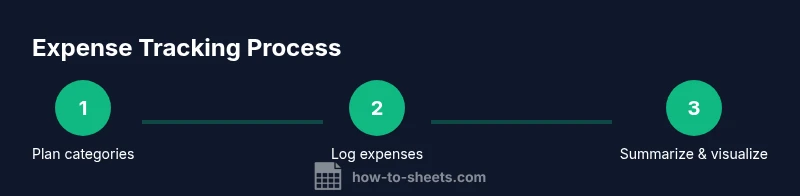
- Plan your categories before logging
- Use SUMIF/SUMIFS for automated totals
- Visualize expenses with dashboards
- Protect key cells and control access