How to Build a Business Expenses Tracker in Google Sheets
Learn to build a practical business expenses tracker in Google Sheets with templates, formulas, and dashboards. A step-by-step guide for students, professionals, and small business owners.


Build a scalable business expenses tracker in Google Sheets that captures every receipt, classifies costs, and delivers monthly summaries. This guide walks you through essential setup, formulas, and templates you can reuse. You’ll need a Google account and access to Google Sheets to start. By the end, you’ll have a reusable workbook that automates totals, categories, and reimbursements, while giving clear visuals for decision-making.
Why a Business Expenses Tracker Matters
For any business—whether you’re a student managing a side project, a professional handling client work, or a small business owner balancing inventory and invoices—keeping track of every dollar invested and spent is not optional, it’s essential. A robust business expenses tracker google sheets provides a single source of truth for costs, reimbursements, and tax-ready records. When entries are consistent and timely, you gain visibility into cash flow, spot overspending early, and make smarter decisions about pricing, budgeting, and vendor negotiations. According to How To Sheets, establishing a disciplined expense-tracking habit pays off by reducing data gaps and misclassifications that slow reporting. A well-designed template in Google Sheets also makes collaboration easier: teammates can log expenses in real time, while managers review dashboards without chasing paper receipts. Imagine monthly closes that automatically summarize spending by category, highlight anomalies, and flag missing receipts. This level of clarity is invaluable for students, professionals, and small business owners juggling multiple projects and cost centers.
Core Features to Include in Your Google Sheets Tracker
A practical expense tracker should balance structure with flexibility. At a minimum, include a normalized data model, consistent categories, and simple dashboards. Key features include data validation to enforce category names, drop-down menus for vendors, currency formatting, and date normalization. Use conditional formatting to flag outliers and a separate Dashboard sheet to present visuals that support fast decisions. For teams, provide clear access controls and a backup schedule to prevent data loss. This combination—structural rigor plus approachable reporting—helps you track spend accurately, prepare tax documents efficiently, and communicate financial health to stakeholders.
Data Model and Sheet Layout
The data model is the backbone of a reliable tracker. Create separate sheets for Transactions, Categories, Vendors, and Dashboard. Transactions should record: Date, Amount, Category, Subcategory, Vendor, Payment Method, Tax, Receipt Link, and Notes. Categories should be a master list that the Transactions sheet references via drop-downs, while Vendors can map to categories for quick rollups. This separation reduces duplicates, simplifies formulas, and makes auditing easier. How To Sheets analysis shows that standardized templates, when consistently applied, reduce data entry errors and improve reporting reliability. Start with a clean header row, then build named ranges for key fields to simplify formulas and future automation.
Step-by-Step Setup Overview
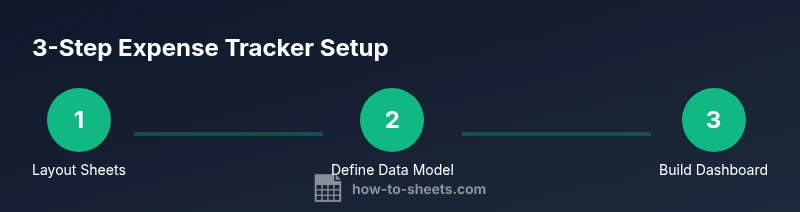
Begin by creating a new Google Sheet and establishing four core sheets: Transactions, Categories, Vendors, and Dashboard. Populate a starter Categories list (Travel, Meals, Office, Software, Rent, Marketing) and a Vendors list to enable dropdowns. Link the Transactions sheet to these lists using data validation rules. Format currency columns, set date formats, and enable basic filters. Add a basic summary on the Dashboard, such as total expenses per month and by category, using SUMIFS and simple charts. As you build, test with a few sample entries to ensure totals update correctly and the dashboard reflects changes in real time.
Dashboards and Reporting: Bringing Data to Life
Dashboards transform raw transaction data into actionable insights. Create a monthly spending chart by category, a year-to-date total, and a top vendors list. Use Pivot Tables to reveal trends, such as which category grows fastest or which vendor is the largest cost driver. Leverage conditional formatting to highlight over-budget categories and use slicers to filter by date ranges. For ongoing value, pair dashboards with lightweight automation (e.g., a monthly email summary) so decisions are data-driven rather than manual.
Common Pitfalls and How to Avoid Them
Several common mistakes undermine expense trackers: inconsistent categories, missing receipts, and manual data-entry drift. Avoid these by enforcing a canonical categories list, requiring receipts either by policy or process, and using drop-down menus supported by data validation. Regularly audit your Transactions sheet to detect blank dates, negative amounts, or misentered vendors. Finally, ensure you regularly back up the workbook and review sharing permissions to protect sensitive financial information.
Authority Sources
- https://www.sba.gov/
- https://www.irs.gov/
- https://www.ed.gov/
These sources provide guidance on financial governance, tax considerations, and general business management best practices that complement practical how-to content for building a Google Sheets-based expense tracker.
Tools & Materials
- Google account(Needed to access Google Sheets and save templates)
- Google Sheets-ready template(Starter file or blank workbook with basic structure)
- Expense categories list(Standardized categories for consistency (e.g., Travel, Meals, Supplies))
- Receipt capture option(Camera or scanner for attaching receipts (optional))
- Backup plan(Automated backups to Google Drive or export periodically)
Steps
Estimated time: 30-60 minutes
- 1
Create the workbook skeleton
Open a new Google Sheet and create four core sheets: Transactions, Categories, Vendors, Dashboard. Define header rows and set data types clearly to prevent mis-entry later.
Tip: Plan the layout on paper first to avoid restructuring after you start entering data. - 2
Define the data model
Set up columns for Date, Amount, Category, Subcategory, Vendor, Payment Method, Tax, Receipt Link, and Notes. Create a master Categories sheet and a Vendors sheet to reference.
Tip: Keep categories and vendors in separate sheets to simplify updates and reporting. - 3
Add validation and dropdowns
Apply data validation for Category and Vendor fields using the master lists. This reduces typos and ensures consistent reporting.
Tip: Name the ranges you reference so formulas stay readable and robust. - 4
Enter starter data
Input a small set of transactions across different categories to test formulas and dashboards. Include sample receipts or links where possible.
Tip: Include a mix of dates and amounts to ensure date-based filters work correctly. - 5
Create calculated fields
Add a Budget column if needed and calculate totals with SUMIF/SUMIFS. Build a few quick metrics like monthly spend by category and vendor totals.
Tip: Name key ranges so formulas remain expressive and easy to audit. - 6
Build a starter dashboard
Create charts and a small table that summarizes monthly spend and category distribution. Link charts to the Transactions data for real-time updates.
Tip: Include slicers for date ranges to let stakeholders inspect different periods quickly. - 7
Automate and secure
If possible, automate imports (e.g., from forms or email exports) and protect critical cells. Set proper sharing permissions to balance collaboration with security.
Tip: Use protected ranges for formulas and critical calculations to prevent accidental edits. - 8
Review and iterate
Regularly review entries, adjust categories as your business evolves, and iterate on the dashboard for better decision support.
Tip: Schedule a monthly data-cleaning routine to maintain accuracy.
FAQ
What data should I capture for each expense?
Capture date, amount, category, vendor, payment method, tax, receipt reference, and notes to enable reliable reporting.
Capture date, amount, category, vendor, payment method, tax, receipt reference, and notes for clear reporting.
How can I automatically categorize expenses?
Use a drop-down list for categories and simple LOOKUP or SWITCH formulas to map vendors to categories. For more advanced users, maintain a mapping table and use VLOOKUP or XLOOKUP.
Auto-categorize with a category list and lookup formulas.
Is Google Sheets suitable for large expense datasets?
Google Sheets handles moderate datasets well. For very large volumes, consider splitting data across multiple sheets or using a dedicated database and linking back to Sheets.
Sheets works for moderate data; for very large datasets consider splitting or backing with a database.
How do I share the tracker securely with teammates?
Use Google Drive sharing settings, restrict editing, and consider protected ranges for critical cells. Train teammates on the workflow to avoid accidental deletions.
Share via Drive permissions and protect critical cells.
Can I attach receipts to expense entries?
Yes. You can attach receipts by linking to Google Drive files or embedding image URLs in the entry row for quick reference.
Link receipts in Drive or embed images in the row.
Watch Video
The Essentials
- Define a clear data model
- Use consistent categories
- Automate totals with SUMIF/SUMIFS
- Create a simple dashboard for insights