Google Sheets Amortization Schedule: Step-by-Step Guide
Learn to build a dynamic Google Sheets amortization schedule using PMT, IPMT, and PPMT. This practical guide covers setup, formulas, date handling, validation, and reusable templates for loan tracking.


Learn how to build a dynamic Google Sheets amortization schedule. This guide covers setting up a loan table, calculating payments with PMT, tracking principal and interest with IPMT/PPMT, and updating balances automatically as you change loan terms. You’ll also copy a reusable template and validate results with simple checks. It also explains potential pitfalls and how to test your figures.
Core concept: what is a google sheets amortization schedule and why it matters
A google sheets amortization schedule is a transparent, line-by-line ledger that shows how each loan payment reduces the balance over time. It breaks each payment into interest and principal, tracks the remaining balance, and often highlights cumulative interest paid. In practice, this kind of schedule helps borrowers plan debt payoff, lenders validate cash flows, and managers compare loan offers side by side. According to How To Sheets, a well-structured amortization model in Google Sheets not only makes the math visible but also makes scenario analysis practical. The How To Sheets team found that learners who start with a clean template and then progressively add formulas report greater confidence and fewer errors. By keeping everything in Sheets, you gain live updates as you tweak variables like rate, term, or payment frequency. The practical benefit is a single source of truth for loan behavior across multiple scenarios, which is invaluable for students managing student loans, professionals budgeting for business financing, and small business owners evaluating financing options. This guide uses plain language, practical steps, and checklists to ensure you can reproduce the model on your own.
Data model and column structure
Before you create formulas, decide what data your sheet will track. A robust amortization schedule typically includes these columns: Date (or Payment Number), Payment, Interest, Principal, Balance, and Cumulative Interest. Supporting details include Loan Amount, Annual Interest Rate, Term (in years or months), and Start Date. In Google Sheets, you’ll want to keep these inputs in a dedicated area and reference them with cell names or absolute references so changes propagate automatically. Start by naming cells like LoanAmount, AnnualRate, and TermMonths to keep formulas readable. As How To Sheets emphasizes, a clean data model reduces errors when you copy formulas down the schedule and when you reuse the template for different loans. A consistent date format (for example, yyyy-mm-dd) helps with sorting and auditing. Remember to format currency consistently and to set two decimal places for payments and balances. This structure sets the stage for a scalable, error-resistant amortization model that can serve as a template for future loans and refinancings.
Building the template: headers, layout, and initial calculations
The layout should be straightforward: a headers row, followed by a row for the first payment, and then a formula-filled column set that you can copy downward. Create headers like Date, Payment, Interest, Principal, Balance, and Cumulative Interest. Place the loan inputs in a separate area, for example: LoanAmount in B1, AnnualRate in B2, TermMonths in B3, StartDate in B4. The monthly payment is computed once with =PMT(rate_per_period, number_of_payments, -loan_amount). In Sheets, rate_per_period is AnnualRate/12, and number_of_payments is TermMonths. By setting this once, you can fill the grid and watch the schedule grow automatically as you copy the formulas down. This upfront layout reduces errors and makes it easy to audit later. The template should also accommodate subsequent changes—if the rate changes, you’ll see the impact on the entire schedule, which is a powerful feature for forecasting scenarios and evaluating refinancing options.
Formulas, step-by-step: calculating payment, interest, principal, and balance
To create a fully functional amortization schedule, you’ll use three core formulas in the appropriate columns. First, calculate the payment with =PMT(rate_per_period, total_periods, -LoanAmount). Then compute the interest portion for period n with =IPMT(rate_per_period, period_number, total_periods, -LoanAmount). The principal portion comes from =PPMT(rate_per_period, period_number, total_periods, -LoanAmount). Finally, update the remaining balance using a running balance formula like =Balance(previous_row) - PrincipalForCurrentRow. Be mindful of the sign conventions: payments typically show as negative cash outflows when displayed, so you may wrap with ABS() or negate the result for user-friendly display. We also recommend using ROUND() to two decimals on all currency fields to avoid drift caused by floating-point arithmetic. When you copy the row formulas downward, confirm that the last balance approaches zero as the number of payments completes. This step-by-step approach ensures each payment’s breakdown is accurate and traceable.
Date handling and automatic scheduling: generating payment dates
The timing of payments matters for accuracy and reporting. If you start on StartDate, you can generate subsequent payment dates with a simple function chain. For monthly schedules, a common approach is to use =EDATE(StartDate, ROW()-ROW($FirstPaymentRow)) in the Date column, then fill down. If you prefer calendar-month end dates, use =EOMONTH(StartDate, ROW()-ROW($FirstPaymentRow)). Keeping the data in consistent monthly increments helps the schedule stay aligned with the loan’s amortization logic. If you’re offering biweekly or weekly payments, adjust rate_per_period and number_of_periods accordingly, or create a separate schedule for that payment cadence. As you iterate, validate that the sum of all principal payments equals the original loan amount minus the final balance, and that the sum of all interest matches the expected cost over the term.
Validation, checks, and handling rounding errors
Rounding can produce tiny residual balances at the end of the term. To avoid misreporting, wrap monetary calculations with ROUND(..., 2) so that each line shows exactly two decimals. Validate the final row: Balance should be very close to zero (within 0.01 or 0.02 depending on your rounding scheme). If not, recheck your rate per period, number of payments, and the initial sign conventions in PMT/IPMT/PPMT. Use a separate column to accumulate interest and principal to verify the totals. Create a quick audit row that computes total payments, total interest, and total principal, confirming they align with the loan’s terms. For extra safety, compare the computed payment schedule to a trusted calculator and ensure the results align for a given set of inputs. This discipline reduces confusion during reporting and improves reliability in scenarios where terms change mid-loan.
Extensions, templates, and best practices for real-world use
A well-built amortization template is more than a one-off calculation. Turn it into a reusable template by converting the inputs into named ranges, locking formula cells, and adding data validation to prevent invalid values (e.g., negative loan amount or zero term). You can add features like extra principal payments, prepayment penalties, or rate renegotiation scenarios. For transparency, include a dashboard with charts: a line chart of the loan balance over time, a stacked bar showing interest vs principal per month, and a cron-like summary of totals by year. If you serve multiple loans, create separate sheets or a side-by-side comparison table that feeds from a single data model. Finally, share the model with teammates or clients via link sharing and protect the cells that contain formulas to prevent accidental edits. This approach ensures that your google sheets amortization schedule remains a reliable financial planning tool across use cases.
Authoritative sources and practical validation (2-3 external references)
To deepen your understanding, consult these credible resources:
- Investopedia: PMT and amortization concepts at https://www.investopedia.com/terms/p/pmt.asp
- Khan Academy: Amortization and loan scheduling tutorials at https://www.khanacademy.org/economics-finance-domain/core-finance/loan-calculator/a/loan-amortization
- Google Sheets Help: PMT function guidance (official docs) at https://support.google.com/docs/answer/3093364
These references provide foundational math, practical examples, and platform-specific guidance to support your implementation. How To Sheets analysis reinforces that users who couple solid theory with a practical template achieve the fastest, most reliable results. The emphasis on a clean data model, consistent formatting, and robust validation is echoed across these resources, making them valuable companions as you build and refine your own google sheets amortization schedule.
Quick-start checklist and next steps
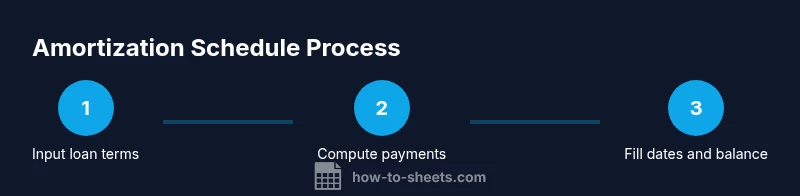
- Open a new Google Sheet and set up inputs (LoanAmount, AnnualRate, TermMonths, StartDate).
- Create a clean table with headers: Date, Payment, Interest, Principal, Balance, Cumulative Interest.
- Enter the PMT-based payment calculation and lay out IPMT/PPMT for interest and principal.
- Generate dates using EDATE or EOMONTH and fill formulas down for the full term.
- Round currency values and validate final balance near zero.
- Save as a template, then test with alternative loans to ensure flexibility and accuracy.
- Add basic data validation and a simple dashboard to visualize payoff over time.
By following these steps, you’ll have a robust google sheets amortization schedule that’s ready for real-world use and easy to reuse for future loans.
Tools & Materials
- Computer with internet access(Chrome or Google Sheets app; ensure browser is up to date)
- Google account(Needed to access Google Sheets and store templates)
- Google Sheets template(Use a blank sheet or duplicate a starter amortization template)
- Financial calculator or spreadsheet helper(Optional for cross-checks or manual verification)
- Printer or export tool(Optional for hard copies or sharing offline)
Steps
Estimated time: 25-40 minutes
- 1
Define loan parameters
Enter the loan amount, annual interest rate, term in months, and the start date. Decide the payment frequency and keep all inputs clearly labeled. This step sets the baseline for all subsequent calculations.
Tip: Use named ranges like LoanAmount and TermMonths to simplify formulas. - 2
Create a clean layout and headers
Set headers: Date, Payment, Interest, Principal, Balance, Cumulative Interest. Place inputs in a separate block so formulas reference stable values. Freeze the header row to keep titles visible as you scroll.
Tip: Freeze panes to keep the header visible while you fill down rows. - 3
Compute the monthly payment
In the Payment cell, use =PMT(rate_per_period, total_periods, -LoanAmount). For monthly payments, rate_per_period is AnnualRate/12 and total_periods is TermMonths. The result shows cash outflow for each payment.
Tip: Remember the sign convention; you can display as a positive value using ABS if desired. - 4
Populate the first payment date
In the Date column, set the first payment date to StartDate and then generate subsequent dates with =EDATE(StartDate, ROW()-ROW($FirstPaymentRow)). This keeps timing consistent across the schedule.
Tip: Use EOMONTH if you prefer end-of-month dates for calendar alignment. - 5
Calculate Interest and Principal per period
Use =IPMT(rate_per_period, period_number, total_periods, -LoanAmount) for Interest and =PPMT(rate_per_period, period_number, total_periods, -LoanAmount) for Principal. Update Balance as Balance Previous - Principal.
Tip: Drag formulas evenly; verify the sum of Principal equals LoanAmount minus final Balance. - 6
Apply rounding and balance checks
Wrap currency outputs with ROUND(..., 2) to avoid floating-point drift. Check the final balance is near zero and totals align with the loan terms.
Tip: Add a small tolerance (e.g., <= 0.01) to flag mismatches early. - 7
Test with alternative inputs
Change LoanAmount, Rate, or Term to see if the schedule updates correctly. This test confirms template robustness for different loan scenarios.
Tip: Use named ranges to ensure quick updates without editing formulas. - 8
Finalize and reuse as a template
Protect formulas, document inputs, and save as a reusable template. Consider adding charts and a dashboard to visualize payoff curves.
Tip: Create a reference sheet with instructions so others can use the template with minimal guidance.
FAQ
What is an amortization schedule and why use it in Google Sheets?
An amortization schedule shows how each payment reduces principal and interest over time, ending with a fully paid loan. In Google Sheets, you can build a dynamic schedule that updates when inputs change, improving clarity and forecasting.
An amortization schedule shows how each payment divides into interest and principal, updating automatically when you adjust inputs.
Can PMT, IPMT, and PPMT be used together reliably in Sheets?
Yes. PMT calculates the total payment, IPMT estimates interest per period, and PPMT estimates principal per period. Used together with correct rate per period and number of periods, they provide a precise breakdown.
Yes. PMT gives total payment, IPMT and PPMT break down interest and principal per period.
How do I handle biweekly or irregular payments?
For biweekly payments, adjust the rate and periods for the biweekly cadence or create a separate schedule. Consistency in period length is key to keeping the math correct.
Biweekly needs a cadence adjustment or a separate schedule to keep calculations accurate.
What should I do if my final balance doesn't reach zero exactly?
Rounding can leave a tiny residual. Use ROUND on balances and set a small tolerance to flag discrepancies for review.
A small rounding difference can leave a tiny balance; round values and check tolerance.
Is this template suitable for multiple loans at once?
Yes. Create separate sheets or a multi-loan dashboard that reads values from a central input table. This keeps consistency and makes comparison easy.
Yes, you can scale to multiple loans with separate sheets or a dashboard.
Watch Video
The Essentials
- Define loan terms and cadence up front
- Use PMT, IPMT, and PPMT to compute payments accurately
- Round currency values and validate final balance
- Save as a reusable template for future loans