Google Sheets P&L Template: A Practical Step-by-Step Guide
Learn to build a reliable Google Sheets P&L template with step-by-step guidance, formulas, and formatting tips for budgeting, forecasting, and financial clarity.


You will learn to build a fully functional google sheets p&l template that tracks revenue, costs, and net income. The guide covers layout design, essential formulas (SUM, SUMIF, IF), data validation, and professional formatting. It also explains how to customize for different businesses and how to keep the template reliable over time.
What is a Google Sheets P&L template and why it matters
A Profit & Loss template in Google Sheets provides a structured view of income versus expenses over a period. It helps you quantify profitability, spot trends, and plan for the future. According to How To Sheets, such templates save time by automating routine calculations and reducing errors, especially when multiple team members update the file. A well-designed P&L template acts as a single source of truth for management, finance students, and small business owners who need clear visibility into cash flow. In 2026, remote work and freelancing intensify the need for reliable, shareable reports. With a P&L template in Sheets, you can generate monthly or quarterly results and easily export summaries for stakeholders.
Core components of a P&L in Sheets
At its core, a P&L template lists revenue streams, cost of goods sold COGS, gross profit, operating expenses, and net income. Each section should have a consistent layout, with subtotals for major categories and a final net profit line. In Google Sheets, you can use named ranges to keep formulas readable and protect sensitive cells. Visual separation with bold headers and currency formatting improves scanning speed, especially when reviewing monthly or quarterly results.
Key formulas to automate the P&L
Common formulas include SUM for totals, SUMIF to aggregate line items by category, and IF to handle conditional rules like tax or tiered discounts. Use relative references for row based totals and absolute references for constant inputs like budgets. A practical tip is to place a separate totals row that feeds every summary line, ensuring consistency when you add new revenue lines or expense categories.
Layout and readability best practices
Stick to a clean grid: revenue at the top, followed by COGS, gross profit, operating expenses, and finally net income. Use consistent indentation for subcategories, and keep a single currency format across the sheet. Add a small legend that explains each row s purpose and assign colors to major sections for quick scanning. These tweaks help executives skim the sheet in under 60 seconds.
Data validation and input controls
To prevent errors, restrict inputs with data validation e g a drop down for revenue sources and date pickers for periods. Use named ranges to simplify formulas and enable easy updates. Consider creating a separate data sheet for budget assumptions and pull from it via data validation to maintain a single source of truth.
Customization for currencies and business models
Templates should support multiple currencies by using a single exchange rate cell or by duplicating sections for each currency and using a currency toggle. For service based businesses, you might have multiple revenue streams with different billing cycles. The template should accommodate these variations without breaking existing formulas.
Styling and printing considerations
Prepare the P&L for sharing by setting print areas, adjusting page layouts, and including a cover note with the period, company name, and version. Keep formulas hidden from casual readers but accessible to authorized users by protecting cells. A polished final sheet increases confidence in the numbers.
Dashboards and charts from P&L data
Link P&L totals to a dashboard with simple charts showing revenue vs. expenses by month, or a stacked bar chart of gross vs. net profit. Keeping dashboards synced with your P&L data minimizes manual updating and helps tell a visual story during board meetings.
Tools & Materials
- Google account with Sheets access(Needed to create and edit the template)
- Computer or tablet with internet(For editing and testing the template)
- Sample dataset or test numbers(Useful for validating formulas)
- Currency preference e g USD EUR(Helpful for multi currency setups)
- Access to a shared drive or template repository(Optional for team collaboration)
Steps
Estimated time: 60-120 minutes
- 1
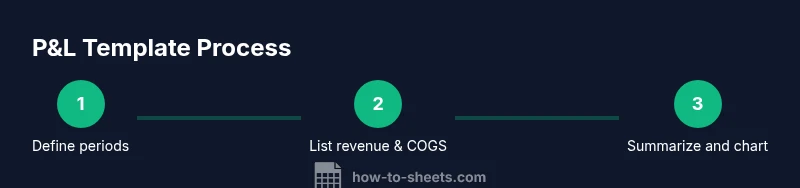
Define the reporting period and revenue streams
Identify the monthly or quarterly periods and list each revenue source you expect to track. This establishes the scope of the P&L and prevents scope creep later. Document assumptions for reference.
Tip: Start with a clean period list before entering numbers. - 2
Create the P&L skeleton
Set up a consistent table structure with headers for Revenue COGS Gross Profit Operating Expenses and Net Income. Include subtotals for major categories and a final net line.
Tip: Use bold font for headers and a light background for the totals row. - 3
Enter revenue lines and COGS
List revenue items and COGS categories with appropriate subtotals. Use separate rows for each item and ensure totals update automatically.
Tip: Label revenue sources clearly and align numbers to the right. - 4
Add expense categories
Create operating expense line items e g salaries, rent, utilities, marketing and group them into logical sections for readability.
Tip: Keep a standard set of expense categories to simplify forecasting. - 5
Implement core formulas
Put in the totals for revenue COGS and expenses using SUM. Calculate Gross Profit = Revenue COGS and Net Income = Gross Profit − Expenses.
Tip: Double check sign conventions to avoid negative profits. - 6
Add validation and data integrity
Apply data validation for sources and dates. Create named ranges so formulas remain readable and maintainable.
Tip: Lock critical cells after the initial setup. - 7
Format for readability and printing
Choose a consistent currency format add borders and ensure print friendly layout. Include a summary header with period and version.
Tip: Test printing from multiple devices to ensure legibility. - 8
Create a shareable template
Hide or protect formulas add a README tab and set permission levels for collaborators. Save as a named template or copy for new periods.
Tip: Keep a changelog to track template updates. - 9
Publish and maintain
Distribute the template within your team collect feedback and schedule periodic reviews. Update references and currencies as needed.
Tip: Schedule quarterly reviews of the template.
FAQ
What is a Google Sheets P&L template and why use it?
A Google Sheets P&L template organizes revenues and expenses to show net income over a period. It streamlines reporting, reduces manual math, and helps forecast future performance.
A Google Sheets P and L template shows profits and losses in one place and makes reporting faster.
Can I use this template for multiple currencies?
Yes. You can set a single exchange rate cell or duplicate sections for each currency, but avoid mixing currencies in the same totals row.
Yes, you can support multiple currencies with a simple setup.
How do I import data into the P&L template?
You can pull data from other sheets or sources with functions like IMPORTRANGE or by linking to a data table within the same workbook.
You can import data from other sheets or workbooks and keep it auto updated.
How often should I update the template?
Update monthly or quarterly to reflect actual results and forecast adjustments. Maintain a changelog for transparency.
Update on a regular cadence, like monthly, and review assumptions.
Is this suitable for small businesses?
Yes. A well structured P&L in Sheets helps small teams monitor profitability without costly software.
Perfect for small teams needing budget visibility.
What are common mistakes to avoid?
Avoid inconsistent categorization ignored validation and hard coded values that break when data changes.
Don't forget data validation and keeping formulas dynamic.
Watch Video
The Essentials
- Build a modular P&L with clear sections
- Automate totals with SUM SUMIF
- Validate inputs to prevent errors
- Customize per business needs
- Share with clear versioning and notes