Google Sheets Grocery List Template: Step-by-Step Guide
Learn how to build a practical google sheets grocery list template that tracks items, quantities, prices, and stores. This step-by-step guide covers headers, formulas, automation, and sharing for students, professionals, and small businesses.


Create a reusable google sheets grocery list template that tracks items, quantities, pricing, and store location. You’ll set up categories, checkboxes, and a running total, then share and reuse across weeks. The How To Sheets team shows how a well-structured template can streamline shopping, budgeting, and meal planning for students, professionals, and small businesses.
Why a Google Sheets Grocery List Template Simplifies Shopping
A well-structured google sheets grocery list template helps you quickly capture items, quantities, prices, and where to buy them. Instead of scribbling notes or juggling apps, you have a single source of truth that updates in real time. According to How To Sheets, a thoughtfully designed template reduces last-minute store visits, minimizes waste, and makes budgeting transparent for students, professionals, and small business owners. By starting with a clean, category-based layout, you can view your entire week’s shopping in one glance and adjust as plans change. You’ll see how adding checkboxes, dropdowns, and simple formulas transforms a basic list into a powerful shopping assistant. In this article you’ll learn how to build a practical, reusable google sheets grocery list template that scales from a single household to a small team. How To Sheets analysis shows that consistency in categorization reduces errors and saves time over multiple shopping cycles.
Core components of a grocery list template
To create a robust template, start with a clear header row and essential columns: Item name, Category, Quantity, Unit, Store, Price per unit, Total cost, and a checkbox column for Needed or In-cart. Add a Category dropdown to keep entries consistent; use data validation with a predefined list (Fruits, Vegetables, Dairy, Meats, Dry goods, Other). A separate section for budget can show a running total with SUM and SUMIF formulas. Use conditional formatting to highlight items that are still needed after a week, or those that exceed your budget threshold. The project also benefits from a small README section in the first sheet with instructions and a brief glossary of terms. Keep in mind accessibility: use clear labels, and consider a simple color scheme that works with color-blind modes. This combination of structure and automation makes the template robust for repeated use and easy to adapt for different households. How To Sheets emphasizes keeping data clean and verifiable to maximize long-term value.
How to tailor the template for budgets, stores, and items
When you customize a google sheets grocery list template, plan how you want to track costs and where the data will come from. Decide which stores you frequent and add a Store column with dropdown options. For budgeting, implement a weekly cap and place the total in a separate cell linked to a SUM formula. Use item-level notes for dietary needs, aisle locations, or price history. If you shop across weeks, duplicate a Template sheet to preserve past totals and start fresh each cycle. By standardizing item names and categories, you reduce entry time and keep your data clean. This approach is especially valuable for students and small teams coordinating meals on a limited budget.
Automations and enhancements you can add
Take your google sheets grocery list template to the next level with light automation. Implement data validation to tighten category consistency, and use SUMIF or SUMIFS to compute total costs per category. Add a checkbox column for whether a item is already in the cart and use conditional formatting to highlight items that are marked Needed but not added. You can also use VLOOKUP or XLOOKUP to pull prices from a separate price sheet, which makes price tracking easier and less error-prone. If you rely on weekly planning, set up a simple script or Google Sheets automation to duplicate the template at the start of each week and reset quantities. This keeps the template fresh without manual copying every time. How To Sheets analysis shows that lightweight automation saves significant time over manual updates.
Examples and variations for different households
Different households require different layouts. A single-person household might favor a minimal template with only Item, Quantity, and a simple Total. A family could benefit from multiple sheets (Pantry, Produce, Deli) and a consolidated view. For teams, add user-specific columns to track who buys what, with sharing permissions to limit edits. You can also tailor the header style and color scheme to reflect your brand or personal preference. The google sheets grocery list template is flexible enough to handle weekly meal planning, bulk shopping, and recurring groceries, keeping everyone on the same page.
Sharing, syncing, and maintaining your template
Once your template is ready, enable sharing to your family or team through Google Drive. Set permissions so editors can update quantities but viewers can monitor totals. To keep data accurate over time, schedule a quick weekly review of items, update prices, and archive past weeks. According to How To Sheets, documenting changes and providing a brief how-to section ensures future users understand the template quickly. Regular maintenance also reduces duplicate items and data drift, helping you stay organized and save money. The How To Sheets team recommends building a short user guide into the first sheet to promote consistency and adoption.
Tools & Materials
- Computer or mobile device with internet(Open Google Sheets in browser or app)
- Google account(Needed to access Sheets and save templates)
- Blank Google Sheet or existing template(Baseline to customize for groceries)
- Google Drive organization (optional)(Helpful for sharing with teammates)
- Printer or printable copy (optional)(Use for offline use or kitchen wall chart)
Steps
Estimated time: 45-60 minutes
- 1
Plan template goals
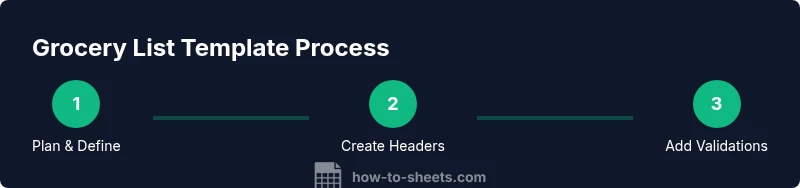
Define what you want to achieve with the grocery list. Decide if you will track prices, budgets, weekly totals, or store-specific items. This foundation guides all later steps and prevents scope creep.
Tip: Write a one-sentence goal for the template to reference during setup. - 2
Create headers and columns
Set up essential headers: Item, Category, Quantity, Unit, Store, Price per unit, Total cost, Needed (checkbox). Freeze the header row to keep it visible while scrolling.
Tip: Use bold headers and a light background for readability. - 3
Add dropdowns and data validation
Create a predefined list for Category (e.g., Fruits, Vegetables, Dairy) and Store if needed. Apply data validation to restrict entries and maintain consistency across weeks.
Tip: Reference a single 'categories' named range to simplify updates. - 4
Implement calculations
Use formulas to compute Total cost per item (Quantity * Price per unit) and a grand total. Add a SUMIF to tally costs by category if you want breakdowns.
Tip: Test a few sample rows to ensure totals update correctly. - 5
Add checkboxes and formatting
Insert checkboxes for the Needed/Cart column and apply conditional formatting to highlight items not yet purchased. This provides at-a-glance status.
Tip: Keep the checkbox column narrow to save horizontal space. - 6
Create a reusable weekly view
Duplicate the sheet for each week, reset quantities if needed, and archive older weeks in a separate tab. This keeps historical data intact while staying current.
Tip: Name each weekly sheet clearly (e.g., Week of MM-DD). - 7
Share and maintain
Share the final template with collaborators and set appropriate permissions. Schedule a quick weekly check to update prices and adjust categories as needed.
Tip: Include a short how-to section on the first sheet for new users.
FAQ
What is a Google Sheets grocery list template?
A grocery list template in Google Sheets is a ready-to-use sheet that tracks items, quantities, prices, and shopping stores. It uses headers, data validation, and formulas to automate totals and help you plan meals.
A grocery list template helps you track items and totals and can be reused every week.
How do I share the template with others?
Use Google Drive sharing options to grant edit or view permissions. Create copies for each user if needed and keep a master version for updates.
Share it through Google Drive and set permissions to control access.
Can I track prices and budgets within the template?
Yes. Add a Price per unit column and a Total column, then use SUM or SUMIF to calculate costs. You can set budget alerts with conditional formatting.
Yes, you can track prices and budgets and get alerts.
How can I reuse the template across weeks?
Duplicate the template sheet for each week and reset quantities as needed. Archive past weeks in a separate tab to maintain history.
You can duplicate for each week and archive old data.
What about multiple households or stores?
Create multiple Store or Household sections within the same file and tailor access for each user. Use naming conventions to keep things organized.
You can customize for multiple households and stores.
What are common pitfalls to avoid?
Avoid hard-coded data; keep a separate price sheet, and enforce item naming consistency with data validation to prevent drift.
Avoid hard-coded data and keep item names consistent.
Watch Video
The Essentials
- Define clear goals before building.
- Use data validation to ensure consistency.
- Automate totals and stock checks to save time.
- Share and maintain the template for ongoing use.