Grocery List Template for Google Sheets: Build, Customize, and Use
Learn how to build, customize, and maintain a reusable grocery list template in Google Sheets. Save time, reduce waste, and plan meals with data-driven checklists, category organization, and budgeting features.


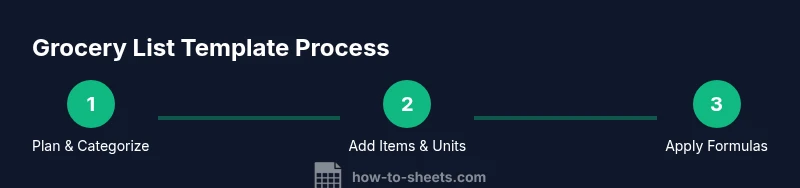
Build a reusable grocery list template in Google Sheets in 3 practical steps: set up categories, add item fields (name, quantity, unit, price), and enable data validation with checkboxes. This approach keeps your shopping organized across devices and supports meal planning and budgeting. According to How To Sheets, a well-structured sheet minimizes waste and simplifies collaboration.
Why a grocery list template in Google Sheets saves time and reduces waste
A well-designed grocery list template in Google Sheets can transform how you plan meals, buy groceries, and track pantry inventory. It makes shopping more efficient by letting you view the list on a phone at the store, share updates with family, and automatically total costs. According to How To Sheets, a good template reduces duplicate purchases and impulse buys by keeping a single source of truth that’s accessible from anywhere. When you structure items into categories (Produce, Dairy, Meat, Bakery, Frozen, Pantry, Household) you can sort and filter quickly, then add quantities, units, and prices without leaving the sheet. If you use checkboxes for purchased items, you get immediate visual feedback. You can also add a separate “Needed This Week” column to support meal planning, which makes it easier to switch between weekly menus and bulk purchases. A template also helps with budgeting by summarizing estimated costs against real receipts.
Core features to look for in a template
When choosing or building a grocery list template for Google Sheets, look for features that save time and reduce errors. Key elements include:
- Category structure: clear sections for Produce, Dairy, Meat, Frozen, Pantry, and Household items.
- Quantity and unit fields: columns for amount, unit (kg, lb, each), and a field for optional notes.
- Price tracking: a column for unit price and a total cost calculation that updates automatically.
- Availability and pantry status: a checkbox for purchased items and a pantry indicator (e.g., On Hand, Running Low).
- Data validation: drop-down menus to standardize item names and units, reducing typos.
- Mobile-friendly layout: compact, readable on phones and tablets.
- Print-friendly view: a clean, single-page layout for shopping trips.
- Shared access: real-time collaboration for households or teams.
These features support accurate budgeting, faster shopping, and less waste. Use conditional formatting to highlight low-stock items and preserve your bandwidth for more meaningful tasks.
Building a starter grocery list template from scratch
Starting from scratch gives you control and ensures the template scales with your needs. Begin with a simple layout and a handful of categories. This approach prevents over-engineering and reduces maintenance. The How To Sheets team recommends a modular design: a core shopping list and optional extensions (meal plans, weekly budgets, or pantry tracking). After you set up the header row, taxonomies, and currency, you can duplicate the sheet for future weeks or households. As you test the template with real groceries, you’ll observe which fields are most used and which can be collapsed to minimize scrolling. A well-built starter will adapt to both routine errands and big shopping trips. In time, you can layer automation, like conditional formatting for low stock or a summary dashboard that shows monthly spending.
Organizing categories (Produce, Dairy, Pantry, Frozen, Personal care)
Organize by broad groups first, then subcategories for quick scanning. A typical layout might separate Produce, Dairy, Meat, Bakery, Frozen, Pantry, and Household items. Within each category, create rows for common items (e.g., bananas, milk, eggs) and add optional notes for preferred brands or sizes. Consider a separate “Seasonal” or “Sale” column to flag items you’ll stock up on during promotions. For shared households, agree on a standard naming convention (e.g., “Milk 2L Whole” vs. “Milk 1 gallon”) to keep data clean and filterable.
Adding quantities, units, and prices for budgeting
Include dedicated columns for Item, Category, Quantity, Unit, and Unit Price. A final Total Cost column can sum Quantity × Unit Price for each row, then a sheet-wide total updates automatically. Standardize units (kg, g, lb, oz, each) using data validation to avoid mismatches. If you’re budgeting, add a separate “Estimated Monthly Cost” row that aggregates costs by category. This setup makes it easy to compare planned vs. actual spending and adjust shopping lists based on available funds.
Using data validation and checkboxes for easy item tracking
Data validation ensures consistent item names and units by enforcing dropdown lists. Checkboxes provide immediate visual feedback on purchased items, enabling shoppers to see completion at a glance. Use conditional formatting to highlight items not yet purchased or those with low stock. For example, set a rule that checks a row if the “Purchased” checkbox is checked; otherwise, keep it neutral. These features reduce human error and simplify weekly updates.
Tips for shared use and collaboration
Collaborative lists work best when everyone understands the structure. Use Google Drive sharing settings to grant edit access to household members or teammates. Create a short guide sheet explaining category names, unit abbreviations, and typical price ranges to minimize confusion. Use a version history to track changes and revert mistakes. For mobile users, enable the sheet’s offline mode so edits sync automatically when a connection returns.
Templates for different diets or seasons
A flexible grocery list template can accommodate dietary needs and seasonal produce. Create dedicated sections or filters for vegetarian, vegan, gluten-free, or keto items. Add a “Seasonal Picks” category that highlights in-season produce to reduce costs and improve freshness. By creating multiple template variants within a single Google Sheet, you can switch modes with a click and keep all data centralized.
Automating with formulas: SUM, SUMIF, VLOOKUP
Automations help you stay within budget and quickly locate items. Use SUM to total costs, SUMIF to aggregate costs by category, and VLOOKUP or XLOOKUP to pull item details from a master list. For example, a lookup can fill the unit price when you type an item name, reducing duplicates and mistakes. These formulas keep the sheet live and responsive without manual recalculation.
Examples: ready-to-use templates and how to adapt them
Look for templates that provide a clean core structure and leave room for customization. A good starter template should include a category map, item table, and a calculated total. As you adopt the template, tailor the category list to your household or store layout, add your favorite brands, and adjust the currency. Remember that the goal is to minimize friction during shopping while maintaining accuracy and visibility.
Common pitfalls and how to avoid them
Common mistakes include inconsistent item naming, missing prices, and failing to update the category list. Avoid these by enforcing data validation, periodically auditing the master item list, and using a simple printing layout for keep-at-home shopping lists. Also, don’t skip sharing settings; collaboration is a strength, but only if everyone can access and edit the same sheet.
How to maintain a grocery list: syncing across devices and backups
Regular maintenance keeps a grocery sheet reliable. Sync across devices so family members can edit in real time, and use Google Drive to back up the master template weekly. Periodically export a copy as CSV for inspection, and keep a small archive of past weeks for trend analysis and budgeting insights. The ongoing discipline of updating quantities and prices will maximize the value of your template.
Tools & Materials
- Google account(Needed to access Google Sheets and save to Drive)
- Device with internet access(Laptop, tablet, or smartphone; ensure you can run Sheets smoothly)
- Google Sheets app or browser(Open the sheet in sheets.google.com or the mobile app)
- Sample data for testing(Optional starter items to populate the sheet during setup)
- Printer or PDF printer option(Optional for printing from Sheets)
- Currency and store price formats(Local currency settings to ensure consistency)
Steps
Estimated time: 60-90 minutes
- 1
Define scope and categories
Identify what you’ll track (e.g., groceries only, or groceries plus household items) and select broad categories such as Produce, Dairy, Meat, Bakery, Frozen, Pantry, and Household. This keeps the sheet organized and scalable. If you plan to meal-prep, consider a separate section for featured recipes.
Tip: Start with 5-7 core categories and add as needed. - 2
Create a new Google Sheet and set up headers
Open Sheets, start a new blank file, and create a header row with columns like Item, Category, Quantity, Unit, Unit Price, Total Cost, Purchased, and Notes. A clear header makes formulas and filters reliable.
Tip: Freeze the header row so titles stay visible as you scroll. - 3
Create category list and named ranges
List category names in a separate area and define named ranges for each category. Named ranges simplify data validation and lookup formulas across the template.
Tip: Use a single source of truth for category names to avoid typos. - 4
Set up columns for item details
Create columns for Item, Category, Quantity, Unit, Unit Price, and a checkbox column for Purchased. Optionally add an On-Hand column to track pantry stock.
Tip: Keep units consistent (e.g., kg, lb, each) for easier summation. - 5
Add data validation for items and units
Apply data validation to Item and Unit columns so only pre-approved names and units can be entered. This reduces duplicates and makes filters reliable.
Tip: Use a drop-down list sourced from your named ranges. - 6
Add checkboxes and status tracking
Insert checkboxes in the Purchased column and use conditional formatting to highlight items not yet bought. This provides a quick visual at checkout.
Tip: Set a rule to color unchecked rows in a warm tone. - 7
Enter sample data and verify formulas
Populate several rows with typical groceries and check that Total Cost updates automatically via Quantity × Unit Price. Test filtering by category and by Purchased status.
Tip: Validate your formulas with a few edge cases (zero quantity, negative prices). - 8
Save, share, and reuse the template
Rename the sheet as your reusable template, share with teammates or family, and enable comment/edit access as needed. Create a copy for each week or shopping trip.
Tip: Use version history to revert changes if needed.
FAQ
Can I use Google Sheets for grocery lists?
Yes. Google Sheets is suitable for grocery lists, offering collaboration, cloud storage, and automatic calculations. A well-built template can adapt to your household or meal planning needs.
Yes. Google Sheets works great for grocery lists and collaboration.
What should a grocery list template include?
At minimum, include categories, quantity, unit, price, a purchased checkbox, and a total cost. Optional enhancements are data validation, conditional formatting, and a printable layout.
A good template includes categories, quantity, unit, price, and a total.
Can I share the sheet with others in real time?
Absolutely. Google Sheets supports real-time collaboration, so multiple users can edit together, see changes instantly, and leave comments. Ensure you set appropriate permissions for each collaborator.
Yes, you can share and edit together in real time.
How do I keep prices updated automatically?
Use a unit price column linked to a master price list and formulas like SUMIF or VLOOKUP to pull current prices. When the master list updates, your totals update automatically.
Update prices automatically with a master price list and lookup formulas.
Which template works best for meal planning?
A meal-planning extension can pair recipes with weekly grocery needs. Add columns for meals, days, and a shopping list that updates based on planned recipes.
Pair recipes with a weekly shopping list for meal planning.
Is printing the list easy?
Yes. Configure a print-friendly view within Google Sheets and use a single-page layout for ease at the store. Export as PDF if needed.
Printing is straightforward with a clean, print-friendly layout.
Watch Video
The Essentials
- Design a scalable template structure
- Use data validation to ensure consistency
- Leverage checkboxes for quick status
- Share & back up regularly