Google Sheets Sales Template: A Practical Step-by-Step Guide
Create a reusable Google Sheets sales template to manage leads, deals, stages, revenue, and forecast. Get step-by-step setup, formulas, dashboards, and collaboration tips to empower teams with a lightweight CRM-like tool in Sheets.


You will build a reusable Google Sheets sales template to track leads, deals, stages, forecasted revenue, and activity. The template will include a clean data model, essential formulas, and a lightweight dashboard to surface key metrics. No paid tools are required—just a Google account and Google Sheets access. By the end, you can clone this template for different products or teams and start collecting consistent data.
Why a Google Sheets sales template matters
A well-structured Google Sheets sales template helps teams standardize data collection, reduce manual entry, and accelerate reporting. It provides a single source of truth for leads, opportunities, and outcomes, which makes forecasting more reliable and enables faster decision-making. According to How To Sheets, templates like this save time by removing ad hoc spreadsheets and enforcing consistent fields and formats. The result is fewer errors, easier onboarding for new teammates, and a scalable way to track performance across campaigns and regions.
In practice, a sales template in Google Sheets acts as a lightweight CRM-lite system that stays flexible enough for small teams while staying approachable for non-technical users. It blends human judgment with data-driven insight, so you can spot bottlenecks (for example, deals stuck in a stage) and take targeted actions. Over time, a centralized template also supports better collaboration, as everyone uses the same language and data definitions.
The How To Sheets team emphasizes starting with a minimal viable layout and iterating based on feedback from sales reps and managers. This approach reduces resistance to adoption and ensures the template evolves with real-world needs rather than becoming a static, underused document.
Theme and structure matter: plan to separate raw data (leads, contacts, accounts) from calculated fields (weighted revenue, probability, forecast) and from the visual dashboard. This separation keeps formulas readable and makes it easier to audit or expand later on.
Core components of a sales template
A strong Google Sheets sales template includes several core components that work together to give you a complete picture of your sales funnel. At minimum, you should have a leads table, an opportunities table, and a dashboard that summarizes key metrics. Each table should include consistent identifiers (IDs), primary dates, owner fields, and status indicators. When designed well, these components enable quick filtering, easy cross-reference, and reliable forecasting.
Key fields to consider:
- Lead/Account ID: a unique identifier for each record to avoid duplicates.
- Contact details: name, email, phone, and role for quick follow-up.
- Source and touchpoints: where the lead originated and what actions were taken.
- Stage and next step: the current pipeline stage and what comes next.
- Deal value, close date, and probability: for revenue forecasting and risk assessment.
- Owner and team: who is responsible for the next action and the forecast.
- Activity history: a simple log of notes or activities to remember context.
The template should also include a dashboard with visuals such as pipeline by stage, win rate by quarter, and forecast accuracy. These visuals provide the team with an at-a-glance view of health and progress, which is essential for timely decisions. The How To Sheets approach to templates emphasizes building a clean data model first, then layering dashboards and automation. By keeping data entry fields tight and consistent, you unlock more accurate analyses and faster reporting.
In this guide, you’ll see how to structure these components, what formulas to use, and how to keep everything maintainable as your team scales. The end result is a practical, Google Sheets–based system that behaves like a CRM but remains approachable and affordable for small teams.
Setting up your sheet structure
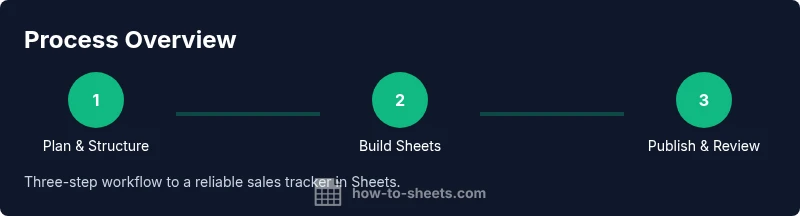
Before you write a single formula, plan your sheet structure. Create at least three tabs: Leads (raw intake), Opportunities (active deals), and Dashboard (metrics and visuals). You can add a fourth tab for Settings or Data Dictionary to document field definitions for new users. A clean structure makes it easier to implement formulas consistently and reduces confusion when team members collaborate.
Within Leads, standardize the input fields with clear headers and validation rules. Use data validation for fields like Lead Source, Industry, and Status to prevent inconsistent entries. In Opportunities, model the pipeline with fields such as Stage, Amount, Close Date, Probability, and Forecast. In Dashboard, build charts and pivot tables that summarize the data from the other tabs. Avoid duplicating data across tabs; instead, pull values with formulas to keep a single source of truth.
Finally, document conventions in a Settings or Data Dictionary tab. This will help new team members understand how to enter data correctly and how the sheet calculates metrics. The result is a scalable template that remains accurate as the team grows, and this is exactly the approach recommended by How To Sheets for practical templates.
Core formulas you’ll rely on
A robust sales template relies on a handful of reliable formulas. Start with INDEX/MATCH or VLOOKUP to pull account details from the Leads table into Opportunities. Use SUMIFS or SUMPRODUCT to total revenue by stage or owner. Apply AVERAGEIF to calculate average deal size by source, and use IF and ISBLANK to handle missing data gracefully. For forecasting, multiply revenue by probability and sum across all active opportunities.
A simple risk-adjusted forecast might look like: =SUMPRODUCT(AmountRange, ProbabilityRange). For dates and timing, use TODAY() and EOMONTH to compute upcoming milestones. You can also use conditional formatting to highlight overdue tasks or deals stuck in the wrong stage. The goal is to keep formulas readable and to avoid overcomplicating the model. As you gain confidence, you can add more advanced features like conditional forecasting bands or scenario analysis using data validation-driven inputs.
If you want to align with best practices, keep the main dashboard read-only for most users and limit editing to the data tabs. This helps prevent accidental changes to formulas and ensures data integrity. And remember, start simple; you can expand with additional fields and dashboards as your needs grow.
Building the dashboard: metrics that matter
The dashboard is where insights become action. Focus on a few core metrics that drive decisions for your sales team: pipeline by stage, win rate by period, average deal size, forecast accuracy, and days to close. Create a pipeline donut or bar chart to show how opportunities flow through stages, and pair it with a line chart for monthly or quarterly forecasts. By keeping visuals crisp and consistent, you enable quick interpretation during standups or leadership reviews.
In addition to charts, include a small KPI strip at the top with three to five metrics: total pipeline value, total won revenue, average close date, and forecast-to-actual variance. Use slicers or filters for time periods and by owner to tailor the view to different teams. The dashboard should refresh automatically as data is updated, which reduces manual reporting work and frees time for revenue-generating activities.
Finally, define a cadence for dashboard reviews. A weekly check-in with the sales team helps ensure data quality and alignment on next steps. This reflects How To Sheets' emphasis on templates that are not only functional but also actively used by teams for timely decisions.
Data validation, automation, and sharing
Validation and automation increase data quality and reduce manual effort. Implement drop-down lists for critical fields like Stage, Status, and Lead Source to standardize inputs. Add a date field with a validation rule to prevent impossible dates, and use conditional formatting to flag overdue tasks or high-value deals. Protect key formulas or the Dashboard tab to prevent accidental edits.
Automation can be as simple as using Google Sheets triggers for reminders or notifications when a deal reaches a certain stage. You can also set up a template so that new deals copy a standard row structure, with default values for fields like Stage and Probability. Sharing permissions matter: give editors only to those who need to modify data, and provide view access to stakeholders. Having a clean access model minimizes the risk of accidental deletions while enabling transparent collaboration. The How To Sheets approach recommends starting with a minimally viable setup and iterating with feedback to avoid overbuilding.
For teams requiring more control, you can add a separate Settings tab to govern currency, date formats, and probability scales, ensuring consistency across the entire workbook. This approach helps keep data clean as more people contribute over time.
Example templates and starter layouts
If you’re new to Google Sheets, start with a simple starter layout that includes three core tabs: Leads, Opportunities, and Dashboard. Each record should have a unique ID, a lead source, an owner, a stage, an amount, and a close date. A ready-made starter template should also include preformatted date columns, currency formatting, and conditional formatting rules to highlight high-priority deals. As you gain comfort, you can add more advanced tabs like Accounts, Contacts, and an Activity log to capture richer context.
Starter layouts help teams ship quickly and learn by doing. Use a modular approach so you can swap in new fields or restructure stages without breaking existing data. The template should be designed for collaboration: clear headers, consistent naming, and a predictable data flow that makes it easy for people to contribute without needing training. How To Sheets strongly advocates beginning with sensible defaults and then enhancing features as you validate needs with real users.
Common pitfalls and fixes
Even a well-planned template can fail if data quality is poor. Common pitfalls include duplicate records, inconsistent date formats, and inconsistent use of currencies. Regular data audits can catch these issues, and data validation helps prevent them at the point of entry. Another frequent problem is overcomplication: adding too many fields can deter adoption and reduce accuracy. Start with essential fields and gradually introduce new ones after collecting feedback from the team.
To fix these issues, enforce a single data dictionary, standardize currency and date formats, and use unique IDs for each record. Create a simple onboarding checklist to train new users and maintain data integrity. Periodically review the dashboard to ensure it still answers the questions your team cares about. By focusing on clarity, consistency, and governance, you’ll keep the template valuable over time.
How to customize for different teams
A Google Sheets sales template should be adaptable to different teams such as inbound, outbound, and account management. Start by identifying the core metrics that matter to each team and then tailor the dashboard to highlight those insights. For example, inbound teams may focus on lead source performance and conversion rate, while account managers may emphasize deal progression and renewal risk. Use separate tabs or filters to segment data by team without duplicating information.
When you customize, maintain a consistent data model so that everyone can share a single source of truth. Update the data dictionary to reflect new fields and ensure formulas reference the proper ranges. If you scale beyond a few users, consider adding basic access controls and a simple change log so the team can track who modified what and when. The How To Sheets team recommends documenting customization decisions to avoid confusion and ensure the template remains maintainable as processes evolve.
Quick-start checklist: your first sprint with the template
- Create the three core tabs: Leads, Opportunities, Dashboard.
- Define primary fields with consistent headers and data types.
- Add drop-downs for Stage and Lead Source and set validation rules.
- Build key formulas for pipeline, forecast, and win rate.
- Create a basic dashboard with at least two charts and a KPI strip.
- Share the template with your team and assign editing permissions.
- Run a 1-week pilot to collect feedback and adjust fields or visuals.
- Document data definitions in a Settings tab and establish a data dictionary.
Tools & Materials
- Google account(Needed to access Google Sheets and save templates)
- Google Sheets access(Web browser or mobile app with internet connection)
- Starter data sample (optional)(A small mock dataset to test formulas and dashboards)
- Template skeleton (How To Sheets starter)(Prebuilt layout to accelerate setup)
- Data dictionary template(Document field definitions for future users)
Steps
Estimated time: 60-90 minutes
- 1
Plan your data model
Define the core entities (Leads, Opportunities) and the fields you’ll capture (ID, source, owner, stage, amount, close date, probability). Decide on a single source of truth and a simple naming convention to keep data consistent across tabs.
Tip: Draft a one-page data dictionary before you build formulas to prevent scope creep. - 2
Create core tabs and headers
Set up the Leads, Opportunities, and Dashboard tabs with clear, consistent headers. Use a consistent date format and currency setting across the workbook to avoid confusion later.
Tip: Lock the header rows to prevent accidental edits and use alternating row colors for readability. - 3
Set up data validation
Add drop-downs for Stage, Lead Source, and Status. Enforce date formats and numeric fields for amount and probability to reduce data entry errors.
Tip: Use a short list for each drop-down and document acceptable values in the Settings tab. - 4
Build core formulas
Create formulas to pull account details, calculate pipeline totals, and compute forecast. Use INDEX/MATCH or VLOOKUP for lookups, and SUMIFS/SUMPRODUCT for aggregations.
Tip: Prefer INDEX/MATCH over VLOOKUP for flexibility with column order. - 5
Assemble the dashboard
Add charts for pipeline by stage, win rate, and forecast accuracy. Include a KPI strip for quick health checks and ensure charts refresh automatically with data updates.
Tip: Keep the dashboard layout clean; remove redundant visuals that don’t drive decisions. - 6
Configure sharing and governance
Set appropriate permissions, protect critical tabs, and create a simple change log. Establish a data governance routine to keep data clean over time.
Tip: Limit editing access to a small group to preserve data integrity. - 7
Pilot and gather feedback
Run a 1-week trial with the template, collect feedback from users, and note any missing fields or confusing labels.
Tip: Record 3–5 concrete improvements to implement in the next sprint. - 8
Iterate and scale
Incorporate the feedback, refine the data dictionary, and expand with additional fields or dashboards as needed. Document changes for new users.
Tip: Schedule a monthly review to ensure the template remains aligned with sales goals.
FAQ
What is a Google Sheets sales template?
A structured spreadsheet that tracks leads, opportunities, and revenue. It standardizes data and accelerates reporting without a full CRM.
It's a ready-made sheet that helps you manage sales data without a full CRM.
How do I customize fields for my team?
Add or remove columns to fit your process, and use data validation to enforce consistent values across the team.
You can tailor the fields to fit your team's needs.
Do I need advanced formulas to use this template?
Start with basic lookups and sums (INDEX/MATCH, SUMIFS). You can add more as your data grows but keep it simple at first.
Basic formulas usually suffice; you can expand later.
Can I share the template with my team?
Yes. Use Google Sheets sharing settings and protect sensitive tabs to prevent accidental edits.
Sharing is easy—just set permissions in Sheets.
How do I keep data clean over time?
Use validation, a data dictionary, and regular checks to prevent duplicates and inconsistent formats.
Keep data clean with validation and periodic audits.
Is this template suitable for small teams without a full CRM?
Yes. It provides a lightweight, trackable pipeline that can scale with your needs.
Great for teams that don’t require a full CRM.
Watch Video
The Essentials
- Define a clean data model first
- Use validation to enforce data quality
- Build a readable dashboard for quick decisions
- Share with appropriate access to protect data integrity
- Iterate based on team feedback for long-term usefulness