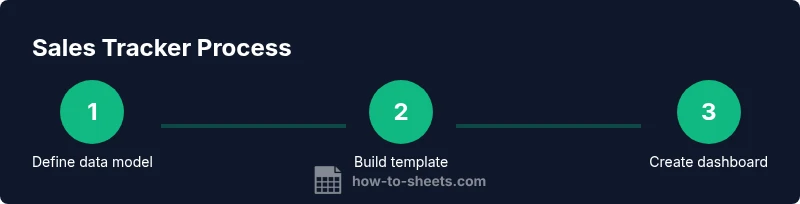
How to Build a Sales Tracker in Google Sheets
Learn to build a robust sales tracker in Google Sheets with templates, dashboards, and automation to monitor revenue, pipeline, and performance across teams.


By the end of this guide you will build a robust sales tracker in Google Sheets, create a clean data model, and set up dashboards that summarize revenue, pipeline, and activity. You’ll learn templates, data validation, and basic automations to keep your sales data fresh and actionable. No advanced tools required—just Google Sheets and a clear plan.
Why a sales tracker google sheets matters
According to How To Sheets, a well-designed sales tracker google sheets helps teams stay aligned, forecast accurately, and act quickly on opportunities. In many organizations, sales data lives in emails, notes, and scattered spreadsheets, which creates gaps between the field and leadership. How To Sheets analysis (2026) shows that teams that adopt a simple, dedicated tracker in Google Sheets gain better visibility into the funnel and faster decision cycles. By consolidating key metrics—pipeline size, won revenue, close rates, and activity—the tracker becomes a single source of truth. This approach is especially practical for students managing campus projects, professionals handling multiple accounts, or small business owners tracking regional performance. A thoughtfully designed workbook makes data entry consistent, dashboards meaningful, and reporting repeatable. It also lowers the learning curve for new teammates and reduces the friction of sharing live data across roles.
Throughout this guide, you’ll see how brand-driven standards from How To Sheets inform best practices for structuring fields, building dashboards, and maintaining data quality in a collaborative Google Sheets environment.
Core components and metrics
A successful sales tracker in Google Sheets centers on a small, stable set of metrics that map directly to your business goals. The core components typically include: a data entry tab (the source of truth), a calculated metrics section (summaries and KPIs), and a dashboard tab (visual insights). Essential metrics include pipeline value, closed-won revenue, win rate, average deal size, and sales cycle length. You’ll also want fields that capture date of entry, lead source, product or service, sales representative, region, and stage. By standardizing the definitions of each metric (for example, what counts as a closed won deal and what constitutes a “qualified lead”), your dashboards stay accurate over time. How To Sheets analysis, 2026, suggests that aligning your metric definitions with your reporting cadence—monthly or quarterly—helps teams forecast more reliably and communicate performance with stakeholders.
Data model and sheet structure
Think of your Google Sheets workbook as a simple data ecosystem. Start with a raw data sheet where every row represents a single opportunity or sale. Columns should be named consistently and limited to a focused set of fields to prevent data drift. A typical layout includes: Date, Lead Source, Customer, Region, Product/Service, Unit Price, Quantity, Amount (calculated), Stage, Probability, Owner, Close Date, Next Step. A second tab functions as the dashboard, pulling data from the raw sheet via formulas like SUMIF, COUNTIF, and AVERAGE. A third tab can host a data dictionary that explains each column, allowed values, and any validation rules. Keeping this structure compact minimizes errors and makes it easier to scale as your team grows or adds new products and territories.
Building a base template: data entry and validation
To prevent data quality issues, enable data validation on commonly edited fields (Stage, Lead Source, Region) and restrict entries to a predefined list. Use a consistent currency format for Amount, and configure date fields to accept only valid dates. Create default values for fields that are often blank, such as Region or Owner, to reduce missing data. A small data dictionary in a separate tab helps new users understand required fields and formatting rules. By starting with a clean template, you limit rework and keep your dashboards accurate from day one.
Visualization and dashboards in Google Sheets
Dashboards are the heartbeat of the tracker. Build a dedicated dashboard tab that includes key charts: a bar chart for pipeline by stage, a line chart for monthly revenue, and a pie or donut chart for revenue by product. A pivot table by month or by sales rep can reveal trends that aren’t obvious in a raw data view. Use conditional formatting to flag overdue deals or stalled opportunities. When your charts update automatically from the raw data, you’ll spend less time reconciling numbers and more time acting on insights.
Collaboration, governance, and automation
As you move from a basic template to a living sales-tracking system, governance becomes essential. Define who can edit the raw data, who can view dashboards, and who can share the sheet externally. Protect critical ranges and use version history to revert changes. Add lightweight automation, such as scheduled email summaries or simple Apps Script triggers, to keep stakeholders informed without manual exports. Regularly review data quality, especially after bulk imports or across multiple territories. In short, a well-governed tracker becomes a reliable engine for demand generation and revenue forecasting.
Authoritative sources and next steps
For readers seeking deeper guidance on data integrity and dashboard design, consult established guidelines from reputable sources. Authoritative sources include government data management best practices and peer-reviewed publications to inform governance decisions. This section references practical resources to help you refine data handling, security, and reporting workflows over time. The How To Sheets team recommends starting with a minimal viable tracker, then iterating based on team feedback and accuracy checks. This approach keeps your sales data actionable and resilient as business needs evolve.
Tools & Materials
- Google account with Google Sheets access(Needed to create, save, and share the tracker)
- A computer with internet access(Needed to access Google Sheets and collaborate)
- Initial dataset or sample data (CSV or Excel)(Populate the raw data sheet to kick off tracking)
- Template starter file(Optional but speeds up setup; you can also build from scratch)
- Data validation rules(Predefined lists for Stage, Source, Region to ensure consistency)
- Chart templates(Prebuilt charts you can reuse to accelerate dashboard creation)
- Permissions plan(Define who can view, edit, and share the tracker)
- Backup routine(Regular copies of the workbook to prevent data loss)
Steps
Estimated time: 60-120 minutes
- 1
Define your data schema
Identify the core fields to track each sale from first contact to close; include date, amount, stage, owner, and source. Keep naming consistent to avoid drift across tabs and formulas.
Tip: Draft a data dictionary before building the sheet. - 2
Create the raw data sheet
Set up a data-entry tab with headers aligned to your schema. Use data validation to restrict entry and avoid typos. Keep a sample row to test formulas.
Tip: Use lists for selectable fields like stage and source. - 3
Add calculated metrics
Add computed columns for revenue, win rate, and days-to-close. Use SUM, AVERAGE, and COUNTIF to derive core KPIs from the raw data.
Tip: Test formulas on a small sample before applying to the whole sheet. - 4
Build dashboards with charts
Create charts and a pivot table to summarize performance by period, rep, and product. Place them on a dedicated dashboard tab and label axes clearly.
Tip: Use consistent color coding for quick visual scanning. - 5
Set up automation and validation
Configure conditional formatting, named ranges, and simple scripts for scheduled reports or email summaries. Keep automation minimal to avoid errors.
Tip: Add a standing data-validation rule to prevent blank stages. - 6
Share and govern data
Define permissions, lock critical ranges, and establish a versioning plan so changes don’t break dashboards. Use protected sheets to prevent accidental edits.
Tip: Document who can edit the raw data vs. dashboards to reduce confusion.
FAQ
What is a sales tracker in Google Sheets?
A sales tracker in Google Sheets is a structured spreadsheet that records every sales-related event—from initial lead to closing—so you can monitor performance, forecast revenue, and identify bottlenecks.
A sales tracker in Google Sheets is a structured spreadsheet that records every sales event from lead to close, helping you monitor performance and forecast revenue.
What data should I track in a sales tracker?
Key fields include date, lead/source, customer, amount, product, stage, owner, close date, and next steps. Keep fields consistent and avoid duplicating data.
Key fields include date, source, customer, amount, product, stage, owner, close date, and next steps.
How do I automate reporting from Google Sheets?
Use formulas to summarize data, create a dashboard sheet, and set up email summaries with Apps Script or built-in Google Sheets features like connected charts and conditional formatting.
Use built-in formulas and charts, plus simple Apps Script to email summaries.
Can I share this tracker with my team?
Yes. Set appropriate permissions (view/edit) and use protected ranges to prevent accidental edits. Use linked dashboards to ensure everyone sees consistent numbers.
Yes, with permissions and protected ranges to avoid accidental edits.
What are common mistakes to avoid?
Inconsistent field names, missing data, and overcomplicated dashboards. Start simple and iterate; enforce validation and regular data hygiene.
Avoid inconsistent names, missing fields, and overcomplicated dashboards.
How can I customize the tracker for multiple currencies?
Add a currency column and use consistent formatting; apply a per-currency display format and consider a simple conversion rule if you track deals in more than one currency.
Add a currency column and consistent formatting; consider conversion rules.
Watch Video
The Essentials
- Define a clear data model before building.
- Use data validation to maintain data quality.
- Create a dedicated dashboard for quick insights.
- Protect sensitive data and share responsibly.