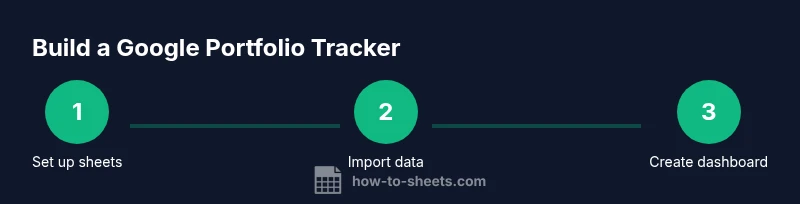
How to Build a Google Portfolio Tracker in Google Sheets
A practical guide to building a google portfolio tracker in Google Sheets. Learn data models, formulas, dashboards, and best practices for students, professionals, and small businesses.


With this guide, you'll build a practical google portfolio tracker in Google Sheets that tracks holdings, prices, and performance. You will create a scalable template, set up data validation, and design dashboards for clear, actionable insights. By the end, you’ll have a reusable tracker you can adapt for any portfolio size.
What a Google Portfolio Tracker Can Do
A google portfolio tracker built in Google Sheets centralizes your investment data, letting you monitor holdings, prices, and performance in one live, shareable workbook. You can track stocks, ETFs, mutual funds, and cash with a clear view of cost basis, market value, daily changes, and overall ROI. The How To Sheets team highlights that a well-structured tracker saves time, reduces manual errors, and scales with growth. Beyond plain totals, you gain visibility into diversification, risk exposure, and progress toward financial goals, with the ability to simulate scenarios like adding new positions or rebalancing across sectors. A robust tracker also supports exporting dashboards for advisers or classmates, making it a powerful educational and professional tool.
When used consistently, this kind of tracker helps you spot drift between intended allocations and actual holdings, identify implicit costs, and communicate results with stakeholders. The end result is a transparent, auditable record you can trust for decision-making.
According to How To Sheets, the most effective portfolios are those with clean data structures, clear formulas, and simple dashboards that anyone can understand at a glance.
Core Features to Include in Your Tracker
A strong google portfolio tracker should cover data capture, price integration, calculations, and visuals. Start with a Holdings table that lists Ticker, Asset Type, Shares, Buy Price, Buy Date, Fees, and Currency. Add a Current Price column that pulls quotes automatically, a Market Value column, a Cost Basis column, and an Unrealized P/L figure. Build aggregated metrics like Total Value, Total Cost, and Portfolio ROI. For diversification, include an Allocation chart showing weight by ticker or sector. Data validation via drop-down menus keeps your data clean, while named ranges simplify formulas and future edits. Finally, ensure you can export to CSV or PDF for reporting, and keep a version history for accountability.
With these features, your tracker becomes a practical tool for daily monitoring, scenario planning, and sharing insights with teammates or mentors.
Designing Data Model and Layout
Plan a simple, scalable data model that can grow with your portfolio. Use at least three sheets: Holdings for positions, Prices for price data, and Dashboard for visuals. In Holdings, define columns such as Ticker, Shares, Buy Price, Buy Date, Fees, and Currency. In Prices, store sources and latest quotes per ticker to avoid duplicating data in multiple cells. On Dashboard, include charts and key metrics like Allocation, Performance, and Cash Drag. Use named ranges like tickerList and priceTable to keep formulas readable. Also implement data validation for Ticker and Asset Type to minimize typos, and consider color-coding rows by performance to spot trends quickly.
Tools & Materials
- Computer with internet(Any modern computer with a web browser)
- Google account(Needed for Google Sheets and sharing)
- Google Sheets access(Prefer the latest version for features)
- CSV with holdings (optional)(For quick data import if you have one)
Steps
Estimated time: 60-120 minutes
- 1
Set up sheet structure
Create a dedicated Portfolio workbook in Google Sheets with at least three sheets: Holdings, Prices, and Dashboard. Add headers for Ticker, Shares, Buy Price, Buy Date, Fees, and Currency in Holdings. Freeze the first row for easy scrolling and keep your data model consistent across future expansions.
Tip: Use a single source of truth for tickers and dates to avoid misalignment. - 2
Create the Holdings table
Enter your current holdings with ticker symbols, quantities, and costs. Use a drop-down for Asset Type and Ticker to minimize errors. Include a separate column for Notes and a currency field if you hold multiple currencies.
Tip: Link the ticker drop-down to a named range so you can update tickers in one place. - 3
Import live prices
Populate the Current Price column by pulling quotes from GOOGLEFINANCE or a CSV feed. Map each ticker to its latest price and keep a backup in the Prices sheet.
Tip: Expect minor delays in price updates; plan for end-of-day accuracy rather than real-time trading. - 4
Compute market value and P/L
Create Market Value (Shares × Current Price), Cost Basis (Shares × Buy Price + Fees), and Unrealized P/L. Add ROI as (Market Value − Cost Basis) ÷ Cost Basis and use SUM across rows for totals.
Tip: Round values consistently to 2 decimals to avoid clutter in dashboards. - 5
Build a dashboard
Create visuals such as a pie chart for allocation and a bar chart for performance by ticker. Use sparklines for price trends and conditional formatting to highlight top performers or laggards.
Tip: Use named ranges for chart data so dashboards stay intact if rows are reordered. - 6
Share and maintain
Share the tracker with teammates or mentors, set appropriate permissions, and enable version history to track changes. Schedule periodic reviews to refresh data and adjust for corporate actions or splits.
Tip: Protect key formulas or ranges to prevent accidental edits.
FAQ
How do I update live prices in my tracker?
Use GOOGLEFINANCE in the Current Price column or rely on a CSV feed. Note that data delays vary by source and may affect intraday accuracy.
Update prices with GOOGLEFINANCE or a CSV feed. Expect slight delays depending on the source.
Can I track multiple portfolios in one sheet?
Yes. Create separate Holdings sections or sheets for each portfolio and consolidate totals on a master Dashboard.
Yes, you can track multiple portfolios by organizing separate sections and a master summary.
Is GOOGLEFINANCE reliable for stock prices?
GOOGLEFINANCE is convenient for trackers but not a substitute for professional data feeds during high-stakes trading.
GOOGLEFINANCE is convenient but not ideal for high-stakes trading.
How can I share the tracker with teammates?
Use Google Sheets sharing settings to grant view or edit access. Protect critical formulas and use version history.
Share via Google Sheets and keep history to track changes.
How do I import holdings from a CSV?
Use File > Import > Upload to bring CSV data into your Holdings sheet. Map fields to the correct columns during import.
Import your CSV and map fields to the right columns.
Watch Video
The Essentials
- Plan data model before data entry
- Automate price pull and calculations
- Visualize allocation for quick insights
- Maintain data hygiene with validation and backups