Ultimate Google Sheets Investment Tracker: A Step-by-Step Guide
Build a robust, reusable investment tracker in Google Sheets that consolidates holdings, transactions, prices, and dashboards with templates, clear steps, and automation.


By the end of this guide you will build an ultimate google sheets investment tracker that centralizes holdings, performance, cash flow, and risk indicators. Start from a modular template, import data from statements, configure automatic updates, and create dashboards that reveal insights at a glance. You will learn data modeling, formulas, and dashboard design to turn scattered numbers into a repeatable system.
Why an ultimate google sheets investment tracker matters
In the daily world of investing, a well-designed tracker converts scattered data into a clear story. The term ultimate google sheets investment tracker signals a solution that is flexible enough for a student budgeting a few hundred dollars and scalable enough for a small business managing multiple portfolios. Google Sheets is accessible, shareable, and capable of handling price updates, cash flows, and performance metrics with simple formulas.
By building a single source of truth, you reduce repetitive manual work and minimize errors that creep in with isolated spreadsheets. A modular template lets you adapt to changing strategies, whether you buy index funds, fractional shares, or a mix of assets. The goal is to capture three things in one place: what you own, how it performs, and how cash moves through your accounts. When done correctly, the tracker becomes a living dashboard you consult weekly, not a ledger you dread updating.
Core components of the tracker
A practical investment tracker built in Google Sheets centers on a few core components. Start with a Holdings table that lists each asset, ticker, quantity, and cost basis. Add a Transactions log to record buys, sells, splits, and dividends. A Prices sheet keeps price history or imports live quotes. Finally, a Dashboard compiles KPIs and visuals so insights appear at a glance. Together, these modules form a flexible, scalable system that supports ongoing portfolio management while remaining easy to audit and extend.
Data structure and templates
Design a clean data model before formulas. A typical foundation includes: Holdings (ticker, name, units, cost basis), Transactions (date, ticker, type, amount, price), Prices (date, ticker, close), and a Dashboard view (summary metrics and visuals). Use templates for recurring patterns such as monthly cash flow, performance tracking, and rebalancing alerts. Validate inputs with data validation rules and consistent date formats to prevent miscalculations. A well-documented template makes it simple for teammates or classmates to adopt and customize without breaking the model.
Importing data sources and automation
Data imports are the lifeblood of an investment tracker. You can manually paste holdings and transactions, import CSV exports from brokers, or pull data via simple integrations. In Google Sheets, functions like IMPORTXML, IMPORTDATA, or Google Finance can fetch prices and dividends, while Apps Script can schedule automatic refreshes. Plan a small, repeatable import routine and log changes so you can audit variants if needed. Automating data reduces errors and keeps dashboards current.
Building the dashboard: KPIs and charts
Dashboards translate raw data into action. Core KPIs typically include total portfolio value, net return, and cash balance. Add charts that show value over time, asset allocation, and sector exposure. Use conditional formatting to flag overweight positions or drawdowns. A good dashboard highlights trends without overwhelming the viewer, so keep filters intuitive and maintain a consistent color palette that aligns with your brand or goal.
Example: 12-month investment tracker workflow
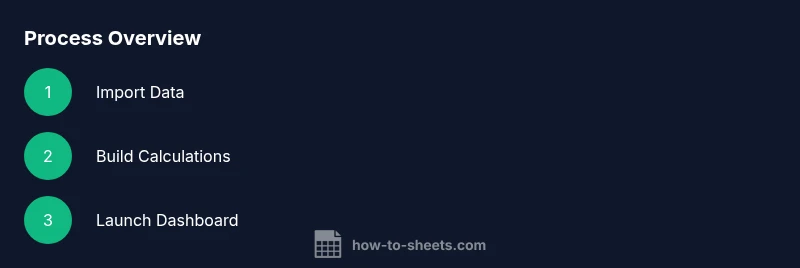
A practical workflow guides your implementation. Step one is set up the data model and template structure. Next, import your initial data and verify that holdings, prices, and transactions align by ticker. Then create key dashboards and set up a simple refresh schedule. Finally, document maintenance steps and share the latest version with collaborators. This workflow helps ensure your ultimate google sheets investment tracker stays accurate and useful over time.
Common pitfalls and troubleshooting
Common mistakes include misaligned dates, duplicate transactions, and incorrect cost basis calculations. Price data delays can distort performance visuals. Use data validation, unique keys, and clear row IDs to prevent duplicates. Regularly audit formulas and test changes on a copy of the sheet before applying to the live version. If dashboards look off, backtrack through the data pipeline to locate the discrepancy.
Security, sharing, and version control
Treat investment data as sensitive when sharing. Use Google Sheets sharing controls to limit access, and enable version history to track changes. Create a naming convention and a quarterly backup process to avoid accidental overwrites. If you work in a team, assign edit rights only to responsible members and keep a read-only copy for stakeholders. Regular reviews help maintain trust and integrity in the tracker.
Extending with templates and add-ons
Once your core tracker is solid, extend it with templates and visual templates for quick deployment. Save the structure as a reusable Google Sheets template for new portfolios, or duplicate the workbook for different clients or projects. Incorporate charts, sparklines, and interactive controls such as drop-downs and checkboxes. Explore add-ons that connect to external data sources, but prioritize reliability and data privacy when choosing tools.
Advanced techniques for power users
Power users can elevate the tracker with dynamic named ranges, array formulas, and custom functions. Use index and match for flexible lookups, and prepare pivot-friendly structures to feed dashboards. Maintain a versioned sheet with a changelog to track improvements over time. These techniques improve scalability, accuracy, and performance as your portfolio grows.
Quick-start template download and customization
To accelerate your setup, start from a reusable investment tracker template designed for Google Sheets. Duplicate the template to create separate portfolios, customize the holdings and dashboard sections, and tailor the data validation rules to your asset classes. Save a copy in a shared drive and document how to update data sources. The template lets you hit the ground running while keeping future changes safe and reversible.
Final checklist before going live
Before sharing with others, verify data integrity, test all formulas, and ensure dashboards refresh correctly. Confirm access permissions, enable version history, and implement a simple maintenance schedule. Create a one-page guide for collaborators detailing where to edit data, how to update prices, and whom to contact for issues. A solid checklist minimizes surprises after you publish.
Tools & Materials
- Google account with Google Drive access(Needed to save and share the tracker across devices)
- Google Sheets enabled(Open a new spreadsheet or template in Sheets)
- Data sources (broker statements, CSV exports, or financial feeds)(Import holdings, transactions, and prices)
- CSV/Excel import capability(Useful for bulk data imports)
- A defined data model (Holdings, Transactions, Prices, Dashboard)(Foundation for calculations and visuals)
- Basic charts and dashboard templates(Optional but helpful for a quick start)
Steps
Estimated time: Total time: 60-90 minutes
- 1
Define your data model
Outline the core tables: Holdings, Transactions, Prices, and Dashboard. Decide on required fields and naming conventions to ensure consistency across formulas.
Tip: Draft the model on paper first, then implement in Sheets to avoid redesign later. - 2
Create core sheets and templates
Set up the four main sheets and template structures. Apply data validation and protect header rows to prevent accidental edits.
Tip: Lock headers and use named ranges for readability and easier maintenance. - 3
Import initial data
Bring in holdings, transactions, and price history. Verify alignment by ticker and date to ensure a solid starting point.
Tip: Import into a test copy first to avoid impacting the live model. - 4
Build key calculations
Create cost basis, realized and unrealized returns, ROI, and CAGR. Use array formulas where appropriate to reduce manual effort.
Tip: Use named ranges to keep formulas readable and maintainable. - 5
Assemble the dashboard
Add KPIs and charts such as portfolio value over time and asset allocation. Keep visuals clean and filterable.
Tip: Limit to 3-4 charts for clarity and use a consistent color scheme. - 6
Automate updates and review
Set a refresh schedule, test error handling, and document maintenance steps. Share the latest version with collaborators.
Tip: Create a simple monthly checklist to keep data fresh.
FAQ
What makes a Google Sheets investment tracker truly effective?
A practical tracker uses a modular template, a clean data model, and dashboards to present trends clearly. It should be easy to update and audit. The goal is consistency, accuracy, and usability for ongoing portfolio management.
A practical tracker uses a modular template and dashboards to show trends clearly and remains easy to update.
Can I import data from my broker or CSV files?
Yes. Import holdings and transactions via CSV exports or broker feeds. Ensure ticker formats and dates are consistent to avoid misalignment.
Yes, you can import via CSV and ensure data consistency.
Is it secure to share the tracker with teammates?
Share with the minimum required permissions and review access regularly. Use version history to track changes.
Share with the right people and monitor access levels.
Can I manage multiple portfolios in one tracker?
Yes, design a multi-portfolio structure with a portfolio selector and separate dashboards for each.
Yes, use a portfolio selector and separate dashboards.
How often should I refresh data and review performance?
Set a cadence such as weekly updates and monthly performance reviews to stay current.
Refresh weekly, review monthly.
Watch Video
The Essentials
- Build a modular template you can reuse.
- Automate data imports to reduce errors.
- Dashboards reveal insights at a glance.
- Validate data to maintain accuracy.
- Document steps for teammates.