Google Sheets Portfolio Tracker: Step-by-Step Guide to Build Your Tracker
Learn to build a practical, scalable Google Sheets portfolio tracker for students, professionals, and small businesses. Step-by-step guidance, templates, and tips to monitor holdings, returns, and performance with a live dashboard.


Create a practical Google Sheets portfolio tracker by organizing holdings, transactions, and prices into a clean workbook. You’ll define tabs, use formulas for returns, pull prices with GOOGLEFINANCE, and build a simple dashboard. This approach suits students, professionals, and small businesses who want a low-cost, customizable tracking solution. With a clear structure, you can monitor performance, rebalance, and share updates with teammates.
Why a Google Sheets portfolio tracker matters
A well-designed Google Sheets portfolio tracker gives you a transparent view of holdings, performance, and risk. For students learning about finance, for professionals managing client portfolios, or for small-business owners keeping track of cash and investments, a tracker built in Google Sheets is accessible, customizable, and cost-effective. According to How To Sheets, starting with a simple, scalable sheet structure makes it easier to grow your portfolio without a steep learning curve. The same How To Sheets analysis shows that teams benefit from templates and automation when data flows cleanly between your tabs. When you approach this as a living document rather than a static list, you’ll monitor performance, spot trends, and rebalance more confidently. A Google Sheets portfolio tracker also eases collaboration since you can grant view or edit access to teammates. By focusing on clear data models and reliable calculations, you reduce the likelihood of mispricing or missed transactions. In short, this isn’t just a spreadsheet—it's a practical system for financial visibility and decision support.
Core components of a portfolio tracker
A successful portfolio tracker in Google Sheets rests on a few core components:
- Holdings table: Ticker, Asset name, Quantity or Shares, Purchase price, and Currency.
- Price feed: Current price per asset and the date the price was last updated.
- Calculations: Market value, cost basis, total return, and percentage return.
- Transactions log: Buy/sell records, fees, and timestamps.
- Dashboard: Visual summaries with charts and key metrics.
Each component should be linked through consistent identifiers (tickers, IDs, or unique keys) and protected with basic data validation to prevent accidental edits. By maintaining a stable data model—separate inputs (transactions) from computed outputs (valuations)—you make the tracker easier to audit and debug. A thoughtful layout reduces clutter and speeds up decision-making during reviews.
Tip: Keep a clear data dictionary so every user knows what each column represents and how calculations are derived.
Data sources and imports
To keep prices current, you’ll connect your Google Sheets portfolio tracker to live data, using functions such as GOOGLEFINANCE, IMPORTHTML, or IMPORTXML when appropriate. Decide which assets you’ll track and how often you refresh: some prices update every few minutes, others daily. Use a dedicated “Prices” sheet to store current values and a timestamp so you can verify freshness. If you rely on external feeds, consider using named ranges and data validation to prevent downstream errors. Keep in mind that GOOGLEFINANCE works best for widely traded securities; for non-listed assets you may need manual updates or a CSV import. For historical performance, you can store transaction dates and prices and compute returns with simple arithmetic or array formulas. Security and privacy matter: don’t expose private keys or sensitive data in shared sheets.
How To Sheets perspective: How To Sheets analysis shows that reliable data flow and documented assumptions reduce errors as your portfolio tracker scales.
Building a sample tracker from scratch
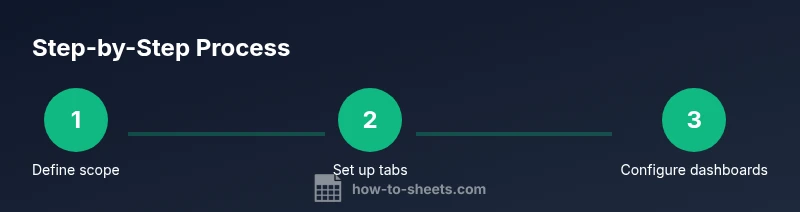
Start with a clean Google Sheet and create three tabs: Portfolio, Transactions, and Dashboard. In Portfolio, set headers: Ticker, Name, Shares, Purchase Price, Current Price, Market Value, Cost Basis, Realized/Unrealized Return. In Transactions, track each buy/sell with date, ticker, amount, and fees. In Dashboard, place KPI cards and charts. Use formulas such as Market Value = Shares * Current Price and Unrealized Return = (Current Price - Purchase Price) * Shares. Tie the Portfolio to Transactions with VLOOKUP or INDEX/MATCH to keep totals accurate when you adjust holdings. For automation, you can add a script to refresh prices on schedule, but start with built-in formulas first. This approach maintains accuracy and enables quick portfolio assessments.
Advanced features: dashboards and charts
Turn data into insight with a clean dashboard. Add charts to visualize performance by asset class or sector, sparklines for individual holdings, and a date slicer to review changes over time. Use pivot tables to summarize totals by ticker, currency, or category. Create a small scorecard showing total market value, total cost, and overall return. Color-code gains in green and losses in red, so you can scan the dashboard at a glance. The portfolio tracker in Google Sheets can support scenario planning by allowing you to change assumptions and immediately see outcomes.
Pro tip: Keep charts simple and readable; too many visuals can obscure insights and slow your sheet.
Tips for accuracy and consistency
Enforce data validation on key fields (ticker, date, quantity), lock formulas via protected ranges, and name ranges for common calculations. Use consistent units (e.g., USD) and store historical prices in separate columns to preserve audit trails. Add a daily or weekly refresh reminder to reduce drift between prices and valuations. Document assumptions in a dedicated notes cell so teammates know how calculations work. With disciplined data practices, your google sheets portfolio tracker stays trustworthy as it scales.
Warning: If you copy formulas between sheets without anchoring references, you can introduce errors that compound over time.
Common pitfalls and how to avoid them
Relying on a single data source can create blind spots; cross-check prices with your broker or another feed. Forgetting to update transactions leads to skewed returns. Copy-paste errors break formulas; prefer anchored references and named ranges. If your sheet becomes sluggish with large data, split data into multiple tabs and archive old records. Finally, avoid exposing sensitive data when sharing a live workbook. Regular audits and version control help prevent mistakes from slipping through.
Sharing and collaboration considerations
Google Sheets makes collaboration easy, but a portfolio tracker contains sensitive data. Use access controls to limit editing to trusted teammates and enable viewing for others. Use version history to revert changes, and consider creating a read-only copy for stakeholders. Establish a revision schedule and a quick data-entry protocol so everyone records transactions consistently. When in doubt, document who changed what and when to maintain accountability.
Maintenance and templates for scale
Start with a solid template you can clone for new portfolios. As your needs grow, modularize data: separate raw inputs from calculations, keep dashboards as a separate tab, and archive old data to prevent performance bottlenecks. Save a baseline version of the sheet regularly and document every formula. If you design with templates in mind, you can reuse the framework for future projects while preserving accuracy. When you’re ready to scale, consider creating a guided template library to accelerate onboarding for teammates.
Tools & Materials
- Google account (Google Workspace or personal)(Needed to access Google Sheets and share the tracker)
- Computer or mobile device with internet(For editing in Google Sheets)
- Base data set or sample holdings(Initial investments to populate the tracker)
- Access to data sources (GOOGLEFINANCE/IMPORTXML)(Optional for live price updates)
- CSV or spreadsheet imports (optional)(To populate historical transactions quickly)
Steps
Estimated time: 120-180 minutes
- 1
Define portfolio goals and data model
Identify what you want to track (holdings, transactions, prices, and performance). Sketch a simple data model with separate inputs and outputs to keep formulas clean.
Tip: Clarify risk tolerance and reporting needs to guide the data fields you include. - 2
Create a new Google Sheet and name it
Open Google Sheets, create a new file, and name it (e.g., 'Portfolio Tracker'). Establish a separate tab for Portfolio, Transactions, and Dashboard.
Tip: Use color-coding for each tab to reduce confusion during edits. - 3
Set up core tabs and headers
In Portfolio, add headers like Ticker, Name, Shares, Purchase Price, Current Price, Market Value, and Returns. In Transactions, track date, ticker, action, amount, and fees.
Tip: Lock header cells and apply data validation for commas, currency, and dates. - 4
Enter initial holdings and formulas
Populate a small set of initial holdings and configure core formulas (e.g., Market Value = Shares * Current Price). Validate results with a manual check.
Tip: Anchor cell references to ensure formulas adapt when rows shift. - 5
Integrate live price data
Use GOOGLEFINANCE or a CSV import to pull current prices into the Current Price column. Add a timestamp to verify data freshness.
Tip: For non-standard assets, prefer manual updates and notes instead of automatic feeds. - 6
Create a basic dashboard
Add KPI cards and a few charts that display total market value, overall return, and distribution by asset class or sector.
Tip: Keep visuals minimal to avoid clutter and improve readability. - 7
Add data validation and protections
Apply validation on key fields and protect essential formulas from accidental edits. Use named ranges for consistency.
Tip: Document your validation logic in a hidden sheet or notes area. - 8
Test with a mock update
Simulate a price change and a transaction to confirm all calculations update correctly and dashboards reflect the change.
Tip: Use a 'Test' tab to avoid breaking live data. - 9
Configure sharing and permissions
Set read or edit access for teammates, and enable version history for accountability.
Tip: Provide a quick guide for collaborators to reduce friction. - 10
Document and back up
Create a short how-to document for future users and save a backup version of the template.
Tip: Schedule periodic backups and archive older data to keep performance snappy.
FAQ
What is a Google Sheets portfolio tracker?
A Google Sheets portfolio tracker is a structured workbook that records assets, purchases, prices, and performance. It combines input data with formulas to automatically compute current value, total return, and charts for quick insights.
A Google Sheets portfolio tracker is a structured workbook that records assets, purchases, prices, and performance, with formulas to compute value and returns.
Can I automate price updates in Google Sheets?
Yes. Use functions like GOOGLEFINANCE or IMPORTXML to pull price data automatically. For non-supported assets, you can schedule CSV imports or manual updates and document the data source.
Yes. You can pull price data automatically using GOOGLEFINANCE, or import data when needed.
How do I calculate total return in this tracker?
Total return is the difference between current value and cost basis, divided by the cost basis, expressed as a percentage. Use a formula like (Market Value - Cost Basis) / Cost Basis.
Total return equals current value minus cost basis, divided by cost basis.
Is it safe to share my portfolio tracker with teammates?
Sharing is safe when you use view or edit access properly and monitor changes via version history. Avoid exposing private information and use gDrive permissions to control access.
Sharing is safe with proper access controls and version history.
Can I adapt the template for another portfolio?
Yes. Clone the template for a new portfolio, adjust asset lists, and reconfigure dashboards. Keep a master template to simplify onboarding for new portfolios.
Absolutely—clone and adjust the template for new portfolios.
What common mistakes should I avoid?
Avoid relying on a single data source, forgetting to refresh data, and not locking formulas. Keep data validation tight and document your assumptions to ensure consistency.
Avoid single sources, refresh regularly, and lock formulas.
Watch Video
The Essentials
- Define a clear data model for holdings, transactions, and prices.
- Link inputs to outputs with robust formulas.
- Use a dashboard to visualize performance.
- Protect data and maintain version history.
- Scale by cloning templates and archiving old data.