Google Sheets Sales Tracking: Step-by-Step Guide
Learn to track sales effectively in Google Sheets with templates, formulas, and automation. A practical guide for students, professionals, and small business owners seeking actionable, repeatable steps.


By the end of this guide, you will have a scalable Google Sheets sales tracker that captures deals, stages, revenue, and close dates, plus a live dashboard to monitor performance. You’ll learn essential formulas, import options, and a reusable template to adapt as your team grows. Basic setup requires a Google account, Sheets access, and a starter template.
Why Google Sheets for Sales Tracking
Google Sheets is a flexible, low-cost option for tracking sales from first contact to close. For students and small teams, Sheets provides a familiar interface, real-time collaboration, and a broad library of functions that power dashboards without needing specialized software. With templates, you can standardize fields like deal name, amount, stage, owner, and close date, ensuring everyone speaks the same language. Because Sheets is cloud-based, teammates can access the latest numbers from anywhere, which is essential for remote teams and rotating sales coverage. In this guide, we’ll focus on practical, repeatable steps to build a reliable sales tracking system that scales as your pipeline grows, so you can forecast revenue more accurately and spot bottlenecks early. This approach aligns with best practices for data governance and collaboration while staying affordable for a wide range of business models.
Core Metrics to Track in a Sales Pipeline
A robust sales tracker centers on a handful of core metrics that reveal health and momentum. Key data points include total pipeline value, win rate, average deal size, close rate by stage, and sales velocity (the time from lead to close). You’ll also want to track activity metrics such as calls or emails per week and the source of each lead to optimize your approach. In Google Sheets, you can compute these metrics with simple formulas and create dashboards that summarize performance at a glance. For example, a pipeline value cell can sum all opportunities in the "Forecast" stage, while a win-rate cell divides closed-won deals by total opportunities. By structuring data consistently and updating it regularly, you’ll see trends emerge—like which campaigns convert best or which stages cause delays—enabling targeted improvements.
Designing a Reusable Template: Tabs, Columns, and Naming
A practical sales tracker lives in a few linked sheets. Start with a Data tab containing core fields: Date, Lead Source, Account, Contact, Deal Name, Stage, Amount, Probability, Close Date, Owner, and Notes. Then add a Pipeline/Opportunities tab that uses data from Data to classify deals by stage and forecast value. Create a Dashboard tab that pulls key figures and charts from the other tabs. Use consistent naming conventions (e.g., Stage_01, CloseDate) to simplify formulas and data validation. Build in validation rules to prevent missing essential fields: for example, require a non-empty Deal Name and a numeric Amount greater than zero. Consider using named ranges for critical columns so formulas stay readable even as sheets grow. Finally, document your template with a brief readme tab so new teammates can onboard quickly. The goal is a single source of truth that is easy to customize for different products, regions, or teams while maintaining data integrity.
Key Formulas and Techniques for Accuracy
Formulas are the secret sauce of a reliable sales tracker. Use SUMIF or SUMIFS to total pipeline value by stage or owner, and use COUNTIF to measure the number of deals in each stage. VLOOKUP or XLOOKUP (if available) helps pull account details into the Data tab, while FILTER or QUERY creates dynamic views for different teams. Conditional formatting quickly flags overdue close dates or deals below a minimum threshold. Implement a simple data-validation rule to prevent negative amounts or blank fields, and round currency values for consistency. Consider using a separate sheet for calculated fields (e.g., derived revenue, win rate) so you don’t clutter the primary data entry area. Finally, maintain a lightweight change log, so you know when formulas were updated or data sources changed.
Automating Data Imports and Updates
Manual data entry is the main source of error and drags down accuracy. Automating data imports reduces effort and increases freshness. Options include IMPORTDATA or IMPORTXML for public feeds, IMPORTRange to merge data from other sheets, and Apps Script for more complex flows. If you bring CRM data, consider a one-way data pull with scheduled refresh where possible, or a monthly export converted to CSV placed in a shared folder. Always document the data mapping: which column in the source maps to which field in your tracker. For real-time updates, connect to your CRM via an API or use a middleware tool that pushes new deals into your Sheet. Keep data access restrictions in mind—avoid exposing sensitive customer details in live dashboards.
Building a Lightweight Dashboard in Sheets
Dashboards transform raw data into decision-ready visuals. Start with a clean Dashboard tab that features key metrics: pipeline value by stage, win rate, average deal size, and a chart of monthly closed revenue. Use charts to show trends over time and sparklines for quick micro-views. Create drop-down filters (data validation) to switch between teams, products, or regions. Link dashboard widgets to named ranges so they automatically update as data changes. Use color cues (green for healthy, yellow for warning, red for risk) with conditional formatting. Finally, publish the dashboard within the shared drive so stakeholders can access a high-level view without editing the underlying data. Remember to keep the visuals simple and avoid information overload.
Real-World Scenario: Small Business Use Case
Consider a small SaaS reseller with three sales reps and a monthly quota. They use a single Google Sheet with a Data tab for fresh leads, a Pipeline tab for active opportunities, and a Dashboard showing the total pipeline, won revenue, and close rate. Each week, they import new opportunities from their CRM and update statuses. Within a couple of weeks, they notice bottlenecks at the Proposal and Negotiation stages, enabling targeted coaching and process tweaks. This concrete example illustrates how scalable, collaborative tracking in Google Sheets can support growth without heavy software investments.
Data Quality: Validation, Versioning, and Access Control
To keep your tracker trustworthy, implement strict data validation rules (required fields, numeric ranges, and date formats). Maintain a versioned change log so you can trace who updated what and when. Use protected ranges on the Dashboard and other critical tabs to prevent accidental edits by non-admin users. Regularly back up your template and consider archiving older data in a separate sheet or file to keep performance snappy. Clear ownership and documented processes help teams stay aligned as you scale.
Tools & Materials
- Google account with Sheets access(Needed to create/edit the tracker and share with teammates.)
- Starter template file(Optional if starting from scratch; a clean scaffold saves time.)
- Sample dataset (CSV or Excel)(Use for initial data population and testing formulas.)
- CRM/export data source (CSV/API access)(Optional for auto-import workflows.)
- Data validation lists and named ranges(Encourage consistency across fields.)
Steps
Estimated time: 60-90 minutes
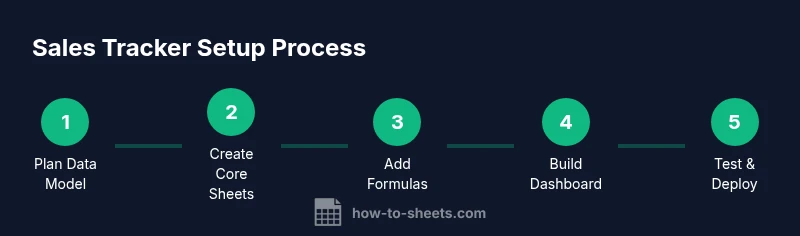
- 1
Define data model
Outline required fields (Deal Name, Amount, Stage, Close Date, Owner, Source, etc.) and decide how data flows between tabs (Data → Pipeline → Dashboard). Create a rough sheet layout on paper or in a scratch tab to validate your plan before building.
Tip: Plan for future fields; reserve columns that you may add later. - 2
Create core sheets
Set up Data, Pipeline, and Dashboard tabs with clear headers. Use shared formatting rules to keep things readable and consistent across tabs.
Tip: Lock header rows to prevent accidental edits in data areas. - 3
Establish data validation
Add rules to require essential fields (non-empty Deal Name, positive Amount). Use drop-downs for Stage and Source to maintain consistency.
Tip: Use named ranges for key columns to simplify formulas. - 4
Enter sample data
Fill 20–30 sample rows that cover typical deals and edge cases (missing fields, multiple stages, late close dates). This helps validate formulas and dashboards.
Tip: Include at least one won and one lost example for accuracy checks. - 5
Implement core formulas
Add totals by stage, win-rate calculations, and average deal size. Create a few dynamic views using FILTER or QUERY for team-specific insights.
Tip: Test formulas against your sample data to ensure correctness. - 6
Build dashboard visuals
Create KPI cards and charts (pipeline by stage, monthly revenue, win rate). Add simple filters for team or region so stakeholders can personalize views.
Tip: Keep visuals simple to avoid cognitive overload. - 7
Test, document, and deploy
Review data accuracy, document field meanings and formula logic in a Readme tab, then share with the team and set permission levels.
Tip: Establish a quick onboarding guide for new users.
FAQ
What data should I include in a Google Sheets sales tracker?
Include core fields such as Deal Name, Amount, Stage, Close Date, Owner, Source, and Notes. Maintain consistent data types (dates, currency) and consider separate fields for currency and probability to support forecasting.
Include key fields like deal name, amount, stage, close date, owner, and source to enable filtering and forecasting.
How can I keep the data accurate with minimal effort?
Use data validation, one-way data imports, and simple formulas. Maintain a change log so you can track updates and verify formula changes over time.
Automate imports, validate inputs, and log changes to keep data accurate with less manual work.
Can I share the tracker with a team without risking edits to critical fields?
Yes. Share with appropriate permissions and protect critical ranges to prevent accidental edits on essential fields. Use view-only access for stakeholders who don’t edit.
Yes—share with proper permissions and protect sensitive ranges to prevent accidental changes.
Is Google Sheets scalable for growing sales data?
Sheets works well for small to mid-size datasets. As you grow, consider archiving old records and moving very large historical data to a separate file or database while keeping the live tracker lean.
It scales for small to mid-size datasets; for larger needs, archive old data or move to a database solution.
What about automation and integrations?
Automate data imports with IMPORT/RANGE or Apps Script, and explore API connectors to pull CRM data. Start with simple, one-way updates to keep the tracker reliable.
Automations can save time with data imports and updates; start simple and expand later.
Watch Video
The Essentials
- Define a scalable data model first
- Use validation to protect data quality
- Build a lightweight dashboard for quick insights
- Automate imports to reduce manual entry
- Regularly review data and adjust templates