How to Use Google Sheets Monthly Budget Template
Learn to set up and use a Google Sheets monthly budget template to track income, expenses, and savings with step-by-step guidance, practical formulas, and budgeting best practices for students, professionals, and small businesses.


Using a Google Sheets monthly budget template helps you track income, expenses, and savings in one place. This guide covers setup, category customization, essential formulas, and monthly review rituals so you can stay on top of your finances. Before you begin, ensure you have a Google account, access to Sheets, and a ready template to copy or customize.
What this template can do for you
A monthly budget template in Google Sheets places income, expenses, and savings into a single, trackable view. If you're wondering how to use google sheets monthly budget template, this ready-made solution makes it easier to manage cash flow. By organizing transactions and future projections, you can see cash flow at a glance and identify gaps before they become problems. The How To Sheets team found that teams and individuals who rely on a structured template experience fewer late surprises and more proactive money management. You’ll also quickly compare months to measure progress against goals, such as savings targets or debt payoff plan. This section introduces the practical value of using a Google Sheets monthly budget template and sets expectations for the step-by-step approach that follows.
Core components of a monthly budget template
A robust budget template typically includes: 1) Income sources (salary, freelance, gifts); 2) Fixed expenses (rent, utilities, loans); 3) Variable expenses (groceries, dining, entertainment); 4) Savings and investments (emergency fund, contributions); 5) Debt payments and credits; 6) Monthly totals and a running balance. You’ll want a section for notes and a simple dashboard that highlights overages or gaps. Consistency in naming categories and dates helps keep formulas accurate across months. When you keep these components aligned, you can quickly answer "Where did my money go this month?" and plan for the next one.
Quick start: open and copy a template
Start by opening Google Sheets and deciding whether to use a ready-made template or create your own. If you’re using a template, select it, then choose File > Make a copy to preserve the original. Rename the copy to the current month (e.g., May 2026) and set your currency and locale. Ensure you enable automatic recalculation by keeping formulas intact, and verify that the month’s dates align with your actual spending period. Finally, confirm that you have a clean data range to enter transactions without overwriting built-in totals.
Customizing income and expense categories
Adjust category names to fit your life, add or remove rows for new categories, and color-code groups to improve readability. For example, group all essential expenses in one color and discretionary items in another. Use consistent naming (e.g., 'Groceries' rather than 'Grocery') and consider subcategories for better drill-down analysis. If your template uses expense codes, you can keep them for easier exporting later. The goal is to reflect how you actually spend, not to force a rigid structure.
Automating with formulas
Formulas reduce manual calculations and error. Common approaches include:
- Totals per category: =SUM(B2:B12) where B2:B12 contains line items.
- Monthly income: =SUMIF(A:A, "Income", B:B)
- Net balance: =TotalIncome - TotalExpenses
- Weekly or daily averages: =AVERAGE(C2:C9)
- Error handling: =IFERROR(value, 0)
Use absolute references for fixed totals, and copy formulas across months so months stay in sync. If you change the layout, adjust references accordingly.
Tracking monthly progress with visuals
Add charts to visually compare income vs. expenses, track net change, and spot fluctuations. A simple stacked bar shows how each category contributes to total spending; a line or area chart tracks the running balance over the year. Use conditional formatting to highlight overspending in red and on-target months in green. A small dashboard widget can summarize the month’s bottom line at a glance.
Common issues and fixes
Several pitfalls commonly derail templates: mismatched date ranges, currency formatting errors, or missing formulas in copied ranges. Fix by standardizing date formats (YYYY-MM-DD), applying the correct currency (e.g., USD or EUR), and re-checking formula ranges after duplicating sheets. If totals appear incorrect, verify that the sum ranges cover all rows, not just visible ones.
Collaboration and data protection
When sharing a budget, decide whether collaborators can edit or view only. Use protected ranges to lock core formulas, and keep a backup by duplicating the sheet or using version history. If multiple people enter data, consider a small set of rules for data entry (e.g., always enter transactions in the date column, never edit calculated cells). Regularly review changes to maintain accuracy.
A practical month walkthrough
Imagine a typical month: you earn salary and perhaps a side gig, and you pay rent, groceries, utilities, and transport. Enter the numbers in the income section and in each expense line. As you fill in transactions, the template recalculates totals and updates the balance automatically. Spot an overage in dining? Adjust next month’s groceries or set a new savings contribution. This walk-through demonstrates how quick and responsive the sheet can be for real-world budgeting.
What to do next and resources
Next steps include saving a template copy for each month, duplicating the sheet when you start a new month, and building a simple dashboard to monitor progress over time. For further learning, use official Google support pages, university budgeting worksheets, or credible budgeting blogs that explain budgeting formulas in Sheets. Practice with a year of monthly data to improve forecasting and build stronger money habits.
Tools & Materials
- Google account with Google Sheets access(Sign in to Drive and open Sheets; link your budgeting template to your Drive.)
- Device with internet access(Desktop or mobile; stable connection improves real-time collaboration.)
- Ready-to-use monthly budget template (Google Sheets)(Copy or import a template to start; ensure you keep the original intact.)
Steps
Estimated time: 15-25 minutes
- 1
Open or copy the template
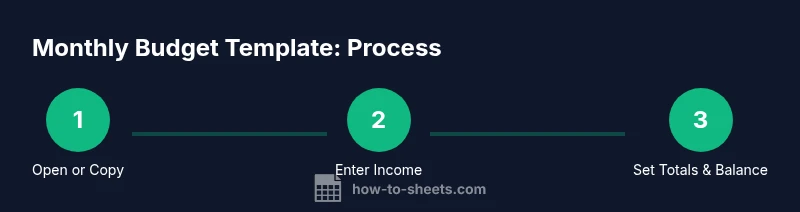
Open Google Sheets and choose an existing budget template or create a new sheet. If using a template, make a copy to avoid editing the original. Rename the file to the current month and confirm the locale and currency settings.
Tip: Always work on a copied version to protect the original structure. - 2
Set currency and month
Set the currency symbol and the month scope. Align date ranges with your spending period so sums reflect the correct timeframe. This ensures your totals and charts are meaningful.
Tip: Use a consistent currency across all sheets in the workbook. - 3
Enter income sources
List all income sources (salary, freelance work, gifts) in the income section. Include expected recurring amounts and any irregular income you anticipate.
Tip: Enter a placeholder 0 for any month with no income to keep formulas stable. - 4
Populate fixed and variable expenses
Fill in fixed expenses (rent, loan payments) first, then add variable expenses (groceries, dining, entertainment). Keep subcategories consistent for easy tracking.
Tip: Group essential vs discretionary expenses by color to improve readability. - 5
Link totals and balance
Use built-in totals and balance formulas to compute monthly net income. Ensure formulas cover all pertinent rows and auto-fill as you add new entries.
Tip: Lock core formulas or protect ranges to avoid accidental edits. - 6
Review and adjust
Review results, compare to prior months, and adjust next month’s plan. Set spending targets and savings goals to improve future performance.
Tip: Schedule a monthly budget review on your calendar.
FAQ
How do I customize categories in the template?
Rename existing categories, add new lines, and adjust colors to reflect your spending. Keep naming consistent to maintain reliable formulas.
Rename categories, add lines, and adjust colors to reflect your spending.
Can I link this template to my bank transactions?
Google Sheets can import transactions via CSV or manual entry. Direct bank syncing isn’t built-in in Sheets, but you can automate imports with compatible apps.
You can import transactions via CSV or manual entry; direct bank syncing isn’t built-in.
How do I share and protect my budget?
Share with specific people and set permissions. Use protected ranges to lock formulas and enable version history for recovery.
Share with specific people and protect key areas with locked ranges.
What formulas should I learn for budgets?
Learn SUM for totals, SUMIF/SUMIFS for category totals, and IFERROR to handle blanks or errors gracefully.
Use SUM, SUMIF or SUMIFS, and IFERROR for clean results.
Is there a mobile-friendly way to use the budget template?
Yes, Google Sheets mobile app supports budgeting edits, though some advanced features may be less convenient on small screens.
You can use the Google Sheets mobile app; some features may be less convenient.
Watch Video
The Essentials
- Use a single template to track all monthly data.
- Automate totals with formulas to reduce errors.
- Customize categories to reflect real spending.
- Review monthly to improve saving and forecasting.