Scholarship Tracker Google Sheets: A Practical Guide
Learn to build a practical scholarship tracker in Google Sheets to manage deadlines, awards, and submission status. This guide offers templates, automation ideas, and dashboards for students, professionals, and small teams.


You will learn to build a scholarship tracker in Google Sheets that centralizes deadlines, award amounts, eligibility, and submission status. This guide covers core fields, layout, automation options, and dashboards, using a practical, ready-to-implement template. You’ll need a Google account and access to Google Sheets to begin.
Why a scholarship tracker matters for students and professionals
A well-maintained scholarship tracker keeps you organized across multiple awards, deadlines, and requirements. By consolidating information in one place—names, providers, amounts, deadlines, and renewal conditions—you reduce the risk of missed opportunities. The How To Sheets team consistently observes that when learners adopt a centralized system, they gain clarity, stay on top of required documents, and improve their chances of successful applications. This is especially true for students juggling multiple scholarships, graduate assistantships, and external funding sources. A tracker also supports transparent reporting to mentors or scholarship committees and informs planning for renewals and future cycles.
According to How To Sheets, a structured tracker can streamline your research process, making it easier to compare offers and prioritize applications. While every student’s data will be unique, the core principle remains the same: capture essential attributes once, then reuse them across applications.
Core data fields to capture in your sheet
A robust scholarship tracker should cover a consistent set of data fields. Start with a Master tab that lists every scholarship and a few key attributes. Core fields include: Scholarship name, Provider, Award amount (and currency), Deadline date, Application status (Not started, In progress, Submitted, Rejected, Awarded), Required documents, Link to details, Contact person, Renewal/eligibility status, and a Notes field for special conditions. Add a Category (e.g., merit, need-based) and a Type (scholarship, grant, or fellowship) to enable filtering. Use Data Validation to create drop-downs for status, category, and type to keep data entry uniform. Consider including a column for suggested next steps and a timestamp for updates so you can track changes over time. This consistent data model makes it easier to generate dashboards and run quick analyses.
Template design and layout: structure that scales
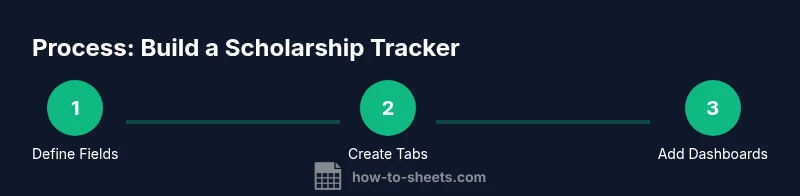
Organize your workbook with a two-or-three-tab layout that scales as you add more scholarships. Suggested structure:
- Master Tracker: the main list with all fields.
- Deadlines: a focused view that highlights upcoming due dates.
- Applications: a log of submitted materials and responses.
- Analytics/Dashboard: charts and pivot tables summarizing data.
Use conditional formatting to highlight deadlines approaching within 14–30 days in red or orange. Name tabs clearly (e.g., Scholarships_Master, Scholarships_Deadlines). Create named ranges for key columns, enabling simple, repeatable references in formulas and charts. A consistent color palette (e.g., blue for data, green for status) improves readability and reduces cognitive load during busy application cycles.
Data capture and automation ideas: reduce manual entry
Automation saves time and reduces errors. Start by importing data from CSVs or other sources using IMPORTRANGE or Apps Script. If you receive multiple updates from a provider, consider a simple Google Form that feeds the Master Tracker directly (name, provider, amount, deadline). Use data validation to constrain inputs (dates, currency, statuses) and implement a simple script to auto-fill the next steps based on status changes. For power users, you can build a small Apps Script that sends you weekly email summaries of upcoming deadlines or renewal opportunities, keeping you proactive rather than reactive.
Tracking deadlines and renewal windows: stay on schedule
Deadlines matter most. In your Deadlines tab, sort by date and highlight upcoming due dates. Use a conditional rule like: if deadline is within 30 days and status is not yet submitted, color the row or the deadline cell red. Add a Renewal column to flag scholarships with renewal requirements and set reminders for renewal windows. Time-zone considerations are important for international scholarships; store dates in a consistent format (YYYY-MM-DD) and, if needed, convert from local time zones to a universal date-time standard for accuracy.
Dashboards and analytics: turning data into insights
A practical dashboard provides at-a-glance visibility of your progress. Build charts that show total awards by provider, average award size, and a timeline of deadlines. Use a pivot table to summarize by provider or category, then create sparklines to show trends over cycles. Add a calculated field for “Probability of success” based on status history (qualitative estimate) to help priorities. Remember: dashboards should be actionable, not decorative—keep only the metrics that drive decisions and pair charts with brief explanations.
Maintenance, collaboration, and data integrity
A successful tracker isn’t a one-off project; it evolves with you. Set sharing permissions carefully: limit editing rights to your own account for the Master tab, while granting viewing access to mentors. Protect cells that contain formulas or critical fields, and enable version history so you can revert when needed. Regularly audit the data for consistency (dates, currency, status codes) and periodically archive scholarships that are no longer active. Establish a routine—weekly checks during peak application season, monthly reviews otherwise—to keep the tracker accurate and useful.
Example workflow: from discovery to submission in 4–6 weeks
Imagine you’re pursuing five scholarships with different deadlines. Start by listing all options in the Master Tracker with basic fields. Each week, review new deadlines, update statuses, and record document readiness. Use the Deadlines tab to surface the next actions (collect transcripts, write essays, request letters). When you submit, move the status to Submitted and note the submission date. This disciplined workflow minimizes last-minute scrambling and helps you reflect on what works best for future cycles.
Tools & Materials
- Google account with Google Sheets access(Required for live editing and cloud storage)
- Laptop or device with internet(Stable connection for real-time collaboration)
- Google Sheets (starter template or blank sheet)(Template structure with tabs Master, Deadlines, Applications)
- Google Forms or Apps Script (optional)(For automated data capture and reminders)
- Sample data CSV (optional)(To seed the Master Tracker with realistic fields)
Steps
Estimated time: 40-90 minutes (setup) + ongoing updates
- 1
Create a new Google Sheets workbook and name tabs
Open Google Sheets and create a new workbook. Rename the first tab to Scholarships_Master, add a Deadlines, Applications, and Analytics tab. Establish a clear naming convention for each tab and keep headers consistent across sheets.
Tip: Use bold header rows and freeze the header for easy scrolling. - 2
Define core fields on the Master tab
In Scholarships_Master, define fields such as Scholarship Name, Provider, Amount, Deadline, Currency, Status, Documents, Link, Renewal, Category, Type, and Notes. Set appropriate data types (date, currency, text) and use data validation for Status, Category, and Type.
Tip: Create a template row that you can copy for each new scholarship. - 3
Set up data validation and drop-downs
For Status use a fixed list (Not started, In progress, Submitted, Awarded, Rejected). For Category and Type, include a controlled set to maintain consistency. Add a date picker for Deadline fields and enforce currency formatting for Amount.
Tip: Keep drop-down lists centralized so edits are consistent. - 4
Populate initial data and test filters
Enter a few sample scholarships to test filters and sorts. Verify that dates, amounts, and statuses display correctly. Try filtering by Provider or by Status to ensure the view updates as expected.
Tip: Use a sample row as a check-list before real data enters. - 5
Create a Deadlines view and conditional formatting
In the Deadlines tab, bring in only the Deadline, Scholarship Name, Provider, and Status. Apply conditional formatting to highlight approaching deadlines (e.g., red within 14 days, orange within 30 days).
Tip: Test rules with mock dates to confirm color triggers. - 6
Build a basic Analytics dashboard
Create pivot tables summarizing totals by Provider and by Category. Add a line or sparkline showing deadline trends and a simple KPI card for total awards this cycle.
Tip: Label charts clearly and place explanations nearby. - 7
Implement automation and data intake
If desired, connect a Google Form to the Master tab to collect new scholarships, or use IMPORTRANGE for data from other sheets. Consider a weekly reminder script for upcoming deadlines.
Tip: Keep automation lightweight to avoid confusion. - 8
Share, protect, and maintain data quality
Set sharing permissions with edit rights limited to you; protect critical cells and formulas; enable version history. Schedule a monthly data quality check to ensure consistency.
Tip: Document the tracker’s purpose and update process for collaborators.
FAQ
What is a scholarship tracker in Google Sheets?
A scholarship tracker in Google Sheets is a centralized list that captures all key details about scholarships you’re pursuing, including deadlines, amounts, eligibility, required documents, and submission status. It helps you stay organized and ready to act as deadlines approach.
A scholarship tracker in Google Sheets is a centralized list with deadlines, amounts, and submission status to keep you organized.
Which data fields should I include in the Master tab?
Include fields like Scholarship Name, Provider, Amount, Deadline, Currency, Status, Documents, Link, Renewal, Category, Type, and Notes. Use data validation for consistency and enable sorting to prioritize actions.
Include name, provider, amount, deadline, status, documents, link, renewal, category, and type.
How can I automate data entry for new scholarships?
Use a Google Form to collect new scholarships or import data via IMPORTRANGE from another sheet. Consider a light Apps Script to send reminders for deadlines and to populate derived fields.
Use a Google Form or simple script to automatically add new scholarships and reminders.
Can I reuse templates across different cycles or programs?
Yes. Design the template with reusable fields, and save copies for each application cycle. Duplicate the Master tab and archive completed cycles to keep historical data accessible.
Yes. Duplicate the template for each cycle and archive completed ones.
How do I protect sensitive scholarship data in Google Sheets?
Limit edit access to trusted users, protect critical cells with sheet protections, and enable two-factor authentication. Avoid storing highly personal identifiers in shared areas.
Limit access, protect critical cells, and keep sensitive info secure.
Watch Video
The Essentials
- Define a clear data model with core fields.
- Use tabs to separate data capture from analytics.
- Automate data intake to reduce manual entry.
- Dashboards translate data into actionable insights.