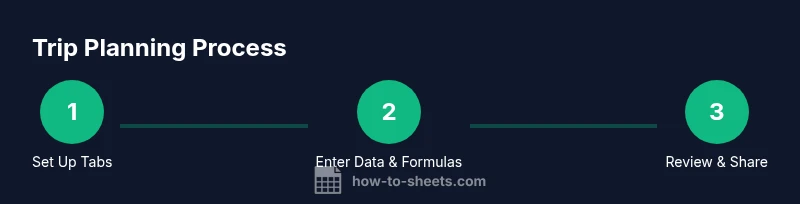
Trip Planning Template for Google Sheets
Learn how to build a complete trip planning template in Google Sheets, covering itinerary, budget, packing lists, and logistics with practical step-by-step guidance.


You will create a ready-to-use trip planning template in Google Sheets that tracks budgets, days, locations, accommodations, and packing lists. Key requirements include a multi-tab workbook, consistent date formats, and drop-down menus for categories. This quick-start helps students, professionals, and small businesses plan trips more efficiently using a repeatable, shareable sheet.
Why use a trip planning template in Google Sheets
A well-organized trip planning template in Google Sheets helps travelers keep all moving parts in one place: itinerary, budgets, packing lists, reservations, and day-by-day activities. Instead of juggling notes in scattered documents, you gain a single source of truth that travels with you across devices. According to How To Sheets, templates that unify data entry, automatic calculations, and shareable access save time and reduce miscommunication for students, professionals, and small business owners planning trips. A Google Sheets-based plan scales from a weekend city break to a month-long expedition, while remaining flexible enough to adapt to changing plans. This approach supports collaborative planning, where teammates can comment, assign tasks, and track progress in real time. In the sections that follow, you’ll learn how to design a practical, reusable template from scratch, with clearly defined tabs, consistent formatting, and practical examples you can copy into your own sheets. The goal is to provide a repeatable framework that you can customize for future trips, business trips, or family vacations.
Core components of a trip planning template
A robust template organizes data into focused sections that align with how most trips unfold. Key components include:
- Itinerary: day-by-day plan with dates, times, activities, and locations.
- Budget: estimated and actual costs by category (flights, lodging, meals, activities).
- Packing List: what to bring, quantities, and packing status.
- Reservations: booking references, contact details, and timelines.
- Contacts & Vitals: emergency contacts, visas, passport information, and trip notes.
- Day-by-Day Schedule: a compact view for at-a-glance decisions.
- Risk & Health: travel alerts, insurance numbers, and health requirements.
- Dashboards: a summary page showing totals, variances, and upcoming milestones.
Each component should be placed in its own tab with a consistent header format, so you can filter, sort, and summarize data across trips. You’ll also want easy navigation between tabs using a fixed menu row, color-coded tabs, and data validation to prevent entry errors. The aim is to keep planning efficient, shareable, and scalable for both personal trips and small-group itineraries. How you structure these components ultimately determines how quickly you can adapt the plan when plans change.
Setting up your multi-tab workbook in Google Sheets
Start by creating a new Google Sheet and naming it with the trip destination and dates for easy identification. Create separate tabs: Itinerary, Budget, Packing List, Reservations, Contacts, and Dashboard. Use a consistent color palette and a left-hand navigation for quick access. Establish a simple data model: each tab should have a header row with clear field names, followed by sample rows. Turn on gridlines for readability and enable version history so you can revert changes. Add data validation (drop-down lists) for fields like Category, Status, and City to minimize mistakes. For dates, enforce ISO-like formatting (YYYY-MM-DD) or your preferred local date format. Consider setting up named ranges for key data (e.g., budgetCategories) to simplify formulas. Finally, enable sharing with collaborators and set appropriate permissions. A well-structured workbook reduces duplication and makes it easy to update everything as plans evolve.
Sample tab layouts and column examples
Itinerary tab:
- Day, Date, City, Activity, Location, Time, Status
- Example row: 1, 2026-06-10, Paris, Louvre visit, Louvre Museum, 09:00, Planned
Budget tab:
- Category, Estimated, Actual, Paid, Balance, Notes
- Example row: Flights, 520, 512, Yes, 8, Confirmed with airline
Packing List tab:
- Item, Category, Quantity, Packed, Notes
- Example row: Passport, Essentials, 1, No, Renew if expired
Reservations tab:
- Type, Reference, Service, Provider, Contact, DateNeeded, Confirmation
- Example row: Flight, AA123, Airline, American, 1-800-123-4567, 2026-06-01, Confirmed
Dashboard tab (summary):
- Totals by category, days left, upcoming bookings, budget variance. Use simple charts to visualize progress.
Formulas and automation to keep data in sync
The real power of a trip planner comes from formulas that automatically summarize data and flag issues. Examples:
- Budget totals: =SUM(Budget!C:C) for estimated total and =SUMIF(Budget!F:F,"Yes",Budget!C:C) for paid amount.
- Variance: =Budget!C2 - Budget!D2 shows a budget delta.
- Itinerary date checks: =IF(Itinerary!B2-TODAY()>0,"Upcoming","Past") highlights upcoming days.
- Status filters: use FILTER to display only Planned or Confirmed activities on the Dashboard.
- Data validation throughout ensures consistent categories (e.g., Flight, Hotel, Activity) and prevents invalid entries.
- Conditional formatting highlights overspending (red when Actual exceeds Estimated by more than 20%).
Automation ideas:
- Sync a shared calendar via a simple import script or a Google Apps Script trigger.
- Create a packing reminder by counting un-packed items and sending a notification note.
Tip: Start simple and gradually layer on formulas as your needs grow. How To Sheets analyses show templates scale nicely with your team.
Customization and branding
Make your template your own while keeping it functional. Use a clean, readable font and a color palette that matches your brand or trip theme. Add your logo to the Dashboard header for quick recognition. Use conditional formatting to draw attention to critical fields (e.g., budget overruns, missing dates). Create a color-coded status system (Planned, Confirmed, Canceled). Ensure the template is shareable by using the “Share” button and granting edit or view permissions as appropriate. Consider creating a separate copy for each trip so you maintain a single source of truth and minimize accidental edits to the original template. Finally, add a short help section with notes about conventions, so new collaborators can get up to speed quickly.
Using the template on mobile and offline
Google Sheets on mobile makes it possible to review and adjust plans while traveling. Turn on offline access so you can view and edit key tabs without internet, then let Sheets sync when you reconnect. Keep critical numbers on the Dashboard tab so you can check budgets and days remaining at a glance. For packing lists, offline edits are essential if connectivity is spotty. While some advanced features (like live data validations or scripts) may be limited offline, most core planning tasks remain accessible. When you rely on mobile, make sure data validation rules are simple and that navigation is easy with compact column layouts.
Sharing and collaboration
A trip-planning template shines when it’s collaborative. Share the sheet with travel companions, assistants, or colleagues who can contribute. Use commenting to resolve questions, assign tasks, and track decisions. For team trips, assign a “planner” role and designate who can edit the Dashboard. Track changes through Version History so that everyone can see edits over time. If you use Google Drive folders, keep a dedicated folder for all trip-related documents and link to reservations, itineraries, and receipts in the sheet. Finally, export a copy as CSV or PDF for offline archiving or for partners who don’t use Google Sheets.
Quick-start scenario and getting this live
To get started quickly, copy the template into your Drive, rename it for your trip, and begin by filling the Itinerary and Budget tabs for your first day. Then add packing items and entry clean-up rules. With a few adjustments, you’ll have a reliable, reusable template ready for future trips. As you test, refine data validation lists, adjust the Dashboard for your priorities, and share with your team for feedback. By the end, you’ll have a robust, scalable toolkit that keeps every moving piece aligned from planning through departure. How To Sheets recommends testing with a mock trip before real travel to catch edge cases.
Tools & Materials
- Google account(Needed to access Google Sheets and Drive)
- Google Sheets access (web or mobile)(Ensure you have the latest features enabled via your browser or app)
- Template starter file or blank sheet(Create or duplicate a starter template to save time)
- Sample trip data or prompts(Helps you populate fields quickly for testing)
- Offline/print-ready copy (optional)(Printer-ready or PDF export for offline records)
Steps
Estimated time: Total: 2-4 hours
- 1
Create a new workbook and name it
Open Google Sheets, create a blank workbook, and give it a descriptive name that includes the destination and dates for easy identification.
Tip: Use a consistent naming convention across all trips (e.g., Destination_Dates). - 2
Create core tabs
Add Itinerary, Budget, Packing List, Reservations, Contacts, and Dashboard as separate tabs to keep data organized.
Tip: Use consistent header styles across tabs for easy formula references. - 3
Set up header rows
Define clear field names for each tab (e.g., Day, Date, Activity on Itinerary), and include a Status or Category column where needed.
Tip: Reserve a dedicated Row 1 for headers and freeze it for easy scrolling. - 4
Configure data validation
Add drop-down lists for fields like Category (Flight, Hotel, Activity) and Status (Planned, Confirmed, Canceled).
Tip: Limit options to reduce data entry errors and improve filtering. - 5
Enter a starter dataset
Populate a few rows in Itinerary and Budget to test formulas and dashboard visuals.
Tip: Use a small mock trip to validate flows before real data. - 6
Link core formulas
Add basic totals for Budget, a variance calculation, and a simple dashboard summary that references other tabs.
Tip: Start with simple sums and grow complexity as needed. - 7
Create a Dashboard view
Build a concise summary page showing totals, upcoming dates, and overspend alerts.
Tip: Keep visuals minimal and focused for quick decisions. - 8
Test, share, and iterate
Review the sheet with a collaborator, fix issues, and adjust validation and layouts based on feedback.
Tip: Use Version History to track changes and revert if needed.
FAQ
What is a trip planning template in Google Sheets?
It is a structured, multi-tab spreadsheet designed to organize itinerary, budgets, packing lists, and reservations for a trip. It keeps information centralized and easy to update.
It's a multi-tab spreadsheet that keeps all trip details organized in one place.
How do I customize the template for a specific trip?
Duplicate the template, rename tabs for the new trip, adjust dates and categories, and replace sample data with your own. This preserves a reusable structure while tailoring content.
Duplicate the template and tailor it to your trip.
Can I use the template offline?
Google Sheets supports offline editing via the mobile app or browser settings. Edits sync automatically once you reconnect to the internet.
Yes, you can work offline and sync later.
Which formulas are essential for budgeting?
Core formulas include SUM for totals, SUMIF for category-based totals, and simple subtraction for variances. You can expand to more complex analytics as needed.
Use SUM and SUMIF to track totals and variances.
How do I share the template with teammates?
Use the Share button to grant view or edit permissions. Encourage comments for decisions and track changes via Version History.
Share with your team and use comments for decisions.
Is there a mobile version of this template?
Yes, Google Sheets has a mobile app that supports most features needed for trip planning, including editing and viewing shared sheets.
Yes, you can use it on mobile.
Watch Video
The Essentials
- Set up a single source of truth with clearly named tabs
- Use data validation to minimize data-entry errors
- Link budget and itinerary through essential formulas
- Share and collaborate in real time for faster planning